If an Elementor Taxonomy Filter appears on an archive template but does nothing, shows the wrong posts, or seems disconnected from the Loop Grid, check the grid’s query source before changing CSS or JavaScript. Elementor’s current documentation states that the Taxonomy Filter does not support Current Query. That is the common reason an otherwise normal filter fails on a dynamic archive.
The repair is architectural: give the Loop Grid an explicit query and connect the Taxonomy Filter to that exact grid. This guide shows how to make that change safely, explains the tradeoff with automatic archive context, and covers the second group of failures caused by an incorrect grid selection, taxonomy mismatch, empty terms, multiple-selection logic, pagination, or stale frontend assets.
Quick answer: Back up the site and reproduce the problem on staging. Edit the archive template, select the affected Loop Grid, and inspect Content → Query → Source. If it is Current Query, choose an explicit source such as Posts or Products and reproduce the intended include, exclude, ordering, and date rules inside the widget. Then select the Taxonomy Filter and choose that exact grid under Selected Loop Grid. Select the taxonomy that actually belongs to the grid’s content type, update the template, clear only the relevant caches, and test several terms while logged out. This makes filtering possible, but the grid will no longer inherit a different archive query automatically on every category or tag URL.
Identify the filter failure before rebuilding the loop
| What you find | What it means | Smallest useful fix |
|---|---|---|
| Loop Grid source is Current Query | Documented Taxonomy Filter limitation | Use an explicit query or keep the unfiltered dynamic archive |
| Source is explicit, but Selected Loop Grid points elsewhere | The filter controls the wrong grid or none | Select the intended Loop Grid in the filter |
| Filter taxonomy does not match the displayed content | The terms cannot narrow those records correctly | Choose the registered category, tag, or product taxonomy |
| Some terms are absent | Empty Items, child terms, or the item limit may hide them | Review the filter’s displayed-element settings |
| Filtering works until pagination or another grid changes | Loop state or page-level interaction issue | Test pagination mode, AJAX, and each grid independently |
| Editor works but logged-out page is stale | Cached markup or assets, not the query limitation | Purge the affected template and page after saving |
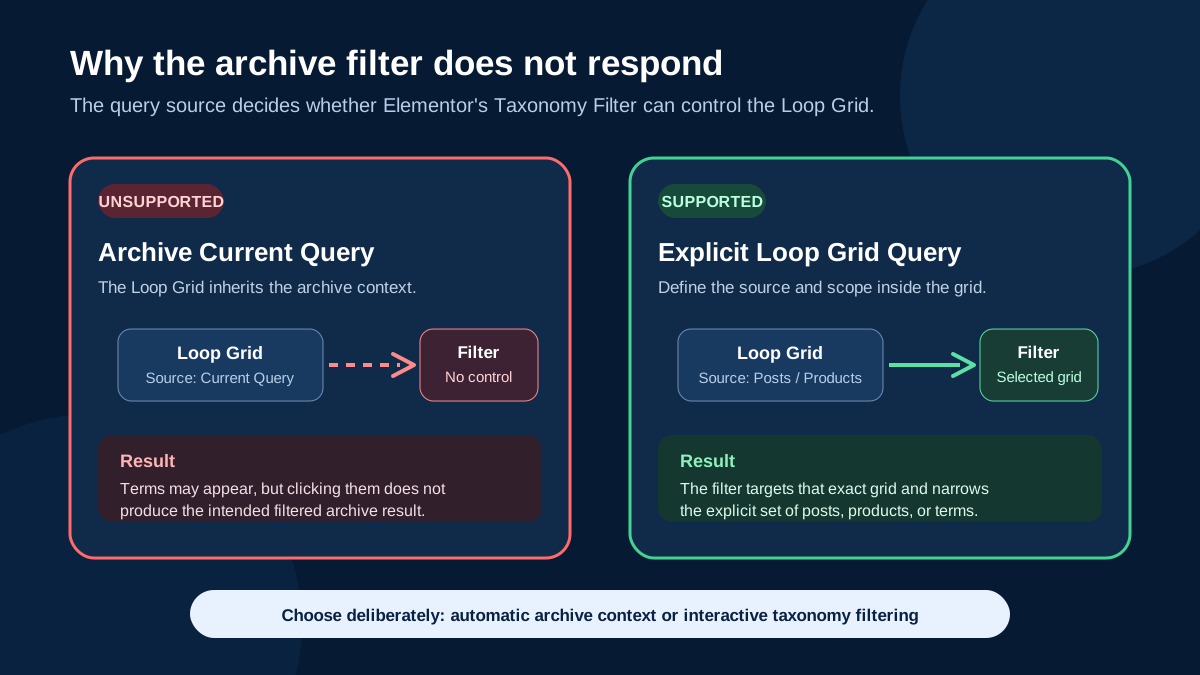
Know the tradeoff: Current Query is useful because one Theme Builder template can inherit the active category, tag, author, date, search, or other archive context. Replacing it with an explicit query makes the Taxonomy Filter work, but that grid stops changing automatically for each archive URL. Decide whether this page needs automatic archive inheritance or an interactive filter. Do not promise both through this unsupported combination.
Why Current Query and the Taxonomy Filter conflict
In a Theme Builder archive template, WordPress supplies the current request: for example, “all posts in News” or “all products in Shoes.” Elementor’s Loop Grid can use Current Query to inherit that request. This lets one template serve many archive URLs without manually defining a query for each term.
The Taxonomy Filter is a separate control that narrows a selected Loop Grid by category or tag. Elementor’s Taxonomy Filter guide, updated June 4, 2026, explicitly says it does not currently support Current Query. If an archive Loop Grid inherits its query from the template’s display conditions, Elementor instructs users to define the query directly inside the Loop Grid instead.
Do not confuse two taxonomy loop patterns
A Loop Grid can display posts or products, and it can also display taxonomy records such as category cards. Elementor calls the latter a Post Taxonomy or Product Taxonomy template type. A Taxonomy Filter, by contrast, is a control attached to a Loop Grid so visitors can narrow the displayed items. Before diagnosing the filter, record whether the grid displays content records or taxonomy records and choose a template and query that match. Elementor warns that a template of the wrong type will not display the intended records.
1. Back up the template and record the current behavior
Create a restorable files-and-database backup and make the change on staging. Export or duplicate the archive template and its Loop Item. Record the template’s display conditions, preview archive, Loop Grid template, source, include and exclude rules, order, items per page, pagination mode, query ID, and filter settings. If this follows an Elementor update, use the Elementor update checklist to capture versions and a rollback point before changing the shared template.
- Open a real archive URL in a private browser and capture the initial items and visible terms.
- Click at least two terms and note whether the URL, active state, item count, or grid markup changes.
- Repeat on desktop and mobile widths.
- Open the template in Elementor and choose the same archive under Preview Settings.
- Confirm which Loop Grid and Taxonomy Filter reproduce the failure on staging.
If staging behaves differently, compare Elementor and Elementor Pro versions, enabled features, active template revisions, optimization settings, page cache, CDN cache, and the selected Loop Grid. Do not edit production until the difference is understood.
2. Confirm whether the Loop Grid uses Current Query
Use Elementor’s Structure window to select the grid rather than clicking an item inside its Loop Item. Open the grid’s Query section and read the Source value. Elementor documents Current Query as the option for a reusable template applied across categories or tags. That convenience is exactly what the Taxonomy Filter cannot currently control.
- Current Query: this guide’s documented limitation applies. Continue to the architecture decision.
- Posts, Products, Pages, Landing Pages, Manual Selection, or Related: the query is already explicit. Skip to the Selected Loop Grid and taxonomy checks.
- Archive Posts widget or third-party filter: this is not the same Elementor Loop Grid and Taxonomy Filter pairing. Diagnose that widget or plugin separately.
- Atomic Loop: confirm the filter’s current compatibility in Elementor’s documentation; do not assume legacy Loop Grid instructions map to a different loop architecture.
3. Choose which behavior the page actually needs
There is no honest setting change that preserves Current Query and also makes the unsupported Taxonomy Filter relationship work. Choose one of these designs before proceeding.
| Business requirement | Recommended architecture | Consequence |
|---|---|---|
| One template must automatically match every category, tag, or product archive | Keep Current Query and remove the Taxonomy Filter from that grid | Visitors browse the active archive but cannot use this filter on it |
| One landing page needs interactive category or tag filtering | Use an explicit Loop Grid query and connect the filter | The initial result set is defined inside that grid |
| Several sections need different filtered catalogs | Create deliberate grids with explicit scopes and bind each filter | More setup, but each relationship is testable |
| Every archive needs its own filtered subset | Create dedicated templates or landing pages where the explicit scope is known | More templates to maintain; avoid pretending one inherited query is supported |
Use the smallest proof: duplicate the page or template, change only one grid from Current Query to an explicit Posts query, bind one filter to it, and use two well-populated terms. If that proof works while the original does not, you have isolated the query-source limitation without rebuilding the Loop Item or adding code.
4. Define the intended query inside the Loop Grid
On the staging copy, select an explicit source that matches the records the grid should display. Recreate only the constraints the page truly needs: post type, included or excluded terms, authors, manual selections, date window, order, offset, and sticky-post behavior where available. Keep a screenshot of the original settings so unrelated layout choices do not change.
- Select the Loop Grid in Structure.
- Open Content → Query and change Source from Current Query to the correct explicit content source.
- Configure Include and Exclude rules so the unfiltered “All” state contains the intended universe of records.
- Preserve the existing order, items per page, Loop Item template, columns, and layout.
- Update the template and verify the unfiltered grid before reconnecting the filter.
Do not hide a wrong query by excluding terms in the filter. The grid query defines which records are eligible; the filter narrows that set. If “All” is already wrong, repair the grid first.
5. Connect the Taxonomy Filter to the exact Loop Grid
Select the Taxonomy Filter widget and open its Layout section. Elementor provides a Selected Loop Grid dropdown specifically because a page may contain more than one grid. Choose the grid you just configured, then choose the taxonomy used to filter it.
- A post grid normally uses post categories or tags.
- A product grid must use a taxonomy registered for products, such as product categories or product tags.
- A custom post type needs a taxonomy that is registered to that post type and assigned to its records.
- If two grids have similar names, temporarily rename them in Structure so the relationship is unambiguous.
- If the intended grid is absent from the dropdown, confirm it is a supported Loop Grid on the same page or template.
When multiple grids or custom AJAX behavior are involved, make one relationship work first. The existing Elementor AJAX loop update guide covers a custom update pattern, but custom code should not be the first response to a documented Current Query limitation or a misbound native filter.
6. Check term visibility and multiple-selection logic
A working connection can still look incomplete because the filter decides which terms to expose. Elementor lets you show or hide empty items and taxonomy children, rename or hide the first “All” item, limit the number of taxonomy choices, and choose wrapping or horizontal scrolling when many terms exist.
Understand AND versus OR
With Multiple Selection enabled, AND requires a record to have every selected term, while OR accepts a record that has at least one selected term. A zero-result grid can therefore be correct behavior rather than a broken filter. Add a clear Nothing Found message and test combinations using records whose term assignments you have verified in WordPress.
If terms are missing from the menu
- Open the relevant post, product, or custom record in WordPress and confirm the term is assigned.
- Confirm the term belongs to the taxonomy selected in the filter.
- Temporarily show Empty Items and Taxonomy Children.
- Remove or raise the Number of Taxonomies limit.
- Check horizontal scrolling on mobile so off-screen terms are not mistaken for missing terms.
7. Test pagination, AJAX, and pages with multiple grids
Elementor’s Loop Grid supports numbered pagination, previous and next controls, load on click, and infinite scroll. It can load a new page through a full page reload or AJAX. Test the filter with the site’s actual mode because the initial click is only one state.
- Select a term, move to the next result page, then return to All.
- Test a term with more results than one page and a term with no results.
- For Load on Click or Infinite Scroll, load additional items and verify every added card still matches the active term.
- If two Loop Grids share a page, test each filter and each paginator without touching the other grid.
- Review Elementor’s Individual Pagination setting consistently across every Loop Grid on the page.
If the grid becomes wider than the viewport or filter labels overlap on phones, fix that as a separate responsive issue with the Elementor mobile layout troubleshooting guide. Do not change query logic to compensate for a layout defect.
8. Clear relevant caches and run a visitor acceptance test
Save the Loop Grid and archive template first. Then clear Elementor’s relevant generated files or data and purge the affected URL through the site’s page cache, host cache, and CDN. Test in a private window while logged out. If the editor contains the new relationship but the frontend serves older markup, repeated query edits will only make the diagnosis harder. If generated stylesheets fail, use the focused Elementor CSS 404 guide.
- Open the canonical archive or landing-page URL logged out.
- Confirm the initial “All” state contains the explicitly intended set.
- Click every visible term and compare the records with their WordPress assignments.
- Test AND or OR combinations if multiple selection is enabled.
- Exercise pagination, Load More, or Infinite Scroll.
- Repeat at desktop, tablet, and mobile widths with keyboard as well as pointer input.
- Open at least one card, product, or primary call to action and complete the important business path.
- Check the browser console and failed network requests for new frontend errors.
Success criteria: the grid uses an explicit, documented query; the Taxonomy Filter is bound to that exact grid and a compatible taxonomy; All, individual terms, AND or OR combinations, empty states, pagination, and AJAX loading return correct records; the interaction works logged out and on mobile; and the page’s primary link, product, or conversion flow still works.
Rollback and prevent the problem from returning
If the explicit query removes required archive context, restore the duplicated or exported template and keep Current Query without the Taxonomy Filter. That is a valid design choice. If a live change is wrong, reassign the known-good template revision, purge only the affected caches, and confirm the original archive URLs and business flow. Use the full backup only if template recovery cannot restore the known-good state.
Add the grid source, Selected Loop Grid, taxonomy, display conditions, and acceptance URLs to the site’s maintenance notes. After Elementor or Elementor Pro updates, recheck the current Taxonomy Filter documentation because the support boundary may change. Include at least one filtered archive, a zero-result combination, a later pagination page, and logged-out mobile in the regression set. For keyboard focus, active-state contrast, and clear controls, use the Elementor accessibility checklist.
Frequently asked questions
Can Elementor’s Taxonomy Filter work with Current Query?
Not according to Elementor’s current Taxonomy Filter documentation as checked on July 24, 2026. On an archive page, define the query directly inside the Loop Grid to use the native filter. Recheck the official guide before future changes because this is version-sensitive.
How can I keep one template dynamic for every category?
Keep Current Query and let the archive URL or template display condition supply the context, but remove the unsupported Taxonomy Filter from that grid. If interactive filtering is essential, use a dedicated landing page or a set of explicit-query templates whose scope can be defined and tested.
Why do filter terms appear even though the grid does not change?
The widget can render its term menu while the target relationship is unsupported or incorrect. Check the grid’s source first, then the filter’s Selected Loop Grid and taxonomy. Do not treat visible buttons as proof that the filter controls the intended query.
Can the Taxonomy Filter filter WooCommerce products?
Yes, when the Loop Grid and template type display products and the filter uses a taxonomy registered for products. Confirm the products actually have those terms and test variable, sale, out-of-stock, and paginated results. A post category is not automatically a product category.
Should I add custom JavaScript when the filter does nothing?
Not first. Prove the query source, grid selection, and taxonomy with a minimal native setup. Custom code cannot turn a documented unsupported relationship into a supported one and may create new failures during AJAX pagination or future updates.
Need help fixing a filtered archive without breaking its query?
If one Theme Builder template serves important blog, directory, portfolio, or shop archives, AbdullahWP can map the current query and display conditions, build an explicit filtered version on staging, test terms and pagination, and prepare a reversible deployment. See WordPress and Elementor services.





