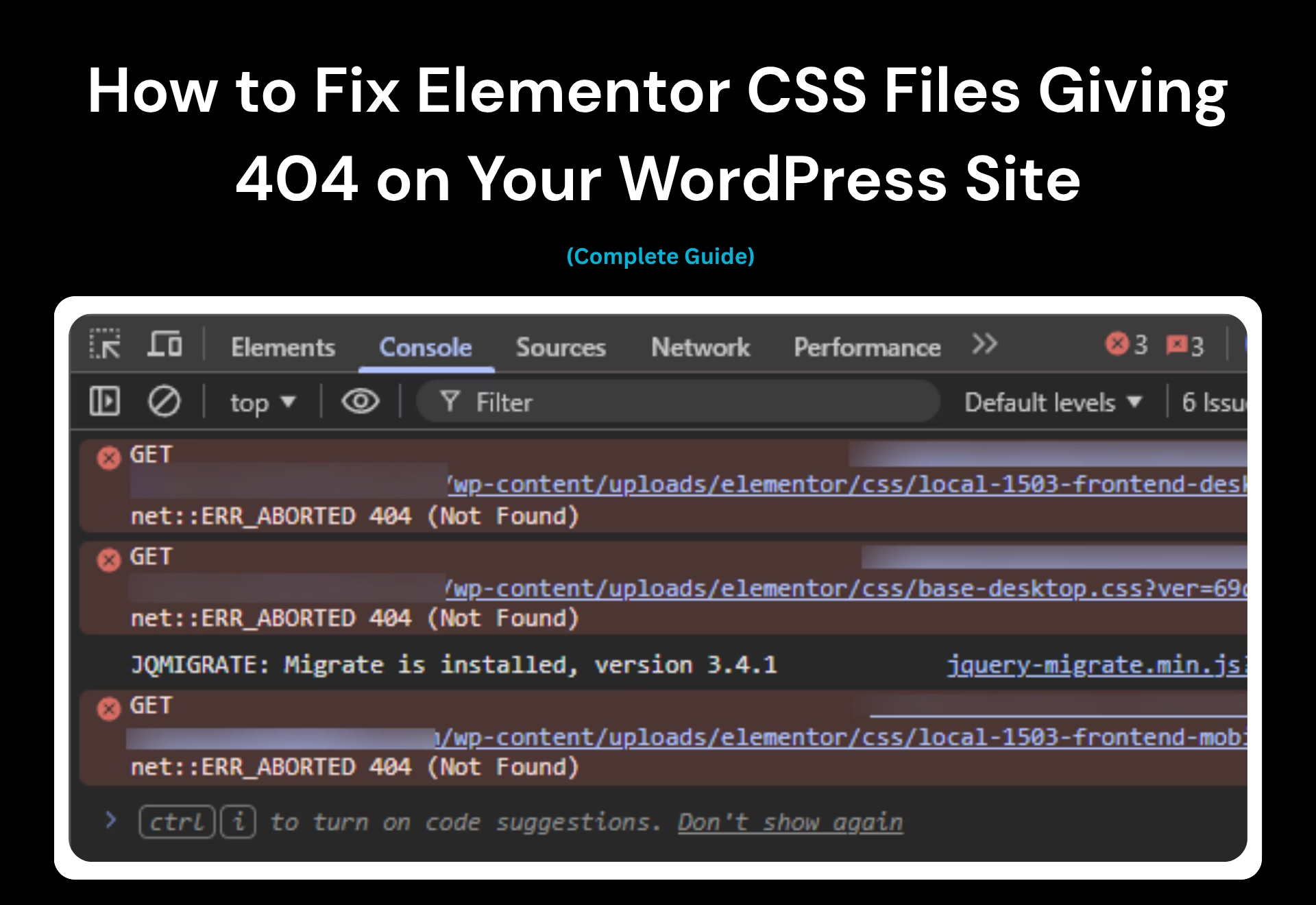
If you manage a WordPress site using a Content Delivery Network (CDN) or aggressive server caching, you have likely encountered a scenario where updating a page strips away all styling. You check the browser console and see your elementor css files giving 404. Yet, when you hard refresh the page, the layout magically fixes itself.
While many users search for a magic bullet, fixing this requires system-level thinking. This guide outlines a robust, production-safe fix to eliminate the caching race condition in most setups, moving beyond temporary workarounds to engineering-grade solutions.
Not All Elementor CSS 404 Errors Are the Same
Before writing code or changing server configurations, you must correctly diagnose the issue. Isolating the problem prevents you from applying a fix that won’t work for your specific environment. There are three distinct variations of this error:
- 1. Transient 404 (The Race Condition): The layout is broken on the first load because the server returns 404 for the stylesheet. A hard refresh fixes it. (This guide solves this exact scenario).
- 2. Persistent 404: The css file never loads, no matter how many times you refresh. This indicates a file permissions issue, a full disk, or a server configuration error. If you are experiencing this, you might also see related backend crashes. See our guide on resolving the Elementor 500 error when saving.
- 3. Stale HTML Reference: Your CDN or caching mechanism is serving a cached, outdated HTML document that points to an older CSS file that Elementor has already deleted.
Why Elementor Works This Way
To understand the fix, you need to understand the architecture. Elementor utilizes on-demand CSS generation. Rather than loading a massive global stylesheet, it compiles a unique, minified CSS file for every specific page or post. This is a highly effective performance optimization that reduces payload size and disk usage.
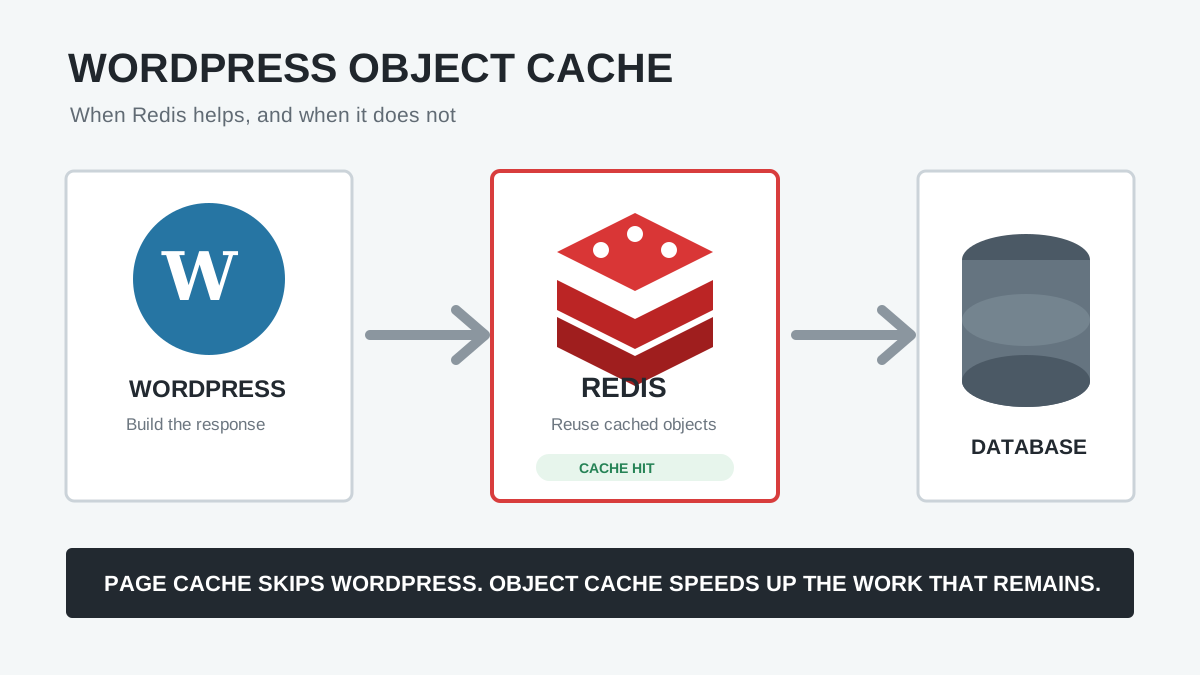
However, this optimization breaks under aggressive caching layers like Varnish, Redis, or Cloudflare. Here is the architecture flow that causes the Transient 404:
To fix this, we need to intervene intelligently. Here are 6 methods ranging from CDN-level rules to advanced PHP scripts.
Method 1: Fix It Without Code (Recommended First)
The cleanest way to fix a CDN conflict is at the CDN level. If you are using Cloudflare, preventing the edge servers from caching the failure is often enough.
Option A: Bypass Cache for Elementor CSS
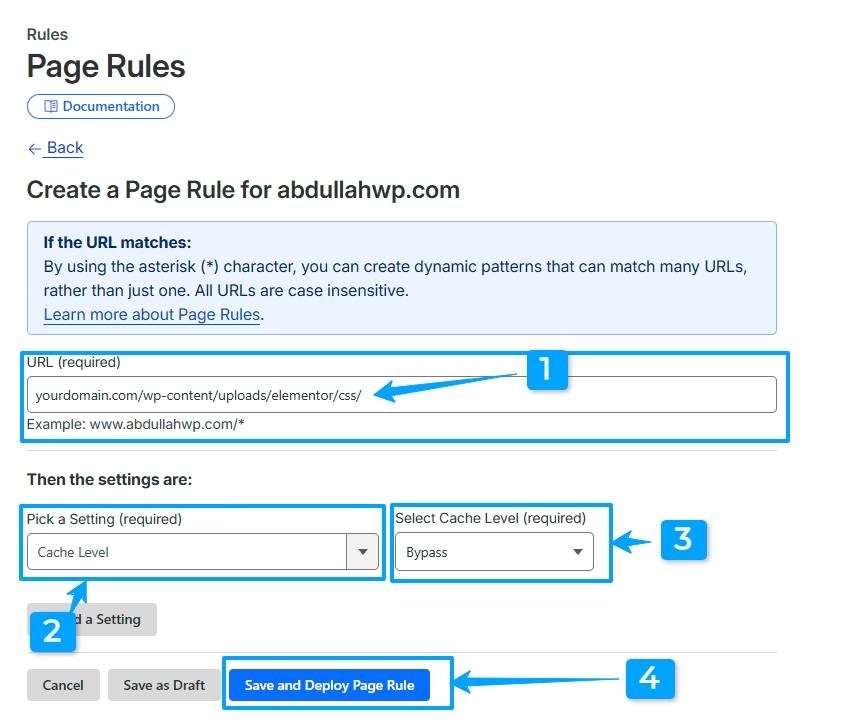
Create a Page Rule in Cloudflare:
URL Match: yourdomain.com/wp-content/uploads/elementor/css/
Setting: Cache Level → Bypass.
Option B: Disable 404 Caching
Lower your Edge Cache TTL for 4xx status codes so Cloudflare immediately forgets the 404 and asks your server again on the next request.
Method 2: Quick Fix (Trade Performance for Stability)
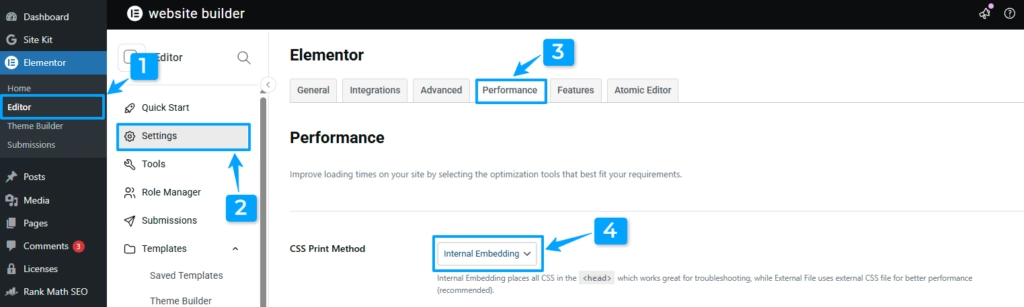
If you cannot adjust CDN rules, you can change how Elementor outputs code. Go to Elementor > Settings > Performance and change the CSS Print Method to Internal Embedding.
- Pros: Completely eliminates the race condition. 404 errors are impossible because the elementor css is injected directly into the HTML
<head>. - Cons: Increases your HTML document size and prevents the browser from caching the CSS file independently. Use this as a conscious tradeoff.
Method 3: PHP Pre-generation on Publish (The Code Fix)
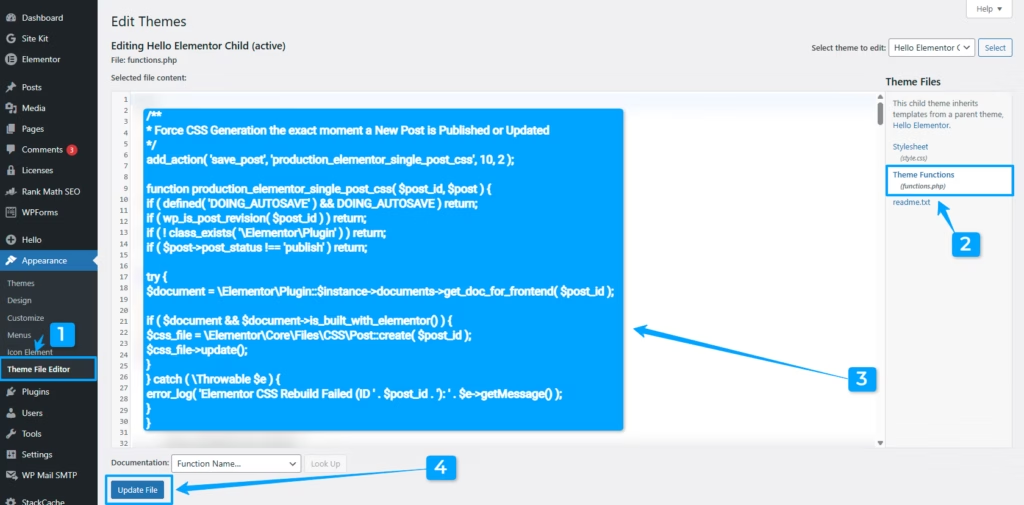
To maintain external CSS files without 404s, we must force WordPress to physically write the CSS to the disk before the post is accessible. This is highly effective when you duplicate a page or publish a new post.
Add this to your child theme’s functions.php:
<?php
/**
* Force CSS Generation the exact moment a New Post is Published or Updated
*/
add_action( 'save_post', 'production_elementor_single_post_css', 10, 2 );

function production_elementor_single_post_css( $post_id, $post ) {
if ( defined( 'DOING_AUTOSAVE' ) && DOING_AUTOSAVE ) return;
if ( wp_is_post_revision( $post_id ) ) return;
if ( ! class_exists( '\Elementor\Plugin' ) ) return;
if ( $post->post_status !== 'publish' ) return;

try {
$document = \Elementor\Plugin::$instance->documents->get_doc_for_frontend( $post_id );

if ( $document && $document->is_built_with_elementor() ) {
$css_file = \Elementor\Core\Files\CSS\Post::create( $post_id );
$css_file->update();
}
} catch ( \Throwable $e ) {
error_log( 'Elementor CSS Rebuild Failed (ID ' . $post_id . '): ' . $e->getMessage() );
}
}
Method 4: Intercepting the 404 Response (The Robert Went Approach)
As discussed by developer Robert Went on robertwent.com, another brilliant approach is to intercept the 404 error *before* it actually throws a failed response. By hooking into the `template_redirect` action, you can check if the requested path contains `/elementor/css/`.
If the missing CSS file triggers a request, the code extracts the post ID, regenerates the CSS file on the fly, and serves it back to the browser with a 200 OK status instead of a 404. This means your caching plugin won’t cache a broken page, keeping your site fast and completely avoiding broken styling.
Method 5: Optimized PHP Full-Site Regeneration
Clicking “Clear Files & Data” in Elementor Tools deletes files but doesn’t immediately rebuild them. This script hijacks that action to instantly rebuild all css files, including your Elementor Active Kit global settings.
Requirement: Before running full-site scripts, always verify your data safety. Read: Does a standard WordPress backup save Elementor global settings?
<?php
add_action( 'elementor/core/files/clear_cache', 'production_elementor_mass_css_regen' );

function production_elementor_mass_css_regen() {
if ( ! class_exists( '\Elementor\Plugin' ) ) return;
remove_action( 'elementor/core/files/clear_cache', 'production_elementor_mass_css_regen' );

try {
// Regenerate Global Settings
$kit_id = \Elementor\Plugin::$instance->kits_manager->get_active_id();
if ( $kit_id ) {
$kit_css = \Elementor\Core\Files\CSS\Post::create( $kit_id );
$kit_css->update();
}

// Target specific IDs only to save memory
$supported_post_types = get_option( 'elementor_cpt_support',[ 'page', 'post' ] );
$supported_post_types[] = 'elementor_kit';

$post_ids = get_posts([
'post_type' => $supported_post_types,
'post_status' => 'publish',
'posts_per_page' => 200, // Limit chunk size
'fields' => 'ids',
'no_found_rows' => true,
] );

foreach ( $post_ids as $post_id ) {
try {
$doc = \Elementor\Plugin::$instance->documents->get_doc_for_frontend( $post_id );
if ( $doc && $doc->is_built_with_elementor() ) {
$css = \Elementor\Core\Files\CSS\Post::create( $post_id );
$css->update();
}
} catch ( \Throwable $e ) {
error_log( "Post $post_id CSS Error: " . $e->getMessage() );
}
}
} catch ( \Throwable $e ) {
error_log( 'Mass Rebuild Failed: ' . $e->getMessage() );
}
}
Method 6: For Large Sites: Use WP-CLI Instead
If you have thousands of products or posts (e.g., heavily modified architectures where you convert Elementor sections to containers in bulk), HTTP PHP scripts will timeout. Advanced system administrators should use WP-CLI. It runs outside the request lifecycle with no timeouts.
Run this via SSH:
wp eval '
if ( class_exists( "\Elementor\Plugin" ) ) {
$ids = get_posts(["post_type" => "any", "posts_per_page" => -1, "fields" => "ids"]);
foreach($ids as $id) {
$doc = \Elementor\Plugin::$instance->documents->get_doc_for_frontend($id);
if ($doc && $doc->is_built_with_elementor()) {
\Elementor\Core\Files\CSS\Post::create($id)->update();
echo "Regenerated CSS for ID: $id\n";
}
}
}'
Debugging Failed CSS Generation
If your styling still isn’t generating, you need to monitor the server logs. In your wp-config.php file, enable WordPress debugging:
define( 'WP_DEBUG', true );
define( 'WP_DEBUG_LOG', true );
define( 'WP_DEBUG_DISPLAY', false );
If the PHP scripts hit an error, they will silently write the output to /wp-content/debug.log via the error_log() function, allowing you to identify corrupted post IDs.
How to Confirm the Fix Works
Turn guesswork into a checklist. After applying a fix:
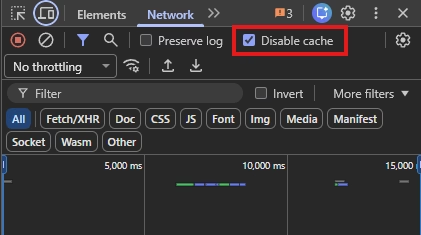
- Open Chrome DevTools (F12) and go to the Network tab.
- Check the “Disable cache” box.
- Update a page in the WordPress editor.
- Open the live page in a new incognito window.
- Filter by “CSS” in the Network tab. Ensure the
post-*.cssfile loads with a 200 OK status on the very first request without requiring a retry.
Important Compatibility Notes
The PHP methods provided above rely on internal Elementor core classes. While this is currently a stable approach, internal APIs may change during major version updates. Always test this code on a staging environment after updating to ensure it doesn’t trigger fatal errors.
Frequently Asked Questions (FAQs)
Why are my elementor css files giving 404 errors after publishing?
This is caused by a caching race condition. When you publish a post, Elementor prepares to build a new CSS file. However, your CDN serves the HTML to the browser instantly. The browser requests the CSS file before your server finishes creating it, resulting in a 404 “Not Found” error that the CDN temporarily caches.
Does the Elementor Tools “Regenerate CSS” button fix this?
No, clicking “Regenerate CSS & Data” in the Elementor Tools menu actually triggers the issue if you use a CDN. The button purges all existing CSS files but waits for the next visitor to rebuild them, which leads to temporary site-wide 404 errors.
Can I fix this by changing the CSS Print Method to Internal Embedding?
Yes. By changing the CSS Print Method to “Internal Embedding,” Elementor prints the CSS directly into the HTML document. This completely bypasses file generation, eliminating the race condition. However, it results in a larger initial HTML payload.
Is the PHP snippet safe for large websites?
The single-post publish snippet (Method 3) is safe for any site size. However, the mass regeneration snippet (Method 5) should be avoided on massive enterprise sites (e.g., 2,000+ posts) as it risks memory exhaustion. For large sites, utilize the WP-CLI command (Method 6) instead.