Documentation
WP Zoho Connector for Elementor
This is the documentation for the WP Zoho Connector for Elementor, a high-performance, professional-grade bridge between Elementor Pro Forms and Zoho CRM.
Table of Contents

Introduction to Your Zoho CRM Elementor Integration
The Zoho CRM Elementor integration has never been easier or more reliable. The WP Zoho Connector for Elementor provides a high-performance, professional-grade bridge between your Elementor Pro Forms and Zoho CRM. Unlike third-party automation tools (like Zapier or Make), this plugin connects directly to the Zoho API using secure OAuth 2.0. This direct Elementor Zoho API integration provides lower latency, better security, and eliminates monthly per-lead costs, making it the smartest choice for your business. For a seamless way to connect Elementor to Zoho CRM, this plugin is your ultimate solution.
Core Features
-
Direct API Integration: Uses Zoho CRM API v2 for the most reliable data transfer.
-
OAuth 2.0 Security: Industry-standard authentication with encrypted token storage ensures your data is always safe.
-
Manual Field Mapping: Gain full control over which Elementor fields are sent to specific Zoho Lead fields.
-
Duplicate Handling (Upsert): Choose to update existing leads based on their email address instead of creating duplicates, keeping your CRM data clean.
-
File Upload Support: Automatically sends files uploaded via Zoho CRM Elementor forms as attachments to the Zoho Lead record.
-
Static Tagging: Apply specific tags to every lead coming from a particular form for better segmentation.
-
Trigger Workflows: Option to trigger Zoho CRM workflows, blueprints, and approval processes upon lead creation.
-
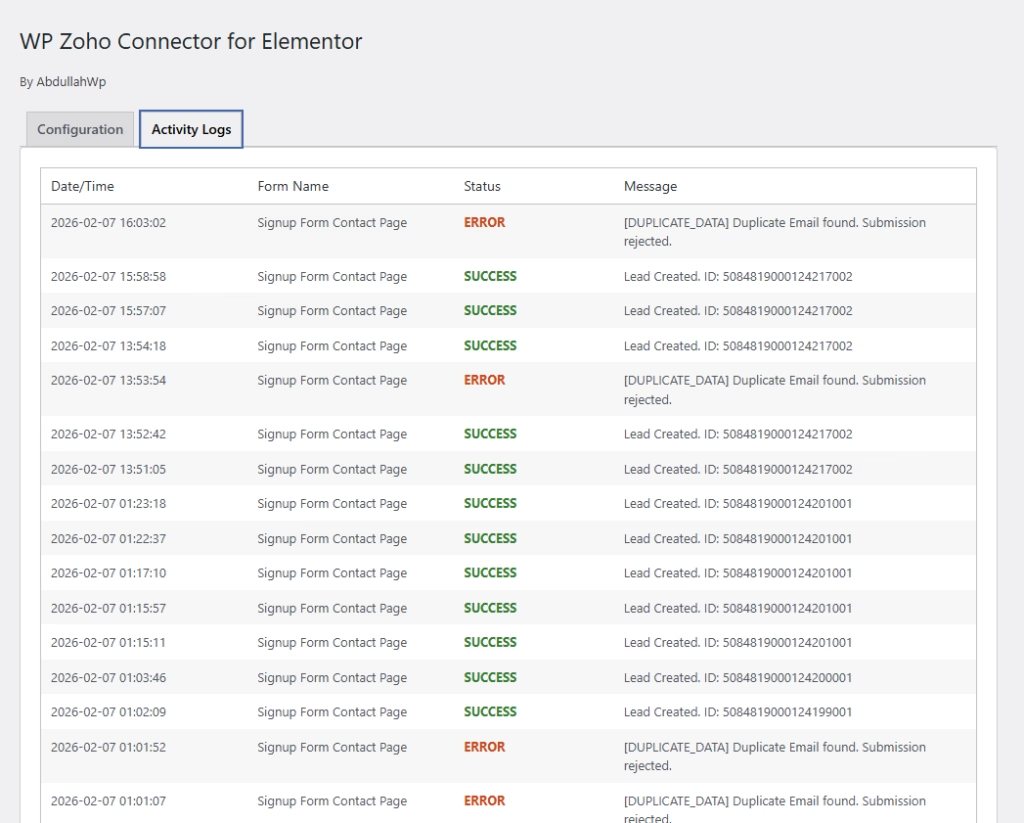
Activity Logs: A built-in logging system to monitor every submission and troubleshoot API errors instantly.
The Best Zoho CRM Elementor Integration
Installation
-
Upload the wp-zoho-connector folder to your /wp-content/plugins/ directory.
-
Activate the plugin through the ‘Plugins’ menu in WordPress.
-
Upon activation, the plugin will automatically create a custom database table ({wp_prefix}zoho_connector_logs) for activity tracking.
Initial Configuration (Zoho API Setup)
Before you can use the plugin, you must link it to your Zoho CRM account.
Step 1: Create Zoho API Credentials
-
Go to the Zoho API Console.
-
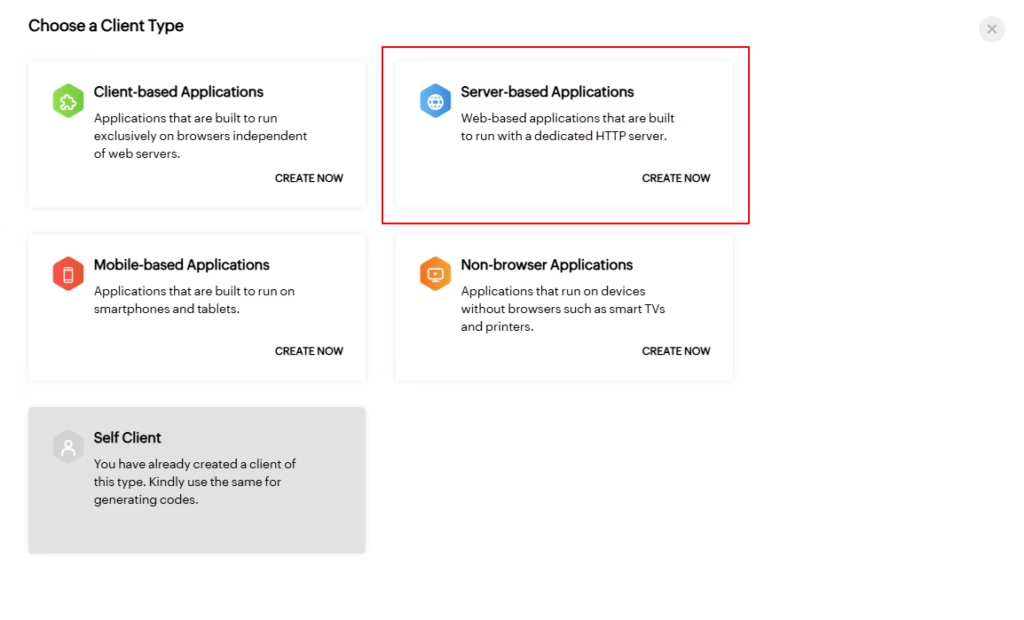
Click Add Client and select Server-based Applications.
-
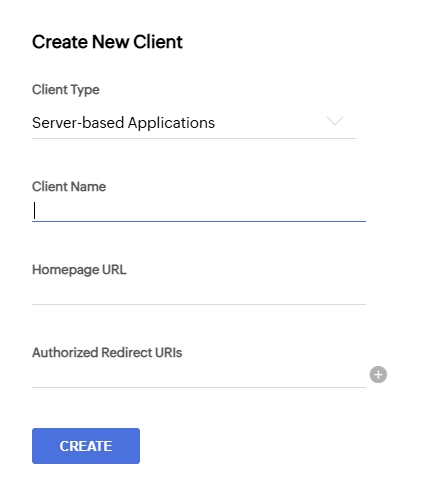
Enter a Client Name (e.g., “My Website”).
-
Copy the Authorized Redirect URI from the plugin settings page in your WordPress dashboard (usually https://yourdomain.com/wp-admin/admin.php?page=wzc-settings).
-
Click Create to receive your Client ID and Client Secret.
Step 2: Plugin Authorization
-
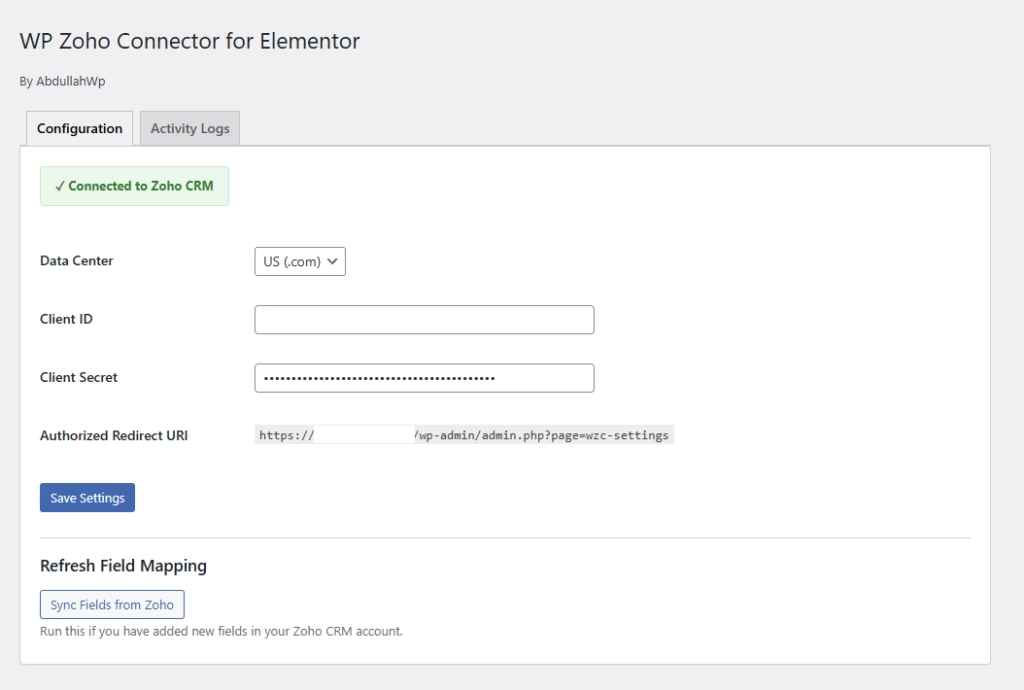
Navigate to Elementor > Zoho Integration in your WordPress sidebar.
-
Select your Data Center (US, EU, AU, or IN).
-
Enter your Client ID and Client Secret.
-
Click Save Settings.
-
Click the Connect with Zoho CRM button. You will be redirected to Zoho to authorize the connection.
-
Once connected, click Sync Fields from Zoho to download your CRM field labels for the mapping interface.
Using the Zoho Connector in Elementor Forms
Once authorized, you can add this powerful Zoho CRM form integration WordPress solution to any Elementor Pro Form.
Step 1: Enable the Action
-
Edit your page with Elementor.
-
Select your Form Widget.
-
Under the Content tab, go to Actions After Submit.
-
Add Zoho Connector to the list.
Step 2: Map Your Fields
-
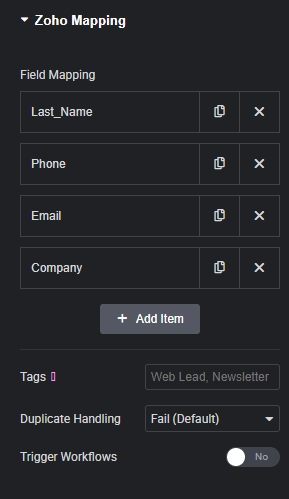
A new section titled Zoho Mapping will appear in the form settings.
-
Click Add Item to start mapping.
-
Zoho Field: Select the CRM field (e.g., Last Name, Email, Phone).
-
Elementor Field ID: Enter the ID of the corresponding form field.
-
Note: You find the ID under Form Fields > [Your Field] > Advanced > ID.
-
Step 3: Configure Advanced Submission Settings
-
Tags: Enter comma-separated tags (e.g., Web Lead, Summer_Sale) to be added to the lead.
-
Duplicate Handling:
-
Fail: Rejects the submission if the email already exists in Zoho.
-
Update Existing: Finds the lead by email and updates their info with the new submission data.
-
-
Trigger Workflows: If set to Yes, Zoho will run your automated workflows (email alerts, tasks, etc.) when the form is submitted.

Activity Monitoring & Troubleshooting
The plugin includes a dedicated logging system to ensure no lead is lost. For more tips, check out our blog post on lead management.
Accessing Logs
Navigate to Elementor > Zoho Integration and click the Activity Logs tab.
Understanding Log Statuses
-
SUCCESS: The lead was successfully created or updated in Zoho CRM.
-
ERROR: Submission failed. The “Message” column will provide the exact error from Zoho’s API (e.g., MANDATORY_NOT_FOUND if a required field like “Last Name” was not mapped).
-
WARNING: The lead was created, but a secondary action (like a file upload or tagging) failed.
Security & Performance
-
Encryption: The plugin uses wp_salt() to encrypt your Zoho Refresh Tokens before saving them to the database.
-
Token Caching: Access tokens are cached using WordPress Transients for 55 minutes to reduce unnecessary API calls and improve form submission speed.
-
Clean Uninstall: If the plugin is deleted, it removes all settings, transients, and the custom log table to keep your database clean.
Technical Specifications
This Zoho CRM Elementor integration is built for modern WordPress environments. If you have any questions, feel free to contact our support team.
-
PHP Version: 7.4 or higher recommended.
-
WordPress Version: 5.8 or higher.
-
Elementor Pro: Required for “Actions After Submit” functionality.
-
API Limits: Adheres to Zoho CRM API v2 concurrency limits.