When a WooCommerce product widget is visible in Elementor but its preview is blank, the widget is usually waiting for product data. A Single Product template is a reusable layout: Product Images, Product Price, Product Content, Product Rating, and similar widgets read fields from whichever product Elementor is previewing. An empty or unsuitable preview product can therefore make a valid template look broken.
This guide fixes widgets that are present but empty, gray, or incomplete. If the widget does not appear in the panel at all, use the missing Elementor WooCommerce widgets workflow. If a rendered checkout field cannot be clicked or typed into, use the checkout interaction workflow. Neither problem is solved by adding sample product content.
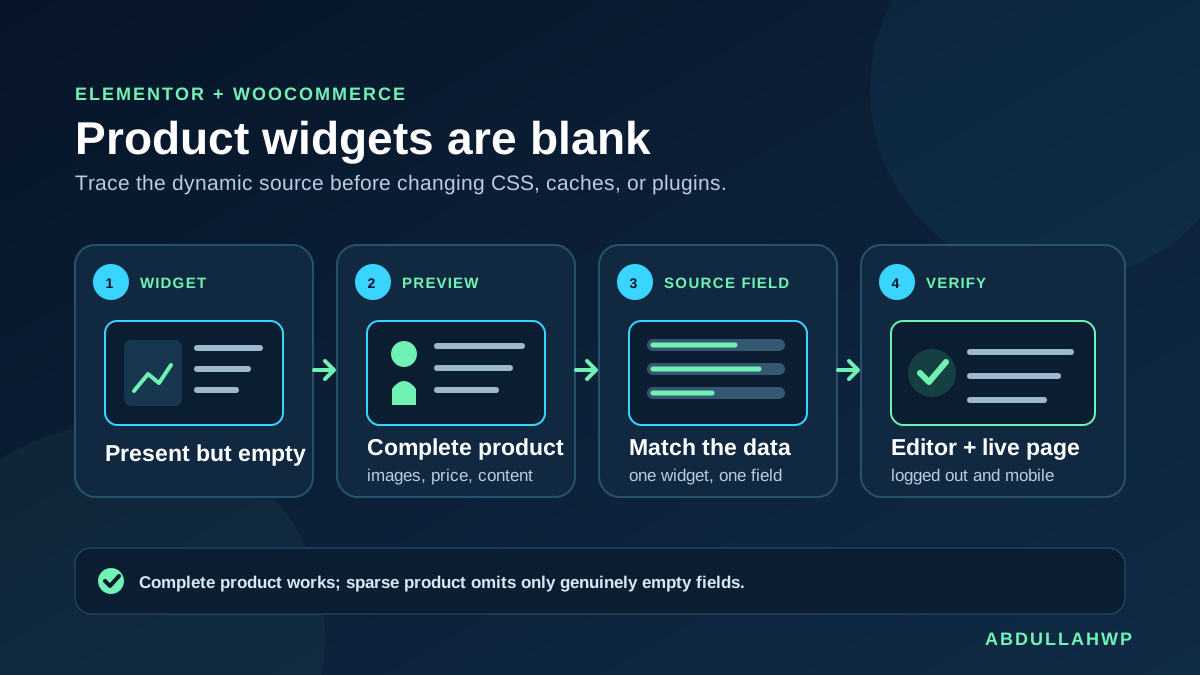
Quick answer: On staging, create or choose a published product that has a main image and gallery, regular price, SKU, stock, short and long descriptions, visible attributes, weight or dimensions, categories, tags, a rating, and any required upsells. Open the Single Product template, set that product as the template’s preview item, and use Elementor’s product-specific widget for each field. If the complete product works, the template is healthy; products missing a source field should legitimately omit that widget.
Diagnose the blank widget before changing the template
| What you see | Most useful first check | Likely meaning |
|---|---|---|
| Blank only inside the editor | Set a complete preview product | Editor has no useful dynamic context |
| Blank on only some live products | Compare the corresponding WooCommerce fields | Those products genuinely lack the data |
| Product Content is blank everywhere | Confirm the long description and find duplicate Product Content widgets | Empty field or unsupported duplicate instance |
| Rating, tabs, or related products are absent | Check reviews, attributes, categories, tags, and linked data | Conditional WooCommerce output has nothing to show |
| Content exists in the page source but is invisible | Inspect computed styles and responsive settings | CSS or visibility problem, not missing data |
| A complete product is blank in editor and live view | Test the template on staging with conflicts isolated | Template, hook, plugin, theme, or code conflict |
| The widget is absent from the panel | Check Pro access, Element Manager, and document type | Separate missing-widget problem |
| Checkout controls show but reject input | Inspect overlays, scripts, and payment integration | Separate checkout interaction problem |
Protect product and order data before troubleshooting
- Take a current files-and-database backup and confirm the restore method.
- Use staging for test products, plugin isolation, theme changes, conditions, and cache experiments.
- Export or duplicate the affected Single Product template.
- Record component versions, affected URLs, preview selection, widget settings, and product fields.
- Never overwrite newer orders, customers, stock, refunds, or subscriptions with an old staging database.
Do not fill real catalog products with fake values just to make the editor look complete. Use a staging-only diagnostic product; never publish fabricated prices, stock, ratings, or availability. Record the original state before clearing caches or disabling plugins. A blank optional widget can be correct output.
1. Build one complete diagnostic product
Start with a controlled product instead of guessing across a mixed catalog. WooCommerce separates the long and short descriptions, product data, reviews, images, and taxonomy. A published product may still leave those fields empty, so publication status alone is not a useful preview test.
- Create a staging-only simple product with a unique name.
- Add price, SKU, stock, weight, and dimensions.
- Add distinct short and long descriptions.
- Assign a main image and at least two gallery images.
- Add a category, tag, and one attribute marked visible on the product page.
- Enable reviews and add a legitimate staging test rating.
- Link an upsell and add another product sharing a category or tag.
- Publish the test product and open its frontend URL once.
Also prepare a variable product with price, stock, relevant images, and selectable attributes for every variation. Incomplete variations may leave price or Add To Cart unfinished until a valid choice is selected.
2. Set the complete product as Elementor’s preview item
Open Templates > Theme Builder > Single Product. In the template or preview settings, preview dynamic content as the complete diagnostic product. Labels and panel locations may change, but the editor must resolve a specific product ID with data.
- Save the template, select the diagnostic product, and apply the preview.
- Reload and confirm Product Title changes to the diagnostic name.
- Check Images, Price, Content, Short Description, Stock, Meta, Data Tabs, Rating, Upsells, and Related Products.
- Save and reopen the template to confirm the selection persists.
The preview selection does not hard-code that product. Live pages should use the product requested in the URL. If every URL shows the test product, inspect the widget’s dynamic source or custom query.
Use two deliberate preview products. Keep one complete product that should populate every supported widget and one sparse product that intentionally lacks optional fields. The pair proves whether a widget is broken or simply honoring empty WooCommerce data, and it makes regressions easier to spot after updates.
3. Map each blank widget to its WooCommerce source field
| Elementor widget | WooCommerce source to complete | Important condition |
|---|---|---|
| Product Images | Main product image and product gallery | Media must load and the product must own the attachment references |
| Product Price | Regular or sale price; prices on variations | A variable product may need a valid variation selection |
| Product Content | Long description in the main editor | Use only one Product Content instance per template |
| Short Description | Product short description | An empty excerpt produces no frontend output |
| Product Stock | Inventory and stock status | Catalog settings and product type affect the message |
| Product Rating | Approved ratings and review settings | No rating means the widget can render nothing |
| Product Data Tabs | Description, visible attributes, weight/dimensions, reviews | Individual tabs appear only when they have eligible content |
| Additional Information | Visible attributes, weight, or dimensions | Attributes must be marked visible on the product page |
| Upsells | Linked products selected as upsells | No assigned upsells means no product cards |
| Related Products | Products with relevant shared categories or tags | WooCommerce chooses the candidates dynamically |
| Add To Cart | Product type, price, stock, and variation data | Purchasability and catalog extensions can suppress it |
| Product Meta | SKU, categories, and tags | The widget may look sparse when those values are absent |
Additional Information depends on attributes, weight, or dimensions, and attributes must be visible on the product page. Reviews and ratings also have store-level settings. Complete the source or accept that an empty tab should be omitted.
4. Use the correct product-specific widget
Single Product widgets understand the current product context. Generic Image and Text Editor widgets do not automatically become the product image or description. Static placeholders can make the preview look repaired while every product shows the same content.
- Use Product Images, not a manually selected Image, for the current product’s main image and gallery.
- Use Product Content for the long description and Short Description for the product excerpt.
- Use Product Price, Product Stock, and Add To Cart so product type and purchasability remain dynamic.
- Use Product Data Tabs when WooCommerce should control Description, Additional Information, and Reviews.
- Use Product Rating only when the catalog actually collects and contains ratings.
Elementor’s current Single Product documentation lists the product-specific widgets available in the template. If those widgets are not available to add, stop here and follow the missing-widget guide; changing preview data cannot register a widget that the panel does not contain.
5. Remove duplicate Product Content instances
Elementor specifically warns that a Single Product template should contain only one Product Content widget. Multiple instances can prevent it from functioning correctly, even when a duplicate is hidden for desktop, tablet, or mobile. Responsive hiding changes visibility; it does not remove the duplicate from the document.
- Open Elementor’s Navigator or structure panel.
- Search every container, nested element, popup, and responsive branch for Product Content.
- Keep one canonical instance and delete the duplicates on staging.
- Style the same instance responsively instead of maintaining device-specific copies.
- Save, reload, and test the long description on the complete and sparse products.
This restriction is specific evidence for Product Content. Do not delete repeated headings, images, or unrelated widgets merely because one product widget is blank.
6. Separate missing data from hidden output
If a complete preview product still looks blank, inspect the rendered page before editing more product fields. In browser developer tools, search the widget container for the diagnostic product’s known text, image URL, price, or SKU. Existing content that has zero height, transparent text, display:none, clipped overflow, or an overlay belongs to the styling layer.
- Check Elementor’s responsive visibility controls on the widget, container, and parent containers.
- Compare desktop, tablet, and mobile breakpoints.
- Temporarily remove only the suspect custom selector in staging.
- Inspect theme and add-on rules that target WooCommerce classes.
- If content returns when a proven rule is removed, repair its selector or scope with the Elementor custom CSS troubleshooting guide.
A muted widget in the editor can also indicate that it is hidden at the active breakpoint. Switch the preview device and inspect responsive controls before concluding that its WooCommerce field is empty.
7. Confirm the template owns the live product context
After the preview works, inspect display conditions. Another template with a more specific condition can make the editor look correct while the live URL loads a different layout. Record conditions and compare frontend template identifiers before changing priority.
- Test one product that should match the condition and one that should not.
- Confirm translated, membership, wholesale, or vendor products are not assigned to a different template.
- Check that custom code has not replaced the main WooCommerce product object.
- Do not add a static product ID to force output unless the design intentionally promotes one fixed product.
If the correct widget never appears in the editor panel, conditions are not the first problem. If the correct template and fields appear but checkout inputs later become unusable, template context is no longer the right diagnostic layer.
8. Refresh generated data only after the source is correct
Caching cannot invent a missing field. First save the product, preview context, and widget. If the editor works but the logged-out page is stale, purge the affected Elementor files/data, page cache, object cache, CDN, and browser cache.
Elementor’s current maintenance tool is documented as Clear Files & Data; its location or label may change. Back up first, run it once, then load the affected URLs in a private session. Avoid repeated global purges during business hours. Use the Elementor update checklist when the issue began after a version change.
9. Isolate a conflict when complete products still fail
Use conflict testing only when the complete product is blank in Elementor and logged-out view. On staging, inspect the first Console, Network, PHP, and WooCommerce log error. Keep WooCommerce, Elementor, and Pro active; disable add-ons, catalog tools, review or variation extensions, optimizers, and snippets in halves until output returns.
Switch briefly to Hello or a default compatible theme on staging if plugin isolation does not identify the cause. Elementor Safe Mode is useful for an editor-only comparison, but Elementor states that it does not affect the frontend, so it cannot prove a live-store repair. Confirm the suspect twice, update or configure that component, then restore every unrelated plugin and security control. The WordPress plugin audit provides a safe dependency inventory for this test.
10. Verify products and the buying flow
- Reopen the template and confirm the complete preview product fills every eligible widget.
- Preview the sparse product and confirm optional widgets disappear without broken spacing or false fallback content.
- Visit matching live product URLs while logged out on desktop and a real mobile device.
- Test a simple product, variable product, out-of-stock product, sale product, and product without reviews.
- Check image gallery controls, price, stock, SKU/meta, tabs, rating, variation selection, quantity, and Add To Cart.
- Add both simple and variable products to the cart and verify notices, totals, stock changes, and the cart handoff.
- Use a gateway sandbox to complete checkout, create an order, receive the expected email, and reach the thank-you page.
- Review Console, failed requests, PHP logs, WooCommerce logs, and cache behavior after the test.
Success: the complete diagnostic product populates the correct widgets in Elementor and on its logged-out live URL; sparse products omit only fields they genuinely lack; simple and variable products work on desktop and mobile; and Add To Cart, cart, and sandbox checkout complete with normal plugins, security, caching, and theme restored.
Roll back safely and prevent blank product widgets
If a change fails, restore the exported template or its previous revision, revert only the edited product fields, and re-enable isolated components in the recorded order. Purge the affected cache once after rollback. Do not restore an old full database over a live store unless the recovery plan explicitly reconciles orders and stock created since the backup.
- Keep complete, sparse, variable, sale, and out-of-stock QA products on staging.
- Document which WooCommerce field feeds every product widget in the approved template.
- Require images, price, short and long descriptions, attributes, and taxonomy in the product publishing checklist where the design depends on them.
- Keep only one Product Content widget in each Single Product template.
- Record template display conditions and review them when adding languages, memberships, vendors, or product types.
- Test editor preview, logged-out desktop, real mobile, Add To Cart, cart, and sandbox checkout after Elementor, WooCommerce, theme, or add-on updates.
- Retain a dated template export and a known-good version set for rollback.
Official sources used for this workflow
- Elementor: build a WooCommerce Single Product template
- Elementor: Single Product site part and dynamic information
- Elementor: select preview content for dynamic templates
- Elementor: gray dynamic widgets, empty source content, and responsive visibility
- Elementor: current WooCommerce widget reference
- Elementor: Product Content widget and one-instance restriction
- Elementor: Product Rating behavior when ratings are absent
- Elementor: Product Images widget
- Elementor: Product Data Tabs widget
- Elementor: clear generated files and data
- Elementor: Safe Mode scope
- WooCommerce: product editor fields and product data
- WooCommerce: product images and galleries
- WooCommerce: Description, Additional Information, and Reviews tabs
- WooCommerce: product review and rating settings
- WooCommerce: variable product prices, stock, images, and attributes
Frequently asked questions
Why is an Elementor WooCommerce widget blank only in the editor?
The template probably lacks a useful preview product or is previewing a product without that field. Select a complete published product in the template’s preview settings, apply the preview, and reload. If the logged-out product page is already correct, do not change its live data just to improve the editor preview.
Why does Product Content stay blank when the description exists?
Confirm the text is in WooCommerce’s long description rather than only the short description. Then search the entire template for duplicate Product Content widgets. Elementor allows one Product Content instance per Single Product template, including across responsive layouts.
Why are Additional Information or Product Data Tabs missing?
Additional Information needs eligible data such as visible attributes, weight, or dimensions. Description needs long-description content, and Reviews depends on review settings and product behavior. Complete the relevant source fields rather than forcing an empty tab to display.
Why is Product Rating blank for a new product?
A new product normally has no rating to display. Confirm reviews and star ratings are enabled where required, then test with a product that has an approved rating. Do not manufacture ratings on a live catalog for design purposes.
Should I regenerate Elementor CSS when product widgets are blank?
Only after the correct product, field, widget, and template context are proven. Clearing generated files can refresh stale frontend output, but it cannot create a missing price, image, description, attribute, or rating. If content exists in the DOM but is invisible, fix the responsible CSS rule.
Make the dynamic source prove the template
A blank product widget is most efficiently solved from data outward: use a complete diagnostic product, set it as the preview item, match each widget to its WooCommerce field, and then test a deliberately sparse product. Move to CSS, caching, conditions, or conflict isolation only when the data and context are already proven.
If several templates, product types, catalog extensions, responsive variants, and custom hooks make the source unclear, review the WordPress and Elementor troubleshooting services. Bring the affected template export, representative product URLs, product-field screenshots, display conditions, System Info, browser errors, logs, and a staging reproduction.





