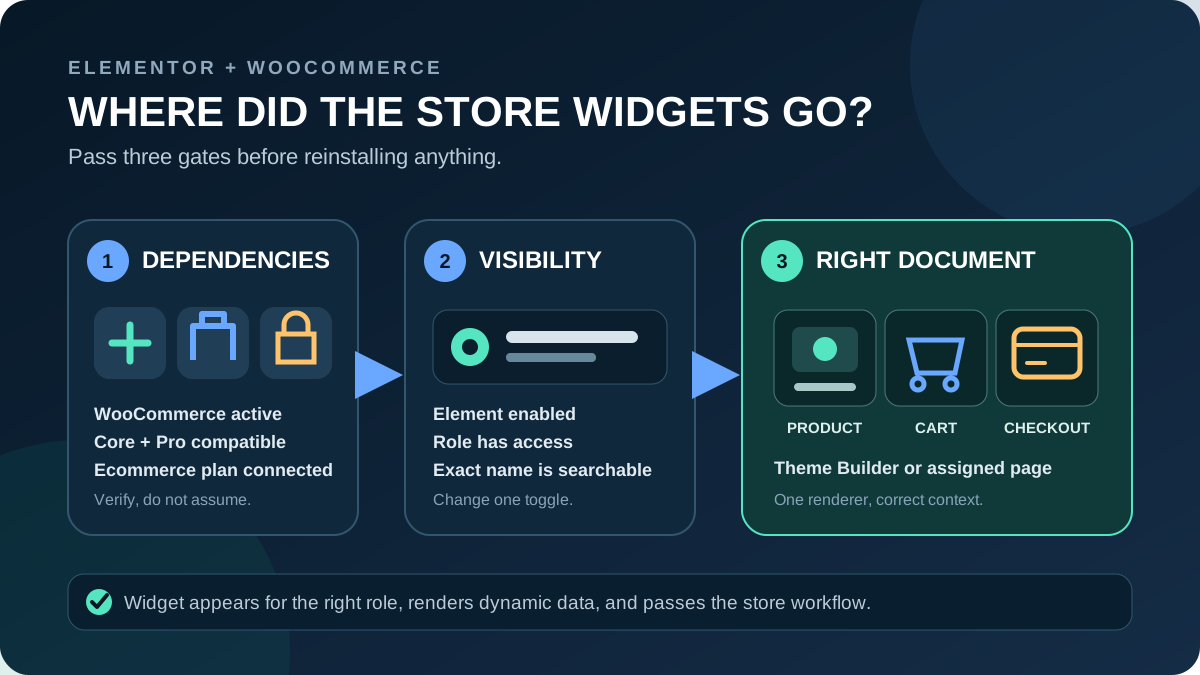
If Elementor’s Cart, Checkout, Product Title, Product Price, Product Images, Add To Cart, or Archive Products widget is missing from the editor, reinstalling WooCommerce is rarely the best first step. A missing widget normally belongs to one of three gates: the required plugin or plan is unavailable, Element Manager or role permissions hide it, or the editor is open in the wrong document context.
This guide restores widgets that do not appear in the Elementor panel. It does not cover a widget that appears but has no product data, or checkout payment fields that render but cannot be clicked or typed into.
Quick answer: Search the exact widget name in a new Elementor Single Product or Product Archive template and in the assigned Cart or Checkout page. Confirm WooCommerce, Elementor Core, and Elementor Pro are installed and active; the connected subscription includes ecommerce features; Core and Pro are compatible; and the widget is enabled for your role in Elementor > Editor > Home > System > Element Manager. Use either the WooCommerce block editor or Elementor’s widget on a transactional page, not both.
Match what is missing before changing the site
| What you see | Most useful first check | Likely gate |
|---|---|---|
| No WooCommerce widgets at all | Plugins, Pro license/plan, and a fresh editor session | WooCommerce or Elementor Pro unavailable |
| Only Cart and Checkout are missing | Search exact names, check plan, Element Manager, and the assigned pages | Entitlement, disabled elements, or wrong editor |
| Product widgets are absent on a normal page | Open a Single Product template in Theme Builder | Wrong document context |
| Archive Products is missing while editing one product | Open a Product Archive template | Wrong template type |
| Administrator sees it, editor role does not | Element Manager permissions for that role | Role restriction |
| Widget search returns a locked/upgrade result | Connected account and current plan feature list | Plan or license recognition |
| Whole widget panel spins or is gray | Test a simple page and inspect Console/Network | Editor loading conflict, not one missing widget |
| Widget exists but its canvas is empty or gray | Set representative preview product data | Blank dynamic widget; separate E86 intent |
Protect the store before changing plugin or widget settings
- Take a current database-and-files backup and record how it will be restored.
- Use staging for plugin activation, updates, theme changes, role changes, or broad Element Manager actions.
- Record Elementor System Info, active plugin versions, subscription/account, the missing widget names, and the current document type.
- Screenshot Element Manager status and role permissions before editing them.
- On a live store, define how rollback preserves orders, users, stock, refunds, and other data created after the backup.
Do not click “Deactivate Unused Elements” as a diagnostic. Elementor states that this action disables every unused element even when the list is filtered, and disabling an element already used on the site can break it. Enable the specific missing widget only. Do not restore an old staging database over a trading store to undo a panel setting.
1. Prove that the widget is missing, not renamed or filtered
Open the Elementor editor, click the plus icon to show elements, clear the current search, and search one exact name at a time. Elementor’s current widget documentation recommends the panel search when a widget is hard to find.
| Goal | Search terms to try | Correct comparison document |
|---|---|---|
| Single product | Product Title, Product Images, Product Price, Add To Cart, Product Meta | Theme Builder > Single Product |
| Product archive/shop | Archive Products, Products, Product Categories, Archive Description | Theme Builder > Product Archive |
| Cart | Cart or WooCommerce Cart | The page assigned as Cart |
| Checkout | Checkout or WooCommerce Checkout | The page assigned as Checkout |
| Header cart | Menu Cart | Header template or page; this is not the Cart page widget |
Test with an administrator in a new simple template as well as the failing document. If every basic Elementor widget is missing or the panel never finishes loading, switch to the Elementor editor loading workflow. A whole-panel failure is not evidence that WooCommerce widgets were removed.
2. Verify WooCommerce and the store objects exist
Elementor repeatedly notes that WooCommerce must be installed for products and WooCommerce widgets. In Plugins > Installed Plugins, confirm WooCommerce is active on the current site or network where appropriate. Then open WooCommerce > Status and confirm the plugin completed its setup without a fatal error or failed database update.
- Open Products and confirm at least one published product exists.
- Open WooCommerce > Settings > Advanced and record the assigned Cart, Checkout, and My Account pages.
- If default pages are genuinely absent, use WooCommerce’s Status > Tools > Create pages function rather than inventing duplicate system pages.
- Keep Cart, Checkout, and My Account assigned to separate pages; WooCommerce warns that combining them breaks redirects and gateways.
- Reload Elementor in a fresh browser tab after WooCommerce is active.
Do not delete products or reset WooCommerce data. The widget registration needs the plugin; representative product data is required later for preview, but an empty catalog is not repaired by reinstalling the database.
3. Confirm Elementor Pro, the ecommerce plan, and license recognition
WooCommerce Builder widgets are not part of free Elementor Core. Elementor’s July 2026 comparison places ecommerce features, including WooCommerce Builder and the dedicated product/transactional widgets, above the Essential tier. Its FAQ names Advanced Solo as a current ecommerce-capable plan. Plan names and bundles can change, so verify the feature list attached to the subscription connected to this site before purchasing or changing anything.
- Confirm both Elementor and Elementor Pro plugins are installed and active.
- Open Elementor > License. If the menu is absent, Elementor says Pro is not active or the user is not an administrator.
- Confirm the site is connected to the account and subscription that owns an ecommerce-capable plan.
- Use Check license status or the documented sync/reconnect action when Pro is active but ecommerce elements remain locked.
- After a domain or HTTPS change, confirm WordPress Address, Site Address, the account’s connected site, and license domain match.
A valid license enables updates and new Pro widgets; an expired or unrecognized subscription can limit access. The Elementor Free versus Pro guide explains the broader feature boundary, but use Elementor’s live account page as the authority for today’s plan.
4. Re-enable the exact widget in Element Manager
Navigate to Elementor > Editor > Home, open System, and select Element Manager. Search the missing element by its exact name. Filter by Elementor Pro if helpful, but remember that filtering the table does not limit the global “Deactivate Unused Elements” action.
- Run Scan Element Usage so you know whether the widget already appears in templates.
- Open the exact Cart, Checkout, Product, or Archive element.
- Toggle that element on and click Save Changes.
- Click Edit for the element and confirm the affected WordPress role is allowed to use it.
- Close all Elementor tabs, start a new editor session as that role, and search again.
If an administrator sees the widget while an editor or shop manager does not, fix the role permission instead of installing another widget pack. Elementor says all roles have element access by default, so a role-specific absence is useful evidence of an intentional or inherited restriction.
Apply the smallest visibility change. Turn on one proven element and one required role, then reload the editor. “Enable All” may be useful as a temporary staging comparison, but it is not the final repair when the site intentionally limits client roles or third-party elements.
5. Open the document type that owns the widget
A normal WordPress page is a weak test for dynamic product widgets. Open Templates > Theme Builder > Single Product for title, images, price, stock, rating, short description, Add To Cart, product meta, data tabs, upsells, and related products. Elementor’s current Single Product documentation lists these widgets and requires WooCommerce.
Open Theme Builder > Product Archive for the shop, product category, product tag, and archive grid. A Product Archive template applies dynamic archive information through display conditions; it is not a static replacement for one product page. Use a representative preview product or archive after the widget appears.
Cart and Checkout are transactional pages rather than Single Product templates. Open the pages assigned under WooCommerce settings, not another page merely titled “Cart” or “Checkout.” Elementor’s Cart and Checkout widgets can prompt you to assign their pages when published, but verify the stored WooCommerce assignment afterward.
Keep similar names separate
- Cart builds the main cart page; Menu Cart is a header/off-canvas cart and has a separate open/update workflow.
- Products is a configurable product listing; Archive Products follows the active archive query.
- Add To Cart in a Single Product template uses the current product; other add-to-cart elements may target a selected product.
- Product Title is not the general Heading or Page Title widget.
- Checkout is not a Stripe/PayPal button widget.
6. Choose WooCommerce blocks or Elementor for Cart and Checkout
New WooCommerce stores normally create Cart and Checkout pages with WooCommerce blocks. Those blocks belong to the WordPress block editor; they are not Elementor widgets. Elementor documents that the WooCommerce Cart block can conflict with editing the page in Elementor and recommends deleting the block before building that page with Elementor’s Cart widget.
- Back up the page and note its WooCommerce assignment.
- Decide which renderer the store will use: the native WooCommerce block or the Elementor Pro widget.
- If retaining the block, edit it in the WordPress block editor and stop searching for it in Elementor.
- For Cart, follow Elementor’s documented removal of the conflicting Cart block before opening the page in Elementor. For a Checkout migration, test the replacement on staging with every gateway and extension before changing the assigned live page.
- After publishing, confirm the page remains assigned in WooCommerce settings.
Do not place both renderers on one page or delete the assigned page without a replacement plan. This article resolves panel availability; it does not claim that changing renderer preserves every payment, extension, checkout-field, or block integration.
7. Align Elementor Core and Pro versions
Elementor Pro extends Core and depends on compatible APIs. Elementor’s current troubleshooting documentation warns that mismatched versions can hide Pro features or break the editor. Record both versions and any compatibility notice in System Info before updating.
- Read the release notes and confirm WordPress, PHP, WooCommerce, theme, and add-on compatibility.
- Take a fresh staging snapshot.
- Follow Elementor’s current error-specific Core/Pro update guidance; do not bulk-update the whole stack at once.
- Allow any database/background tasks to finish, start a new editor session, and search the same widget.
- Run the commerce acceptance test before deploying the proven version pair.
Use the Elementor update checklist for backups, dependency order, workflow tests, and rollback. Reinstalling a plugin package can repair incomplete files, but do not delete Elementor data or downgrade only one half of an incompatible pair.
8. Isolate an editor-panel conflict only after the gates pass
If WooCommerce, Pro entitlement, Element Manager, role access, document context, and versions all pass but the widget remains absent, reproduce on staging with a current browser and no extensions. Check Console and Network for the first failure while the element panel opens.
Keep WooCommerce, Elementor Core, and Pro active. Disable Elementor add-on packs, white-label/role plugins, editor optimizers, custom code, security tools, and other plugins in halves until the widget returns. Switch to Hello on staging if the theme injects editor code. Confirm the suspect twice before assigning ownership. Elementor notes that Safe Mode does not solve every widget-panel problem, so do not treat a Safe Mode result as the only test.
Update or replace the responsible component, or disable only its proven feature. The WordPress plugin audit helps map add-on widgets, role controls, and removal dependencies. Do not leave store security, tax, payment, or fulfilment integrations disabled as a workaround.
9. Verify the widget and the complete store workflow
- Open a new editor session as administrator and the affected client role; confirm the exact widget appears in the intended document.
- Add a fresh instance, save, reload the editor, and confirm its controls remain available.
- Set representative preview data and confirm the editor and logged-out frontend show the expected dynamic product or archive.
- Test desktop, tablet, and a real mobile device.
- For product templates, test simple and variable products, price, stock, gallery, variations, Add To Cart, notices, and display conditions.
- For Cart, test add/remove/update, coupon, shipping, tax, empty cart, and checkout handoff.
- For Checkout, use a gateway sandbox to test address, shipping, payment, order creation, callback, email, and thank-you page.
- Check Console, failed requests, WooCommerce logs, and PHP/server logs.
Appearance in the panel is only the first acceptance result. If the widget appears but displays no product data, move to the blank dynamic-widget workflow rather than changing licenses again. If payment fields render but cannot be used, the fault belongs to the checkout interaction layer, not widget availability.
Success: the correct WooCommerce widget appears for every approved role in the correct Elementor document, survives a save and fresh login, renders the intended dynamic data logged out on desktop and mobile, and the product, cart, or sandbox checkout workflow completes with normal security, cache, and integrations restored.
Roll back tests and prevent widgets disappearing again
- Restore temporary theme, plugin, browser, cache, and security changes that were not part of the fix.
- Keep an export or screenshot of Element Manager status and role permissions.
- Document the subscription/account, connected domain, and who renews Elementor Pro.
- Record the approved Core/Pro/WooCommerce/add-on version set and update it through staging.
- Name the renderer and assigned page for Cart and Checkout; do not mix blocks and Elementor by accident.
- Add Single Product, Product Archive, Cart, and Checkout editor checks to release acceptance.
- Before disabling unused elements, scan usage and obtain approval for templates and roles that depend on them.
Roll back the smallest proven change: a widget toggle, role permission, account connection, plugin feature, or compatible code set. Avoid a full database restore for a panel-setting error on a live store because transactional data may be newer than the backup.
Official sources used for this workflow
- Elementor: widget panel and search
- Elementor: Element Manager enable/disable behavior
- Elementor: role access to elements
- Elementor: connect, activate, and resync Pro
- Elementor: current Pro plan feature comparison
- Elementor: Single Product widgets and requirements
- Elementor: Product Archive template context
- Elementor: WooCommerce Cart widget
- Elementor: WooCommerce Checkout widget
- Elementor: WooCommerce block and Elementor editor conflict
- Elementor: version and widget-panel conflict troubleshooting
- WooCommerce: required pages and assignments
Frequently asked questions
Why are WooCommerce widgets missing in Elementor Free?
The dedicated WooCommerce Builder widgets require Elementor Pro and an ecommerce-capable subscription. WooCommerce itself provides blocks and shortcodes, but installing WooCommerce does not add Elementor Pro widgets to the free editor.
Why can the administrator see a widget but my shop manager cannot?
Element Manager can limit each element by WordPress role. Compare the exact element’s permissions and enable only the approved role. If permissions already match, compare browser profiles and plugin-based role restrictions.
Why is Product Title missing from a normal Elementor page?
Open a Single Product template in Theme Builder and search again. Product Title is a dynamic WooCommerce template widget, not the general Heading or Page Title widget. Build the reusable product layout in its intended document context.
Should I use the WooCommerce Cart block or Elementor Cart widget?
Choose one renderer based on required extensions, design control, and tested compatibility. Edit the Cart block in WordPress or remove it before building the page with Elementor as Elementor documents. Do not stack both on the assigned page.
Why did a WooCommerce widget disappear after an update?
Check Element Manager, role permissions, license recognition, and the Core/Pro version pair before rolling back. If those pass, inspect the panel error and reproduce with add-ons on staging. Roll back only the proven component while preserving compatible dependencies.
Restore the gate that hid the widget
A missing WooCommerce widget is usually deterministic. Prove the exact name, satisfy WooCommerce and Pro entitlement, enable the element for the right role, and open the document that owns its dynamic context. Only then spend time on versions or plugin conflicts.
If several client roles, templates, subscriptions, and checkout integrations make the safe boundary unclear, review the WordPress and Elementor troubleshooting services. Bring Elementor System Info, the connected plan, missing widget names, Element Manager screenshots, document types, assigned WooCommerce pages, and a staging reproduction.





