The Elementor canvas opens, the page preview is visible, and the top bar may respond, but the left widget panel stays gray with a loading circle that never finishes. Users describe it as the sidebar, left rail, elements panel, or widgets area “spinning forever.” That is narrower than the whole Elementor editor failing to load, and the difference determines what to test.
This guide explains how to fix the Elementor widget panel spinning forever by tracing the panel’s scripts and data requests. If the canvas and panel both remain blank or stuck, start with the broader Elementor editor loading guide. If the entire editor still fails after Safe Mode, use the scheduled post-Safe-Mode diagnosis. Here, the editor shell and canvas load; the widget panel alone does not become usable.
Quick answer: Back up the site and reproduce the panel spinner on staging. Open the browser Console and Network panels before reloading, then record the first JavaScript error or failed widget-panel request, its URL, status, response, initiator, and timestamp. Match the file or response to an Elementor add-on, Core/Pro mismatch, browser or optimization rewrite, PHP memory failure, WAF rule, or measured server setting. Change one owner, reload the panel, and keep only the smallest fix that survives normal editor and frontend verification.
| Evidence while the canvas is open | Likely owner | Best next check |
|---|---|---|
| First Console error names an add-on script | Third-party widget pack or custom widget | Test that add-on alone on staging |
Panel script returns 404 or wrong MIME type | Incomplete update, optimization, cache, or bad asset URL | Open the request and identify its path |
Panel/XHR request returns 401, 403, or 429 | Session, nonce, security plugin, WAF, or rate limit | Match timestamp and URL to the security log |
Request returns 500 or PHP stops | Fatal error or exhausted server resource | Read the PHP log at that timestamp |
Response is 200 but contains login HTML, a warning, or truncated data | Redirect, injected output, or malformed response | Inspect Response, not status alone |
| Clean browser works; normal profile fails | Extension, stored browser data, proxy, or local security | Compare profiles one change at a time |
| Every browser fails after one update | Server-side version or add-on compatibility | Compare Core, Pro, add-on, theme, PHP, and change time |
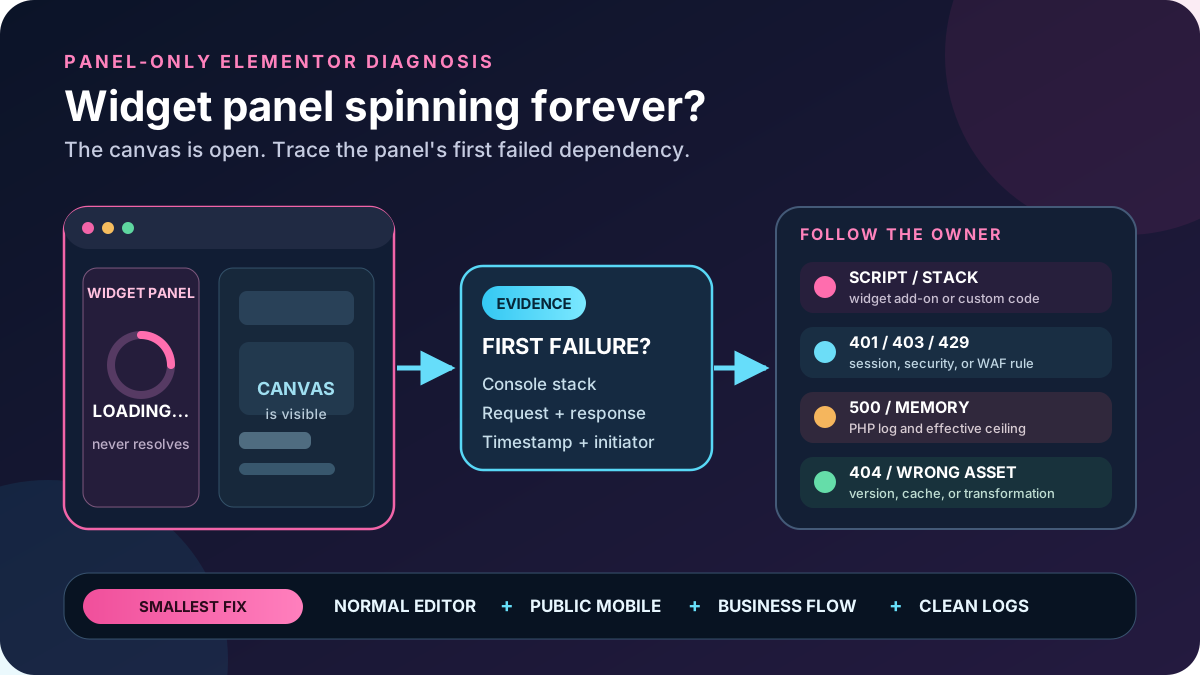
Do not troubleshoot by hiding the loading overlay with CSS or a browser extension. That only removes the symptom and can expose an incomplete panel whose controls or data never initialized. Before deactivating plugins, changing PHP, or rolling back Elementor, take a current database-and-files backup and use staging. Confirm exactly which Elementor data your backup includes.
1. Confirm that only the widget panel is stuck
Elementor describes the editor as a top bar, panel, and canvas. For this incident, the canvas displays the page or an empty layout, while the panel keeps its loading state instead of showing widget cards or the selected element’s Content, Style, and Advanced controls.
- Click an existing element on the canvas. Note whether its outline appears even though its controls never populate.
- Open a new blank Elementor page. Compare it with the affected page and a Theme Builder template.
- Test in a private window with a current supported desktop browser; keep the normal profile open for comparison.
- If permitted, compare a second administrator account. A role-specific panel can differ from an administrator’s panel.
- Record whether the panel is always stuck, intermittent, or fails only after selecting one widget.
If only one document fails while a blank page works, preserve a duplicate and inspect its widget, template, or dynamic data before dismantling the global plugin stack. If no canvas opens anywhere, leave this panel-only workflow.
2. Treat Safe Mode as limited evidence for this symptom
Elementor Safe Mode loads the editor for the logged-in administrator without the active theme and ordinary plugins, and it temporarily disables Elementor experiments. Visitors continue to receive the normal site. That makes Safe Mode useful for many whole-editor conflicts.
However, Elementor explicitly says Safe Mode removes third-party scripts from the editor but does not remove third-party scripts from the widget panel. Its documentation also says Safe Mode does not solve issues that prevent the widget panel from loading. Therefore, a spinner that remains in Safe Mode does not prove that widget add-ons are innocent. Record the result, exit Safe Mode, and investigate the panel’s own scripts and registration path.
Useful interpretation: canvas opens in Safe Mode but panel still spins = inspect panel scripts, widget registration, and add-ons. Whole editor still fails = use the broader Safe Mode failure workflow. Panel works only in a controlled plugin/theme test = identify the exact conflicting owner before restoring production.
3. Capture the first Console error and failed request
Open developer tools before loading Elementor. In Console and Network, enable Preserve log, clear old entries, then reload once. Start with the first uncaught exception, not the hundredth repeated error, and note its source file and stack.
- In Console, copy the first red error, source URL, line, and a short stack. Expand hidden third-party frames when necessary.
- In Network, filter for failed requests, JavaScript, Fetch/XHR, REST, and
admin-ajax.php. - Select the earliest request that failed before the panel initialized.
- Record method, final URL, status, response type, transferred bytes, initiator, timing, and a redacted Response preview.
- Write down the exact time and timezone; ask the host to match it to PHP, web-server, WAF, and resource logs.
A 200 response can still be wrong. JSON parsing fails if the response is login HTML, a firewall challenge, PHP warning, or partial body. blocked_by_client suggests a browser extension or endpoint filter. If no panel request starts, an earlier JavaScript exception likely stopped initialization.
4. Follow the failed request to its owner
| Result | Smallest supported action | Avoid |
|---|---|---|
| Add-on JavaScript exception | Disable or replace that add-on on staging | Blaming every active plugin |
| Core/Pro asset mismatch or missing file | Install a complete compatible pair | Merging plugin folders from two releases |
| Minified, delayed, or combined editor script fails | Exclude authenticated editor/admin paths from that one optimization | Disabling all caching for visitors |
403 with WAF rule match | Request a scoped rule exception for the exact authenticated path | Turning off ModSecurity sitewide |
| PHP memory fatal | Correct the measured effective limit or the consuming component | Setting unlimited memory |
| PHP input-variable truncation warning | Raise the host limit modestly and retest that request | Changing max_input_vars without evidence |
The URL often identifies ownership. A path inside wp-content/plugins/example-addon/ is a strong target. A file under Elementor Core or Pro can indicate a missing package, but the initiator or preceding error may still come from an add-on. Save the working and failing request details; the first file named is a lead, not automatic proof.
5. Record Elementor System Info and the last change
In current Elementor navigation, System Info is under Elementor > Editor > System. Download it privately. It includes both environments, theme, user agent, plugins, compatibility tags, experiments, element usage, and Elementor’s log. Redact private data before sharing excerpts.
- Exact WordPress, PHP, Elementor Core, Elementor Pro, theme, and widget add-on versions.
- PHP Memory Limit, WordPress Memory Limit, PHP Max Input Vars, Zlib availability, and write-permission status.
- Compatibility warnings for Core, Pro, and third-party extensions.
- The time of the last update, deployment, PHP switch, cache setting, security-rule change, or custom-code edit.
- Whether the same versions work on staging, another site, or a new blank document.
Version sequence is often stronger evidence than plugin count. If the panel broke immediately after one add-on update and its script throws the first error, test that release boundary before increasing every PHP value.
6. Isolate an add-on widget or plugin conflict
A widget pack can register panel controls and scripts even when its widget is not placed on the current page. That explains the common report that the canvas loads but the whole left panel stalls until one add-on is disabled. Begin with the plugin named by the Console, request path, compatibility tag, or last change.
- Clone production to staging and confirm the spinner there.
- Deactivate one evidenced add-on while leaving Elementor Core and Pro active.
- Reload a blank page and the original page with DevTools open.
- If the panel loads, verify which widgets from that add-on the site actually uses before replacing, updating, or removing it.
- If nothing changes, reactivate it and test the next evidenced owner. Do not leave unrelated plugins disabled.
When no error names an owner, Elementor’s fallback is to deactivate all plugins except Core and Pro, then restore them individually. Test on staging because forms, checkout, security, SMTP, memberships, caching, and integrations may stop. The WordPress plugin audit maps widget usage and dependencies first.
Element Manager can scan usage, but Elementor warns that disabling an element in use can break it. Use the scan to understand ownership, not as a blind fix. Record and reverse any add-on module toggle that does not change the result.
7. Repair a Core, Pro, theme, or update mismatch
Elementor warns that updating Core without Pro, or Pro without Core, can break the site. On staging, compare installed versions and compatibility notices, read the relevant release notes, and use complete packages from WordPress.org or the authenticated Elementor account. Elementor currently recommends updating Pro before Core because Pro is an add-on.
If the spinner began immediately after an update, a tested rollback can confirm the boundary. Keep Core and Pro as a compatible pair and treat rollback as temporary until a supported fix exists. Do not remain on a vulnerable release. The Elementor update checklist covers the broader release process.
Test the theme only when evidence points there. Switch to Hello or a compatible default theme on staging. If that works, inspect the theme or child theme for editor-only enqueues and Elementor integrations.
8. Compare WordPress memory with the real PHP limit
System Info reports PHP and WordPress memory. WordPress uses WP_MAX_MEMORY_LIMIT for administration contexts and can raise it only when PHP permits. A value in wp-config.php cannot override a lower host ceiling.
Current Elementor requirements state 256 MB for Elementor and Pro alone, recommend 512 MB, and list 768 MB for best performance; additional plugins can need more. Revalidate those figures before publication and size the site from actual use. A matching Allowed memory size exhausted log entry proves this branch. The last allocation line may be where memory ran out, not the component that consumed it.
- Use the host-supported PHP control and existing WordPress constants; do not add duplicates.
- Reload the same request and confirm System Info shows the new effective value.
- Check whether one widget pack, recursive registration, or oversized dataset still drives consumption.
- Keep the increase only if the panel works, logs stay clean, and capacity exists.
9. Test max_input_vars, Zlib, and ModSecurity precisely
max_input_vars
Elementor asks hosts to increase max_input_vars when panel loading persists, but PHP defines it specifically as the number of accepted variables in each GET, POST, and COOKIE input. When exceeded, PHP emits a warning and truncates later variables. Raise it only when the failed panel request contains many inputs or the log reports truncation; it cannot repair a missing JavaScript file.
PHP Zlib
Elementor’s system requirements prefer the PHP Zlib extension. Ask the host to confirm the extension for the web PHP handler actually serving WordPress. Enabling the extension is not the same as stacking PHP output compression with a proxy, CDN, and optimization plugin. If the browser reports a decoding error, compare raw origin and proxy responses before changing compression.
ModSecurity or another WAF
Give the host the exact request URL, method, status, timestamp, timezone, user ID if safe, and any request or rule identifier. Ask for the matching ModSecurity or WAF log entry. If a false positive is proven, request the narrowest exception for that authenticated Elementor action. Do not disable the firewall for the whole domain, and retest unauthorized and logged-out access after the exception.
10. Fix browser or script optimization only when comparison proves it
If a clean browser profile works, disable extensions in the failing profile one at a time, starting with anything named in Console. Clearing all storage first can sign you out and remove evidence without identifying the cause.
If a combined, delayed, deferred, minified, or CDN-rewritten script fails only on authenticated editor URLs, exclude that exact editor/admin context from the responsible optimization and purge its transformed asset. Do not turn off public performance features globally unless the same rewrite is proven there. Reopen DevTools and confirm the original script loads from its expected owner with the correct content type.
11. Verify the panel repair and keep rollback ready
- Exit Safe Mode and open the original page in a fresh normal administrator session.
- Confirm the panel lists Elementor Core, Pro, and required add-on widgets without a spinner.
- Drag a harmless Core widget and one required add-on widget onto a staging page; edit Content, Style, and Advanced controls, update, reopen, and confirm persistence.
- Repeat with a second authorized role if Element Manager or Role Manager limits the panel.
- Open the public page logged out on desktop and real mobile; verify layout, responsive visibility, navigation, and interactive widgets.
- Complete the business workflow affected by the changed component: form and email, popup, search, login, membership, booking, cart, checkout, payment sandbox, order email, or webhook.
- Check Console, Network, PHP, WAF, and server logs at the new timestamp, then purge only caches affected by the final repair.
If the spinner or a frontend regression returns, reverse the smallest change: reactivate the tested plugin, restore the previous module toggle, remove the scoped optimization exclusion, restore the PHP setting, undo the WAF exception, or return to the known-good compatible package pair. Avoid a full database restore unless targeted rollback cannot recover the site; protect newer orders and submissions first.
Success: the widget panel initializes in a normal session, required widgets and controls work, an update survives reload, the first browser/server error is gone, public desktop and mobile output remain correct, and the site’s lead or revenue workflow passes with no unexplained security or PHP regression.
Prevent another widget-panel spinner
- Stage Core, Pro, theme, PHP, and add-on updates as one compatibility set.
- Inventory which add-on supplies each used widget and keep an owner for vendor support.
- Monitor PHP memory failures, WAF blocks, editor request errors, and incomplete asset deployments.
- Exclude authenticated editor/admin traffic from script transformations that are not explicitly compatible.
- Keep Elementor System Info and a known-good version baseline with every release record.
- Maintain tested file-and-database backups and a rollback that protects live transactional data.
Official and primary sources
- Elementor widget panel not loading
- Elementor Safe Mode and its widget-panel limitation
- Elementor system requirements
- Elementor System Info reference
- Update Elementor Core and Pro
- Elementor version rollback
- Elementor Element Manager
- WordPress administration memory behavior
- PHP max_input_vars definition
- PHP Zlib configuration
- Chrome DevTools Network reference
- Chrome DevTools Console reference
Frequently asked questions
Why does the Elementor widget panel still spin in Safe Mode?
Elementor states that Safe Mode does not remove third-party scripts from the widget panel and does not solve panel-loading issues. Use the result as evidence, then inspect the first panel script or request failure and test the named add-on directly.
Will increasing WordPress memory always fix the panel?
No. Increase memory when System Info shows an inadequate effective value or the matching PHP log records exhaustion. More memory cannot fix a JavaScript exception, missing file, WAF block, bad response, or incompatible add-on, and the host’s PHP ceiling may override a WordPress constant.
How do I find which Elementor add-on breaks the panel?
Start with the first Console stack, failed request path, compatibility tag, and last update. Test that add-on alone on staging. If there is no lead, keep Core and Pro active, deactivate other plugins in a controlled test, then restore them individually while checking both the panel and dependent business features.
What should max_input_vars be for Elementor?
There is no universal safe value for every stack. PHP’s default is 1000, and Elementor advises increasing the setting for persistent panel issues. Measure the affected request and look for PHP’s truncation warning, then let the host raise it modestly and verify the effective value and result.
Can I hide the loading overlay to use the panel?
Do not treat that as a repair. The overlay may be covering a panel whose widget registry, controls, or data request failed. Forcing it away can let you make changes through an incomplete editor state. Capture the error and restore normal initialization instead.
Need the panel failure traced to one owner?
AbdullahWP can correlate the Elementor panel’s Console error, failed request, PHP and WAF logs, version set, memory, and widget add-ons; apply the smallest supported repair; and verify the public workflows that matter. Review the WordPress and Elementor troubleshooting services.





