If Elementor still will not load in Safe Mode, the result is useful: a routine theme or plugin conflict is no longer the best first explanation. The next step is to identify whether the editor failed in the browser, during a request, inside the preview frame, on the server, or only while reading one document.
This guide begins where the broader Elementor editor loading checklist ends. It does not repeat a blind deactivate-and-retry loop. Instead, it uses one controlled test and the first reliable error to choose the smallest repair.
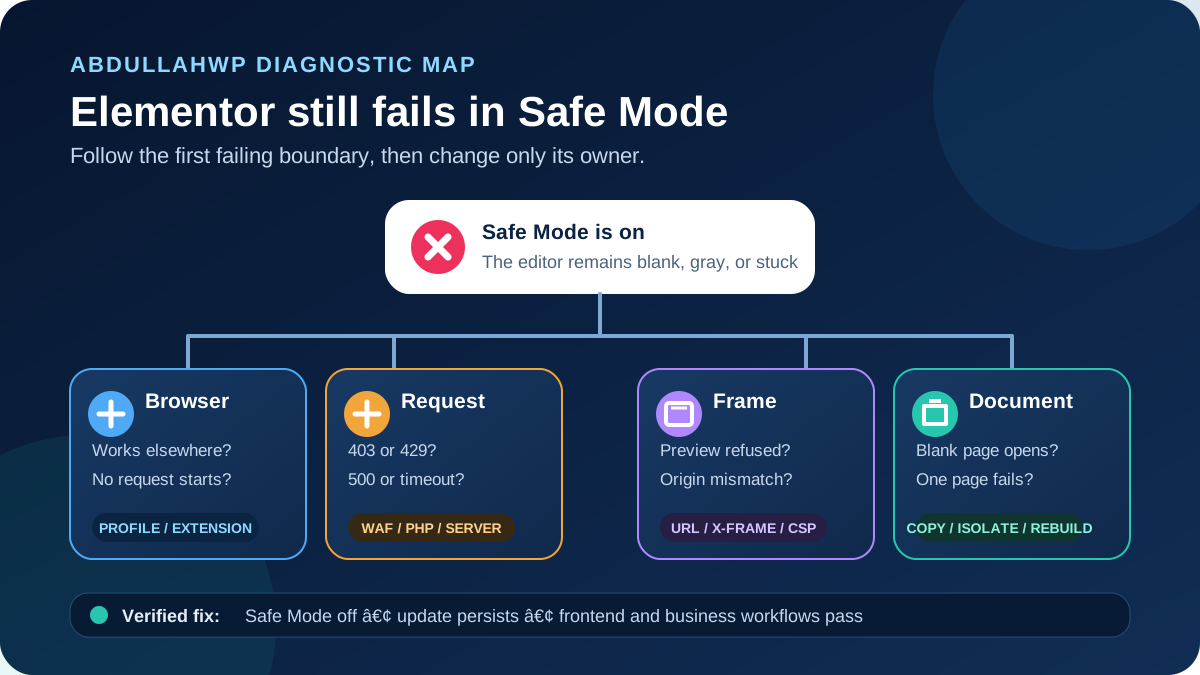
Quick answer: Open a simple new Elementor draft in a second current browser or computer while recording the Console and Network panels. If another browser works, fix the local profile. If a request returns 403 or 500, investigate the security or server layer that answered. A frame refusal points to URL or response-header policy. If blank pages open but one page fails, protect a copy and isolate corrupted document or template data.
Match the Safe Mode failure to the next check
| Evidence after Safe Mode fails | What it narrows | Best next action |
|---|---|---|
| Same page works in another browser or computer | Browser profile, extension, local storage, VPN, proxy, or endpoint security | Compare the working and failing environments one change at a time |
| No meaningful request starts | JavaScript stopped before the browser contacted WordPress | Read the first Console error and its source path |
Request returns 401, 403, or 429 | Session, nonce, WAF, security plugin, bot rule, or rate limit | Match the timestamp and request URL to the responsible security log |
Request returns 500, 502, 503, or 504 | PHP fatal, exhausted resource, unavailable upstream, or timeout | Read PHP and web-server logs at the same timestamp |
ERR_EMPTY_RESPONSE or ERR_CONTENT_DECODING_FAILED | Server response or long editor-data transport problem | Test Elementor’s alternate Editor Loader Method |
| Console says the preview was refused in a frame | URL origin, X-Frame-Options, or CSP policy | Compare both WordPress URLs and inspect response headers |
| New blank page opens; one document does not | Page, widget, dynamic value, or assigned template data | Work on a protected copy and isolate content |
| Canvas opens but the widget panel keeps spinning | A different widget-panel path that Safe Mode may not isolate | Investigate panel scripts and add-on widgets specifically |
Protect the design before testing: create a restorable database-and-files backup and use staging for PHP, security-header, CDN, plugin, theme, or content-isolation changes. Do not delete Elementor data, disable security globally, or save the original page while a required widget type is inactive.
1. Understand what Safe Mode did—and did not—isolate
Elementor Safe Mode loads the editor without the active theme and plugins and temporarily deactivates Elementor experiments for the logged-in administrator. Visitors and other users continue to see the normal site. That makes it a diagnostic boundary, not a repair.
Its boundary matters. Elementor states that Safe Mode removes third-party scripts from the editor but does not remove third-party scripts from the widget panel. It also does not diagnose frontend-only problems. Therefore, “Safe Mode failed” does not prove that every extension is innocent; it means you should stop treating a generic plugin conflict as the only theory.
- If Safe Mode opens the canvas but not the widget panel, record the panel error and the add-on that supplies the last visible widget.
- If the editor loads but the public page is wrong, leave this guide and diagnose the frontend asset, cache, or layout path.
- If the entire editor remains blank, gray, or stuck, continue with the evidence matrix below.
2. Run a four-test matrix before changing settings
- Open the affected document in a clean private window using a current browser.
- Try the same document in a second browser or another computer.
- Create a blank draft page, add one Heading, and try to open it with Elementor.
- Try one known-good existing page and one Theme Builder template, if applicable.
Record the result rather than relying on memory. A failure on every document and device points toward a site or server boundary. A failure on one machine is local. A failure on one page is document-specific. A failure limited to Theme Builder can come from an assigned template, preview source, or dynamic value.
Use the same administrator, URL, and test page for each comparison. Changing the browser, plugin set, cache, PHP version, and page at once destroys the evidence.
3. Capture the first Console error and failed request
- Open Developer Tools before launching the editor.
- In Network, enable Preserve log and clear old entries.
- In Console, clear old messages and keep Errors and Warnings visible.
- Launch Elementor once and wait for the failure.
- Save the first relevant error, request URL, HTTP status, response type, initiator, duration, and exact timestamp.
The first error is usually more useful than the tenth. A later “undefined” message may only mean an earlier request never returned valid data. Chrome’s Network panel lets you inspect status, headers, timing, and response body; the Console can expose JavaScript, CORS, frame, and extension failures.
| What you captured | Owner to investigate | Do not assume |
|---|---|---|
ERR_BLOCKED_BY_CLIENT or an extension URL | Browser extension or local protection software | WordPress never necessarily received the request |
| HTML login page where JSON/data was expected | Expired session, redirect, SSO, proxy, or security rule | A 200 automatically means success |
403 with a rule or challenge page | WAF, Cloudflare, ModSecurity, or security plugin | Elementor itself denied the request |
500 with a timestamp | PHP application or server | Increasing memory fixes every 500 error |
| Frame or CSP refusal | Host, proxy, security headers, or mismatched origin | Removing every security header is safe |
Share evidence safely: redact cookies, nonces, authorization headers, user data, private URLs, and request bodies before sending screenshots or a HAR file. Include the timestamp and timezone so a host can find the matching event.
4. Follow the browser path when another browser works
If the editor works on another computer or a clean browser profile, do not change the server. Compare the failing environment with the working one:
- Update the browser to a version Elementor currently supports.
- Disable ad blockers, privacy tools, script blockers, password managers, developer extensions, and antivirus browser modules for one test.
- Clear site data only for the WordPress domain, sign in again, and retry.
- Temporarily disconnect the VPN or browser proxy and compare another trusted network.
- Check whether endpoint security blocked or rewrote a script, frame, cookie, or request.
- Re-enable each item until the failure returns, then document the exact owner.
A private window is evidence, not a permanent workflow. Some extensions are still allowed in private mode, so verify their actual settings. Elementor’s current requirements list modern Chrome, Edge, Brave, Firefox, and Safari versions; an unsupported browser can fail before WordPress receives anything.
5. Follow the server path when a request fails
Match the failed request to logs at the same timestamp. For a 403, ask the WAF or security-plugin owner for the rule ID and reason. For a 500, inspect the PHP and web-server error log for the named fatal. For 502, 503, or 504, inspect upstream health, worker capacity, and timeout evidence.
- Download Elementor System Info from Elementor > Editor > System.
- Open Tools > Site Health and note critical REST, loopback, HTTPS, or server findings.
- Confirm the effective WordPress memory limit, PHP version, database version, write permissions, and Home/Site URLs.
- Enable WordPress logging briefly on staging when possible, hide errors from page output, reproduce once, and disable debugging after collection.
- Keep Elementor Core and Pro on compatible versions. If an update preceded the failure, use the Elementor update checklist before testing a rollback on staging.
Elementor currently lists 256 MB of WordPress memory for Elementor and Pro alone, recommends 512 MB, and describes 768 MB as best performance. Those are requirements, not proof of cause. Raise memory only when the effective value is low or the log shows exhaustion; a syntax error or incompatible method call will not be repaired by a larger limit.
If the failed action returns a saving-related 500 response, use the focused Elementor 500 error guide to separate memory, input limits, WAF rules, and PHP fatals.
6. Use Switch Editor Loader Method for the errors it targets
Go to Elementor > Editor > Settings > Advanced and enable Switch Editor Loader Method, then save and repeat the same test. Elementor documents this option for server-configuration conflicts, especially ERR_CONTENT_DECODING_FAILED, ERR_EMPTY_RESPONSE, and servers that struggle to read long editor JSON.
Keep the result only if it is repeatable. If the editor still fails with the same status and response, turn the option back to its original state and continue. The setting cannot repair an authentication block, an incompatible frame policy, a browser extension, or corrupted page data.
7. Repair URL-origin and preview-frame failures narrowly
In Settings > General, compare WordPress Address (URL) and Site Address (URL). Elementor’s Safe Mode follow-up guidance recommends making them the same when a different frontend and backend URL causes blank-page loading failures.
Also compare scheme, hostname, and port. To the browser, http://example.com, https://example.com, and https://www.example.com are different origins. Redirects, an old staging domain, reverse-proxy headers, or mixed HTTP/HTTPS settings can stop the editor from communicating with its preview.
- If the Console says a page was refused in a frame, inspect the preview response headers.
X-Frame-Options: DENYblocks framing even by the same origin. Elementor recommendsSAMEORIGINfor this case.- A Content Security Policy can independently restrict framing through
frame-ancestors. - Change the rule at the host, proxy, CDN, or security layer that sends it; an HTML meta tag cannot override
X-Frame-Options. - Do not remove clickjacking protection site-wide. Allow only the same-origin behavior the editor requires and retest protected workflows.
8. Test Cloudflare, script optimization, and theme preloaders
Safe Mode cannot neutralize every layer outside WordPress. A CDN can rewrite scripts before they reach the browser, and a theme preloader can obstruct the preview. Elementor says Cloudflare Rocket Loader has caused editor failures by changing scripts to load asynchronously, and Cloudflare itself recommends disabling Rocket Loader when JavaScript or jQuery problems appear.
- Record the current CDN, cache, delay/defer, and preloader settings.
- Disable only the suspected feature for a short test, then purge the layer it owns.
- If Rocket Loader is responsible, create narrow bypass rules for Elementor editor and template URLs. Elementor documents patterns containing
*elementor*and?elementor_library=*. - If a theme preloader is responsible, disable it for the editor/preview path or replace its implementation.
- Retest both the editor and public performance before keeping the change.
Do not turn off the entire CDN or firewall permanently because one admin route failed. A path-specific rule preserves more of the site’s protection and performance.
9. Isolate corrupted page, widget, or template data safely
If a new blank page opens but one page or template does not, stop making site-wide changes. Elementor documents unresolved IDs, empty dynamic values, interrupted saves, and malformed widget configuration as possible content-level causes.
Destructive boundary: Elementor warns that deactivating a widget type in Element Manager removes it from the editor and live page. Saving while it is inactive can permanently remove that content. Export or duplicate the document, verify a full backup, and perform isolation on staging or a disposable copy—not the original production page.
- Duplicate or export the affected page/template and preserve the original unchanged.
- Test a revision from before the last edit, migration, or interrupted save.
- Check recently added dynamic tags, shortcodes, loop sources, deleted fields, missing posts/products, and third-party widgets.
- On the protected copy, isolate suspected widget types in small groups and reopen the editor after each change.
- When one widget is proven, re-enable every unrelated widget before cleaning the copy.
- Rebuild the faulty widget from scratch. Do not copy a large layout chunk that may carry the damaged data.
- For a template-level failure, temporarily remove its display condition or set the template to Draft on staging, test the page, and rebuild the template cleanly if confirmed.
Before disabling add-ons or widget types, the WordPress plugin audit checklist helps map which component owns each widget, shortcode, script, and stored setting.
10. Verify the repair outside Safe Mode
- Disable Safe Mode and sign in with a fresh normal session.
- Open the repaired document and at least two unrelated Elementor pages.
- Edit a harmless value, update, reopen the editor, and confirm the change persists.
- Check the public page logged out on desktop and mobile.
- Test navigation, forms, popups, search, account, cart, checkout, and other business-critical flows the page touches.
- Review Console, Network, PHP, WAF, and server logs for the original error.
- Clear caches in owner order and repeat the test.
If generated Elementor CSS now returns 404, treat that as a separate asset problem and follow the Elementor CSS file 404 repair guide. Do not keep regenerating files while the editor request itself is still blocked.
Success: Elementor opens with Safe Mode off, the same document survives an update and fresh login, the public page remains correct, business workflows pass, and the original browser or server error no longer appears.
Build an evidence packet when you still need help
- Affected editor and preview URLs, with private data removed.
- Whether every document, one page, Theme Builder, or only the widget panel fails.
- Safe Mode result and four-test matrix.
- First Console error and failed Network request.
- Status, redacted response, timestamp, timezone, and request initiator.
- Matching PHP, web-server, WAF, CDN, or security-plugin log entry.
- Elementor System Info and relevant Site Health results.
- Last known change and the smallest change that alters the result.
That packet lets a host, plugin developer, or Elementor specialist investigate the responsible boundary. “The editor spins” describes the symptom; a timestamped 403, frame refusal, fatal error, or page-only reproduction identifies where to work.
Frequently asked questions
Why does Elementor fail even in Safe Mode?
Safe Mode isolates the editor from the active theme, plugins, and experiments, but it cannot fix a browser extension, failed server response, restrictive frame header, mismatched URL origin, CDN script rewrite, or damaged document data. It also does not remove every third-party script from the widget panel.
Should I deactivate every plugin again?
Not as the next blind step. First capture the failing boundary. If the error names a plugin path or the widget panel remains affected, run a controlled conflict test on staging. Otherwise, follow the browser, request, frame, server, or document branch the evidence supports.
Does Switch Editor Loader Method hurt performance?
Elementor says the alternate method is intended for certain server conflicts and long JSON responses and should not negatively affect performance. It is most relevant to empty-response and content-decoding errors; it is not a universal fix.
Can I change X-Frame-Options from DENY to SAMEORIGIN?
Elementor recommends SAMEORIGIN when DENY blocks its same-site preview frame. Have the host or security owner change the actual response header narrowly, and also inspect any CSP frame-ancestors rule. Do not remove all frame protection globally.
What should I do if only one Elementor page fails?
Preserve the original, duplicate or export it, test an earlier revision, and isolate recent widgets, dynamic values, shortcodes, or assigned templates on staging. Elementor warns that saving while a widget type is inactive can remove content, so treat that cleanup as a controlled destructive operation.
Sources and further reading
- Elementor: Safe Mode does not resolve issues
- Elementor: What Safe Mode isolates
- Elementor: Editor stuck on the loading screen
- Elementor settings and Editor Loader Method
- Elementor system and browser requirements
- Elementor System Info reference
- Elementor and Cloudflare Rocket Loader
- Cloudflare Rocket Loader documentation
- Chrome DevTools Network guide
- MDN: X-Frame-Options
- WordPress Site Health documentation
- WordPress debugging documentation
Turn the loading screen into a specific repair
A failed Safe Mode test is not a dead end. It rules out part of the stack and tells you to inspect the browser, request, server, preview frame, or document data. Preserve that evidence, change one owner at a time, and verify the normal editor and public site before closing the incident.
If you have the Safe Mode result, failed request, Console error, and matching log entry but still need a focused repair, review AbdullahWP’s WordPress and Elementor troubleshooting services. That evidence is enough to start with the likely cause instead of repeating generic fixes.





