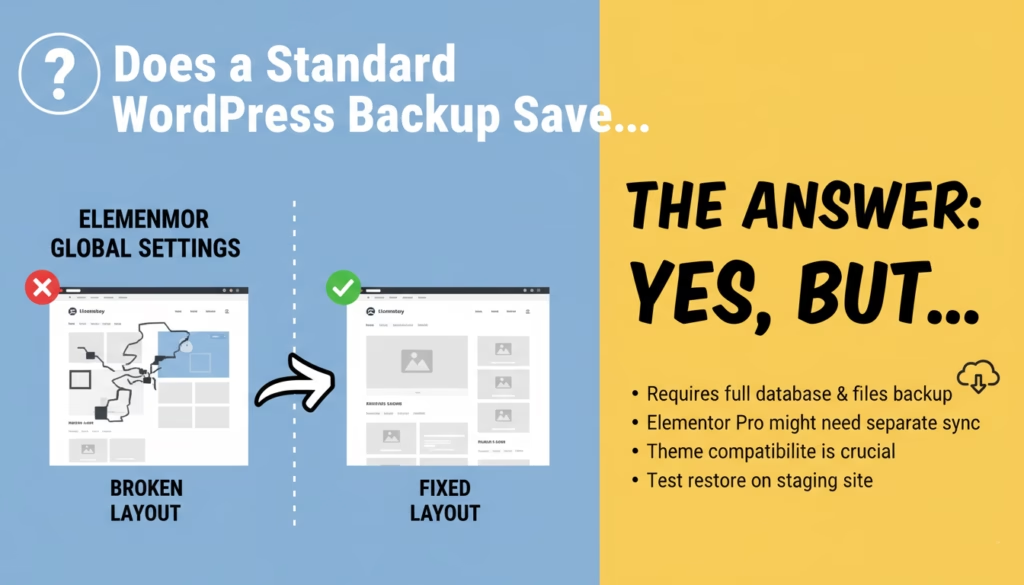
Imagine this scenario: You’ve just finished migrating a client’s website or restoring a backup after a critical error. You breathe a sigh of relief, log in to check the frontend, and… panic sets in.
The layout is there, but the soul of the site is gone. The primary brand colors have reverted to default blue. The typography is wrong. The spacing is broken.
You ask yourself: I took a backup! So, does a standard WordPress backup save Elementor global settings and kits, or did I miss a step?
If you rely on Elementor for site building, understanding how your design system (Global Colors, Fonts, and Theme Styles) is stored is not optional, it’s a survival skill.
In this guide, we will clarify exactly what gets backed up, why partial backups destroy your design, and how to guarantee your Elementor styles never vanish again.
Short answer: Yes, if your backup includes the database. No, if it only includes files.
Where Elementor Global Settings Are Actually Stored
To understand how to save your data, you first need to understand where it lives. Many users mistakenly believe that Elementor styles are stored in the CSS files inside the wp-content folder.
This is incorrect.
Does a database backup include Elementor kit data? Only if it captures the specific tables correctly. Here is the technical breakdown of where your “Kit” lives:
- The Kit is a Post: Elementor Global Settings are stored as a specific post type called
elementor_library. It lives inside yourwp_postsdatabase table. - Styles are Post Meta: The actual JSON data for your colors and fonts is stored in the
wp_postmetatable attached to that Kit ID. - The Pointer: WordPress needs to know which Kit is currently active. This reference is stored in the
wp_optionstable under the keyelementor_active_kit.
If your backup misses any of these three database connections, your site will revert to the defaults.
Deep Dive: Want to understand the database connection better? Read our guide on 5 Easy Fixes: What Is the elementor_active_kit Option?
What Happens With Different Types of Backups
Not all backups are created equal. When asking “are Elementor kits included in backup” files, the answer depends entirely on what you are backing up.
Here is a breakdown of common backup methods and whether they protect your design system:
| Backup Type | Elementor Styles Saved? | Why? |
|---|---|---|
| Full Hosting Backup | ✅ YES | Includes both wp-content files and the full SQL database. |
| Database-Only Backup | ✅ YES | Since Elementor Kits live in wp_posts and wp_options, a DB backup saves them. |
| Files-Only Backup | ❌ NO | Styles are not in the theme folder. Restoring only files will break your global design. |
| XML Export (Tools > Export) | ⚠️ MAYBE | XML export includes the Kit post (if selected), but it does not include the wp_options table. Therefore, the elementor_active_kit setting may not transfer automatically, requiring manual reactivation. |
1. Full Hosting Backup (Files + Database)
This is the gold standard. If you use Kinsta, WP Engine, or SiteGround backups, you are safe. These snapshots capture the database state at the exact moment of the backup.
2. Files-Only Backup (The Danger Zone)
This is where most developers fail. If you copy your wp-content/uploads and themes folder via FTP but forget the database, you have lost your Global Settings. Are Elementor global styles saved in migration if it’s just files? Absolutely not.
Do Popular Backup Plugins Save Elementor Kits?
If you rely on plugins rather than server-side snapshots, you need to know how they handle the elementor_library post type.
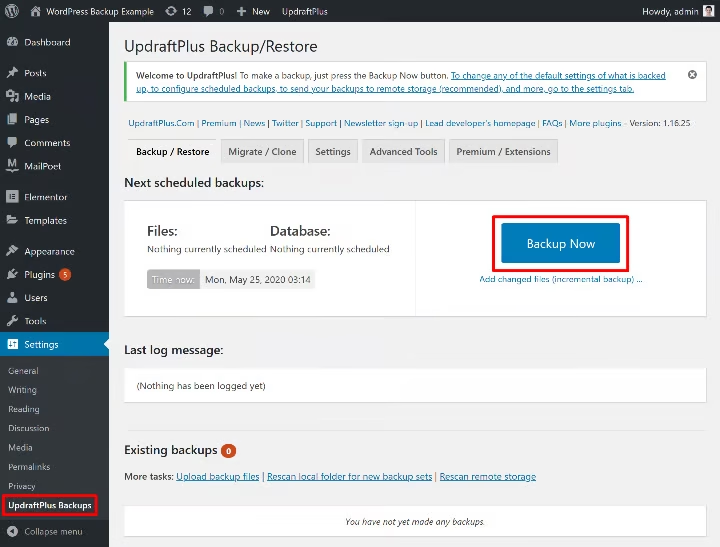
Does UpdraftPlus Backup Elementor Settings?
Yes. UpdraftPlus is reliable because it separates Database and Files. As long as you keep the “Database” box checked during your backup, your Global Colors and Fonts are safe. If you only restore the “Uploads” or “Themes” modules, your settings will not be updated.
Does All-in-One WP Migration Save Elementor Kit?
Yes. This plugin exports the entire database and performs a find-and-replace operation. It is one of the safest ways to migrate Elementor sites because it carries the elementor_active_kit option and the elementor_library posts seamlessly.
Are Elementor Kits Included in Duplicator?
Yes. Duplicator creates a full package (archive) of your site. Since it essentially clones the database, your Kits are preserved.
However, be cautious with “partial” exports in any plugin. If you filter tables and exclude wp_posts, you break the site.
When You Can Lose Elementor Global Settings
Even with a backup, things can go wrong. Here are the most common scenarios where where are elementor global styles stored becomes a critical question:
1. The “Default Kit” Conflict
Sometimes, after a migration, Elementor regenerates a new Default Kit and assigns it as the active one. Your old styles are still in the database, but the site isn’t looking at them.
Fix It: If your site looks broken after a restore, check out our guide on How to Fix the Elementor Default Kit Issue.
2. Restoring Only the wp-content Folder
As mentioned, beginners often think dragging and dropping the wp-content folder via FTP is a backup. It is not. Without the SQL file, your Elementor Site Settings are gone.
3. Deleting the Active Kit Accidentally
Because the Kit appears in your “Templates” or “Saved Templates” list (sometimes hidden), users deleting “unused templates” often accidentally delete their global design system.
How to 100% Guarantee Your Elementor Global Styles Are Safe
Don’t rely on luck. If you are making major changes or migrating a site, follow this professional workflow to ensure elementor_active_kit backup integrity.
- Take a Full Backup: Ensure both Files and Database are selected.
- Manually Export the Kit: Elementor allows you to export your Global Settings as a JSON file. This acts as a fail-safe.
- Go to Elementor > Tools > Import/Export Kit.
- Export just the “Site Settings”.
- Save this file locally.
- Verify the Database: If you have access to phpMyAdmin, check
wp_optionsforelementor_active_kitand ensure the ID matches a post inwp_posts. - Test on Staging: Never restore a backup directly to production without testing.
Elementor Backup Checklist for 2026
Elementor’s current Website Templates exporter separates a site into Content, Templates, and Settings & Configurations. Settings & Configurations include global fonts, global colors, theme styles, layout, lightbox, backgrounds, and active experiments. Templates include headers, footers, Theme Builder parts, and global widgets. This export is a useful second layer of protection, but it should complement—not replace—a tested full-site backup.
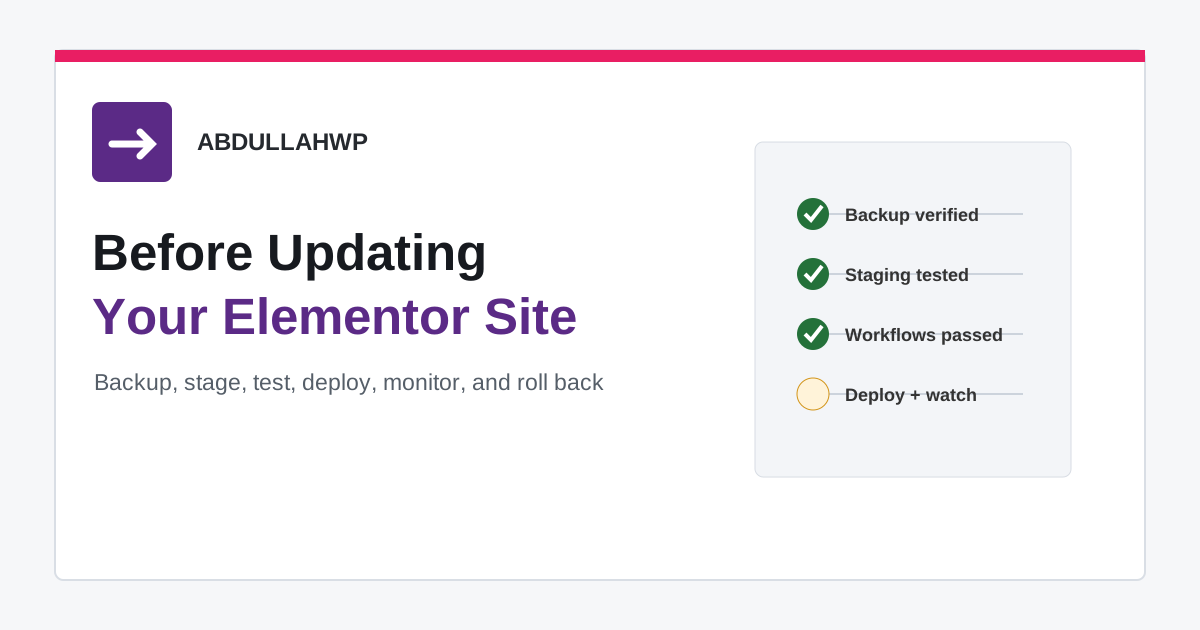
- Before an update or migration: create a full backup containing both files and the database.
- Create an Elementor Website Template export: include Settings & Configurations and any Templates or Content you may need independently.
- Store a copy away from the web server: a backup on the same hosting account can disappear with the account or server.
- Test the restore on staging: confirm global colors, fonts, breakpoints, headers, footers, popups, responsive layouts, and forms—not merely that WordPress opens.
- After restoring: clear every cache and use Elementor’s file/data regeneration tool if the database is correct but generated styling appears stale.
Elementor also recommends testing backups on a staging site because a backup is only useful when it can be restored successfully. See Elementor’s official guides to backing up a website and importing and exporting Website Templates.
Pro Tip: Learn the exact steps to manually save your design system in our tutorial: How to Export Elementor Global Styles.
⚡ Quick Answer
Does a standard WordPress backup save Elementor global settings?
wp_options tables, a database-only or full-site backup will preserve them. However, if the backup only includes files (like wp-content), Elementor global styles will not be saved.Frequently Asked Questions
Are Elementor global styles stored in theme files?
No. Elementor stores global styles inside the database, specifically in the wp_posts (as the kit post type) and wp_options tables.
Can I restore Elementor global settings without restoring the full site?
Yes. You can export and import the Elementor Kit manually using the Import/Export tool found under Elementor > Tools.
What happens if elementor_active_kit is missing?
Elementor may generate a new default kit, causing your site to appear unstyled even though your original settings still exist in the database. You would need to update the option to point to the correct ID.
Conclusion
Understanding if Elementor site settings are backed up properly is key to maintaining a professional workflow. The short answer is yes, but only if you treat your database with the same care as your files.
By using reliable plugins like UpdraftPlus or All-in-One WP Migration, and understanding that your styles live in the database (not the CSS files), you can migrate and restore sites with confidence.
Need more help troubleshooting Elementor?
- 5 Easy Fixes: What Is the elementor_active_kit Option?
- How to Fix the Elementor Default Kit Issue
- How to Fix Elementor 500 Server Error