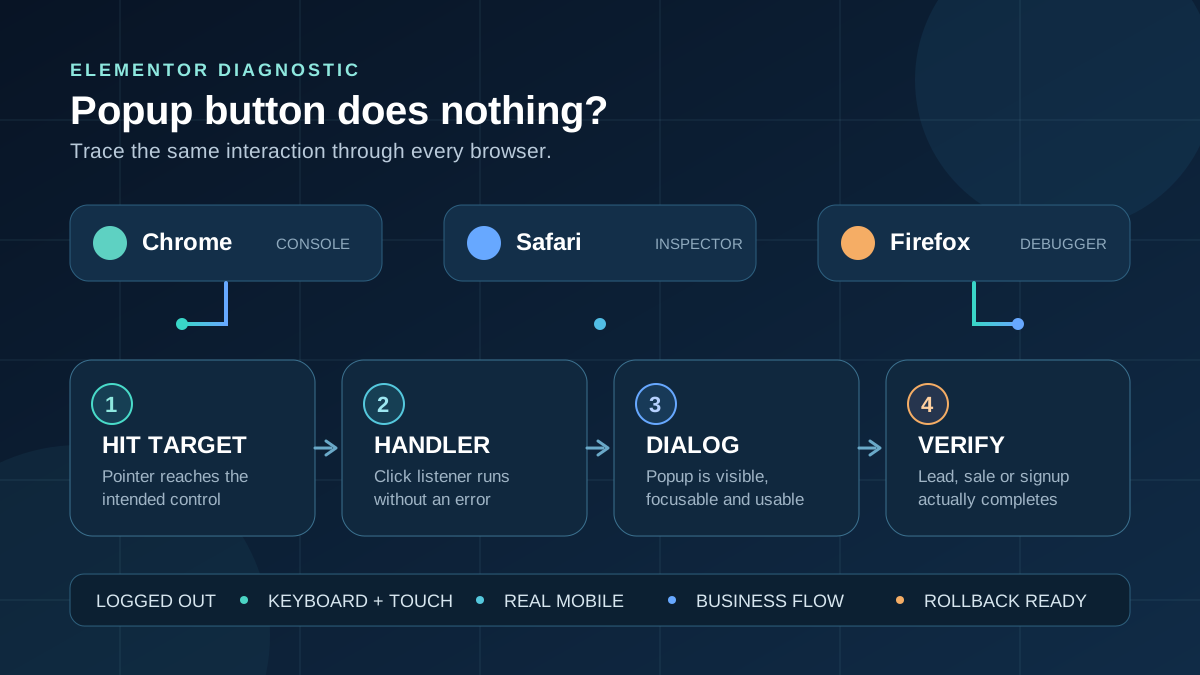
When an Elementor popup button does nothing in Chrome, Safari or Firefox, identify which event fails: the pointer misses the control, no handler runs, Elementor does not reveal the popup, or the popup opens but cannot be used.
This guide covers a manual trigger that is dead or inconsistent on the frontend. It does not design a campaign, repair a blank Conditions screen, or diagnose consent blocking. The goal is one evidence-backed staging repair and a verified visitor task.
Quick answer: Test the public URL logged out. Confirm the button uses Dynamic > Actions > Popup > Open Popup or a unique selector matching Open By Selector. Inspect the hit target, first Console error, click listener, and popup wrapper in all three browsers. On staging, test script timing and accessibility remediations one setting at a time, align Elementor Core and Pro, and clear relevant caches after each proven change.
Match the symptom to the failed layer
| What happens | Evidence to collect first | Most likely layer |
|---|---|---|
| Pointer click fails, but Enter or Space opens the popup | Inspect the topmost element at the button’s center and its computed pointer-events | Transparent overlay, pseudo-element, or hit-area problem |
| Pointer and keyboard both fail | Check trigger markup, selected popup, event listeners, and the first Console error | Missing action, bad selector, or JavaScript initialization failure |
| Only one browser or profile fails | Compare clean profiles, extensions, privacy controls, Console and loaded scripts | Blocked dependency, stale browser data, or browser-specific code |
| Popup markup appears after the click but nothing is visible | Inspect display, visibility, opacity, transform, stacking context, clipping, and viewport position | CSS or overlay rendering failure |
| Popup flashes and immediately disappears | Pause on click, inspect duplicate listeners, automatic close, and overlay-close behavior | Second handler or close rule |
| Works for an administrator but not a visitor | Repeat logged out with page/CDN cache and popup rules recorded | Cached frontend, role rule, or visitor storage state |
| Works on desktop but not real mobile | Check Show on Devices, responsive layout, touch target, scroll lock, and a real device | Device rule or mobile interaction problem |
| Popup opens, but its form or checkout step fails | Complete the submission, confirmation, email/CRM, analytics, and close/focus flow | Downstream business-flow failure |
Protect the site and preserve a working baseline
Create a restorable files-and-database backup and clone the page and popup to staging. Record the live URL, popup ID, trigger or selector, Core/Pro versions, optimization and accessibility tools, cache layers, and last known working date.
- Capture the failure in every affected browser.
- Export or duplicate the page and popup templates.
- Record transactions created after the backup.
- Use a test popup if production work could interrupt sales, bookings, logins, or leads.
Do not use production as the conflict laboratory. Plugin, version, accessibility, and script-timing changes can affect every Elementor page. Avoid blanket z-index or pointer-events overrides and never overwrite live orders or leads with an old database.
1. Reproduce the same click in a controlled browser matrix
Use the public URL, a private window or clean profile, a logged-out session, and consistent consent, viewport, and test data. Test current Chrome, Safari on a supported Apple device, and Firefox. User-agent simulation does not replace Safari’s engine or real touch input.
For each browser, record pointer/touch, Tab plus Enter/Space, first Console error, listener execution, popup-wrapper state, and final submission. Reload between attempts because Elementor documents that a popup cannot display twice without leaving or reloading. “Show up to X times” uses local storage, so clear this site’s storage only when testing that rule.
2. Verify the trigger before debugging the browser
Edit the trigger and record its method. For an Elementor element, use Dynamic > Actions > Popup, choose Open Popup, and select the published popup. Save and retest the frontend. Do not substitute a javascript: URL or inline onclick.
For a theme menu, Text Editor link, or other element, Elementor’s manual selector instructions support a class, ID, data attribute, or link selector. It must match the popup’s Open By Selector value exactly; attribute selectors need straight quotes.
- Add
open-pricing-popupin the trigger’s CSS Classes field. - Add
.open-pricing-popupunder Open By Selector. - Confirm the rendered selector matches one intended control.
- Remove duplicate IDs and nested interactive controls.
- Confirm the published popup’s condition includes this page.
Elementor says a custom-selector manual trigger disregards ordinary Triggers and Advanced Rules, while Conditions still determine where the popup is used.
3. Inspect the hit target and any invisible overlay
Inspect the button with the node picker across its center and edges. The highlighted node should remain the intended control. A transparent header, animation wrapper, pseudo-element, or positioned container can cover it.
document.elementFromPoint(x, y) returns the topmost element at viewport coordinates. MDN notes that elements with pointer-events: none are skipped. Inspect that node and its ancestors for:
- position, z-index, transforms, opacity, and oversized bounds;
pointer-events: noneon the trigger orautoon an invisible layer;- a sticky header, off-canvas panel, closed modal wrapper, iframe, or breakpoint-specific rule.
Disable one suspicious declaration in DevTools. If the click works, fix that owner rule and scope it to the correct state instead of forcing the popup above every site layer.
4. Trace the click and the first JavaScript failure
Open Developer Tools before reloading. Clear the Console, reload, click once, and preserve the first error with its file, line, and stack; later errors may be consequences.
| Browser | Browser-specific evidence | What a useful result means |
|---|---|---|
| Chrome | Select the trigger in Elements, inspect the Event Listeners pane, or use getEventListeners($0). Add a click Event Listener Breakpoint in Sources. | Chrome’s official DevTools docs show both listener inspection and pausing where a click listener runs. |
| Safari | Enable web developer features, select the node in Elements, open its Events badge/Event Listeners section, and set a specific listener or global click breakpoint in Sources. | WebKit documents listener breakpoints for a selected node and its ancestors. |
| Firefox | Select the trigger in Inspector and open its event badge, or add a click Event Listener Breakpoint in Debugger. | Firefox documents the handler type, source and line directly in Inspector. |
Use the same evidence rule in every tool: a listener badge proves registration, not success. A click breakpoint proves the callback was entered; stepping and the Console show whether it completed. The Chrome breakpoint reference, WebKit Event Breakpoints, and Firefox Debugger all support pausing on click events. In Network, compare the status, response type, and initiator of the popup-related scripts. A missing file, blocked response, HTML returned for a JavaScript URL, or different bundle order is stronger evidence than the browser name alone.
If no handler exists, return to the trigger and loaded assets. If it runs, step until Elementor opens or closes the popup and record the failing statement. Redact customer data and tokens from evidence.
Use keyboard behavior as evidence. If Enter or Space works while a pointer does not, suspect overlap or pointer rules. If neither works, inspect markup, listener registration, initialization, or disabled state. Prefer a native button to a clickable div.
5. Determine whether the popup exists but is invisible or unusable
Watch the DOM while clicking. If Elementor changes a popup wrapper, the click path worked. Inspect its display, visibility, opacity, transform, coordinates, size, clipping, and stacking context. Transform, overflow, containment, or isolation on an ancestor can change z-index behavior.
- Off-screen: check responsive size, animation, translation, and viewport units.
- Visible but inert: inspect pointer rules and layers above it.
- Closes immediately: check duplicate handlers, automatic close, overlay, and Escape.
- Scroll stays locked: find the cleanup error instead of removing scroll lock globally.
The W3C modal pattern expects focus inside, contained Tab navigation, Escape closure, and focus return. Elementor exposes overlay, Escape, automatic close, scroll, and multiple-popup controls; record them before editing.
6. Test delayed, deferred, combined, or minified scripts one setting at a time
Optimization can reorder Elementor, Pro, jQuery, or third-party listeners. On staging, disable only JavaScript delay and retest clean. If unchanged, restore it and test defer, combination, minification, or unused-JavaScript settings individually.
- Record the setting and failing browser.
- Change one option and purge only affected caches.
- Compare script URLs, order, and the first error.
- If causal, restore optimization and add the narrowest supported exclusion.
- Retest performance and all three browsers.
Do not copy generic exclusions; bundles change between releases. Document the dependency and proof for each exception. For wider isolation, use the WordPress plugin audit workflow.
7. Isolate accessibility, device, storage, and browser-profile state
The trigger should be a native link or button with an accessible name and visible focus. MDN notes that buttons support multiple input methods, while click-to-focus behavior varies. In Safari, judge activation and focus movement, not whether a mouse click leaves focus on the trigger.
Record active accessibility fixes. Elementor says some Accessibility Assistant remediations are injected on load. On staging, disable only the relevant remediation, retest, and restore it if unchanged. Never remove keyboard access, labels, or focus handling as a fix.
- Check Show on Devices; exit intent is not a manual mobile-button test.
- Compare normal and clean profiles; identify the exact blocked request.
- A Firefox site-specific protection test is diagnostic only. Restore protection afterward.
- If consent blocks the bundle or tag, use the separate consent workflow.
8. Align Elementor versions and isolate conflicts safely
Record Core, Pro, WordPress, PHP, theme, and add-on versions. Elementor’s update guidance warns that updating only Core or Pro can break a site. On staging, move both to a current compatible stable pair, regenerate relevant files, and retest.
If versions align, test a known-good theme, third-party Elementor add-ons, then other plugins in recorded groups. Keep optimization and accessibility tests separate. Do not leave security, commerce, or accessibility components disabled on production.
If an update caused the problem and no current fix exists, back up and test a temporary rollback to a known compatible pair. Verify the whole site, document the risk, and plan a forward update with the Elementor update checklist.
9. Apply the smallest proven fix
Match the repair to the proof: correct a non-unique selector, the covering layer, the named dependency, the clipping ancestor, the specific remediation, or the incompatible version pair. Do not broaden the change. Save, purge the smallest relevant caches, and repeat the matrix. On staging, reversing the causal change should restore the failure and reapplying it should remove it.
10. Verify the whole visitor and business flow
Test the published frontend logged out in all three browsers and on real iOS and Android when mobile matters. Use fresh and returning sessions to cover storage limits.
- Reach the trigger with pointer, touch, and keyboard; confirm visible focus.
- Check heading, close control, overlay, scroll, and responsive position.
- Tab within the popup; close it and confirm logical focus return.
- Submit a safe test lead, booking, login, download, coupon, or purchase.
- Verify the server record, email/CRM, analytics, and automation.
- Try errors, double clicks, reload, and a second visit; check limits.
- Review Console and Network for new errors or duplicate submissions.
Fixed means more than “it opened.” The logged-out trigger works with pointer, touch, Enter, and Space; the dialog is visible and keyboard-usable; and the real form, sale, booking, or signup completes across supported browsers and devices.
Rollback and prevent the failure from returning
If production regresses, reverse the single changed selector, rule, exception, remediation, or deployment, purge the same caches, and smoke-test. Use template or package restoration only if reversal fails; restore a database only while preserving later transactions.
- Keep a regression page with native and selector triggers, a form, and close controls.
- Run browser, logged-out, keyboard, and mobile tests before relevant releases.
- Namespace custom selectors and prevent duplicate IDs.
- Monitor completion, not only clicks.
- Review temporary exclusions and rollbacks at the next maintenance window.
Frequently asked questions
Why does the popup work in Elementor preview but not on the live page?
The editor and public page differ in cache, login state, markup, and script timing. Test the published URL logged out, then inspect the saved trigger, first Console error, and assets. If the editor itself fails, use the Elementor editor loading guide.
Does Safari’s different button focus behavior mean the popup is broken?
No. Safari may not focus a button after a pointer click by design. Judge whether it opens the dialog and moves focus sensibly; separately test Tab plus Enter or Space. Focus defects matter, but do not automatically explain a dead click.
Should I set the popup z-index to 999999?
Only if inspection proves a stacking conflict and the value fits the site’s layer system. Huge numbers do not escape every stacking context and may cover consent or navigation. Fix the responsible layer.
Will clearing cache or browser data fix the button?
It can prove stale assets or reset a local-storage limit, not fix the cause. Clear relevant caches after a saved change and site data only in a test profile. If visitors must clear data, the deployment or rule is wrong. See the Elementor CSS and cache guide for wider stale-style problems.
What if the popup works after disabling a privacy feature or extension?
Use it only as a comparison. Identify the exact request, script, cookie, or layer, then repair the dependency. Do not ask visitors to weaken security. Move confirmed consent or tag blocking to its dedicated workflow.
When to escalate the repair
Escalate for unmapped vendor errors, physical-device-only failures, revenue-critical forms, or unclear compatibility. Provide staging access, steps, browser/OS and Core/Pro versions, trigger method, popup ID, clean-profile result, first error, Network evidence, and the smallest conflict test. Redact sensitive data.
AbdullahWP’s WordPress and Elementor services can trace the trigger across browsers, isolate the layer on staging, implement the smallest fix, and verify the full lead or sales flow.
For prevention beyond this popup, use the Elementor accessibility checklist to keep keyboard, focus, labels, close controls, and responsive interaction in the release definition of done.





