PageSpeed Insights may report that an Elementor page downloads far more CSS than it uses during the test. The tempting response is to enable a “Remove Unused CSS” switch and move on. That can improve the report, but it can also remove styles needed after a visitor opens a menu, triggers a popup, submits a form, changes a product variation, or views the page at another breakpoint.
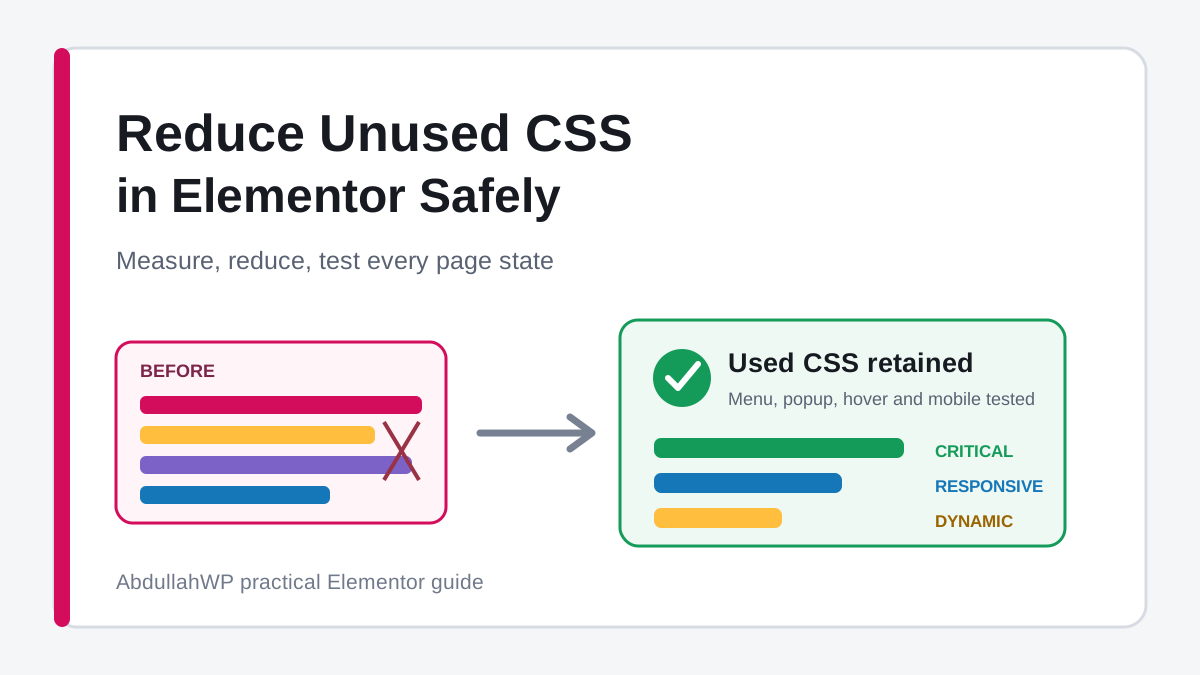
This guide explains how to reduce unused CSS in Elementor without treating one Lighthouse run as a complete map of the site. The process is to measure the affected URL, identify who owns each stylesheet, remove unnecessary sources first, apply one CSS-delivery method, and test every important state before publishing.
Note: “Unused” means the CSS rule was not matched during a particular test session. It does not prove the rule is unused on mobile, after interaction, on another template, for a logged-in user, or during an error state.
The safest order for reducing unused Elementor CSS
- Back up the site and make the change on staging.
- Measure one representative URL with PageSpeed and Chrome Coverage.
- Map each stylesheet to Elementor, the theme, an add-on, WooCommerce, or another plugin.
- Remove unused widgets, add-ons, fonts, icons, and global features at the source.
- Unload a whole stylesheet only where the owning feature is absent.
- Use one automatic used-CSS or critical-CSS system when source reduction is not enough.
- Protect dynamic selectors for menus, popups, forms, tabs, sticky elements, and commerce states.
- Regenerate Elementor files, clear every cache layer, and retest.
- Verify desktop, tablet, mobile, logged-in, logged-out, and interaction states.
This sequence matters. Source reduction is predictable. Automatic rule removal is more aggressive because it has to infer which selectors may be needed later.
What does “unused CSS” actually mean?
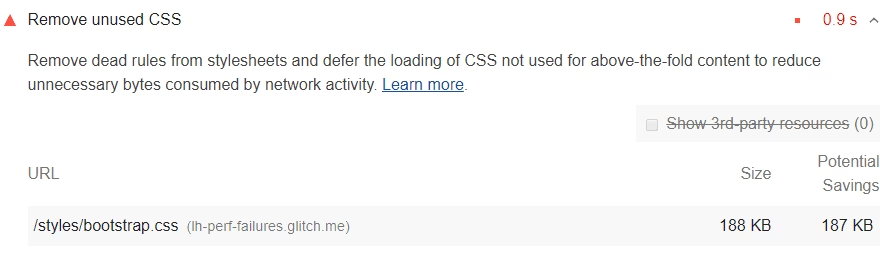
A browser downloads stylesheets, parses their rules, and applies matching declarations while building the rendered page. Lighthouse records which bytes are used during its controlled page load. It reports stylesheets with enough potential savings to qualify for its audit.
CSS can appear unused during the initial load and still be required for:
- A mobile or tablet media query.
- Hover, focus, active, and keyboard states.
- An Elementor popup or off-canvas menu.
- Accordion, tab, carousel, lightbox, and modal content.
- Form validation, success, loading, and error messages.
- Sticky headers after scrolling.
- WooCommerce variations, mini-cart, notices, checkout validation, and account screens.
- Cookie consent and personalization after a visitor makes a choice.
- Content inserted by AJAX or JavaScript.
- Logged-in toolbars, membership states, and user-specific widgets.
Warning: Never delete rules from Elementor plugin files. Updates overwrite the edits, and shared rules may support widgets or templates that are not visible on the page you tested.
Why the common one-click advice breaks sites
Most ranking tutorials recommend WP Rocket, Perfmatters, LiteSpeed Cache, or another automatic CSS service. These tools can be effective, but a generated “used CSS” file reflects what the crawler discovered. A crawler may not open every menu, trigger every form state, accept a cookie banner, add an item to the cart, or visit content restricted by login.
Breakage usually comes from one of four mistakes:
| Mistake | What happens | Safer response |
|---|---|---|
| Two CSS optimizers run together | Files are combined, deferred, removed, or cached twice | Let one plugin own CSS optimization |
| The crawler misses a dynamic state | Menu, popup, form, or cart styling disappears | Add precise exclusions or keep the responsible stylesheet |
| Used CSS is stale | New Elementor changes do not appear | Regenerate Elementor files and clear generated used CSS |
| A whole stylesheet is unloaded globally | Another template using the feature breaks | Unload only on verified URLs or content types |
1. Create a baseline and test on staging
Before changing CSS delivery, save a full backup and clone the site to staging. Record:
- The PageSpeed URL and mobile/desktop result.
- CSS transfer size and potential savings.
- First Contentful Paint, Largest Contentful Paint, and Cumulative Layout Shift.
- A network waterfall or list of loaded stylesheets.
- Screenshots of the header, hero, menu, forms, popups, footer, and mobile layout.
- The current Elementor performance settings and active optimization plugins.
Use at least one URL from each important template: homepage, article, landing page, contact page, product, cart, checkout, account, and any member-only page. Optimizing the homepage alone can hide a broken checkout or form.
If the site has no reliable backup workflow, review why database coverage matters for Elementor settings before proceeding.
2. Find unused CSS with Chrome Coverage
PageSpeed gives you a summary. Chrome DevTools Coverage shows which CSS and JavaScript resources were used during your own test session.
- Open the published page in a private Chrome window.
- Open DevTools, then open the Command Menu.
- Type Coverage and select Show Coverage.
- Start recording and reload the page.
- Interact with the menu, popups, accordions, forms, carousels, filters, and sticky elements.
- Switch viewport widths and repeat the recording.
- Sort the report by unused bytes or unused percentage.
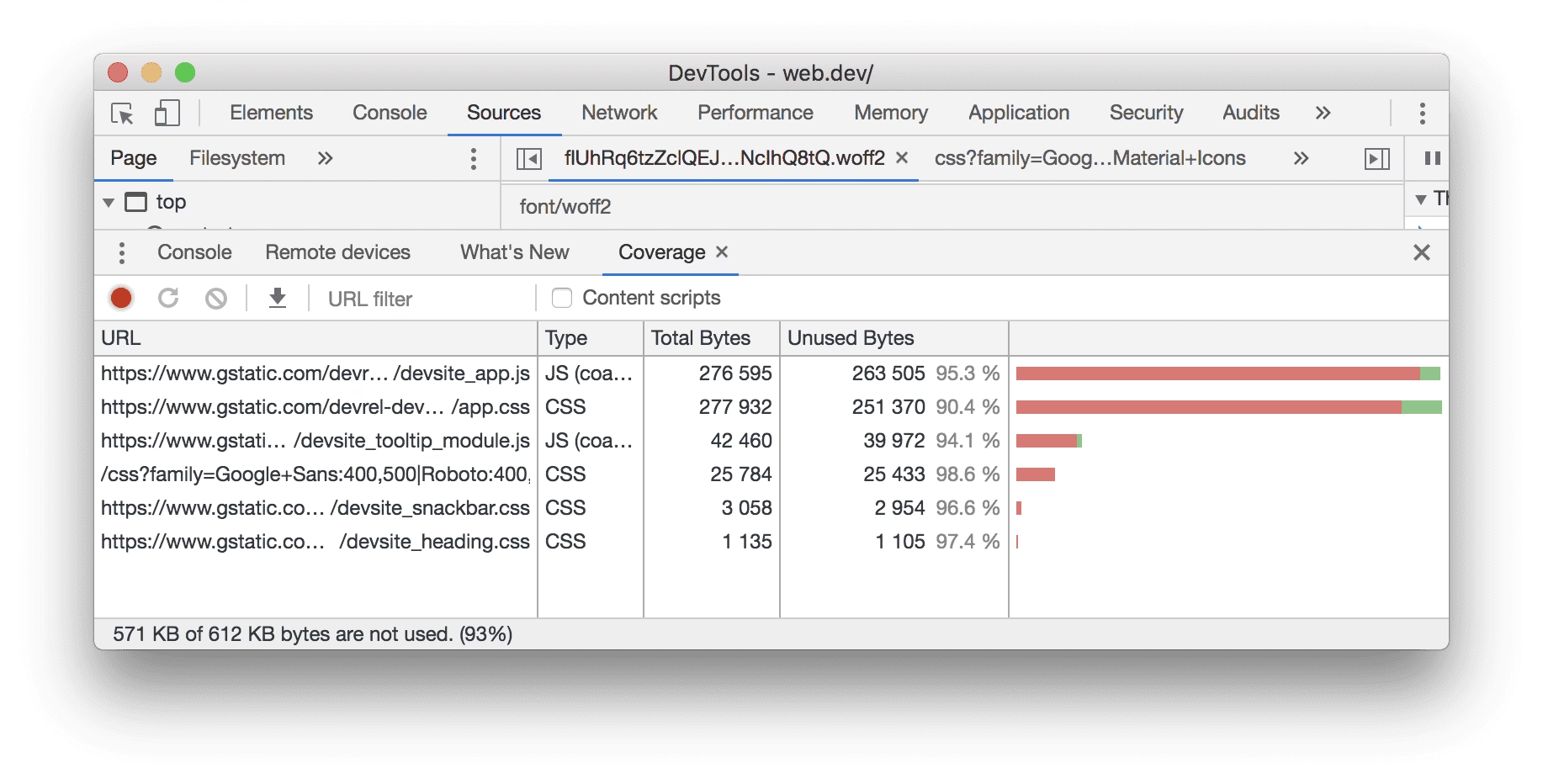
Do not judge a stylesheet only by percentage. A 95% unused 8 KB file offers less potential savings than a 60% unused 200 KB file. Also check whether the resource is cached across page views and whether removing it changes real metrics.
Tip: Run Coverage once without interaction and again after exercising the page. The difference reveals selectors that an automatic initial-load crawler is likely to miss.
3. Map every large stylesheet to its owner
Use the resource URL, file name, and WordPress style handle to identify ownership. Common paths include:
| Resource clue | Likely owner | What to investigate |
|---|---|---|
/plugins/elementor/ | Elementor Core | Core widgets and shared frontend styles |
/plugins/elementor-pro/ | Elementor Pro | Forms, popups, theme widgets, WooCommerce widgets |
/uploads/elementor/css/post-123.css | Specific Elementor document | Page, template, header, footer, or popup styles |
/themes/your-theme/ | Active theme | Global layout, navigation, WooCommerce, and block styles |
/plugins/addon-name/ | Elementor add-on or plugin | Whether its widget or feature exists on this URL |
woocommerce in handle/path | WooCommerce or extension | Cart, product, notices, account, or checkout dependency |
Elementor stores design settings in the database and generates frontend CSS files in the uploads directory. If a generated file is missing or stale, that is a delivery problem, not evidence that the file is unnecessary. The guide to fix Elementor CSS files returning 404 covers that separate failure.
4. Use Elementor’s built-in performance features first
Elementor has added conditional asset loading and performance controls over time. Current settings can include:
- Inline Font Icons: Uses inline SVG to avoid loading Font Awesome and Eicons libraries where possible.
- Optimized Gutenberg Loading: Dequeues unused block editor styles and scripts.
- Element Manager: Scans element usage and can deactivate unused editor elements.
- Conditional CSS and asset loading: Loads component styles only where their elements are present.
Review Elementor > Editor > Settings and the Performance or Features areas available on your installation. Labels can change between Elementor versions, so use the current Elementor performance features documentation.
Use Element Manager’s usage scan before deactivating anything. Elementor warns that disabling an element used on the site can break it. Dynamic templates, reusable content, popups, and less-visited pages deserve manual verification even after a scan.
5. Reduce CSS at the source
The most stable optimization is to stop creating or loading CSS you do not need:
- Remove abandoned Elementor add-on packs.
- Replace a heavy add-on widget with a native Elementor widget when practical.
- Disable add-on modules through their own manager.
- Remove duplicate form, popup, slider, icon, and animation plugins.
- Delete unused custom CSS after searching templates and dynamic states.
- Use fewer font families and weights.
- Replace icon-font libraries with inline SVG icons where appropriate.
- Remove duplicate desktop/mobile sections when responsive Direction and Order can handle the layout.
- Simplify deeply nested layouts that require broad selector sets.
Reducing repeated and nested layout structures can also shrink the DOM and the amount of style matching work. See the guides to fix excessive DOM size in Elementor and convert sections to containers safely.
6. Unload whole stylesheets only when the feature is absent
Asset unloading prevents a stylesheet from being requested on selected pages. It is safer than deleting individual rules when the whole feature is genuinely absent. A contact form plugin that loads globally but appears only on the contact page is a good candidate.
Before unloading a file:
- Identify its WordPress handle and owner.
- Search headers, footers, popups, templates, shortcodes, and dynamic content.
- Check whether another stylesheet declares it as a dependency.
- Unload it on one staging URL first.
- Test logged-in and logged-out views.
- Retest after plugin updates.
Asset CleanUp exposes loaded CSS and JavaScript and lets you unload selected resources by page or rule. Its own documentation warns against enabling the same minification or combination features in multiple plugins.
Warning: Do not globally unload Elementor frontend, Pro frontend, theme, WooCommerce, or generated post CSS based only on one URL’s Coverage percentage.
7. Use one automatic Remove Unused CSS system
Automatic tools crawl a page, collect the selectors they observe, generate a smaller set of CSS, and either inline it or load it separately. This can produce larger savings than unloading whole files because it removes unused rules inside a required stylesheet.
Choose one system. Do not enable Remove Unused CSS in WP Rocket, Perfmatters, LiteSpeed Cache, FlyingPress, and another optimizer at the same time.



| Approach | Best fit | Main risk |
|---|---|---|
| Elementor conditional loading | Native widgets and built-in features | Third-party add-ons may still load globally |
| Asset CleanUp | Manual file-level unloading by URL or rule | Human error when a dependency or dynamic template is missed |
| WP Rocket / Perfmatters used CSS | Automated per-page rule reduction with exclusions | Dynamic selectors or private states missed by the crawler |
| LiteSpeed Cache UCSS/CCSS | Sites already using the LiteSpeed and QUIC.cloud optimization stack | Service configuration, queue generation, and exclusions |
| Autoptimize critical CSS | Controlled critical-CSS and deferred full-CSS workflows | Incorrect critical CSS or overlapping cache/optimization layers |
The logos above are official assets from the WordPress.org plugin directory. Commercial services can be useful, but their crawler, cache, and exclusion behavior should determine the choice, not a promised score.
8. Understand critical CSS and deferred CSS
Critical CSS is the small set of styles required to render the initial viewport. The remaining stylesheet can load later. This addresses render blocking without necessarily deleting every rule.
| Method | Advantage | Tradeoff |
|---|---|---|
| Remove unused CSS | Small page-specific CSS payload | Must discover all required selectors |
| Inline critical CSS, defer the rest | Fast initial render while preserving full styles | Can show a flash or layout shift if critical CSS is incomplete |
| Load CSS asynchronously | Less render blocking and easier fallback | Unstyled content may appear before CSS arrives |
| Unload whole files | Predictable when a feature is absent | Cannot remove unused rules inside files that remain necessary |
Chrome recommends inlining styles required for the first paint and loading non-critical CSS later. On a responsive Elementor page, “above the fold” changes with viewport size, content, fonts, cookie banners, and admin bars, so generated critical CSS also needs multiple-view testing.
9. Protect dynamic Elementor selectors
If automatic removal breaks a component, inspect it while the missing state is active. Find the class or stylesheet responsible, then add the narrowest exclusion supported by the optimizer.
- Open and close every navigation level and off-canvas panel.
- Trigger every Elementor popup condition available on staging.
- Scroll until sticky headers and motion effects activate.
- Open accordions, tabs, carousels, lightboxes, and search filters.
- Submit forms with valid and invalid data.
- Test reCAPTCHA, upload fields, conditional fields, and success messages.
- Change product variations and add products to the mini-cart.
- Test checkout notices and payment-method panels.
- Accept and reject cookie categories.
- Check keyboard focus and hover alternatives.
Exclude a component selector or its stylesheet rather than disabling used-CSS processing for the whole site. Document each exclusion with the page state that requires it.
10. Regenerate Elementor CSS and clear caches in order
After changing widgets, templates, performance settings, or CSS exclusions:
- Update the Elementor page or template.
- Use Elementor’s Tools area to clear or regenerate files and data.
- Clear the optimization plugin’s used CSS or critical CSS.
- Purge the page cache.
- Purge server and CDN caches.
- Test in a private browser window.
- Rebuild or preload optimized CSS for representative URLs.
Elementor’s developer documentation confirms that its design settings generate CSS files under /wp-content/uploads/elementor/css/. A cached HTML page referencing an old generated file can display unstyled or partially styled content.
11. Use a real regression test matrix
| Area | States to test |
|---|---|
| Responsive | 320px, 375px, 425px, tablet, laptop, wide desktop, landscape |
| Navigation | Desktop dropdown, mobile toggle, submenu, keyboard focus, sticky state |
| Elementor | Popup, carousel, accordion, tabs, lightbox, animations, loop grids |
| Forms | Empty, invalid, valid, loading, error, success, upload, CAPTCHA |
| Commerce | Product variation, add to cart, mini-cart, cart, checkout, account, notices |
| Users | Logged out, administrator, customer/member, personalized content |
| Consent | Before choice, accept all, reject, reopen preferences |
| Caching | Cold cache, warm cache, private window, CDN edge, page after an update |
Use screenshots or visual regression tooling for key templates. Also navigate with a keyboard: CSS removal can hide focus outlines or off-screen menus even when the mouse path looks correct.
Success: The optimized page transfers and processes less CSS, keeps important dynamic and responsive states styled, survives cache regeneration, and improves measured performance without introducing layout shift.
How to recover when Remove Unused CSS breaks Elementor
- Disable only the Remove Unused CSS or CSS-delivery feature.
- Clear that tool’s generated CSS and page cache.
- Regenerate Elementor files and data.
- Confirm the unoptimized page is visually correct.
- Re-enable the feature on staging for one URL.
- Trigger the broken component and inspect its classes and stylesheet.
- Add a narrow selector or file exclusion.
- Regenerate used CSS and repeat the state test.
If disabling the optimization does not restore the page, check for missing Elementor CSS files, incorrect URLs after migration, permissions, CDN caching, or a theme/plugin conflict. The Elementor mobile layout troubleshooting guide can help when the remaining problem is responsive rather than asset delivery.
Frequently asked questions
Why does PageSpeed show Elementor CSS as mostly unused?
A stylesheet may contain responsive, interactive, shared, or component styles not matched during Lighthouse’s initial test. Elementor add-ons and themes may also enqueue broad stylesheets globally. Use Coverage and ownership mapping before deciding how to reduce it.
Does disabling unused Elementor widgets remove frontend CSS?
Native Elementor generally loads component assets conditionally, while third-party add-ons can behave differently. Element Manager can reduce editor clutter and disable elements, but disabling an element used by a template can break that content. Scan and verify the whole site first.
Should I combine all CSS files?
Not automatically. Modern HTTP protocols reduce the connection cost of multiple files, and combining can make conditional loading and ownership diagnosis harder. Follow the optimization plugin’s current guidance and measure the result.
Is critical CSS the same as removing unused CSS?
No. Critical CSS prioritizes the styles required for the initial viewport and defers the rest. Remove Unused CSS generates a reduced set intended to cover the whole page and its discovered states.
Can unused CSS affect INP?
Large stylesheets and complex selector matching can add rendering work, but INP is often dominated by JavaScript and long tasks. Treat CSS as one part of the diagnosis and use the Elementor INP guide for interaction-specific testing.
Reduce CSS without deleting future states
The best result is not the smallest stylesheet at any cost. It is the smallest reliable CSS delivery that still covers the site’s responsive, interactive, commerce, form, consent, and user states.
Start with Elementor’s own conditional loading and source reduction, unload complete files only when their feature is absent, and use one automatic CSS system with documented exclusions. If the site has complex templates or keeps breaking after regeneration, contact AbdullahWP or review the available Elementor performance services for a controlled audit.