When a WordPress image remains on “Uploading…”, the spinner does not reveal which step stopped. The browser may never send the request, still be sending bytes, wait for image processing, or receive a response JavaScript cannot accept. Retrying can create duplicates without fixing the stall.
This guide locates the active request phase first. Success means a clear result, one complete attachment, and a working editor, product, form, or media workflow without weaker security.
Quick answer: Preserve the browser Network log and upload one known-good small JPEG. Find async-upload.php, admin-ajax.php, or /wp-json/wp/v2/media. No request points to the browser/JavaScript. Request sent points to connection or request-size handling. Waiting points to server processing. If a status returns, read its response. Check whether WordPress already created the file or attachment before retrying.
Match the stuck phase to the correct investigation
| Network evidence | What it means | First useful check |
|---|---|---|
| No upload request appears | The UI, JavaScript, browser, extension, or stale admin asset stopped before transport | Read the Console error and compare a private window or second browser |
| Request stays in Queueing or Stalled | The browser has not begun normal transfer | Inspect initiator, connection limits, extension/proxy behavior, and another network |
| Request remains in Request sent | Bytes are still uploading or the upstream write has stalled | Compare file bytes, connection, proxy/CDN upload limit, and write timeout |
| Request remains in Waiting | The server received it but has not returned the first response byte | Check PHP, image processing, database/plugin hooks, workers, and server logs |
| Upload request ends, but follow-up request hangs | The original may exist while sub-size or finalization work is incomplete | Record the attachment ID and inspect every related AJAX/REST request |
401/403, 413, 429, or 500-series status | Authentication/WAF, body size, rate limit, PHP, upstream, or timeout | Read the response and match the owning system’s event or log |
200/201, but the interface still spins | Unexpected HTML/output, malformed response, or client-side completion error | Inspect response body/type and the first Console exception |
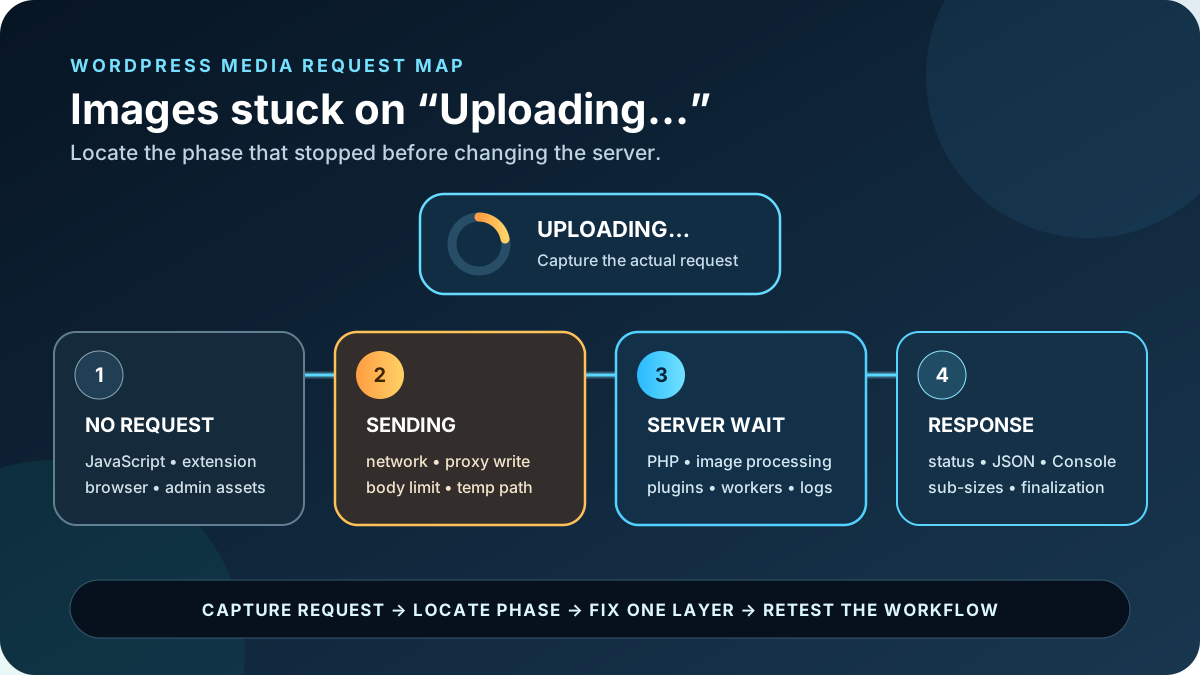
Protect the site and its media: take a restorable database-and-files backup and use staging for plugin, theme, PHP, WAF, storage, or image-library changes. Preserve the source file and current settings. Do not upload the same file repeatedly, set uploads to 777, disable every firewall rule, or make server limits unlimited. Check for an existing attachment before deleting anything.
1. Capture one complete upload attempt
- Open a fresh private browser window and sign in normally as a user allowed to upload files.
- Go to Media > Add New. Starting outside a page builder makes the first test easier to attribute.
- Open Developer Tools > Network, enable Preserve log, and filter for
upload,media,ajax,fetch, orXHR. - Open the Console in a second panel, clear old entries, and upload one small known-good JPEG.
- Record the exact start time, timezone, browser, file bytes/dimensions, request URL, status, duration, response type, and the phase where its Timing tab stops.
- Keep all follow-up requests. WordPress may continue image sub-size or finalization work after the original transfer.
Do not publish a HAR without removing cookies, nonces, authorization headers, upload contents, private URLs, and personal data. A redacted screenshot is usually safer.
Build a useful evidence packet: timestamp, request URL/status/phase, redacted response, first Console error, whether the original and attachment exist, Site Health Media Handling export, PHP/web-server log excerpt, and a one-file versus batch result. This lets a host or developer investigate the exact boundary instead of guessing from a spinner.
2. Fix the browser path when no request starts
If clicking or dropping a file creates no network request, the problem is before WordPress receives it. Read the first relevant Console error and its complete stack. WordPress’s browser-debugging guidance recommends comparing browsers and reporting the full JavaScript context, not only a minified line number.
- Try a clean private window, then a second current browser. If only one works, inspect its extensions, privacy controls, cached site data, VPN, and endpoint protection.
- Temporarily disable an extension only for the test. Ad blockers, upload scanners, password tools, or privacy extensions can intercept admin requests.
- Confirm optimization or CDN tools do not cache, combine, delay, or rewrite scripts in
wp-admin. - In a staging copy, test a current default theme and suspected media, security, optimization, and page-builder plugins one at a time.
- If unminified WordPress scripts change the result, restore the original setting and report the complete stack to the responsible component; do not leave diagnostic script mode enabled.
Once a request appears, stop changing the browser and follow its status. The WordPress plugin audit checklist can trace the scripts, upload hooks, media sizes, remote calls, and stored data a suspected component owns.
3. Repair a request that stalls while sending
If the Timing view shows a long Request sent phase, the browser has not finished delivering the multipart body. Compare a 100 KB known-good image with the problem file, then test the same file from another reliable connection. A phone hotspot can help isolate an office proxy, VPN, router, or ISP path, but it is not a permanent fix.
- Check packet loss, unstable Wi-Fi, VPN/proxy inspection, antivirus upload scanning, and browser error text such as a reset or aborted request.
- Compare the file with the maximum effective upload size in Tools > Site Health > Info > Media Handling.
- Check the reverse proxy, CDN, web server, and PHP limits. The smallest enforced request limit wins.
- A
413identifies a request-body ceiling. Change the layer that returned it rather than increasing unrelated PHP memory. - If a proxy reports a write timeout, investigate connection speed and origin acceptance before increasing the timeout.
PHP receives uploads through a temporary directory before WordPress moves them. Confirm file_uploads, upload_tmp_dir, upload_max_filesize, post_max_size, temporary-directory access, free disk space, quota, and inodes. A missing temp directory, partial upload, or failed disk write has a specific PHP error that should be preserved.
4. Diagnose a request stuck waiting for the server
When upload bytes are sent but the request remains in Waiting for server response, WordPress, PHP, the image library, or a plugin may still be working. Chrome notes that this phase includes network round-trip latency plus the time the server takes to prepare its response. Match the request timestamp with PHP, web-server, PHP-FPM/application, database, WAF, and host resource logs.
- Look for memory exhaustion, maximum execution time, killed processes, upstream timeouts, no space, permission errors, Imagick/GD exceptions, slow database work, and external HTTP timeouts.
- Check PHP worker/process queue, CPU, memory, disk I/O, and database load while the request waits.
- Upload one image rather than a batch. Concurrent originals, thumbnails, optimization, offload, and watermark jobs can contend for the same resources.
- Record plugins that run on upload: optimizers, converters, watermarks, media folders, offload/CDN, duplicate detection, security, metadata, AI tagging, and custom crops.
- Increase only a measured limit. A longer timeout can turn a clear failure into a longer spinner when the underlying process is deadlocked or repeatedly retrying.
If the whole site also slows while images process, the scheduled WordPress still slow after caching guide separates PHP capacity, background load, and browser work. Keep that broad performance diagnosis outside this upload-specific page.
5. Follow attachment and sub-size retry requests
WordPress can create an attachment before every image size is finished. Current server-side upload code exposes an X-WP-Upload-Attachment-ID header so the client can resume missing sub-sizes after a fatal error. WordPress’s wp_ajax_media_create_image_subsizes() endpoint can continue the work or clean up a recent failed upload. Preserve the full request sequence, not only the first line.
- Check Media Library grid and list views once for an attachment created at the test time.
- Check the uploads year/month directory for the original,
-scaledfile, and generated sizes. - Record an attachment ID from the response header or follow-up payload; do not expose it with authentication data.
- Inspect each post-processing response and the first request that becomes pending, 500-series, forbidden, or malformed.
- Do not hand-edit attachment metadata or delete database rows. Repair the cause, then use a tested missing-size workflow.
If the interface ends with “The server cannot process the image”, move to the scheduled specific image-processing error guide after it is live. If the upload succeeds but thumbnails are silently missing, that is W57’s separate intent.
6. Interpret a completed status instead of the spinner
| Status/result | Likely owner | Smallest next step |
|---|---|---|
200/201 with expected JSON | Client completion or a later request | Find the first Console error and inspect dependent requests |
200 with HTML, warning, banner, or login form | PHP output, cache/proxy, plugin, or authentication redirect | Read the first response lines and final URL |
401/403 | Expired session/nonce, capability, security plugin, WAF, or proxy | Retry in a fresh session, then find the matching security event |
413 | CDN/proxy/web-server/PHP body limit | Match the response owner and approved maximum upload size |
429 | Rate limiting or abuse protection | Stop retries and tune the exact authenticated upload rule |
500/502/503/504 or provider timeout | PHP fatal, unavailable upstream, worker pressure, or long processing | Match logs and resource graphs to the timestamp |
CORS error, reset, cancelled, or failed | Origin mismatch, browser/network, offload, proxy, or extension | Inspect final URL, Console details, and the failing network hop |
A normal public REST API root does not prove an authenticated multipart media request works. If the response is unusable JSON or unexpected HTML, use the scheduled invalid JSON response guide for the shared response layer, while keeping upload-phase evidence here.
7. Fix sessions, nonces, WAF rules, and URL mismatches narrowly
For a 401/403 or login response, start a new private session and upload once. If it fails again, identify whether WordPress returned a permission/nonce error or a security plugin, host, CDN, or WAF returned a block page. Match its request ID, rule ID, user/IP, endpoint, and timestamp. Test a narrow staging or administrator exception, then tune only the proven false positive and restore normal protection.
Check that WordPress Address, Site Address, admin origin, REST URL, and offload destination use the intended HTTPS host. A redirect, mixed scheme, missing CORS permission, or rewritten upload URL can let bytes transfer but prevent the interface from reading the result. Do not whitelist every request to wp-admin or wp-json.
8. Run a controlled conflict test
Clone the symptom to staging or use a safe troubleshooting mode that affects only your session. Record the baseline request, then test one suspected layer at a time:
- Pause the image optimizer, converter, watermark, offload, or media-folder integration most directly involved.
- Retry the same file and compare the request sequence, not only the visible progress indicator.
- Test security and admin-script optimization features separately.
- Use a current default theme only on staging if a theme or page-builder media modal is implicated.
- Re-enable the component and reproduce the stall before reporting it.
If Media > Add New works but a block editor, Elementor, product, form, or custom uploader does not, compare endpoints, payload, parent post, role, and Console stack. The common Media Library may be healthy while the integration’s JavaScript or server hook is not. Remote media workflows can also use the existing direct-to-WordPress media guide, but sideloading does not bypass validation or processing.
9. Identify the WordPress 7.0 or 7.1 upload pipeline
On WordPress 7.0.2, the normal path processes image sub-sizes on the server and can retry them through AJAX. WordPress Core’s July 22, 2026 developer note says WordPress 7.1 introduces client-side media processing for supported browser paths. Its queue allows up to five uploads and two image-processing operations, then uses REST create, sideload, and finalize requests.
On that newer path, an item may legitimately wait behind active processing. A true stall has no advancing operation and a pending, failed, or missing create/sideload/finalize request. Recheck final WordPress 7.1 behavior and browser support before this October publication; do not publish 7.0 endpoint instructions as universal.
10. Apply the smallest fix supported by evidence
- No request: repair the named JavaScript/extension/admin-asset conflict.
- Sending stalls: repair the failing connection, proxy write path, temp storage, or exact body limit.
- Waiting stalls: fix the logged PHP/image/plugin operation or right-size proven server capacity.
- Follow-up fails: repair sub-size/finalization processing and resume only the known attachment.
- 403/429: tune the exact authenticated false-positive rule, not the whole firewall.
- Success response plus spinner: remove corrupt output or fix the client exception that prevented completion.
Do not combine a PHP-limit increase, plugin deactivation, image conversion, browser reset, firewall bypass, and hosting upgrade in one attempt. A change can appear successful merely because the second request was smaller, warmer, or sent under lower load.
Verify the repair and keep rollback simple
- Upload one small JPEG, PNG, and WebP supported by Site Health, then a representative large image.
- Test one file and an approved small batch; confirm every progress item finishes and creates exactly one attachment.
- Verify expected original, scaled file, attachment metadata, thumbnails, image editor, and Media Library grid/list views.
- Insert responsive sizes in the block editor and page builder, set a featured image, save, reload, and confirm no Console error.
- Run the business workflow: product gallery, customer upload form, importer, watermark, optimization, CDN/offload, or mobile editorial upload where used.
- Open the published output logged out on desktop and a real phone; confirm the correct image, dimensions,
srcset, and access rules. - Review PHP/server/WAF logs, storage, resource graphs, and duplicate attachment count after the test.
If a regression appears, restore the recorded plugin/WAF/PHP/storage setting, re-enable the isolated component, or remove the temporary diagnostic override. Delete test attachments only after confirming they are unused. Avoid a full database rollback on an active store or membership site because it can remove new orders, users, and submissions.
Success: every upload request advances through the expected phases and ends with a valid response; one attachment and its required sizes are created; Media Library and editor interfaces stop spinning; business media integrations work; responsive images render logged out on mobile and desktop; and no matching browser, PHP, WAF, timeout, disk, or resource error returns.
Prevent uploads from becoming silently stuck again
- Document approved file types, practical dimensions, per-file size, and batch count for editors.
- Monitor upload endpoint error rate, PHP failures, processing time, worker queue, disk space, and storage/offload jobs.
- Exclude authenticated admin and upload endpoints from page caching and front-end script optimization.
- Keep WordPress, PHP, browsers, image libraries, plugins, WAF rules, and storage integrations on tested versions.
- Retest the controlled media matrix after hosting, proxy/CDN, PHP, security, offload, or major WordPress changes.
Official and primary sources
- Chrome DevTools Network reference
- WordPress browser JavaScript debugging
- WordPress Site Health screen
- WordPress upload handling
- WordPress AJAX image sub-size continuation
- WordPress REST attachment creation
- WordPress image sub-size creation
- Debugging in WordPress
- PHP POST file uploads
- PHP upload error codes
- PHP runtime and input configuration
- Cloudflare 413 response guidance
- Cloudflare 524 timeout guidance
- WordPress 7.1 client-side media developer note
- WordPress client-side media architecture
Frequently asked questions
How long should I wait before calling an upload stuck?
Compare the same known-good file and normal baseline. A large image may need processing time, and WordPress 7.1 may queue behind two active processing operations. It is stuck when no phase advances and the related request remains pending, fails, or never starts beyond the expected workflow time.
Should I refresh the page when the spinner will not stop?
Preserve the Network log and check Media Library first. The original or attachment may already exist. Refresh only after saving evidence, then avoid re-uploading until you know whether cleanup or sub-size processing is incomplete.
Why are small images also stuck uploading?
The stall can happen before size matters: JavaScript error, extension, expired nonce, WAF rule, temp-directory failure, permission problem, plugin hook, or malformed response. The request phase and status are more useful than the size suggestion.
Will increasing PHP timeouts fix the spinner?
Only if a log proves the processing exceeds that effective timeout and the work is otherwise healthy. A longer timeout will not repair a 403, 413, broken connection, JavaScript exception, missing temp folder, deadlock, or unsupported image.
Why is the image in Media Library even though upload still spins?
Attachment creation may finish before sub-sizes, finalization, or the browser’s success handler. Inspect related requests and attachment metadata. Do not create duplicates; repair the incomplete step and generate only genuinely missing sizes.
Need the stalled request traced end to end?
AbdullahWP can trace the browser request, WordPress attachment state, PHP/server logs, image processing, WAF, plugins, and storage/offload workflow, then verify the real publishing or ecommerce path. Review the WordPress troubleshooting services.





