The WordPress message “The server cannot process the image” is broader than its suggestion to upload a smaller file. It can appear when a request is blocked, PHP cannot move the file, Imagick or GD cannot load it, thumbnail generation exhausts a resource, or a security rule returns an unexpected response.
First learn whether the original reached uploads and whether transport or image processing failed. This guide follows the failed request, tests a controlled image set, and changes only the evidenced layer. Success means WordPress creates the attachment and sub-sizes, and normal media workflows work.
Quick answer: Open the browser Network panel, reproduce one upload, and inspect the failed request to async-upload.php, admin-ajax.php, or /wp-json/wp/v2/media. Record its status and response, then check whether the original appears in Media Library and whether thumbnail files exist. A 413, 401/403, or 500-series response points to a different layer than a 200 response followed by missing sub-sizes. Use Tools > Site Health > Info to record the active image editor, supported formats, effective upload limit, and filesystem status before changing PHP or ImageMagick.
Use the failed request as a diagnostic map
| Evidence | Likely layer | First useful check |
|---|---|---|
413 or upload stops before WordPress handles it | Proxy, web server, PHP POST/upload limit, or transport | Compare file bytes with every effective request limit and read the server log |
401, 403, challenge, or login HTML | Expired session/nonce, role, security plugin, WAF, or proxy | Start a fresh login, then find the matching security event and rule ID |
500, 502, 503, or 504 | PHP fatal, timeout, capacity, image library, or upstream | Match PHP/web-server logs to the exact upload time |
Original exists, but no thumbnail or -scaled file | Image loading, scaling, metadata, sub-size generation, or write failure | Check the active editor and compare a small known-good image |
| Every small JPEG, PNG, and WebP fails | Editor availability, temp/storage, permissions, server policy, or conflict | Open Site Health Media Handling and test the libraries on staging |
| Only one image or one format fails | Corrupt data, unsupported encoding, profile/metadata, dimensions, or coder policy | Re-export a copy as a standard 8-bit sRGB image and compare |
| Failure is intermittent or appears during busy periods | Memory, CPU, PHP-process, disk, or concurrent image-processing pressure | Correlate host resource graphs and logs with repeated tests |
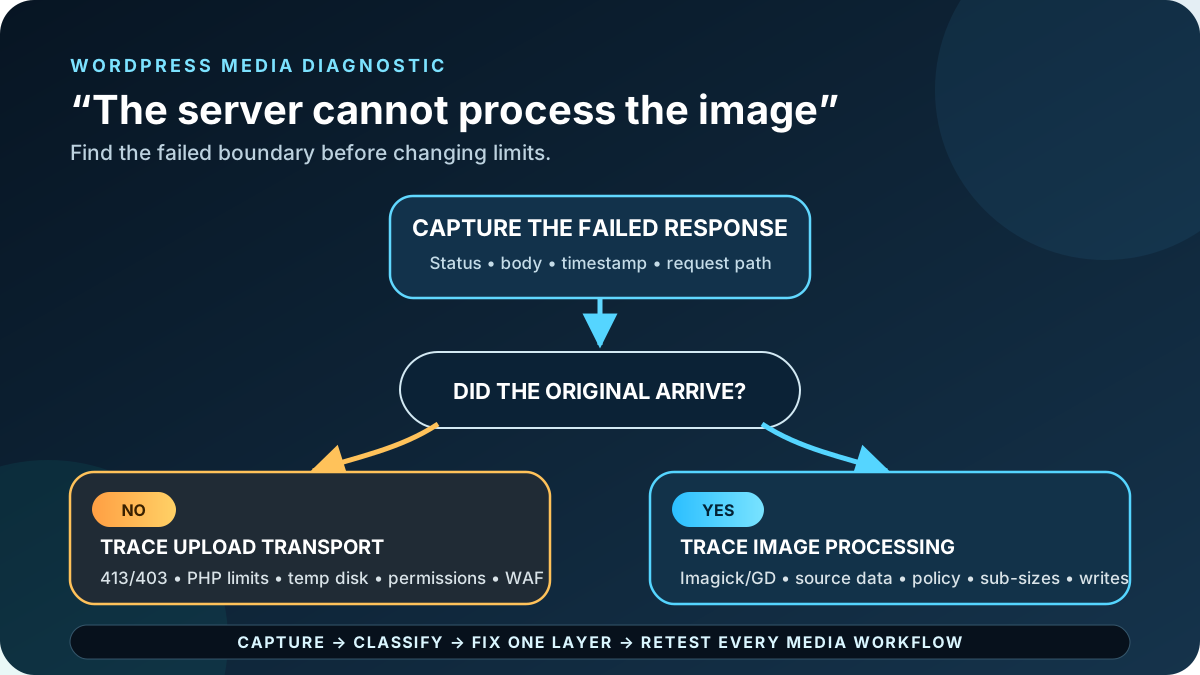
Before changing the server: take a restorable database-and-files backup, preserve the original image, and use staging for library, plugin, PHP, policy, or permission changes. Do not set folders to 777, disable the firewall for all of wp-admin, remove ImageMagick security policy, or set memory, disk, dimensions, and execution time to unlimited. Those shortcuts can expose the site or let one crafted image exhaust the server.
1. Capture the request that returned the message
- Open a fresh administrator session and go to Media > Add New.
- Open browser developer tools, select Network, preserve the log, and filter for
upload,media,ajax,fetch, orXHR. - Upload one copy of the failing image and note the exact time and timezone.
- Select the failed request and record its URL, method, HTTP status, final URL, response
Content-Type, and first useful response lines. - Check whether follow-up requests tried to create image sub-sizes or clean up the attachment.
- Redact cookies, nonces, authorization headers, personal data, file paths, and private URLs before sharing a screenshot or HAR file.
The message can be a fallback for an unusual response, so file dimensions may be irrelevant. A WAF page, login form, PHP warning, HTML error, or upstream timeout needs that layer repaired. For a broader malformed response, use the scheduled WordPress invalid JSON response guide after it is live.
Send support an evidence packet: failing request URL and status, timestamp and timezone, redacted response, whether the original and thumbnails exist, file format/bytes/dimensions, Site Health Media Handling export, active editor and versions, and a short matching log excerpt. “Increase the limits” is not a diagnosis; this packet lets the host find the failing boundary.
2. Determine how far the upload completed
Refresh Media Library once and inspect the current year/month folder through the host or SFTP. Do not keep uploading copies while investigating.
- No attachment and no original file: focus on request size, temporary storage, permissions, WAF, authentication, or transport.
- Original exists but no attachment: WordPress or a plugin failed after moving the file but before completing the attachment record.
- Attachment and original exist, but sub-sizes are absent: the upload transport succeeded; focus on the image editor, source data, resource limits, registered sizes, and destination writes.
- Some sub-sizes exist: WordPress may have saved progress before a later size failed. Identify the first missing size and the component that registered it.
- A
-scaledfile exists: large-image scaling completed; inspect subsequent metadata or sub-size work rather than assuming the 2560-pixel step failed.
WordPress uses a default 2560-pixel big-image threshold to create a scaled working image when a dimension exceeds it. That threshold is not a universal maximum upload size. A 1200-pixel file can fail because of its encoding or the request response, while a larger well-formed file can succeed on a properly configured server.
3. Build a controlled image test matrix
Make copies for testing; never overwrite the only source. Use simple filenames such as image-test-800.jpg and upload one at a time.
| Test file | What it isolates | Interpretation |
|---|---|---|
| Known-good 800×600, 8-bit sRGB JPEG | Basic transport and JPEG processing | If this fails everywhere, investigate the server path first |
| Known-good small PNG and WebP | Format-specific editor support | One failing format points to a missing/blocked coder or library build |
| Original problem image | The reproducible incident | Keep its exact bytes for comparison and vendor testing |
| Problem image resized below 2560px | Pixel dimensions and big-image scaling | Success narrows the issue to resource/dimension work, not file bytes alone |
| Problem image re-exported as 8-bit sRGB | Encoding, profile, metadata, or corruption | Success proves a file-property branch; it does not prove which property |
| Same files on staging or a clean test install | Environment and component differences | Compare editor/version/policy instead of declaring a core bug |
A compressed 300 KB image can decode into far more pixel memory while resizing and creating copies. Compare dimensions, channels, bit depth, frames, and registered sizes—not only file bytes.
4. Fix upload transport, PHP limits, and temporary storage
Open Tools > Site Health > Info > Media Handling and Server. Record file uploads, maximum post data, maximum uploaded file size, maximum effective file size, active image editor, supported formats, and PHP limits. The effective request ceiling is the smallest enforced limit across the browser-facing proxy/CDN, web server, PHP post_max_size, PHP upload_max_filesize, and any host policy.
413means the request was too large for a receiving layer. Find which layer logged it; changing only WordPress cannot override an Nginx, Apache, proxy, or CDN limit.- PHP stores incoming uploads in
upload_tmp_diror the system temporary directory. The PHP/web-server user needs access, and the filesystem needs free space and inodes. post_max_sizemust allow the complete multipart request, not just the image bytes, and should be larger thanupload_max_filesize.- A partial upload, missing temporary folder, or failed disk write has a distinct PHP upload error. Preserve it instead of replacing every limit.
- Increase a measured limit only enough for the approved media workflow, then restart the required PHP service and confirm Site Health shows the effective value.
If a remote image is being sideloaded, confirm the remote download succeeds before blaming thumbnail generation. The direct-to-Media-Library upload guide describes that separate workflow; sideloading still requires WordPress to validate, store, and process the result.
5. Verify Imagick or GD instead of blindly forcing one
Site Health > Info > Media Handling identifies the active WordPress image editor, ImageMagick/Imagick and GD versions, and GD-supported formats. WordPress normally tries WP_Image_Editor_Imagick and then WP_Image_Editor_GD. Availability does not prove that every coder, profile, or resource policy works.
Run a temporary editor comparison on staging
A developer can temporarily change the wp_image_editors order on staging, upload the same test set, and remove the override immediately. If GD succeeds while Imagick fails, collect the ImageMagick exception, versions, source file, and effective policy for the host. If both fail, the cause may be the source, filesystem, PHP, a plugin hook, or a shared server limit. Do not make a staging workaround permanent without checking quality, format support, metadata, memory behavior, and every required image size.
Keep ImageMagick resource and security limits
ImageMagick policies can restrict width, height, pixel area, memory, memory maps, disk, files, threads, runtime, paths, and coders. Its official guidance treats these limits as protection against demanding or crafted input. Ask the host to compare the failing image with current policy and resource logs. Adjust a justified limit within available capacity; do not disable policy.xml, enable every coder, or grant unlimited disk and time.
6. Repair a file-specific format, profile, or metadata failure
If known-good files work and one source fails, inspect it in a trusted editor or identification tool. Check real format, dimensions, bit depth, color space, alpha, frames, orientation, ICC profile, and corruption. Renaming photo.tiff to photo.jpg is not conversion.
- Preserve the original and its checksum if the file has business or archival value.
- Export a copy as a standard 8-bit sRGB JPEG for photography, or PNG/WebP when transparency or lossless output is required.
- Use a lowercase alphanumeric filename with hyphens to rule out a filename/parser boundary.
- Upload the copy and compare the response, attachment metadata, and generated sub-sizes.
- If removing metadata changes the result, retain both files and report the specific decoder/library versions to the host or vendor; metadata itself is not automatically malicious or invalid.
HEIC, AVIF, animated images, very high bit depth, CMYK data, or unusual profiles depend on the installed WordPress, PHP, GD, Imagick, and ImageMagick capabilities. Use Site Health and the active library’s supported-format report rather than assuming support from the browser or filename.
7. Check uploads ownership, permissions, disk, and offload
WordPress must write the original and each generated size into the active uploads path. Site Health reports whether the uploads directory is writable, but the host should also verify the current year/month directory, owner/group, PHP execution identity, disk quota, inode availability, temporary directory, and any mounted or network storage.
Use the host’s supported ownership and permission model. A numeric mode such as 755 is writable only when ownership and execution identity align; 777 hides that fault by granting everyone write access. On an offloaded-media site, test with the storage/offload integration disabled only on staging and inspect its upload, metadata, and deletion logs.
8. Fix authentication, WAF, or plugin conflicts narrowly
For a 401/403 or challenge response, sign in through a fresh private session and retry once. If it still fails, identify whether WordPress returned a capability/nonce error or a security plugin, host firewall, CDN, or WAF returned branded HTML. Find the matching event by request ID and timestamp. Test a temporary exception for the exact rule, authenticated role/IP, and upload endpoint; then tune that false positive and restore normal protection.
Image optimizers, format converters, watermark tools, media offload, custom crop code, security plugins, and themes/plugins that register many image sizes can fail during metadata generation. Reproduce on staging, deactivate one suspected component, and upload a new copy of the same test image. Re-enable it and repeat. The WordPress plugin audit checklist helps trace upload hooks, image sizes, storage, APIs, cron, and exit dependencies before removal.
9. Match server logs and resource graphs to one upload
Open the PHP error log, web-server error log, PHP-FPM or application log, ImageMagick exception output, WAF event log, and host resource graphs around the recorded timestamp. Look for Allowed memory size exhausted, ImagickException, unsupported coder, policy denial, permission denied, no space left, read/write failure, timeout, killed process, or upstream reset.
If the host log is insufficient, use a short private WordPress debug-log window on staging or controlled production, with error display off, then remove it and its public log. If image processing coincides with broader site slowness or PHP queueing, use the WordPress still slow after caching guide after its scheduled publication. A PHP fatal that blocks normal administration belongs in the critical-error recovery guide.
10. Confirm which WordPress media pipeline is active
This diagnosis reflects WordPress 7.0.2’s normal server-side image processing. WordPress Core’s July 22, 2026 developer note says WordPress 7.1 introduces client-side media processing for supported browser paths, with REST create, sideload, and finalize requests. On 7.1, a browser-side conversion, a REST finalize request, or the server fallback may be the failing step. Recheck the installed WordPress version and capture the actual request sequence before publication or support work; the same transport-versus-processing distinction still applies.
Verify the fix across the complete media workflow
- Upload a small JPEG, PNG, and WebP that Site Health says the active editor supports.
- Upload a representative large photo, a transparent image, and the repaired problem file.
- Confirm each request completes successfully and creates one attachment, expected metadata, the configured sub-sizes, and any required
-scaledfile. - Open Media Library grid and list views; edit, crop, rotate, restore, and save a test image.
- Insert each relevant size into a post, set a featured image, and verify
srcset, dimensions, alt-text controls, and the logged-out desktop/mobile result. - Test the real workflow: page builder, product gallery, form upload, importer, REST integration, watermark, optimization, CDN/offload, and regeneration process where used.
- Check new logs for repeated warnings and watch memory, disk, PHP queue, and processing time under a small approved batch.
Roll back the smallest change if a format, thumbnail, or workflow regresses: restore the previous server policy or PHP value, remove the temporary editor override, reactivate the isolated component, or restore its settings. Remove duplicate test attachments only after confirming they are not referenced. Avoid a full database restore on an active site because it can erase posts, users, orders, and submissions created since the backup.
Success: the upload request returns the expected response; originals, metadata, scaled copies, and required sub-sizes are created once; JPEG, PNG, WebP, and the business-specific source set work; editing and insertion succeed; logged-out responsive images render; and no new PHP, ImageMagick, WAF, permission, disk, or timeout error appears.
Prevent the image-processing error from returning
- Define approved source formats, color space, maximum practical dimensions, and file-size guidance for editors.
- Keep WordPress, PHP, GD/Imagick, ImageMagick, image plugins, and storage integrations on tested compatible versions.
- Monitor disk space, inodes, PHP failures, image-processing time, and upload endpoint errors.
- Audit registered image sizes and remove an obsolete size only through its owning theme/plugin workflow.
- Keep security and ImageMagick resource policies documented, bounded, and included in change review.
- Run the controlled image matrix after hosting, PHP, library, CDN/WAF, offload, or major WordPress changes.
Official and primary sources
- WordPress Site Health screen and Media Handling information
- WordPress upload handling
- WordPress image sub-size creation
- WordPress image editor selection
- WordPress image editor filter and defaults
- WordPress Imagick editor class
- Debugging in WordPress
- WordPress Core Trac: upload and sub-size retry behavior
- PHP POST file uploads and related directives
- PHP upload error codes
- PHP GD image support
- ImageMagick security policy
- ImageMagick resource policies
- WordPress 7.1 client-side media processing developer note
Frequently asked questions
Is 2560 pixels a hard WordPress upload limit?
No. It is WordPress’s default threshold for scaling a large image, not the maximum file dimension the upload transport accepts. The actual outcome depends on request limits, the image editor, pixel resources, registered sizes, and server policy.
Why does a tiny image show a server-resource message?
The message is generic. A small file can receive a 403 WAF response, contain unsupported or corrupt image data, fail an Imagick policy, hit a permissions problem, or trigger plugin code. Inspect the response and compare a known-good file before increasing resources.
Should I permanently switch from Imagick to GD?
Use a temporary staging comparison to identify a library-specific failure. If GD works, repair or update the Imagick/ImageMagick configuration with the host, then compare quality, formats, metadata, and memory. A permanent switch is a compatibility decision, not a universal fix.
Will increasing PHP memory and execution time fix it?
Only when logs show that the effective limit is being reached. It will not repair a 413 proxy limit, 403 WAF response, missing temp directory, wrong ownership, unsupported coder, corrupt image, or plugin fatal. Change the proven limit modestly and verify the effective value.
Why does the image appear in Media Library after the error?
The original upload and attachment creation may have succeeded before scaling or sub-size generation failed. Inspect attachment metadata and files instead of uploading duplicates. Repair the processing cause, then generate only the missing sizes through a tested workflow.
Need the failed media path traced safely?
AbdullahWP can correlate the upload response, PHP and server logs, WordPress image editor, ImageMagick policy, storage, WAF, and plugin hooks—then test the full publishing or ecommerce media workflow. Review the WordPress troubleshooting services.





