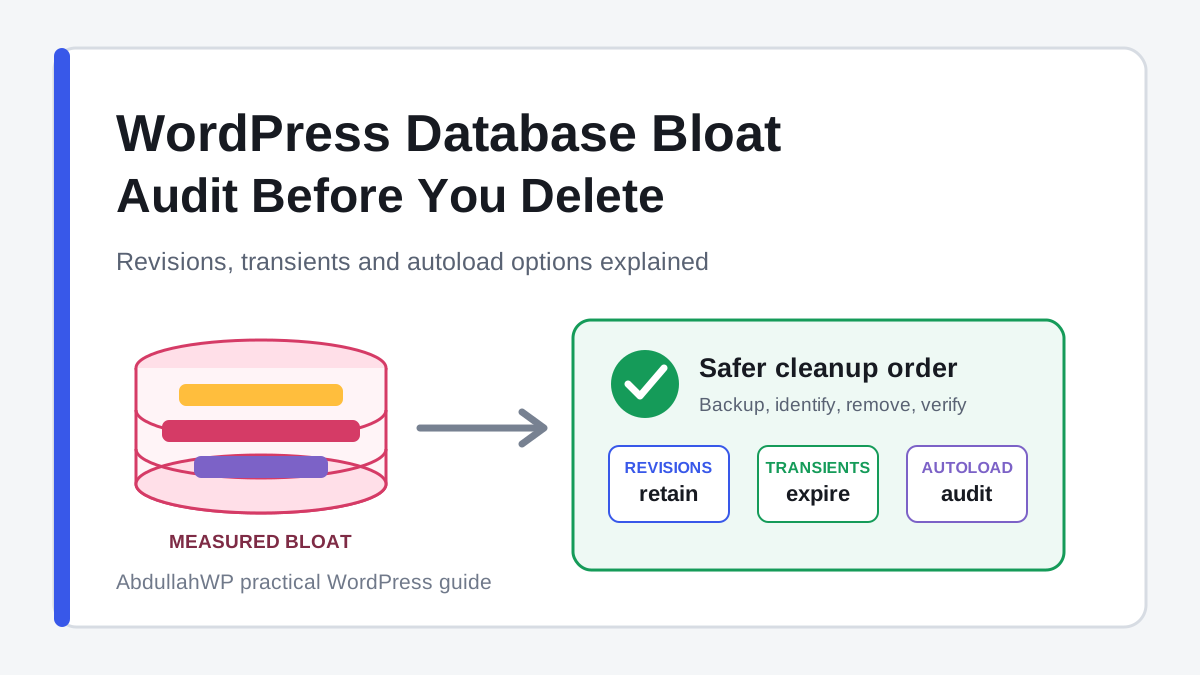
A large WordPress database is not automatically a slow database. A busy WooCommerce store can have gigabytes of legitimate orders and logs, while a small brochure site can feel sluggish because one abandoned plugin autoloads a large option on every request.
The useful question is not simply, “How big is my database?” It is, “Which data is growing, when is it loaded, who owns it, and is it still needed?” This guide explains WordPress database bloat through revisions, transients, autoloaded options, orphaned data, logs, and table overhead, then gives you a backup-first cleanup process that avoids blind deletion.
Note: Database cleanup can reduce storage, shorten backups, and help some database-bound requests. It will not fix slow images, render-blocking scripts, poor hosting, uncached pages, or every Core Web Vitals problem.
What counts as WordPress database bloat?
Database bloat is data that is unnecessary, excessively retained, wrongly loaded, or no longer connected to an active feature. The impact depends on the type of data:
| Data type | Why it exists | Typical concern | Cleanup risk |
|---|---|---|---|
| Post revisions | Restore earlier post and page versions | Storage and larger backups | Low with sensible retention |
| Expired transients | Temporary cached data | Accumulated rows when cleanup is delayed | Low for expired entries |
| Autoloaded options | Settings needed on many requests | Unneeded data loaded into memory repeatedly | High without ownership knowledge |
| Spam, trash, auto-drafts | Editorial and moderation workflows | Storage and clutter | Low after reviewing retention |
| Action Scheduler logs/actions | Background jobs for WooCommerce and plugins | Rapid table growth | Medium; use owner tools and retention |
| Orphaned metadata | Extra data linked to posts, users, comments, or terms | Rows remain after a parent is removed | Medium; scanners can misidentify custom relationships |
| Plugin tables and options | Plugin settings, indexes, queues, reports, and logs | Leftovers after uninstall or disabled features | High; table name alone does not prove abandonment |
| Table overhead | Unused allocated space after changes | Disk use and maintenance | Medium; depends on engine and host |
The priority is usually not the category with the most rows. A large archive table used only in the dashboard may be less urgent than a much smaller option loaded on every uncached request.
Why one-click cleanup advice is incomplete
Many database optimization tutorials focus on selecting every cleanup box in a plugin. That is convenient, but it mixes three different jobs:
- Deleting disposable records, such as expired transients or reviewed spam.
- Changing retention, such as keeping fewer revisions or logs.
- Diagnosing runtime cost, such as large autoloaded options or slow queries.
Those jobs need different evidence. Removing 20,000 revisions can make a backup smaller without changing a cached page’s loading time. Disabling autoload for the wrong option can save memory on some requests but add queries or break a plugin. Deleting an unknown table can remove customer, license, form, or order data permanently.
Warning: Never treat a cleanup plugin’s “orphaned” label as proof that data is safe to delete. Custom code and premium plugins can use relationships the scanner does not recognize.
1. Create a restorable database backup
Cleanup operations are often irreversible. Before touching the database:
- Create a fresh database backup, not only a copy of
wp-content. - Record the database name, table prefix, site URL, WordPress version, and active plugin list.
- Download or store the backup somewhere separate from the live server.
- Confirm how you would restore it. A backup you cannot restore is only a hopeful file.
- Use staging for orphaned options, tables, metadata, or autoload changes.
A normal WordPress backup usually includes content and settings stored in the database, but the exact scope depends on the backup tool. The guide Does a Standard WordPress Backup Save Elementor Global Settings? explains why database coverage matters. Also review the risks of incomplete backups before deleting site settings.
2. Measure the database before cleaning
Record a baseline so you can tell whether the cleanup achieved anything. Useful measurements include:
- Total database size.
- Largest tables by data plus index size.
- Total autoloaded option size.
- Largest individual autoloaded options.
- Revision, expired transient, spam, trash, and scheduled-action counts.
- Backup size and completion time.
- Admin response time for the slow workflow you are trying to improve.
- Slow or duplicate queries on an uncached diagnostic request.
Use WordPress Site Health
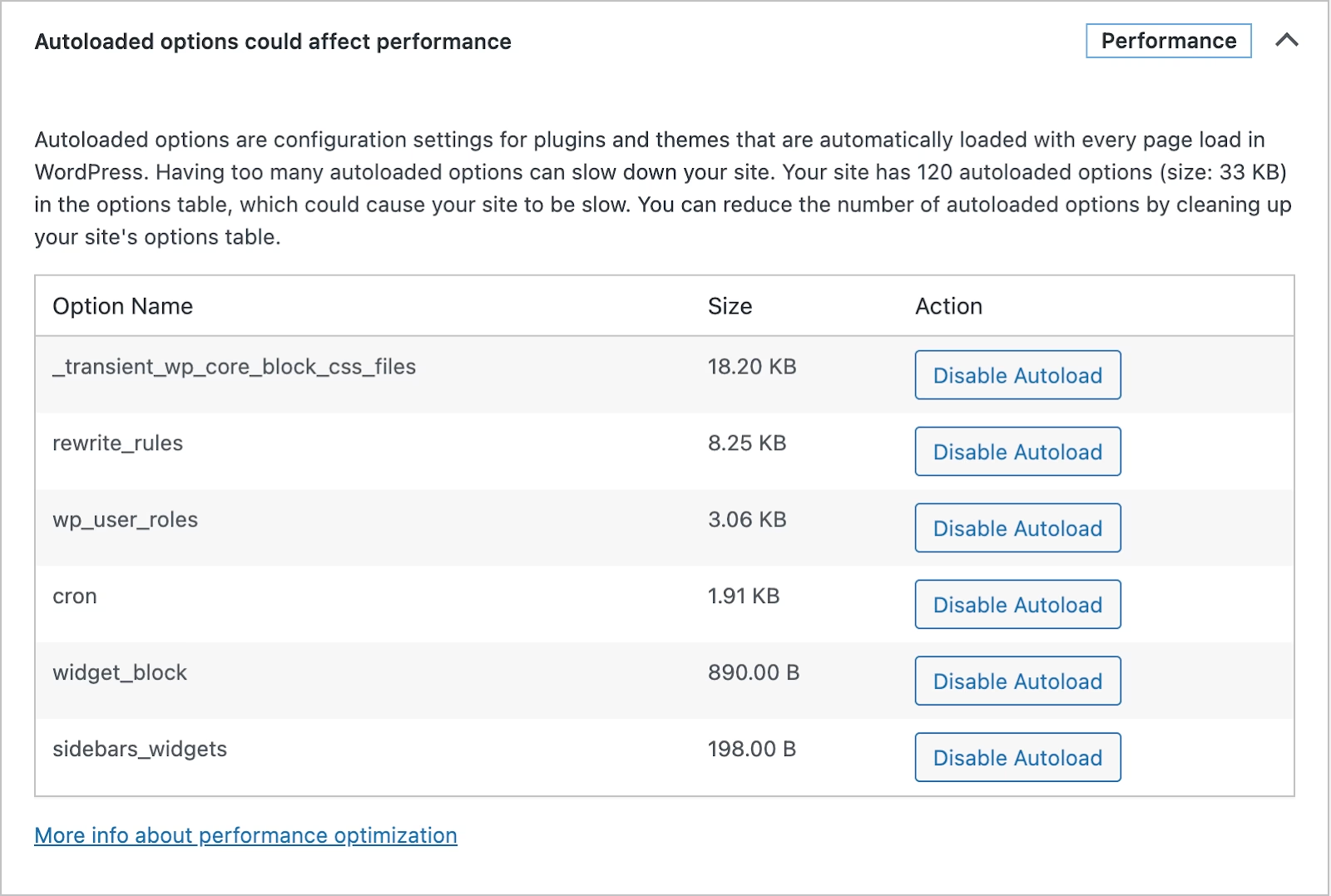
Go to Tools > Site Health > Status and look for an autoloaded-options warning. WordPress core’s default Site Health threshold is 800,000 bytes. That is a warning threshold, not a universal performance target or a command to delete everything above it.
Use WP-CLI when available
WP-CLI can report the total database size and each table’s size without opening phpMyAdmin:
wp db size
wp db size --tables --orderby=size --order=desc
The official WP-CLI database size documentation explains the available output formats and scopes. If your host does not provide terminal access, use its database manager or ask support for a table-size report.
3. Retain useful revisions instead of deleting blindly
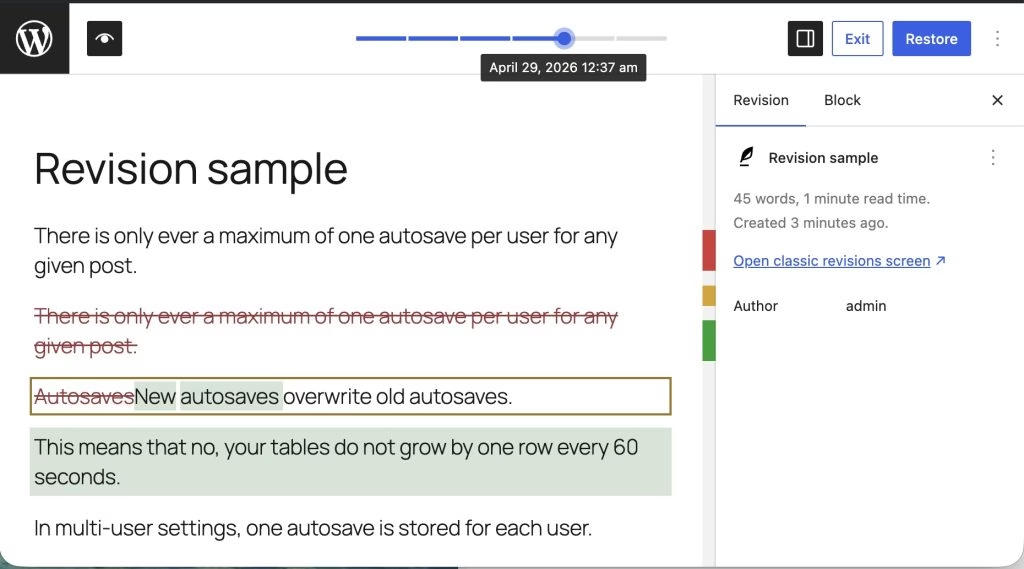
WordPress revisions are recovery points for posts and pages. They are stored in the posts table as children of the original post. They are not the same as autosaves: WordPress documents that there is normally only one autosave per user for a given post, with newer autosaves replacing older ones.
For a blog edited occasionally, revisions may be a small issue. For an Elementor site, documentation portal, or busy editorial team, large serialized page content and frequent saves can produce more storage growth.
A safer policy is:
- Keep recent revisions for active content.
- Remove older revisions only after the related page is stable.
- Retain more revisions for legal, editorial, and high-value landing pages.
- Do not disable revisions entirely merely to reduce a small database.
To limit future revisions, add a retention value to wp-config.php above the line that tells you to stop editing:
define( 'WP_POST_REVISIONS', 10 );WordPress accepts a positive number as the revision limit and keeps an additional autosave per user. Choose a number that matches the site’s editing workflow; ten is an example, not a mandatory recommendation.
4. Understand transients before clearing them
Transients are temporary cached values with an expiration time. WordPress commonly stores them in the options table, but a persistent object cache such as Redis or Memcached can store them outside the database instead. The Transients API documentation describes this behavior.
| Action | When it makes sense | Tradeoff |
|---|---|---|
| Delete expired transients | Routine low-risk cleanup | Usually minimal; expired values are no longer valid |
| Delete all transients | Troubleshooting a known stale cache after backup | Plugins regenerate values; first requests or background work may be heavier |
| Delete a named transient | You know the owning feature and expected regeneration | Targeted and easier to verify |
| Disable transient autoload manually | Only after understanding the plugin and current WordPress behavior | Can add queries or conflict with the owner |
With WP-CLI, delete only expired transients first:
wp transient delete --expiredOn Multisite, network transients are separate. The official WP-CLI transient command includes the network option and distinguishes expired from all transients.
Tip: If thousands of transients return immediately after cleanup, find the plugin creating them. Repeatedly deleting the symptom will not fix a broken expiration policy, failed cron task, or runaway integration.
5. Audit autoloaded options with current WordPress values
WordPress loads many frequently needed options together on each request. This reduces separate database queries for settings used everywhere. It becomes wasteful when a large option is autoloaded but rarely used.
A common audit mistake is querying only autoload = 'yes'. Since WordPress 6.6, the database can contain these values:
| Stored value | Meaning | Autoloaded by default? |
|---|---|---|
yes | Legacy explicit autoload | Yes |
on | Explicitly autoload | Yes |
auto | Let WordPress determine behavior | Currently treated as autoload |
auto-on | Dynamically selected for autoload | Yes |
no | Legacy non-autoload | No |
off | Explicitly do not autoload | No |
auto-off | Dynamically selected not to autoload | No |
The WordPress Core Performance Team documents that wp_autoload_values_to_autoload() returns the values WordPress currently considers autoloaded. WordPress also avoids dynamically autoloading newly changed options above its default individual-size threshold unless the developer explicitly requires autoloading.
Measure total autoload size with WP-CLI
wp option list --autoload=on --format=total_bytes
wp option list --autoload=on --fields=option_name,size_bytes,autoload
These commands use WordPress’s current autoload interpretation. See the official WP-CLI option list documentation.
Inspect the largest options with SQL
This read-only query includes legacy and newer autoload values. Replace wp_options with the actual options table if the site uses a different prefix:
SELECT
  option_name,
  ROUND(LENGTH(option_value) / 1024, 1) AS size_kb,
  autoload
FROM wp_options
WHERE autoload IN ('yes', 'on', 'auto', 'auto-on')
ORDER BY LENGTH(option_value) DESC
LIMIT 50;
Do not delete or change an option simply because it is large. Investigate:
- Which plugin, theme, or custom code owns the prefix?
- Is the owner active?
- Is the option used on most requests or only one admin screen?
- Is it serialized data that must remain structurally intact?
- Will the owner recreate it with the same autoload state?
- Does changing it improve a measured request without breaking functionality?
For an example of a legitimate Elementor setting stored as an option, read what the elementor_active_kit option does. A technical-sounding option name is not evidence that it is disposable.
Warning: Do not directly edit serialized option_value data in phpMyAdmin. Changing string lengths or structure can corrupt the value. Prefer the owning plugin, WordPress APIs, or a tested management tool.
6. Review logs, sessions, and Action Scheduler tables
WooCommerce and many plugins use Action Scheduler for background jobs. Completed actions and logs can become some of the largest tables on an active site. Security logs, email logs, analytics events, form submissions, search indexes, and abandoned sessions can also grow rapidly.
Use the owner application’s retention controls first. That preserves its assumptions and lets it clean related rows together. Before deleting:
- Confirm whether pending or failed jobs are still needed.
- Identify why failures are repeating.
- Keep enough history for troubleshooting, refunds, email delivery, security, or compliance.
- Run large cleanup jobs in batches during low traffic.
- Check WP-Cron or the server cron if scheduled cleanup never runs.
A table that grows back overnight needs a retention or application fix, not a daily manual purge.
7. Treat orphaned metadata, options, and tables as high-risk
Orphaned data is data whose expected owner or parent cannot be found. Straightforward examples include post metadata pointing to a deleted post. Harder cases include custom relationships, external IDs, multilingual mappings, custom post types, and tables shared by a plugin family.
- Export the candidate rows or table separately.
- Identify the naming prefix and search the active codebase for it.
- Check the removed plugin’s uninstall documentation.
- Verify that no active plugin, theme, integration, or custom code reads it.
- Test deletion on staging.
- Exercise checkout, forms, login, search, scheduled tasks, and admin workflows.
- Wait through at least one normal cron cycle before repeating the live change.
If ownership is unknown, leaving the data in place is often safer than recovering a few megabytes. Storage bloat and runtime bloat are not the same risk.
8. Understand what “Optimize Tables” does
Database tools often offer an Optimize Tables button. It can reclaim unused allocated space or rebuild table structures, but the behavior depends on the database engine, table state, host configuration, and MySQL or MariaDB version.
- Optimization does not decide whether rows are useful.
- It is not a substitute for fixing a table that grows without retention.
- Large tables may lock, rebuild, or consume temporary disk space.
- Managed hosts may handle optimization automatically or restrict it.
- InnoDB behavior differs from older MyISAM advice repeated in many tutorials.
Ask the host before optimizing a large production table. Take a backup, confirm free disk space, and schedule the work during low traffic.
Tools for cleanup and diagnosis




| Tool | Best use | Important limitation |
|---|---|---|
| WP-Optimize | Beginner-friendly revisions, trash, transient, and table cleanup with retention and scheduling | Do not enable overlapping cache or minification features if another plugin already owns them |
| Advanced Database Cleaner | Detailed inspection, previews, table and option views, and ownership-oriented cleanup | Some ownership and advanced functions depend on the paid edition; scanner results still need review |
| Performance Lab | Testing official WordPress performance features and following core performance work | It is not a general-purpose database cleaner, and available modules change as features move into core |
| Query Monitor | Finding slow, duplicate, and erroneous queries by responsible component | It diagnoses requests; it does not decide which database records are safe to delete |
The logos above are official assets from the WordPress.org plugin directory. Install one cleanup tool for the job, review every selected category, and remove it afterward if you do not need scheduling. Query Monitor is useful during diagnosis but should not be left active without a reason on a production site.
A safer WordPress database cleanup order
- Back up and document: Create a restorable database export and record baseline sizes.
- Remove reviewed trash: Empty old spam, trash, and auto-drafts according to the site’s retention needs.
- Apply revision retention: Keep useful recent restore points; delete older revisions in a batch.
- Delete expired transients: Start with expired entries, then investigate fast regrowth.
- Clean owner-managed logs: Use WooCommerce, security, email, analytics, or form settings to set retention.
- Audit autoload: Measure total size, sort the largest options, establish ownership, and change only verified candidates.
- Investigate orphaned data: Export it, test on staging, and delete only when ownership is settled.
- Optimize tables if justified: Coordinate large-table maintenance with the host.
- Purge caches: Clear object and page caches when appropriate so tests reflect the new state.
- Verify: Compare table size, autoload size, backup behavior, errors, scheduled jobs, and the original slow workflow.
Success: A good cleanup has a before-and-after record, a verified restore path, no broken workflows, a retention policy that slows regrowth, and a measured improvement relevant to the original problem.
Prevent the database from bloating again
- Set a sensible revision limit instead of disabling revisions.
- Configure retention for security, email, analytics, form, WooCommerce, and Action Scheduler logs.
- Keep WP-Cron reliable so expiration and scheduled cleanup jobs can run.
- Review database size monthly on stores, membership sites, LMS platforms, and high-traffic publications.
- Record which plugin owns every custom table before removing the plugin.
- Use uninstall options when a plugin offers to remove its data, but export needed records first.
- Audit autoload after installing or removing major plugins.
- Investigate sudden growth immediately instead of waiting for disk limits or backup failures.
Database maintenance is only one part of performance work. If the site remains slow after a measured cleanup, profile the request and examine hosting, PHP workers, object caching, page caching, plugins, and front-end code. The Elementor INP optimization guide covers front-end responsiveness that database cleanup alone cannot solve.
Frequently asked questions
Does database bloat slow down every WordPress site?
No. Impact depends on what data is loaded or queried, table indexes, cache state, hosting, traffic, and the request being measured. Excess revisions may mainly affect storage and backups, while unnecessary autoloaded data can affect many uncached requests.
Is it safe to delete all WordPress revisions?
Deleting revisions removes restore points. It may be acceptable after a backup for stable content, but retention is usually safer than deleting every revision. Keep more history for frequently edited or business-critical pages.
Can I delete all transients?
Transients are designed to expire or be regenerated, but deleting all of them can make plugins rebuild caches and temporarily increase work. Delete expired transients first and clear all only for a specific troubleshooting reason.
What autoload size is too large?
WordPress Site Health uses a default warning threshold of 800,000 bytes for total autoloaded data. Treat it as a prompt to inspect the largest options, not a universal pass/fail score. A smaller but unused option is still wasteful, while a larger frequently used option may be legitimate.
Should I delete tables from inactive plugins?
Only after confirming ownership, checking whether another active component uses them, exporting the tables, and testing deletion on staging. “Inactive” in a scanner does not guarantee that a table is abandoned.
Will optimizing the database improve PageSpeed scores?
Possibly, if database work is delaying the initial HTML response on the tested uncached request. PageSpeed can also be limited by images, JavaScript, CSS, fonts, rendering, and server configuration. Measure server response and queries before crediting database cleanup.
Clean less, understand more
The safest database optimization is not the one that deletes the most rows. It is the one that identifies unnecessary growth, preserves recoverability, changes the responsible retention rule, and proves the result without damaging live features.
Start with expired and reviewed data, investigate autoload and orphaned records carefully, and keep a written baseline. If the database is large, business-critical, or tied to unexplained errors, contact AbdullahWP or review the available WordPress performance and maintenance services before making destructive changes.





