The Critical Risks of Not Backing Up Elementor Global Settings
Failing to properly back up Elementor global settings can lead to significant design inconsistencies, extensive recovery efforts, and potential damage to brand identity.
Understanding the specific risks associated with unbacked Elementor global settings is essential for any WordPress site administrator or developer leveraging Elementor Pro for design consistency.
Elementor Global Settings, accessible via the Site Settings panel, define your website’s core design system. This includes Global Colors, Global Fonts (Typography), Button styles, Form field styling, Backgrounds, Layout defaults, Lightbox configurations, Site Identity, Custom CSS, and Theme Styles. These settings establish a unified visual language across your entire site, ensuring every element, from a primary call-to-action button to body text, adheres to a predefined aesthetic. They are not merely suggestions; they are the bedrock of your site’s visual consistency, stored within your WordPress database as part of Elementor’s ‘Default Kit’.
Understanding Elementor Global Settings and Their Importance
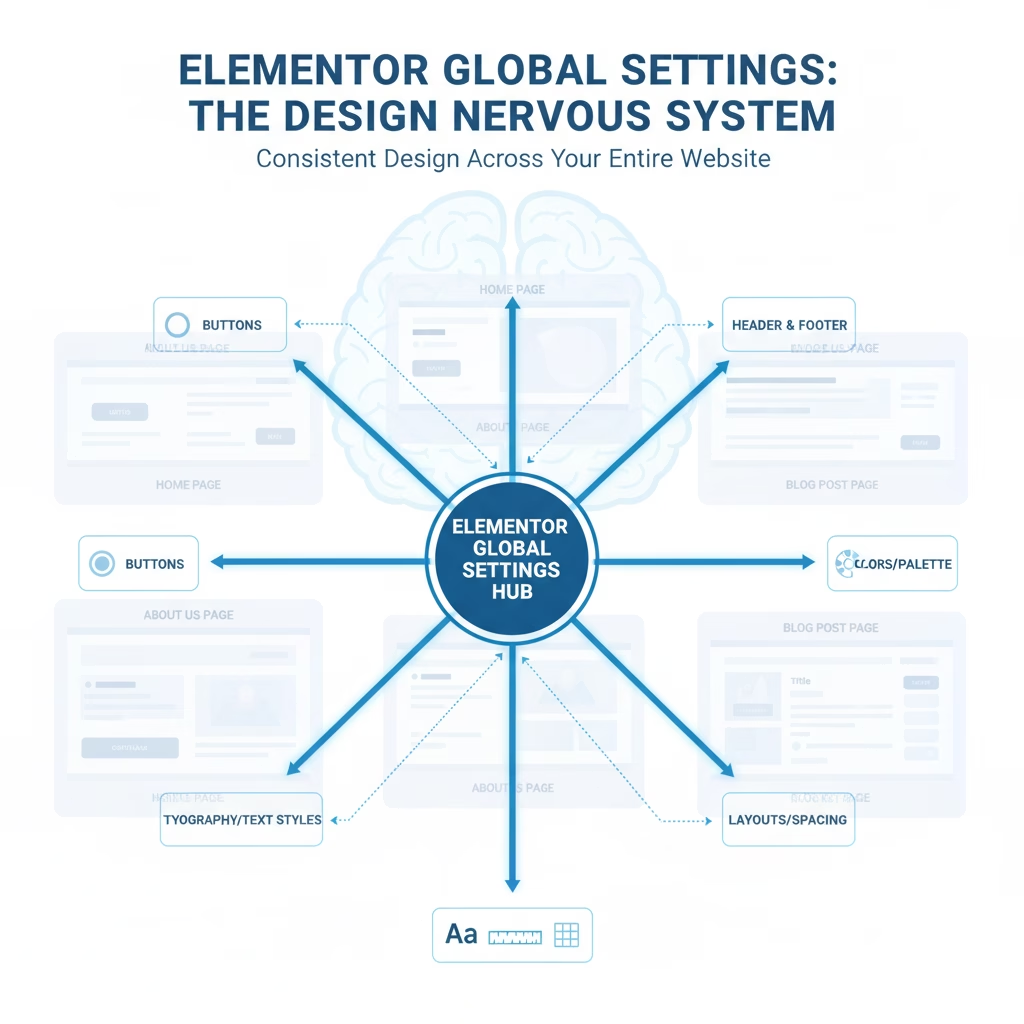
Elementor Global Settings represent a powerful design system for your website. Rather than applying styles individually to every element or page, you define them once in a central location. When you apply a Global Color, for example, to multiple elements, updating that Global Color in Site Settings instantly propagates the change across your entire site where it has been used. This centralized control is what makes these settings so vital for efficient design management and maintaining brand cohesion. As of June 2026, Elementor’s Kit System further solidifies this, packaging all global settings, theme styles, and Elementor Theme Builder templates into a single, portable unit.
elementor_active_kit option in the wp_options table. This database dependency means that a database backup is crucial for preserving these settings. For more details on storage, consult our article on where Elementor global settings are stored in the database.The Ramifications of Unbacked Elementor Global Settings
The impact of losing your Elementor global settings extends far beyond a minor inconvenience. It directly compromises your website’s professionalism and usability.
Widespread Design Inconsistencies

Without their global definitions, Elementor elements will revert to their default styles or inherit styles from the active WordPress theme, which are often not aligned with your brand. This leads to:
- Global Colors: Your carefully chosen brand palette will vanish. Buttons, headings, backgrounds, and text that relied on global colors will display arbitrary or default hues, potentially clashing severely.
- Global Fonts (Typography): Headings (H1-H6), body text, and paragraph styles will lose their custom fonts, sizes, weights, and line heights. This can result in readability issues, skewed layouts, and a complete departure from your brand’s typographic hierarchy.
- Button Styles: All buttons on your site, from their background color and text color to border-radius and hover effects, will revert. This inconsistency can severely impact call-to-action effectiveness and user experience.
- Layout Defaults: Default content width, widget spacing, and breakpoint settings might reset, causing page elements to appear misaligned or cramped.
- Form Fields: Custom styling for input fields, labels, and submit buttons in Elementor forms will be lost, affecting user interaction and visual appeal.
Loss of Brand Identity and Professionalism
Your website’s design is a direct reflection of your brand. When Elementor global settings are lost, the visual identity you meticulously crafted disintegrates. A site with inconsistent typography, clashing colors, and mismatched buttons appears unprofessional and untrustworthy. This erosion of brand identity can significantly harm user perception and trust, making your site less effective as a business tool.
Significant Time and Resource Expenditure for Recovery
Rebuilding a design system from scratch is an arduous task. If you have no backup of your Elementor global settings, you will need to manually reconfigure every single global color, font, button style, and layout default. This process involves:
- Identifying the exact hexadecimal color codes, font families, sizes, and weights used previously.
- Methodically reapplying these settings within the Elementor Site Settings panel.
- Potentially reviewing every single page and template to ensure the global styles have propagated correctly and to fix any remaining local overrides.
Depending on the complexity and size of your website, this recovery effort can consume dozens, if not hundreds, of hours. This time is often drawn away from revenue-generating activities or critical development tasks.
A Real-World Scenario: The Cost of Neglect

Consider a small business owner who spent weeks perfecting their website’s visual identity using Elementor Global Settings – a unique brand color palette, custom typography, and bespoke button styles. After a routine WordPress update, a minor plugin conflict corrupted their database, specifically the elementor_kit entry. With no recent backup, their entire site reverted to a generic, unbranded appearance. The owner faced days of painstaking work, sifting through old design mockups and browser developer tools to manually recreate every global setting. This unexpected recovery effort not only halted their marketing campaigns but also incurred significant stress and lost business opportunities, highlighting the tangible frustration and financial drain of preventable data loss.
Business Implications and Client Dissatisfaction
For businesses, the repercussions of failing to back up Elementor global settings can be severe:
- Lost Revenue: A broken, inconsistent website can deter visitors, reduce conversion rates, and directly impact sales or lead generation.
- Reputational Damage: An unprofessional website reflects poorly on your business, potentially eroding customer confidence and brand reputation.
- Client Dissatisfaction: For agencies and freelancers, losing a client’s carefully designed global settings without a recovery option can lead to project delays, scope creep, and irreparable damage to client relationships.
Common Scenarios Leading to Loss or Corruption
Elementor global settings can be lost or corrupted due to several common scenarios:
- Website Migrations: Improper migrations, especially when moving between hosts or environments (staging to production), often result in missing or reset global settings. Database integrity during migration is paramount.
- WordPress Core or Plugin Updates: While rare with Elementor itself, conflicts with other plugins or themes during major updates can sometimes corrupt database entries or reset settings.
- Theme Changes: Switching WordPress themes can sometimes interfere with Elementor’s theme styles, although global settings are generally more resilient.
- Database Corruption: Server crashes, hosting issues, or malicious activity can lead to database corruption, affecting Elementor’s stored data.
- Manual Errors: Accidental deletion of the active Kit template or incorrect database manipulations can directly erase global settings.
- PHP Memory Limits: Insufficient PHP memory can lead to incomplete saves or data corruption when updating complex global settings.
Are Elementor Global Settings Included in a Standard WordPress Backup?
This is a critical distinction. Elementor global settings are stored in the WordPress database, specifically as a custom post type (elementor_kit) and referenced in the wp_options table. Does a standard WordPress backup save Elementor global settings? Yes, a *full* WordPress backup that includes both the database and all files will preserve your Elementor global settings. However, a database-only backup is also sufficient for these specific settings, provided it’s restored correctly. File-only backups will not capture them.
Beyond Design: Impact on SEO and User Experience
The ramifications of lost global settings extend beyond aesthetics, directly impacting your site’s performance, user experience, and ultimately, its search engine optimization (SEO).
- Degraded User Experience (UX): A website with suddenly inconsistent typography, misaligned elements, or clashing colors creates a jarring and frustrating experience for visitors. This poor UX often leads to higher bounce rates, reduced time on page, and lower engagement, signaling to search engines that your content may not be meeting user needs.
- Negative Core Web Vitals: Design shifts due to lost global settings can directly affect Core Web Vitals (CWV), particularly Cumulative Layout Shift (CLS). When styles are missing or revert to defaults, elements on the page may jump around during loading, resulting in a poor CLS score. This can negatively impact your search rankings, as CWV are a critical ranking factor as of June 2026.
- Performance Degradation: If global styles are lost, Elementor might struggle to apply styles efficiently, or fallback styles might be less optimized, potentially leading to increased page load times (affecting Largest Contentful Paint (LCP)) or unnecessary re-rendering, further harming SEO and UX.
- Perceived Unprofessionalism: A broken or inconsistent design severely damages your brand’s credibility and trustworthiness. Users are less likely to convert, share your content, or return to a site that appears unmaintained.
- Potential Downtime or Inaccessibility: In severe cases, particularly if database corruption is involved, the loss of critical Elementor settings could lead to site errors or partial inaccessibility, preventing search engine crawlers from indexing your content and users from accessing your site.
Your Safety Net: Essential Backup Strategies for Elementor Global Settings
Preventing the critical issues stemming from unbacked Elementor global settings requires a proactive strategy.
Regular Full WordPress Backups
This is the most robust method. Utilize reputable WordPress backup plugins for Elementor like UpdraftPlus, WPvivid, or Solid Backups (formerly BackupBuddy). Configure them for automated, scheduled backups that include both your database and all WordPress files. Store these backups off-site (e.g., Google Drive, Dropbox, Amazon S3).
Elementor’s Built-in Kit Export/Import
Elementor Pro offers a powerful Kit feature (introduced in Elementor 3.0+). You can export Elementor global settings, along with Theme Styles and Theme Builder parts, as a single JSON file. This is an excellent method for:
- Creating a standalone backup of your design system.
- Migrating global settings between sites or environments.
- Quickly restoring specific design elements without a full site rollback.
This is distinct from a full WordPress backup, and understanding the difference between Elementor Site Settings and global settings backup via Kit export is crucial for a comprehensive Elementor Kits backup strategy.
Hosting Provider Backups
Many managed WordPress hosts, including Elementor Host, offer robust backup solutions. Elementor Host, for instance, provides automatic daily backups as part of its managed service, alongside options for manual backups, offering a strong safety net. For users on other hosting providers, confirm their specific retention policies, backup frequency, and recovery options. While convenient, host-provided backups should ideally supplement your own independent backup strategy for maximum redundancy and control, as their recovery processes might be less flexible or slower.
Manual Database Backups
For advanced users, directly backing up your WordPress database via phpMyAdmin or command-line tools (e.g., mysqldump) provides a direct copy of your Elementor global settings data. This method requires technical proficiency for both backup and restoring Elementor global settings backup.
Restoring Elementor Global Settings
If you encounter the challenges of unbacked Elementor global settings and need to restore:
- Full WordPress Backup Restoration: If you have a full site backup, restore your entire site (files and database) to a point before the settings were lost. This is the most straightforward method for complete recovery.
- Elementor Kit Import: If you have previously exported your Elementor Kit, navigate to Elementor > Tools > Import/Export Kit. Select the exported JSON file and import it. You will be prompted to choose which parts of the kit (e.g., Site Settings, Templates) you wish to import. This provides a targeted recovery for your design system.
- Database Restoration (Advanced): Restore only your WordPress database from a backup. Ensure you know which tables are affected and how to perform this without corrupting other site data. This is typically done via phpMyAdmin.
Conclusion
The repercussions of failing to secure your Elementor global settings are severe and can undermine your website’s stability, design integrity, and ultimately, its business effectiveness. Implementing a robust backup strategy that includes both full WordPress backups and regular Elementor Kit exports is not merely a recommendation; it is a fundamental requirement for maintaining a professional and resilient Elementor-powered website in June 2026. Prioritize these practices to safeguard your design system and avoid costly, time-consuming recovery efforts.
Frequently Asked Questions About Elementor Global Settings Backups
What exactly are Elementor Global Settings?
Elementor Global Settings define your website’s core design system, including global colors, fonts (typography), button styles, layout defaults, and theme styles. They ensure consistent branding and appearance across all Elementor-built pages and templates from a central control panel.
Where are Elementor Global Settings stored?
Elementor Global Settings are stored within your WordPress database as a custom post type called ‘elementor_kit’. The active kit’s ID is referenced in the wp_options table under the elementor_active_kit option. This makes database backups essential for their preservation.
Will a standard WordPress backup save my Elementor Global Settings?
Yes, a comprehensive WordPress backup that includes both your database and website files will capture your Elementor Global Settings. A database-only backup is also sufficient for these settings specifically, provided the restoration process is handled correctly.
What happens if I lose my Elementor Global Settings without a backup?
Losing Elementor Global Settings without a backup results in widespread design inconsistencies. Elements will revert to default or theme styles, leading to incorrect colors, fonts, button appearances, and layout shifts across your entire site. Recovery requires manual re-configuration, which is extremely time-consuming.
Can I export only Elementor Global Settings?
Yes, Elementor Pro allows you to export your entire ‘Kit’ (which includes Global Settings, Theme Styles, and Theme Builder parts) as a JSON file via Elementor > Tools > Import/Export Kit. This provides a portable backup of your design system.





