WordPress 7 can make a block editor problem look random: a custom block is styled on one post but plain on another, a button appears without its design, or clicking an interactive control does nothing. The difference may be that the post’s content canvas is now inside an iframe. CSS and JavaScript that accidentally depended on the outer WordPress admin document can no longer reach that canvas.
This guide fixes WordPress 7 editor styles or buttons missing in an iframed post editor. It shows how to prove which document is failing and gives site-owner and developer repair paths. Success means the block remains editable, saves correctly, and matches the logged-out front end.
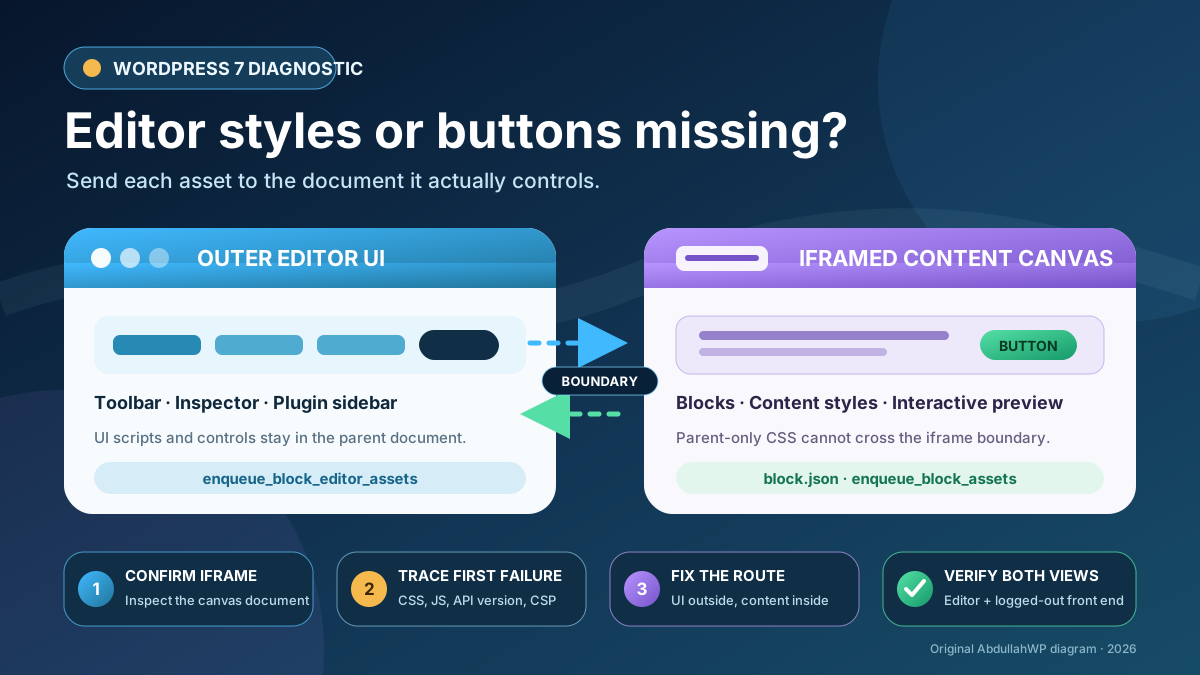
Quick answer: On staging, confirm whether the content canvas is inside an iframe and reproduce the issue with a post containing only core blocks plus the suspect block. Use enqueue_block_editor_assets for controls that belong to the outer editor UI. Put content CSS in block.json, add_editor_style(), wp_enqueue_block_style(), or enqueue_block_assets so WordPress can load it inside the canvas. Test custom blocks in the iframe before declaring apiVersion: 3, and replace global window or document access with the block element’s ownerDocument and defaultView.
What WordPress 7 actually changed
WordPress 7.0 did not force every post editor into an iframe. Without the Gutenberg plugin, it checks the Block API version of the blocks actually inserted in the post. If all inserted blocks use version 3 or higher, the visual editor is iframed. A version 2 or older block in that post triggers the non-iframe compatibility fallback. This is different from older behavior that considered all registered blocks, including blocks not used in the post.
Other editor contexts can still be iframed regardless of that content check, including template editing, non-desktop device previews, and zoom-out mode. Current official guidance also says the Gutenberg plugin uses the iframe and that Gutenberg 23.6 and WordPress 7.1 remove the post editor fallback. As of July 24, 2026, WordPress 7.1 is a future compatibility target, so do not treat a version 2 block as a durable way to avoid the iframe.
| Symptom | Likely boundary | First proof |
|---|---|---|
| Block or Button block is plain only in the editor | Content CSS stayed in the parent admin page | Check whether the stylesheet appears inside the iframe document |
| Custom toolbar or sidebar button is missing | Editor UI script failed or loaded through the wrong hook | Read the first console error and inspect the script request |
| Button is visible but its click, picker, or preview fails | Code uses the parent window or document | Inspect the stack trace for a global DOM lookup |
| Entire canvas is blank or says it is blocked | JavaScript fatal or a CSP rule rejected the iframe | Look for a specific “Refused to frame” or uncaught error |
| Editor and front end are both unstyled | Missing build file, wrong path, or frontend asset registration | Open the CSS URL and confirm a 200 response |
| Only one third-party block fails | That block is not iframe-compatible | Test it alone with the same theme and plugin versions |
Protect the site and create a controlled reproduction
Do not edit a commercial plugin, loosen a security header, or change Block API versions on production first. Clone the affected post to production-like staging and create a restorable database-and-files backup. Record WordPress, Gutenberg, theme, block plugin, browser, post type, and PHP versions. The baseline and rollback discipline in the site update checklist applies even when the failing editor is Gutenberg rather than Elementor.
- Create a new draft containing a Paragraph block and the core Buttons block.
- Confirm that draft works, then insert one instance of the suspect custom block.
- Open the original post and the minimal draft in the same browser profile.
- Record whether the problem begins after adding the custom block, changing preview device, enabling zoom-out, or activating Gutenberg.
- Repeat once in a private window with extensions disabled, without changing the server.
Do not “fix” this by setting apiVersion to 2. In WordPress 7.0 that may invoke a temporary non-iframe fallback for a post containing the block. It does not repair the CSS or JavaScript, does not help when Gutenberg forces the iframe, and is not compatible with the direction documented for WordPress 7.1.
1. Confirm that the failing editor is actually iframed
Open the browser’s developer tools and inspect text inside the editable canvas. In the Elements panel, the selected content will be under an iframe document when the canvas is framed. Do not assume that every iframe on the screen is the editor; embeds, previews, and plugin panels may create their own frames.
- WordPress 7.0 without Gutenberg: a post made only from core blocks should normally use the iframe because core blocks use Block API version 3.
- Suspect block changes the mode: if inserting it makes the editor switch to the non-iframe fallback, inspect that block’s registered API version.
- Gutenberg, template editor, device preview, or zoom-out: expect the iframe even when an older block is present.
- No iframe but styles are still missing: stop blaming the frame and investigate a normal asset 404, selector, dependency, or build problem.
WordPress 6.9 and later can log a browser-console warning for blocks registered with Block API version 2 or lower. A warning is evidence about compatibility work, not proof that the warned block caused this symptom. Match it to a block actually present in the failing post.
2. Trace the first missing asset or JavaScript error
Reload the editor with the Network and Console panels open. Filter the network list by CSS and JS, then inspect the first relevant failure rather than every later warning. Expand the iframe document in the Elements panel and inspect its stylesheets separately from those attached to the outer admin page.
| Evidence | Meaning | Next action |
|---|---|---|
| CSS is 200 in parent, absent in iframe | Wrong enqueue boundary | Move content styles to block.json or a content-aware API |
| CSS is 200 inside iframe, rule does not match | Parent-dependent selector or cascade issue | Scope to the block wrapper and inspect computed styles |
| CSS or JS is 404 | Build file was not deployed or URL is wrong | Correct the path and deploy the complete build |
First console error names document, window, or a null element | Script looked in the wrong document | Initialize from a block element reference |
| Dependency is undefined before registration | Stale or incomplete asset dependency data | Rebuild and use the generated asset file |
CSP explicitly rejects a blob: frame | Security policy blocks the editor canvas | Correct only the named directive at the layer that sets it |
If a CSS or JavaScript request returns 404, use the same evidence-led path as the WordPress 404 troubleshooting guide. Purging caches cannot create a build file that was never deployed.
3. Load block content styles inside the iframe
Prefer block.json for a custom block
WordPress recommends metadata-based block registration. Put styles shared by the editor and front end in style, editor-only content styles in editorStyle, and frontend-only rules in viewStyle. When the content editor is iframed, WordPress loads both style and editorStyle into the canvas.
{
  "$schema": "https://schemas.wp.org/trunk/block.json",
  "apiVersion": 3,
  "name": "example/cta",
  "editorScript": "file:./index.js",
  "style": "file:./style-index.css",
  "editorStyle": "file:./index.css",
  "viewStyle": "file:./view.css"
}
Verify that every referenced file exists in the deployed build directory. Changing the JSON without rebuilding can leave WordPress requesting yesterday’s filenames. Do not label a block version 3 until its editing, selection, toolbar, drag-and-drop, save, and reload behavior pass in an iframe.
Choose the hook by what the asset controls
enqueue_block_editor_assets: scripts and styles for the outer editor interface, such as toolbar controls, inspector panels, editor plugins, block variations, and registered styles.enqueue_block_assets: assets for user-created block content. Since WordPress 6.3, these assets are also enqueued for the iframed editor.add_editor_style(): a theme’s editor stylesheet. Classic themes should declare editor-styles support; block themes normally receive that support automatically.wp_enqueue_block_style(): a stylesheet associated with a specific block on both the front end and in the editor.
Do not load the same content stylesheet through every method. WordPress retains backward-compatible loading of enqueue_block_assets assets inside and outside the editor iframe, so scripts attached there must tolerate both contexts and avoid initializing an element twice.
Remove selectors that depend on the parent admin DOM
A rule such as body.wp-admin .example-cta cannot match an element in a separate iframe document because the iframe’s content is not a descendant of the parent admin body. Scope the content stylesheet to the block’s own wrapper, for example .wp-block-example-cta. Use the computed-style panel to confirm whether the rule is absent, loses the cascade, or is overridden by theme.json.
If the problem is limited to Elementor’s editor or Elementor custom CSS rather than the WordPress block editor, follow the narrower Elementor custom CSS diagnosis instead of changing Gutenberg hooks.
4. Fix missing toolbar buttons and broken block interactions
“Button missing” can describe two different objects. A custom toolbar, inspector, or plugin-sidebar control belongs to the outer editor UI. Its registration script belongs in enqueue_block_editor_assets, with the generated dependency list from the build. A Button block or a custom CTA rendered among the post content belongs inside the canvas and needs content CSS through block.json or the block asset APIs.
Use WordPress components such as BlockControls, ToolbarButton, and InspectorControls instead of appending controls to an internal DOM selector. Internal editor class names and layout nodes can change. When a correctly registered control disappears, fix the first JavaScript exception before changing CSS; one failed import or undefined dependency can prevent the remaining registration code from running.
For code that interacts with the block’s rendered element, do not query the global parent document. WordPress’s migration guide recommends using a ref and resolving the document and window from that element:
import { useBlockProps } from '@wordpress/block-editor';
import { useRefEffect } from '@wordpress/compose';

export default function Edit() {
  const ref = useRefEffect( ( element ) => {
    const { ownerDocument } = element;
    const { defaultView } = ownerDocument;
    const handleResize = () => {
      // Recalculate this block from element and defaultView.
    };

    defaultView.addEventListener( 'resize', handleResize );
    return () => {
      defaultView.removeEventListener( 'resize', handleResize );
    };
  }, [] );

  const blockProps = useBlockProps( { ref } );
  return <div { ...blockProps }>…</div>;
}
Pass the element to jQuery or another library when possible. If a library hard-codes global window or document, update it, patch it under version control, or ask its maintainer for iframe support. Editing the minified vendor file on the server is not a maintainable repair.
5. Migrate the suspect block to Block API version 3
Inventory the plugin or theme that owns the block before changing it. The WordPress plugin audit checklist helps identify ownership, update status, duplicates, and business dependencies. For a third-party block, prefer the vendor’s tested release over a local patch.
- Test the current block in an always-iframed environment on staging.
- Correct asset placement, parent-dependent selectors, global DOM access, and unsupported libraries.
- Confirm the edit component uses the current block wrapper APIs.
- Set
apiVersionto 3 inblock.jsonand rebuild the complete package. - Test old saved markup, new insertions, transforms, nested blocks, copy/paste, save, reload, and the front end.
If the vendor cannot provide a compatible release, keep the known-good plugin version only as a short, risk-assessed bridge. Do not indefinitely freeze a security-sensitive plugin. Replace the block or plugin when its maintenance path is unclear.
6. Repair a CSP or frame restriction only when the console proves it
The editor canvas can use a blob: URL. A strict Content Security Policy may therefore produce a blank or blocked canvas and an explicit console message such as “Refused to frame” that names frame-src, child-src, or a fallback directive. This is a different failure from a single unstyled block.
- Capture the complete console message and response headers on staging.
- Identify which layer sets the policy: security plugin, web server, reverse proxy, host, or CDN.
- Change only the directive and source named by the evidence; preserve unrelated script, object, and ancestor protections.
- Use report-only testing or an admin-route exception when your security architecture supports it.
- Recheck the effective response header because duplicate CSP headers combine restrictions rather than cancel one another.
Do not paste a permissive CSP from a forum or remove X-Frame-Options globally. Ask the person responsible for the site’s security headers to make the narrowest policy change that satisfies the exact browser violation. If there is no CSP violation in the console, changing CSP is not this fix.
Verify the fix in the editor and on the front end
- Open a new post with Paragraph and Buttons blocks and confirm the iframe loads without blocked requests.
- Insert the repaired custom block; select it, use every toolbar and inspector control, and test keyboard focus.
- Save, reload, undo, redo, copy, paste, and edit nested instances.
- Open the previously failing post and repeat the original action.
- Test desktop and device previews, plus any template or synced-pattern context that uses the block.
- Preview the post logged out and confirm the editor appearance does not hide a frontend regression.
- Check for CSS/JS 404s, the original console exception, duplicate initialization, and new CSP violations.
- Repeat the site’s business-critical workflow affected by the block, such as a CTA link, form, product action, or publishing approval.
Purge caches only after corrected, versioned assets are deployed. If the browser still receives old CSS, verify its URL and version, then purge only the relevant browser, host, page, and CDN layers.
Success: The expected editor mode loads, all required CSS and JavaScript appear in the correct document, toolbar and inspector controls work, the block survives save and reload, no matching console or CSP error returns, and the logged-out front end remains correct.
Rollback and prevent the next iframe regression
If the repair fails, restore the smallest changed unit: the previous plugin build, theme commit, asset registration, or security-header configuration. Do not restore an old production database merely to undo a CSS or JavaScript deployment. Preserve content created after the backup.
- Add an always-iframed post-editor case to staging acceptance tests.
- Test a core-only post and each business-critical custom block separately.
- Build and deploy source files, generated CSS/JS, and dependency metadata as one release.
- Version assets from the build instead of adding a permanent random cache-busting query.
- Avoid editor-internal DOM selectors and global document assumptions.
- Revalidate the test matrix before enabling Gutenberg updates or moving to WordPress 7.1.
Official sources
- WordPress Core: Iframed Editor Changes in WordPress 7.0
- Block API versions
- Migrating blocks for iframe editor compatibility
- Enqueueing assets in the editor
- Metadata in block.json
- Using styles and stylesheets with blocks
- wp_enqueue_block_style() reference
- add_editor_style() reference
- Gutenberg 22.6 editor iframe and blob URL notes
Frequently asked questions
Did WordPress 7 force every post editor into an iframe?
No. WordPress 7.0 core retains a conditional non-iframe fallback when a block using API version 2 or lower is present in the post. It checks inserted blocks rather than every registered block. Gutenberg, other editor contexts, and the documented WordPress 7.1 direction remove or bypass that fallback, so blocks should be made iframe-compatible.
Should I use enqueue_block_editor_assets or enqueue_block_assets?
Use enqueue_block_editor_assets for the outer editor interface and its APIs: toolbar controls, inspector panels, editor plugins, variations, and similar UI. Use enqueue_block_assets for assets that style or operate on the post’s block content. For a custom block, block.json is usually the clearest registration method.
Why is the core Buttons block unstyled only inside the editor?
The theme or plugin may have loaded its button CSS only in the outer admin page, used a selector that depends on body.wp-admin, or omitted the theme’s editor styles. Confirm the stylesheet inside the iframe, then inspect the Button block’s computed styles. If the front end is also wrong, investigate the shared or frontend stylesheet instead.
Will clearing every cache fix missing editor styles?
Only when the correct, newly deployed asset exists and an old response is still being served. A cache purge will not move CSS into an iframe, repair a 404 path, add a missing dependency, or replace global document access. Use the Network panel to prove a stale response before purging.
Is changing apiVersion to 3 enough?
No. Version 3 is a compatibility declaration, not an automatic migration. Test the block inside an iframe first, correct its assets and DOM access, rebuild the package, and verify existing saved content. Declaring version 3 too early can keep the iframe active while leaving the block broken inside it.
Need help fixing the block editor?
For evidence-led WordPress editor diagnosis, custom block compatibility work, staging tests, and safe deployment, see AbdullahWP WordPress services.





