The message Briefly unavailable for scheduled maintenance. Check back in a minute. usually means WordPress paused requests while replacing update files. If it remains after the update window, do not delete files blindly. First determine whether an update is still active, the root .maintenance marker is stale, or a cache is replaying an old maintenance response.
This guide owns that visible maintenance message and the .maintenance lifecycle. A genuinely empty page belongs in the white-screen recovery workflow. Use the critical-error guide when WordPress says there has been a critical error, and the debug.log attribution workflow for a confirmed fatal.
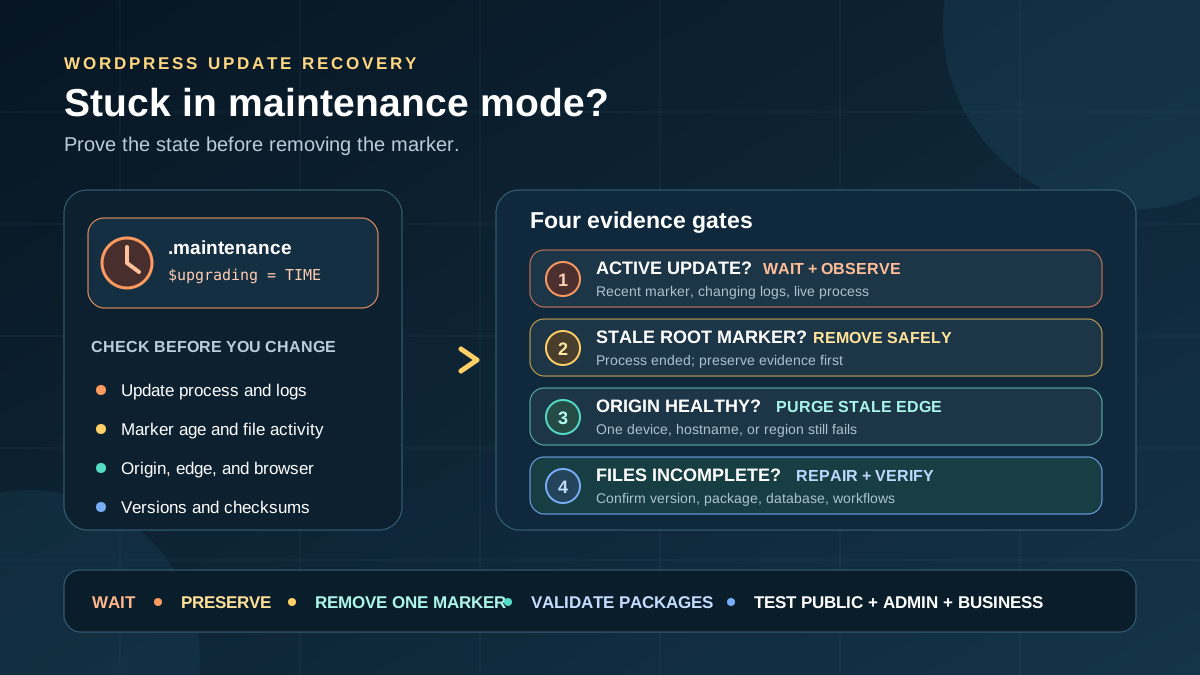
Quick answer: Record the affected URLs and update, back up the current site, and inspect the WordPress root through SFTP or the host file manager. If the updater is still working and the marker is recent, wait. If the process has ended or failed and the marker is stale, save a copy and remove only the root .maintenance file. Then repair or rerun the interrupted update and verify uncached public, admin, mobile, and business-critical paths.
Recognize core maintenance mode before changing anything
The WordPress upgrader enables maintenance mode by writing a hidden .maintenance file in the installation root. That file contains an $upgrading Unix timestamp. When the upgrader finishes normally, it deletes the same file.
Core’s maintenance check considers the timestamp active for less than 10 minutes and ignores it after that. While active, the default handler returns HTTP 503, a Retry-After: 600 header, and the familiar message. A site can replace the default body with wp-content/maintenance.php, according to the core function reference.
| Evidence | Likely state | Safe next action |
|---|---|---|
| Recent marker, update screen or worker still progressing | Active update | Wait and observe; do not remove the marker or start another update |
| Update stopped or failed, marker remains, no progress | Stale maintenance state | Preserve evidence, remove only the stale marker, then inspect the update |
| Origin is healthy but one browser, hostname, or region shows maintenance | Cached response | Purge the affected cache after confirming origin health |
| No root marker, branded page or admin-only bypass | Maintenance plugin, host switch, or custom layer | Identify that layer; the core marker is not the control |
| Marker removed, then critical error or blank output appears | Incomplete or incompatible update | Stop repeating updates and follow the matching recovery workflow |
1. Freeze competing changes and record the incident
Do not click Update repeatedly, open the updater in several tabs, deploy code, restore a backup, or ask another administrator to “try again.” Parallel writes can turn a recoverable interruption into mixed plugin or core files.
- Record the update type, component, old and intended versions, start time, person or automation that initiated it, and the last visible updater message.
- Test the homepage, one inner URL,
/wp-login.php, and/wp-admin/in a private window. Note whether all return the same body and status. - Save screenshots and copy relevant update, PHP, web-server, deployment, security, and hosting-event logs before they rotate.
- Create a restorable database-and-files backup. A database-only backup cannot restore interrupted plugin, theme, or core files.
2. Decide whether the update is active or the marker is stale
The 10-minute rule is a core request check, not permission to terminate a legitimate host process at minute ten. Compare several clocks and signals: the $upgrading value inside the marker, its modified time, the updater’s last log line, active PHP/CLI/deployment jobs, and current file activity. Account for server timezone when reading human-formatted logs; the marker itself stores a Unix timestamp.
The official Dashboard Updates sequence shows useful milestones: enabling maintenance mode, downloading, unpacking, installing, removing the old version, reporting success, and disabling maintenance mode. A fresh marker plus changing logs or files indicates work. A marker left behind after an explicit failure, a terminated request, or a process with no further activity is evidence of a stale state.
Take two observations a few minutes apart instead of relying on one screenshot. Record whether log size, temporary update files, package directories, CPU activity, or updater output changed. A browser tab that looks frozen is weak evidence: its HTTP request may have timed out while a host-side process continues. Conversely, a spinning icon is not proof of progress when every server signal is unchanged. If a managed host performs updates through its own deployment system, its job queue and activity log are authoritative for that process.
Do not remove an active marker. Doing so only reopens visitor traffic while files may be between versions. It does not pause, finish, or roll back the updater. Ask the host to identify the live process if you cannot see it safely.
3. Access the correct WordPress root and inspect the hidden file
Use the hosting file manager or SFTP account for the affected installation. The root is normally the directory containing wp-config.php, wp-admin, wp-includes, and wp-content. Turn on “show hidden files” or “show dotfiles”; otherwise .maintenance will be invisible. It is not normally inside wp-admin.
Confirm the domain’s document root when an account contains staging, www, subdomain, or old installations. On multisite, core maintenance is controlled at the shared network installation root, not separately inside each site’s uploads directory. Use least-privilege credentials, download the marker before changing it, and never run a recursive delete.
Useful file-manager check: copy the absolute path shown for wp-config.php and compare it with the domain’s document root in the hosting panel. If they differ, you may be inspecting a staging copy or an old installation while the live domain uses another root.
4. Remove only a confirmed stale .maintenance marker
Once evidence shows the update process is no longer running, download .maintenance with its timestamps, then delete it as the official common-errors guide instructs. A reversible alternative is to rename that one file to a clearly dated evidence name outside the web-served root. Do not delete wp-content/maintenance.php, .htaccess, an entire plugin directory, or an update folder merely because the names look related.
Request a unique uncached URL in a private browser immediately afterward. If WordPress loads, removing the marker restored routing, but it did not prove that the update completed. Preserve the failed-update message and proceed to file and version validation. If a critical error replaces the maintenance message, stop and investigate the newly exposed failure rather than recreating .maintenance.
5. If the message remains, separate origin from cache and custom maintenance layers
Core ignores a correctly timestamped marker after 10 minutes. Therefore, a message that persists well beyond that point—especially after the file is gone—requires a wider check. Compare the origin response with the CDN, reverse proxy, host cache, WordPress page cache, browser, and service worker. Inspect status and headers such as Age, Via, X-Cache, or vendor-specific cache results. Test both apex and www hostnames and add a harmless unique query string for diagnosis.
- If the origin is healthy but an edge still returns the old 503/body, purge that URL or affected cache zone and correct the rule that stored it.
- If every layer shows a branded page and there is no root marker, inspect maintenance/coming-soon plugin settings, a host control-panel switch,
wp-content/maintenance.php, must-use plugins, and proxy rules. - If logged-in administrators bypass the page but logged-out visitors do not, suspect a plugin or cache variation rather than core’s early marker.
- If only one hostname or region fails, compare DNS target, cache key, deployment origin, and TLS route before touching WordPress files.
The WordPress update guide explicitly recommends clearing caches after an update so visitors do not continue seeing old output. Purge only after origin health is proven; otherwise the cache may refill with the same maintenance page.
6. Inspect and repair the interrupted update
Open Dashboard > Updates only after normal admin access returns. Compare the installed version with the intended release, read the update details, and inspect the host/PHP log around the exact start time. Common evidence includes filesystem access failure, files that could not be copied, timeouts, exhausted disk or inode space, a killed PHP worker, unavailable package downloads, and ownership or permissions that prevent WordPress from replacing files. The official guide notes that one-click failures are often filesystem-permission related.
| Last update evidence | Check before retrying |
|---|---|
| Download failed or package unavailable | Outbound HTTPS, DNS, certificate validation, vendor entitlement, and the trusted package URL |
| Could not create, copy, move, or delete files | Ownership, permissions, free disk/inodes, temporary directory, security blocks, and filesystem credentials |
| Request timed out or worker was killed | PHP/web-server limits, process log, host resource event, and whether background work continued |
| Old version removed but success never appeared | Component directory completeness, backup/package availability, and fatal logs before opening traffic |
| Success appeared but maintenance did not disable | Marker age, final upgrader line, deletion permission, origin response, and cache status |
For a plugin or theme update
Confirm the component directory is complete and its main file reports the intended version. On staging, reproduce the update with the same WordPress and PHP versions and a verified package from its trusted vendor. For a WordPress.org plugin, an experienced operator can compare files with wp plugin verify-checksums; premium, custom, and some older packages may not have public checksums. If compatibility is uncertain, restore the known-good component package rather than repeatedly installing over mixed files. The plugin audit workflow helps document ownership, necessity, and update risk.
For a WordPress core update
Verify the installed version and locale, then use wp core verify-checksums where WP-CLI is supported. If files are incomplete, follow the official manual update procedure or ask the host to do it. Preserve wp-config.php and the existing wp-content; do not replace the entire content directory. Visit /wp-admin/ afterward and complete any requested database upgrade. WordPress’s extended upgrade instructions cover backups, file replacement, and troubleshooting.
For multisite core updates, a super administrator should also check Network Admin and run the network database upgrade when required. Record each repaired package and checksum result. A successful page load is not evidence that every file, database schema, or background task reached the intended version.
When a retry is appropriate, change the condition that caused the first failure, test the exact package on staging, and run one update once. Keep the old and new version numbers, package source, start/end time, output, and post-update checks. Do not use production as a loop of retries: each attempt can overwrite evidence, trigger another maintenance window, or execute activation and database routines more than once.
7. Roll back when repair is riskier than restoration
Restore when the trusted package is unavailable, the update caused an incompatibility, files cannot be validated, or business transactions are failing. Use a backup taken before the update and plan for orders, form entries, bookings, memberships, comments, and uploads created afterward; replacing the production database can erase them. Prefer a component rollback when only one plugin or theme changed. Test the restore on staging, document the reason, and keep the vulnerable or incompatible version isolated only as long as necessary.
8. Prevent another stuck maintenance window
- Test core, plugin, and theme updates on a representative staging copy, including the same PHP version and major integrations.
- Take verified backups and schedule high-risk updates during a monitored low-traffic window.
- Update in small batches so one failed package and its log evidence remain identifiable.
- Monitor disk/inode capacity, filesystem ownership, write permissions, timeouts, outbound access, and security rules before the window.
- Avoid closing the update tab or terminating workers while a foreground update is progressing; keep a second administrator from launching competing work.
- Exclude maintenance and 503 responses from long-lived page/CDN caches, then verify the rule at the origin and edge.
- Alert on unexpected 503 responses and maintenance pages that exceed the approved window.
9. Verify recovery beyond the homepage
Recovery is complete only when the intended update state and the site’s important workflows agree. Record evidence for each applicable check:
- Public: logged-out homepage, inner page, search, 404, feeds, REST route, assets, and expected HTTP status without a cache-bypass parameter.
- Administration: login, Dashboard > Updates, Plugins, Themes, Site Health, and no failed-update notice or database-upgrade prompt.
- Devices and edges: real mobile network, desktop private session, apex and
www, and each important CDN region. - Business: test form delivery, account login, cart/checkout/payment sandbox, booking or membership flow, transactional email, CRM/webhook, and analytics where applicable.
- Background: scheduled events, queues, backups, imports/exports, security scans, and automatic update jobs complete without duplicating work.
- Files and logs: no active root
.maintenance, expected versions and checksums, clean fresh PHP/update logs, sufficient capacity, and corrected ownership or permissions.
Closeout evidence: save the initiating change, failure time, marker age, cause, repaired or restored versions, cache actions, tests, and prevention owner. That record turns a one-off rescue into a safer update process.
Frequently asked questions
Where is the WordPress .maintenance file, and why can’t I see it?
It is in the affected WordPress installation root, normally beside wp-config.php and the wp-admin, wp-includes, and wp-content directories. Its leading dot makes it hidden on many systems. Enable hidden-file display and confirm that the domain points to that installation.
Can I delete .maintenance immediately?
No. First establish that the updater or deployment has ended. Removing a recent marker while files are being replaced exposes visitors to an inconsistent application. When the state is confirmed stale, preserve a copy and remove only that root marker.
Why does the maintenance message remain after I remove the file?
A browser, page cache, reverse proxy, CDN, service worker, or host cache may still serve the old response. A maintenance plugin, host switch, proxy rule, or wp-content/maintenance.php can also produce a similar page. Compare the origin and edge before purging or changing more files.
Does WordPress clear maintenance mode automatically after 10 minutes?
Core normally deletes the marker when the upgrader exits cleanly. Separately, core treats a marker timestamp older than 10 minutes as inactive. That does not repair an interrupted package, remove a cached response, or disable a plugin-controlled coming-soon page.
Does deleting .maintenance finish or roll back the update?
No. It only removes the core maintenance signal. Check installed versions, package integrity, logs, database-upgrade state, and affected workflows. Repair, rerun on staging, or restore deliberately based on that evidence.
Need the update recovered without gambling on production?
AbdullahWP can preserve the incident evidence, separate an active update from a stale marker or cached response, repair the interrupted package, and verify the site’s public, admin, mobile, transaction, and background paths. Review the WordPress support services and include the affected URL, update time, component, and last message you saw.





