A WordPress fatal error can leave thousands of warnings, a final class-wp-hook.php frame, and no answer to “which plugin caused this?” Use one timestamped event: its message, thrown file, nearest callers, and a controlled staging test.
This guide assumes you can reproduce and log safely. For access without wp-admin, use the white-screen recovery workflow. For WordPress’s visible message or Recovery Mode, use the critical-error recovery guide. W04 owns attribution.
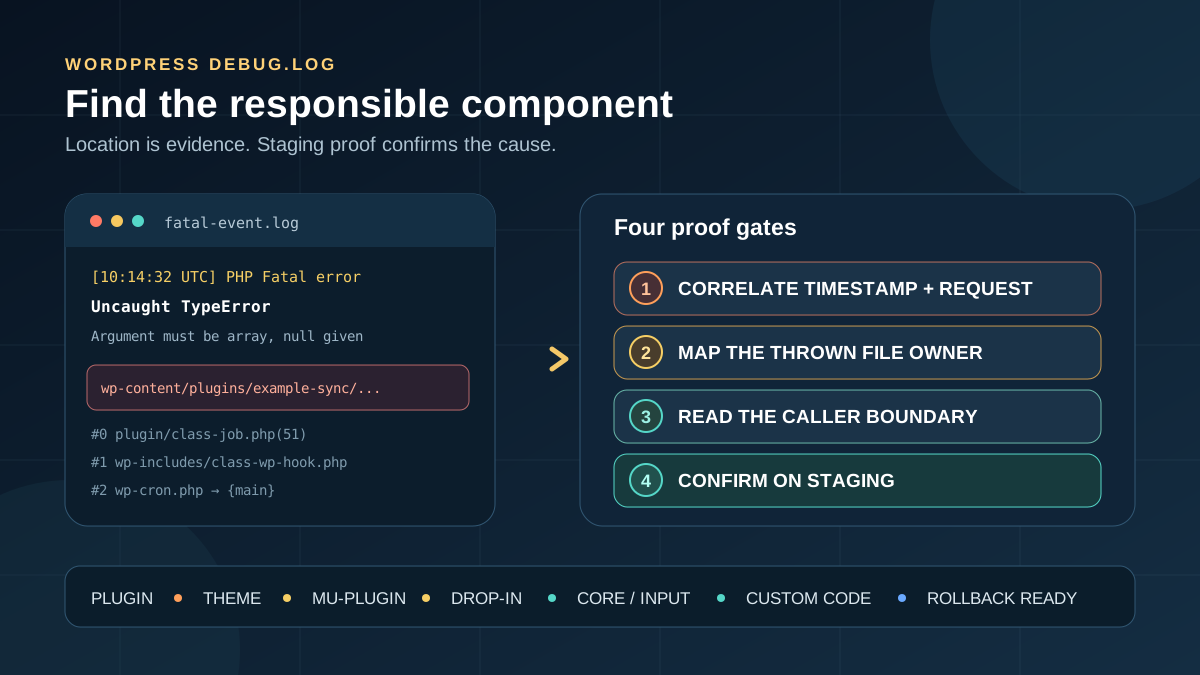
Quick answer: Back up files, database, and logs; reproduce once at a recorded time with display off and private logging. Extract the complete fatal through thrown in. The thrown file is the immediate failure site, not automatic proof of sole responsibility. Map wp-content paths to their owners and treat wp-includes/wp-admin as core execution until evidence proves otherwise. Confirm one suspect under the same PHP, versions, data, request, and cache state.
Match the log symptom before blaming a component
| What you find | What it proves | Next evidence |
|---|---|---|
A fresh fatal names wp-content/plugins/example/... | The immediate failure occurred in that plugin tree | Message, caller, versions, and single-plugin staging test |
| The thrown file is in the active theme or child theme | Theme code failed at that line | Function caller, custom edit, parent/theme versions, and safe theme comparison |
The last frames are wp-includes/class-wp-hook.php and plugin.php | Core dispatched a hook | The callback or nearest non-core frame; do not blame the hook dispatcher |
The thrown file is in wp-includes or wp-admin | PHP stopped in core code | Extension input, core checksums, PHP/core compatibility, and reproduction |
| Only warnings or deprecated notices appear | No matching fatal has been captured yet | Correct time, log destination, host PHP log, and exact request |
debug.log is empty | WordPress logging did not capture the failure | Constant placement, writable path, PHP-FPM/web-server log, startup error |
| Many repeated fatals have different URLs or times | Several requests or jobs are mixed together | One timestamp, request type, timezone, and complete event |
| Disabling one component stops the error | That component is required for this reproduction | Re-enable on staging and test versions/dependencies before calling it root cause |
1. Protect the site, current data, and original evidence
Take a restorable database-and-files backup and download existing logs before changing code or PHP. Clone the incident to staging. Record the URL/action, result, time and timezone, role, device, PHP/WordPress/component versions, last deployment, and cache layers.
- Preserve transactions created after the backup.
- Do not edit the suspected file; preserve the traced line.
- Download the log, mark its current end, then read only the appended section.
- Use test credentials and redact personal, token, path, query-string, and API data.
A log is sensitive production data. WordPress Site Health warns about potentially public log files. Traces reveal paths, classes, versions, requests, and sometimes arguments. Keep display off, never paste a whole log publicly, and use a private destination, minimum access, short retention, and documented cleanup.
2. Configure private logging without showing errors to visitors
Check the host’s PHP-FPM, application, or web-server log first; pre-WordPress failures may appear there only. For a short WordPress capture, the official guide requires WP_DEBUG for WP_DEBUG_LOG and permits a valid file path. Edit existing definitions before the stop-editing comment; never define a constant twice.
define( 'WP_DEBUG', true );
define( 'WP_DEBUG_LOG', '/host-approved/private/path/wp-fatal-test.log' );
define( 'WP_DEBUG_DISPLAY', false );
@ini_set( 'display_errors', 0 );
Use an absolute, writable, host-approved private path. A value of true normally writes wp-content/debug.log. Keep the capture brief, do not enable SAVEQUERIES or SCRIPT_DEBUG for a PHP fatal, and restore the original configuration afterward.
3. Reproduce one request and correlate its timestamp
Mark the log’s end and server timezone, then perform one exact action: load the URL, save the admin screen, submit the form, run sandbox checkout, or trigger the test task. Record start and finish. Repeated reloads interleave traces and can duplicate orders, emails, webhooks, or cron work.
- Use a private logged-out browser for a public failure and the same role for an admin-only failure.
- Record whether the request was normal HTML, REST, AJAX, WP-Cron, WP-CLI, or a webhook; those paths can load different code.
- Match the log timezone, not the clock assumed by the browser or WordPress settings.
- When several sites share a PHP pool or log, match document root, domain where present, worker/container, and request time.
If no line appears, confirm the constants are before WordPress loads, are real booleans rather than quoted strings, and point to a writable destination. Check the host log for a parse error, PHP startup error, permission failure, worker crash, or out-of-memory termination. WordPress cannot log code that fails before its debug mode is configured.
4. Extract one complete fatal event
Search forward from the reproduction time for PHP Fatal error, Uncaught Error, Uncaught TypeError, Parse error, or Allowed memory size. Copy from that event’s timestamp through its stack and final thrown in line. Do not merge a warning at 09:00, a cron fatal at 09:05, and a frontend trace at 09:30 into one incident.
This synthetic, privacy-safe example shows the important fields. example-sync is fictional and the paths are not from a real AbdullahWP incident.
[23-Oct-2026 10:14:32 UTC] PHP Fatal error: Uncaught TypeError:
Example\Sync\Formatter::format(): Argument #1 ($value) must be of type array, null given
in /srv/example/current/wp-content/plugins/example-sync/includes/class-formatter.php:84
Stack trace:
#0 /srv/example/current/wp-content/plugins/example-sync/includes/class-job.php(51):
   Example\Sync\Formatter->format(NULL)
#1 /srv/example/current/wp-includes/class-wp-hook.php(324):
   Example\Sync\Job->run('')
#2 /srv/example/current/wp-includes/plugin.php(517):
   WP_Hook->do_action(Array)
#3 /srv/example/current/wp-cron.php(191):
   do_action_ref_array('example_sync_tick', Array)
#4 {main}
thrown in /srv/example/current/wp-content/plugins/example-sync/includes/class-formatter.php on line 84
The immediate failure is line 84 in the fictional plugin, but frame #0 adds crucial context: the same plugin called format() with NULL from line 51. The later core frames dispatch the scheduled hook. They explain how execution arrived there; they do not make class-wp-hook.php the culprit.
5. Read the fatal header before the stack
| Fatal-header field | Question it answers | How much weight to give it |
|---|---|---|
| Timestamp and timezone | Is this the request just reproduced? | Essential for correlation |
| Error class | Parse error, TypeError, Error, memory, timeout, or another failure? | Defines the diagnostic family |
| Message | What value, symbol, file, callback, or resource violated an expectation? | Often more useful than the final frame |
| Immediate file and line | Where did PHP detect or throw the failure? | Strong location evidence, not always sole ownership |
| Stack frames | Which calls led to the failure? | Use for component boundaries and data flow |
thrown in | Where did an uncaught Throwable originate? | Confirms the immediate site; it is not “the last plugin loaded” |
PHP’s Throwable interface exposes the message, file, line, and trace as separate evidence. Read them together. A file that attempts one large allocation may receive an out-of-memory fatal even though an earlier loop or oversized query consumed most memory. Core may throw a TypeError after an extension supplied an invalid callback. Location is not the same as root cause.
6. Map the file path to the actual code owner
| Path pattern | Likely owner | Important exception |
|---|---|---|
wp-content/plugins/plugin-slug/... | Normal or network-active plugin | A bundled vendor library may be shared or called with bad data by another component |
wp-content/themes/theme-slug/... | Active parent, child, or custom theme | Confirm which theme is active and whether the file was edited |
wp-content/mu-plugins/... | Must-use or host integration | It loads automatically and ordinary plugin deactivation does not disable it |
wp-content/object-cache.php, advanced-cache.php, or db.php | Drop-in supplied by a cache, database, or host product | It may remain after the related dashboard plugin is disabled |
wp-content/uploads/...php | Generated/custom code or a security concern | Do not execute or delete it blindly; preserve and investigate |
wp-includes/... or wp-admin/... | WordPress core execution | Invalid extension input, corrupt files, PHP compatibility, or a core bug are all possible |
| No useful file path, a closure, or generated cache path | Snippet manager, compiled container, proxy, or generated code | Map the class/function and generator back to its stored source |
The first folder after plugins or themes is usually the component slug. Confirm it in the installed component list rather than guessing from a class prefix. WordPress documents that must-use plugins live separately and load automatically. Its drop-in list includes cache, database, maintenance, and custom fatal-error handlers that do not behave like ordinary plugins.
7. Read the stack boundary without blaming the last frame
A PHP trace normally lists the call nearest the thrown error as #0, then progressively earlier calls until {main}. Read from the thrown line into #0, #1, and onward, asking what each file called and what data it passed. The largest frame number or {main} is the request entry path, not the offender.
- Circle the thrown file and error message.
- Find the nearest frame in the same component; it may show the bad argument or method call.
- Find the first boundary between core and
wp-content, or between two extensions. - Record the hook, REST route, shortcode, cron action, widget, admin save, or template that activated the path.
- If plugin A calls plugin B, label the hypothesis as an interaction until version and single-component tests separate caller from callee.
Use “responsible component” carefully. The component containing the thrown line owns that failing code path, but the root cause may be an incompatible caller, missing dependency, corrupted deployment, unexpected database value, or unsupported PHP version. Report both sides when the boundary matters: for example, “Plugin A passed null into Plugin B version X on PHP Y,” not merely “Plugin B crashed.”
8. Let the fatal type shape the hypothesis
| Message family | Strong first hypothesis | Do not assume |
|---|---|---|
Parse error or syntax error | Incomplete update, incompatible syntax, or a bad custom edit in that file | That clearing cache repairs PHP syntax |
| Undefined function, class, method, or constant | Missing dependency, wrong load order, incompatible versions, or incomplete files | The named missing symbol belongs to WordPress core |
TypeError | Caller and callee disagree about a value or interface | The thrown file created the invalid value |
| Cannot redeclare | Duplicate load, duplicate function/class, or two bundled copies | The second file is the only component involved |
| Failed opening required file | Missing/corrupt package, wrong generated path, permissions, or deployment race | Reinstalling all WordPress files is necessary |
| Allowed memory size exhausted | Oversized data, query, recursion, image, import, or too-low limit | The allocation line consumed all memory by itself |
| Maximum execution time exceeded | Loop, slow external call, query, lock, or workload | The final frame started the delay |
Warnings immediately before the fatal can explain it: a failed require warning may precede a missing-class fatal, or a database warning may explain a later null value. Keep only the adjacent event window. Old notices and unrelated deprecations are maintenance work, not proof they caused this request.
9. Confirm the culprit on staging with one reversible change
Match production’s PHP version, WordPress version, active component versions, theme, must-use plugins, drop-ins, relevant data, and cache behavior. Reproduce the same request and fatal fingerprint. Then change only the suspected component or boundary.
- Normal plugin: deactivate only its slug, repeat the request, then restore it on staging to confirm. On multisite, record site-active versus network-active scope.
- Theme: activate an installed, compatible default theme on staging and repeat the template/action. Preserve theme settings and menus.
- Must-use plugin or drop-in: involve the host or maintainer; WP-CLI’s
--skip-pluginsstill loads must-use plugins. Inventory drop-ins explicitly. - Core path: verify core checksums before replacing anything. A clean checksum does not rule out bad extension input.
- WordPress.org plugin: checksum its exact version. Premium and custom plugins may have no public checksums; an unavailable checksum is not proof of corruption.
- Two-component boundary: test compatible version pairs and the same input, one variable at a time.
The official wp plugin list command can inventory active, network-active, must-use, and drop-in statuses. Use explicit --path and, on multisite, --url. For a broader controlled inventory, follow the WordPress plugin audit. Do not bulk-disable plugins simply because one trace is difficult to read.
10. Deploy the smallest repair and verify the real workflow
Choose a supported repair: update or temporarily roll back a compatible package, restore an incomplete deployment from a trusted source, remove a duplicate integration, correct custom code in version control, validate the unexpected data, or ask the vendor to patch the failing boundary. Do not edit vendor files directly or keep an old vulnerable version as the permanent solution.
- Deploy the tested files/configuration with a named rollback point.
- Repeat the exact request at a recorded time and confirm the fatal fingerprint does not recur.
- Test the affected public URL logged out, the relevant administrator action, and the same REST, AJAX, cron, CLI, or webhook path.
- Test a real mobile device when the failed code serves responsive templates, forms, accounts, menus, or checkout.
- Complete the business flow: form delivery, login, purchase, payment sandbox, booking, membership, download, email, CRM, webhook, and analytics where applicable.
- Check for duplicate submissions and inspect the host/WordPress log again. “No fatal” does not prove the transaction completed.
- Restore debug settings, secure or remove the temporary log, and confirm visitors cannot retrieve it.
Attribution is confirmed when the evidence agrees. The same timestamped request produces the same fatal on an equivalent staging state; one scoped component, version, file, or boundary change removes it; reversing that change restores it safely on staging; and the final repair passes public, admin, mobile, background, and business-flow tests without a new matching fatal.
Rollback and prevent repeat fatal errors
If production regresses, reverse the single deployment, version, configuration, or custom-code change and purge only the affected cache. Restore the tested component package or file snapshot before considering a database restore. If database rollback is unavoidable, preserve orders, users, subscriptions, bookings, form entries, and other records created after the backup.
- Record Core, PHP, plugin, theme, MU-plugin, and drop-in versions with every release.
- Test updates on staging with the site’s real scheduled tasks, webhooks, forms, account paths, and commerce flows.
- Monitor a privacy-safe fatal fingerprint: error class, normalized component path, function, and line—not customer data.
- Keep logs access-controlled, rotated, retained only as required, and excluded from public backups or support posts.
- Verify core and eligible plugin checksums after unexpected file changes; track custom and premium packages in a trusted deployment source.
- Remove temporary rollbacks and compatibility exceptions after a supported forward fix is tested.
Official and primary sources
- WordPress debugging and private logging
- WordPress
wp_debug_mode()behavior - WordPress Site Health debug-log checks
- Official WordPress backup guidance
- WordPress
wp-config.phpreference - WordPress troubleshooting FAQ
- WordPress must-use plugins
- WordPress drop-in plugin list
- WP-CLI plugin inventory
- WP-CLI plugin deactivation
- WP-CLI theme activation
- WP-CLI core checksum verification
- WP-CLI plugin checksum verification
- PHP
Throwableinterface - PHP Throwable stack traces
- PHP error and logging configuration
- PHP error display versus logging
- PHP backtrace structure
Frequently asked questions
Is the final file in the stack trace always the guilty plugin?
No. The final numbered frame or {main} is usually an earlier request entry point. Start with the fatal message and thrown in file, then inspect #0 and the nearest component boundary. Confirm the hypothesis on staging.
Why does debug.log blame class-wp-hook.php or another core file?
WordPress core dispatches callbacks and validates values used by plugins and themes, so it often appears in healthy call paths. A core thrown line can be real, but first inspect the callback, data, and nearest wp-content frame. Verify core checksums and compatibility before declaring a core bug.
Why is debug.log empty after a fatal error?
The failure may happen before WordPress configures logging, the path may be unwritable, the constants may be misplaced or duplicated, or PHP may use a server-specific destination. Correlate the host’s PHP-FPM, application, and web-server logs at the exact reproduction time.
Does deactivating a plugin and fixing the error prove that plugin is defective?
It proves the component is required for that reproduction. The root cause may still be a version conflict, invalid input from another component, missing file, PHP incompatibility, or corrupted data. Re-enable it only on staging and test the same boundary systematically.
Can I send the whole debug.log to plugin support?
Usually no. Send the smallest complete event plus versions and reproduction steps. Redact paths, domains, personal data, tokens, request parameters, database details, and unrelated events. Use the vendor’s approved private channel when sensitive context is unavoidable.
Get a defensible fatal-error diagnosis
If the trace crosses plugins, points only to generated code, occurs in cron or checkout, or disappears outside production, AbdullahWP’s WordPress troubleshooting services can preserve the evidence, reproduce the failure safely, identify the responsible boundary, implement the smallest repair, and verify the site’s real visitor and business workflows.
After recovery, document the component owner, triggering request, fatal fingerprint, confirmed cause, tested version pair, deployment, rollback point, and monitoring rule. That record turns the next “critical error” from a guessing exercise into a short comparison.





