If you’re seeing global styles disappear or Elementor say “Missing or Deleted Kit,” you’re most likely dealing with an Elementor default kit issue. This happens when Elementor creates a new default kit automatically during a template import, causing your original kit settings to be overridden or ignored.
In this guide, I’ll show you how to fix the Elementor default kit issue and safely restore your original global styles using one of three easy methods. Whether you’re using a child theme or working directly in the WordPress dashboard, this fix is quick and effective.
What Is the Elementor Default Kit Issue?
When you customize a site using Elementor, all your global colors, fonts, button styles, and layout settings are saved inside something called the Default Kit. This kit controls how your entire site looks and behaves.
But when you import a full Elementor template or kit, Elementor may:
- Create a new default kit automatically
- Set that new kit as the active one
- Override your existing styles
- Break your site’s design
- Show a warning like “Missing or Deleted Kit”
Even if you delete the newly imported kit, Elementor does not always switch back to the original one. That’s the root of the Elementor default kit issue.
How to Fix the Elementor Default Kit Issue
To fix the Elementor default kit issue, you need to manually reassign your original kit as the active one. Here are three safe and effective ways to do that.
Method 1: Fix the Issue Using Your Child Theme’s functions.php
If you’re using a child theme, this is the most straightforward way to fix the Elementor default kit issue.
Step 1: Find your original kit’s ID
- Go to Elementor > Templates
- Click Edit on the correct kit
- Check the browser URL for something like
post=1234— that number is your kit ID
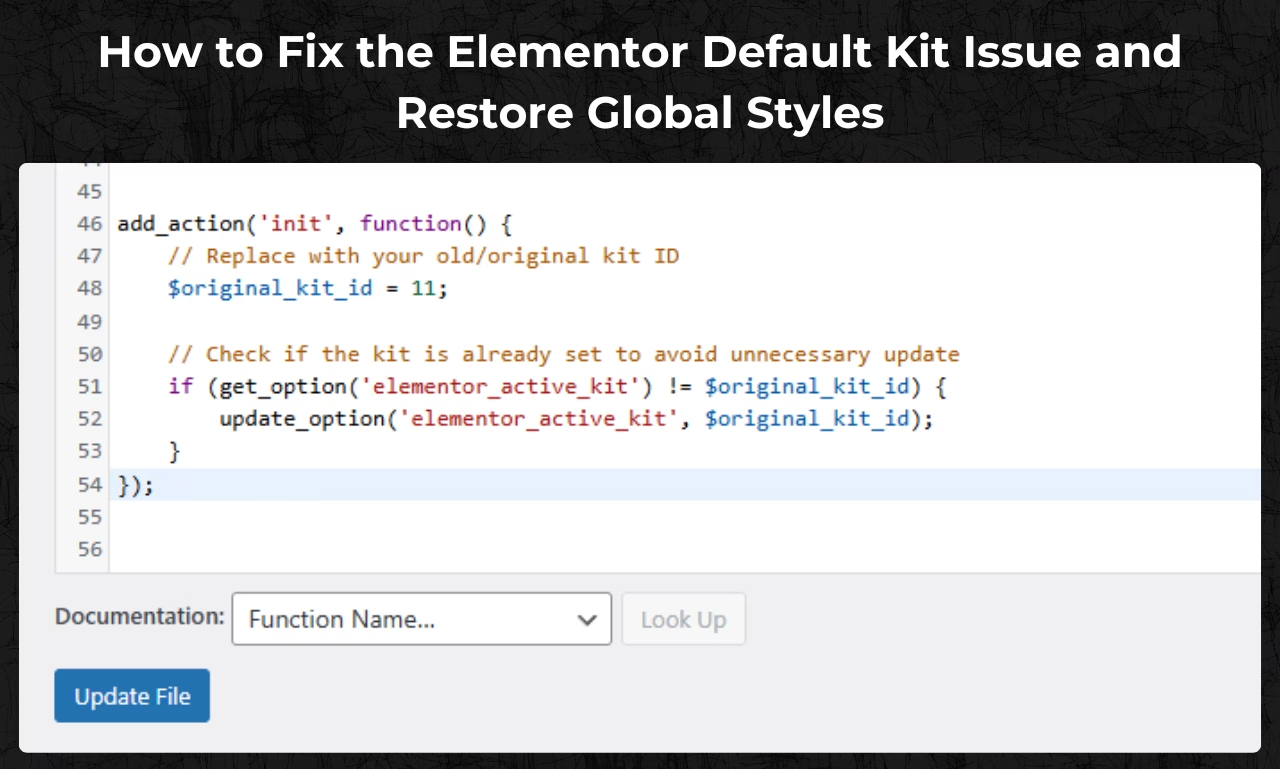
Step 2: Add this code to your child theme’s functions.php file:
add_action('init', function() {
    // Replace this with your real kit ID
    $original_kit_id = 1234;

    if (get_option('elementor_active_kit') != $original_kit_id) {
        update_option('elementor_active_kit', $original_kit_id);
    }
});
Step 3: Load any page on your site to apply the change. Once your global styles are working again, remove or comment out the code.
This fixes the Elementor default kit issue without touching the database or using any third-party tools.
Method 2: Use a Plugin Like WPCode to Fix the Default Kit Problem
If you’re not comfortable editing theme files, a plugin like WPCode or Code Snippets makes this even easier.
- Install WPCode from your WordPress dashboard
- Create a new PHP snippet
- Paste the same code shown above
- Save and activate the snippet
- Reload your website
Once the fix is applied, deactivate or delete the snippet. This resolves the Elementor default kit issue without editing any core files.
Method 3: Fix the Elementor Default Kit Issue via phpMyAdmin
If you prefer working directly in the database, this method will also fix the problem.
- Open phpMyAdmin from your hosting panel
- Go to your WordPress database
- Click on the wp_options table
- Search for
elementor_active_kit - Change its value to your original kit’s post ID
- Save and exit
This manually reassigns the correct Default Kit, resolving the Elementor default kit issue at the database level.
After the Fix: Clear Cache and Regenerate Files
To make sure everything works properly:
- Go to Elementor > Tools > Regenerate CSS & Data
- Clear any caching plugin you use
- Clear your browser cache
- Refresh your pages
You should now see your original global colors, fonts, and other styles fully restored.
How to Prevent the Elementor Default Kit Issue in the Future
To avoid running into this problem again:
- Export your current Default Kit as a backup
- Avoid importing full kits unless necessary
- If you do import, uncheck the “Import Settings” option when possible
- Stick to importing individual templates or sections
These steps will help you avoid future Elementor default kit issues and save you a lot of time.
Internal Resources
Helpful External Links
Final Thoughts
The Elementor default kit issue can be frustrating, especially if you spent hours perfecting your site’s global styles. Thankfully, with a simple snippet or a quick database update, you can restore your original Default Kit and get back to building your site with confidence.
If you need help identifying your kit ID or want a version of the code that auto-deletes after one use, feel free to reach out or leave a comment below.





