If you are using Divi with WooCommerce and your product search is not working, you are not alone.
Many Divi users face the same problem where the search page shows “No results found”, even though products exist.
In this guide, I will explain why this happens and show you the exact solution that fixes the Divi WooCommerce product search not working error
Why Divi WooCommerce Product Search Breaks
Divi’s Woo Products Module looks like the perfect tool for search pages, but there is a problem.
Divi does not pass the search query (?s=keyword) to the Woo Products Module.
This means:
- The search runs correctly
- WordPress finds the products
- But Divi ignores the search results
- The page shows empty products or “No results found”
This is a Divi limitation, not a WooCommerce bug.
Common Fixes That Do NOT Work
You may have already tried things like:
- Adding
post_type=productusing JavaScript - Using the Woo Products Module inside the Search Results template
- Modifying Divi search hooks
- Using SQL or regex-based search filters
These methods either:
- Break pagination
- Stop working after updates
- Or return empty results
The Correct and Reliable Solution
The only reliable way to fix this issue is:
- Use Divi Theme Builder for the Search Results page
- Replace the Woo Products Module with a custom PHP product query
- Display products using WooCommerce’s own templates
This gives you:
- A working product search
- Full control over layout
- Compatibility with Divi updates
Step 1: Create a Search Results Template in Divi
- Go to Divi → Theme Builder
- Click Add Template
- Select Manage Template Assignments and Select Search Results
- Click Edit Body and open the Divi Builder

This template will be used automatically when someone searches on your site.
Step 2: Add a Code Module
Inside the Search Results template:
- Add a Code Module
- This is where the search results will appear
- We will place a shortcode here in a later step
Do not use:
- Woo Products Module
- Blog Module
- Shop Module
They will not work correctly for search.
Step 3: Add the PHP Code (Very Important)
You need to add the following code to your website.
Where to add this code
You can add this safely using:
- Code Snippets plugin (recommended)
- Or your child theme’s
functions.php
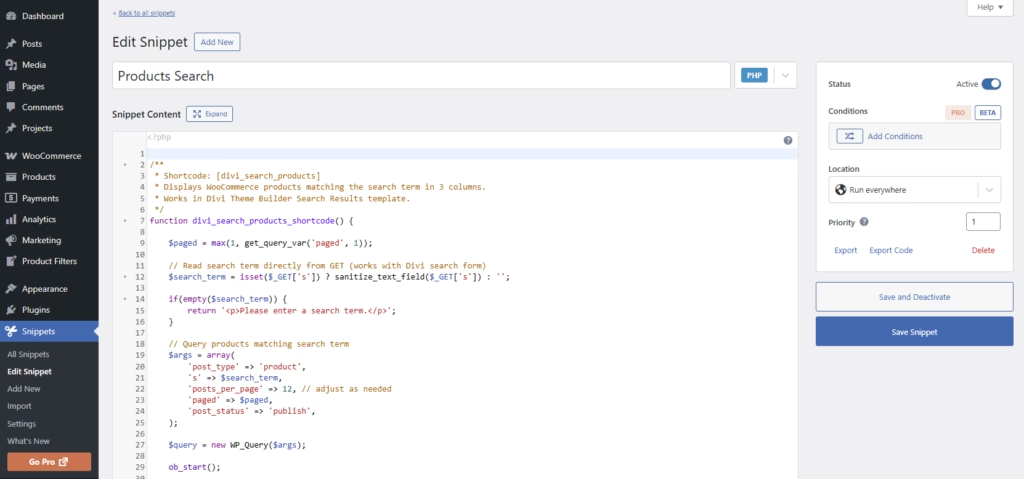
Complete Working PHP Code (3 Columns)
/**
 * Shortcode: [divi_search_products]
 * Displays WooCommerce products in a 3-column grid
 * Works with Divi Theme Builder search results
 */
function divi_search_products_shortcode() {

    $paged = max(1, get_query_var('paged', 1));

    // Get search keyword from URL (Divi compatible)
    $search_term = isset($_GET['s']) ? sanitize_text_field($_GET['s']) : '';

    if (empty($search_term)) {
        return '<p>Please enter a search term.</p>';
    }

    $args = array(
        'post_type' => 'product',
        's' => $search_term,
        'posts_per_page' => 12,
        'paged' => $paged,
        'post_status' => 'publish',
    );

    $query = new WP_Query($args);

    ob_start();

    if ($query->have_posts()) {

        echo '<div class="custom-product-search">';
        echo '<ul class="products columns-3">';

        while ($query->have_posts()) {
            $query->the_post();
            wc_get_template_part('content', 'product');
        }

        echo '</ul>';
        echo '</div>';

        // Pagination
        if ($query->max_num_pages > 1) {
            echo '<div class="custom-product-pagination">';
            echo paginate_links(array(
                'current' => max(1, $paged),
                'total' => $query->max_num_pages,
                'prev_text' => '« Previous',
                'next_text' => 'Next »',
            ));
            echo '</div>';
        }

    } else {
        echo '<p>No products found for "<strong>' . esc_html($search_term) . '</strong>".</p>';
    }

    wp_reset_postdata();
    return ob_get_clean();
}
add_shortcode('divi_search_products', 'divi_search_products_shortcode');
Step 4: Use the Shortcode in Divi
Now go back to your Search Results template:
- Open the Code Module
- Add this shortcode:
[divi_search_products]
- Save the template
That’s it. Your product search is now working.
Bonous:
How to Control the Product Grid Layout
In the code, this line controls the number of columns:
<ul class="products columns-3">You can change it to:
columns-2for 2 columnscolumns-4for 4 columns
Example:
<ul class="products columns-4">WooCommerce will automatically adjust the layout.
What This Solution Fixes
This solution fixes:
- Product search showing no results
- Empty Woo Products Module on search pages
- Pagination not working
- Divi Theme Builder compatibility issues
It also:
- Uses WooCommerce templates
- Is safe for future updates
- Does not rely on JavaScript hacks
Frequently Asked Questions
Can I use the Woo Products Module instead?
No. The Woo Products Module does not support search queries properly.
Does this work with Divi Theme Builder?
Yes. This solution is made specifically for Divi Theme Builder search templates.
Will this break after Divi updates?
No. It does not modify Divi core files or hooks.
Can I add category or tag filters?
Yes. This code can be extended to support categories, tags, and SKU search.
Final Thoughts
Divi is a powerful theme, but its WooCommerce search has limitations.
The method shown above is the cleanest and most reliable solution to fix product search issues.
If you are struggling with:
- Divi
- WooCommerce
- Product filters
- Search issues
Feel free to reach out and share your thoughts in the comment section. I’m always happy to help.