A WooCommerce checkout can look complete while a card field, payment option, checkbox, or Place order control ignores every click. The visible field may be covered by an Elementor container, stuck disabled, replaced during a checkout refresh, or rendered in a gateway frame whose script failed.
This workflow finds that boundary before changing CSS, cache, or gateway settings, while keeping classic/Elementor checkout and the Checkout Block separate.
Quick answer: Test logged out with a gateway sandbox. Use the keyboard and browser inspector to see whether the field receives focus and is the topmost element. Repair the exact overlay or stuck disabled state. If a gateway frame is missing or fails after an address change, inspect Console and Network, then test script delay, consent, cache, and conflicts one at a time. Never cache checkout or use a real card on staging.
Match the symptom to the first useful test
| Observed symptom | First test | Likely layer |
|---|---|---|
| Tab works, but mouse does not | Inspect the element under the pointer | Overlay or positioned container |
| Neither click nor Tab works | Check disabled, parent fieldset, readonly, and loading state | Form or JavaScript state |
| Billing works, but the card area does not | Confirm the gateway frame exists and loaded | Gateway script, HTTPS, consent, or CSP |
| Fields die after address, shipping, or payment changes | Watch XHR/Store API and DOM replacement | Gateway did not remount |
| Consent choice triggers the failure | Compare scripts and topmost element before/after | Script classification or overlay lifecycle |
| Only one browser profile fails | Retest privately without extensions | Extension, site data, or autofill |
| Payment spinner never ends | Inspect the first failed request | Script, AJAX, nonce, WAF, or server |
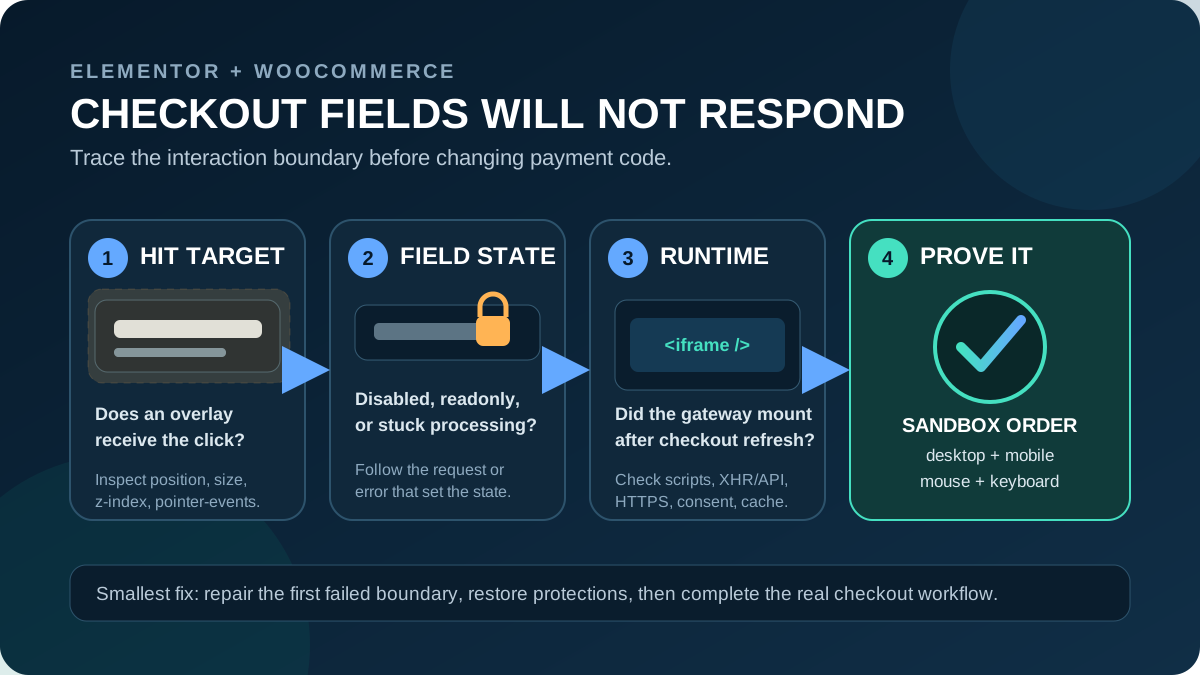
Identify which checkout renderer owns the fields
Open the assigned page under WooCommerce > Settings > Advanced > Page setup. Record whether it uses the Elementor Pro Checkout widget, Checkout Block, [woocommerce_checkout] shortcode, or a third-party builder. Do not place two checkout systems on one assigned page.
Elementor’s widget controls WooCommerce checkout presentation. The Checkout Block uses a separate payment integration and Store API flow. A gateway may support one renderer but fail in another, so never repair a block issue with a classic-checkout snippet.
- Record the page ID, template, renderer, and relevant versions.
- Confirm the gateway vendor supports that renderer.
- Check WooCommerce Status for outdated checkout overrides and active errors.
Protect live orders before troubleshooting
- Take a files-and-database backup and confirm the restore owner.
- Create production-like staging and switch every gateway to its sandbox.
- Stop staging from sending customer email, analytics conversions, fulfilment requests, or live webhooks unless intentionally tested.
- Use only published test credentials and payment data.
- Record cache, delay/defer, consent, CSS, CSP, and plugin settings.
- Define how rollback preserves newer orders.
Do not troubleshoot payment entry with real card data on staging or in screenshots. A staging clone may not meet the live store’s security controls, and browser logs can expose personal checkout data. Use the provider’s sandbox, redact customer details, and never restore an old staging database over a trading store: that can erase newer orders, accounts, stock changes, and refunds.
1. Create one clean, repeatable checkout test
Add one simple in-stock product, avoid a coupon at first, and open the canonical HTTPS checkout URL in a private window while logged out. Clear Console and Network, enable Preserve log, reload, and note the UTC time. Test the same gateway, address, shipping method, and viewport each run.
Use the mouse, Tab, and Shift+Tab. Keyboard focus without pointer access suggests a hit-target problem. Focus without editing suggests read-only state. No focus suggests disabled, hidden, or unmounted content.
Repeat in another current browser or private profile without extensions. If it works, re-enable blockers, password managers, autofill, antivirus browser features, and developer extensions one at a time. Do not change the site for a local extension failure.
2. Find the element that actually receives the click
Open DevTools Inspect mode and hover over the dead area. Chrome highlights the element under the pointer. If it selects a spacer, loading mask, popup backdrop, sticky column, cookie layer, pseudo-element, or oversized Elementor container instead of the input or gateway frame, you have direct evidence of interception.
- Note the topmost element’s class, dimensions,
position,z-index, transform, andpointer-events. - Check ancestor positioning, transform, opacity, or isolation for a stacking context.
- In DevTools only, hide the suspected layer or toggle one declaration.
- Retest. If interaction returns, repair that exact Elementor container, popup, header, or rule in staging.
- Repeat at desktop and mobile widths.
Remove the proven unnecessary position, negative margin, full-screen height, or stale loading class; otherwise correct its stacking or bounds. pointer-events: none is valid only for a decorative layer, never an interactive banner, modal, button, or loader.
Avoid the “z-index: 999999” shortcut. A high value on checkout may not escape an ancestor stacking context and can cover menus, consent controls, wallet sheets, or validation notices. Use the Elementor CSS inspection workflow to change the narrowest proven selector, then confirm pointer and keyboard access.
3. Check whether the field is disabled or read-only
Select a native input, select, button, or its nearest fieldset in the Elements panel. Look for disabled, readonly, aria-disabled="true", and gateway-specific busy classes. MDN documents that a disabled form control is not mutable or focusable and is not submitted; a disabled fieldset also disables most descendants. A read-only text control normally remains focusable but cannot be edited.
Temporary disabling is normal during totals, shipping, fraud, or gateway processing. The bug persists after the request finishes. Note the preceding request or Console error. Never force every input enabled; that can bypass validation while payment remains unready.
4. Separate the WooCommerce field from the gateway frame
Many gateways mount secure payment controls inside an iframe or provider-managed component. Inspect the card area. If the expected iframe/component is missing, empty, zero-height, or replaced by a permanent placeholder, focus on the gateway script and mount process. If it exists, verify its request loaded successfully and no parent overlay covers it.
Same-origin rules prevent your site from reading most DOM content inside a cross-origin payment iframe. Preserve that security boundary. Diagnose the frame element, dimensions, parent layers, provider requests, Console messages, gateway logs, and documented events.
For Stripe, for example, the Payment Element is an embeddable provider UI and supports a deliberate readOnly option. Other gateways use different components. Follow the exact plugin/provider documentation; do not assume every visible card field is a native WooCommerce input.
5. Test checkout refreshes and gateway remounting
Change country, state, postcode, shipping method, and payment method one at a time. WooCommerce’s classic order-review area refreshes through an AJAX request, while the Checkout Block tracks checkout and payment state through its client-side data flow. Either renderer can replace or remount part of the payment interface.
If the control fails after one change, record that trigger. Check whether the old node was removed, a new frame appeared, and the refresh returned valid data. Suspect custom code that moved, cloned, or initialized only the discarded node.
- Use a gateway version supporting the active renderer and WooCommerce.
- Remove custom cloning or movement around payment.
- Avoid popups, carousels, duplicate forms, or hidden templates unless supported.
- Checkout Block gateways must register through its payment integration API.
- Custom classic code must reinitialize safely after WooCommerce refreshes payment.
6. Isolate optimization and consent without weakening the site
In staging, disable only JavaScript delay/defer, combination, or minification for one test. If checkout passes, restore it and add the optimization product’s supported exclusion for the gateway’s documented scripts and dependencies. Never copy another gateway’s generic list.
Elementor lists JavaScript compression as a source of a known minification conflict, and WooCommerce’s Stripe documentation identifies unresponsive card fields as commonly associated with plugin or theme conflicts. The relevant proof is the same checkout passing when one transformation is removed, then failing again when it is restored.
Test before consent, after accepting necessary scripts, and after declining optional ones. Compare gateway scripts and overlays. Correct a wrongly classified payment dependency using consent and gateway guidance; never mark every third-party script necessary or bypass consent globally.
7. Read the first script or network failure
| Evidence | Smallest next action |
|---|---|
ERR_BLOCKED_BY_CLIENT | Retest without the named extension or local filtering product |
| Mixed-content error on HTTPS checkout | Correct the old HTTP asset or endpoint at its WordPress, gateway, theme, or CDN source |
| CSP refusal naming a provider domain | Add only the provider-documented directive/domain; do not replace the policy with wildcards |
| 403 or 429 on a gateway, checkout, or Store API request | Capture the URL, method, time, response, and WAF/rate-limit rule ID; allow the narrow legitimate path |
Checkout XHR returns HTML, -1, or an error instead of expected data | Check the response body, URLs, nonce/session caching, WAF, and server log at the same timestamp |
| JavaScript exception names a plugin or optimized bundle | Test that plugin feature or untransformed source on staging, then update or report the reproducible conflict |
Fix the first meaningful failure; later messages may be consequences. The Elementor Console and Network guide explains a useful error packet. Exclude card data, secrets, cookies, authorization headers, and customer details.
8. Repair checkout cache, nonce, and session handling
WooCommerce’s current caching guidance says Cart, Checkout, and My Account must stay dynamic because they contain customer-specific information. Confirm the real assigned checkout path is excluded at the WordPress plugin, host/reverse proxy, and CDN layers. Check WooCommerce session cookies according to the cache product’s documentation.
If the order-review request returns -1, WooCommerce documents a security validation failure consistent with a cached nonce. Repair the exclusion, purge the exact checkout URL at each full-page layer, start a new private session, and repeat the same request. Do not cache POST, checkout XHR, or Store API responses, and do not use “Cache Everything” on the checkout path.
Do not disable cache sitewide or flush Redis after every checkout. Page, object, CDN, and browser caches differ. Keep safe catalog caching while bypassing customer-specific checkout responses.
9. Run a controlled plugin, theme, and custom-code conflict test
When the earlier evidence does not identify one rule or request, reproduce on staging with WooCommerce, Elementor Core/Pro if the widget is used, and the affected gateway active. Temporarily use Hello or a WooCommerce-compatible default theme, then remove unrelated plugins and custom snippets in halves. Retest the same gateway and the same address after every split.
Prioritize field editors, currency/tax/shipping extensions, fraud, consent, optimization, security, Elementor add-ons, custom code, and recent changes. Verify the suspect: fail enabled, pass disabled, fail restored. The WordPress plugin audit maps dependency ownership.
Do not leave a security, tax, shipping, subscription, or payment feature disabled as the final repair. Update it, disable only the proven conflicting feature, replace it through change control, or send its vendor the captured reproduction.
10. Verify the repair through a complete payment workflow
- Start in a fresh logged-out session with the provider’s sandbox and test payment details.
- Confirm mouse, touch, and keyboard can select the gateway and reach every visible payment control.
- Change country, postcode, shipping, coupon, and payment method; confirm the fields remain mounted after every recalculation.
- Test the consent states your real visitors can choose and verify essential checkout still functions as intended.
- Place the sandbox order and confirm the browser reaches the expected success page.
- Confirm the WooCommerce order, status, order notes, stock change, email, gateway log, and webhook/test callback agree.
- Repeat on a real mobile device and a second current browser with normal optimization, cache, consent, CSP, and security settings restored.
- Check Console, failed Network requests, WooCommerce logs, and PHP/server logs for new errors.
Include keyboard visibility and focus order in acceptance. The Elementor accessibility checklist covers the manual form and focus tests that a visual preview misses. A gateway that accepts a mouse but traps keyboard focus is not ready.
Success: the correct checkout renderer and supported gateway load over HTTPS; no unintended element covers the fields; controls are enabled only in valid states; payment UI survives address, shipping, consent, and payment-method changes; the checkout path remains uncached; and a logged-out mobile sandbox transaction completes with matching order, log, callback, and email evidence.
Roll back test changes and prevent a repeat
- Restore every temporary theme, plugin, cache, consent, CSP, and optimization setting not part of the proven repair.
- Remove diagnostic CSS and never ship a DevTools-only disabled-state override.
- Keep Cart, Checkout, and My Account exclusions documented across page cache, host, and CDN layers.
- Add the assigned checkout renderer and gateway compatibility to the dependency inventory.
- After updates, test gateway mounting before and after country/shipping changes, not only the first paint.
- Include logged-out desktop, real mobile, keyboard, consent, and sandbox-order checks in the Elementor update checklist.
- Monitor failed orders and gateway logs, but disable verbose payment logging after diagnosis if the vendor recommends it.
If a release caused the failure, roll back its smallest responsible setting or package while keeping dependencies compatible. Do not restore an old production database merely to roll back code.
Official sources used for this workflow
- Elementor: WooCommerce Checkout widget
- Elementor: known plugin and theme conflicts
- Elementor: script blocking before consent
- WooCommerce: troubleshoot payment errors
- WooCommerce Stripe: missing or unresponsive card fields
- WooCommerce: checkout AJAX and endless loading diagnosis
- WooCommerce developer docs: configure caching plugins
- WooCommerce developer docs: Checkout Block payment integration
- Stripe: Payment Element behavior and options
- MDN: CSS pointer-events
- MDN: disabled HTML controls
- MDN: same-origin policy and frames
- Chrome for Developers: Inspect mode
Frequently asked questions
Why can I Tab into a checkout field but not click it?
The field is probably still focusable, but another positioned element receives the pointer. Inspect the topmost element at the dead spot. Repair that overlay’s size, position, stacking, or pointer behavior instead of raising all checkout fields above the page.
Why do the card fields stop working after I enter my postcode?
Changing an address can recalculate shipping, tax, totals, and available payment methods. If WooCommerce replaces the payment area and the gateway does not mount a new component, update the gateway, remove custom DOM movement, and test its documented classic or block checkout lifecycle.
Should I set pointer-events: none on the overlay?
Only when the element is purely decorative and the rule is scoped to that proven layer. Never disable pointer handling on a consent banner, modal, loading mask, validation control, button, or other interactive component.
Can I inspect or restyle the inputs inside the gateway iframe?
Usually not from the parent page when the iframe is cross-origin. That separation protects payment data. Use the gateway’s supported appearance settings and events, and inspect the frame element, its parent layers, its network requests, and provider logs.
Fix the interaction boundary, then prove the transaction
A dead payment field is a measurable frontend failure. Determine what receives the click, whether the intended control is enabled, whether the provider component mounted, and what changed during checkout refresh. The smallest repair becomes clear once one of those boundaries fails under a repeatable test.
If the fault crosses Elementor layout, gateway JavaScript, checkout refreshes, cache, consent, and security layers, review the WordPress and Elementor troubleshooting services. Bring the renderer, versions, affected gateway, exact reproduction, first Console/Network failure, and a redacted sandbox log so the investigation can begin with evidence.





