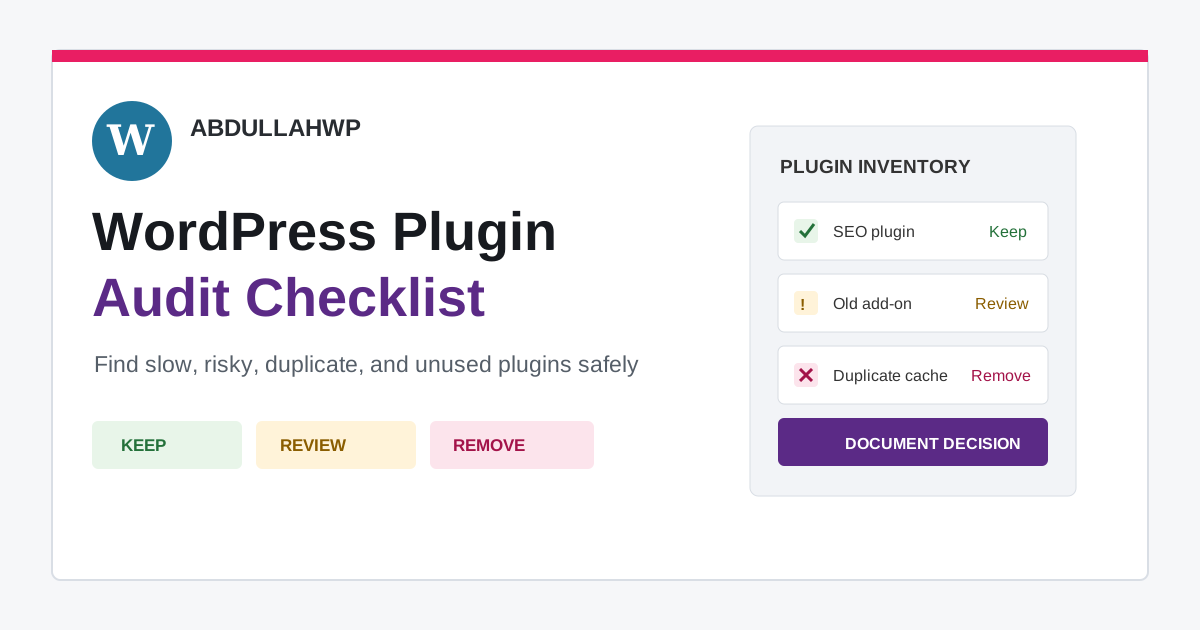
A WordPress plugin audit is not a contest to reach the smallest plugin count. Ten poorly chosen plugins can create more risk and load than thirty focused, well-maintained plugins. The useful question is whether each installed plugin still performs a necessary job at an acceptable cost.
This WordPress plugin audit checklist helps you find plugins that are unused, duplicated, abandoned, insecure, unexpectedly expensive, or difficult to remove. It also covers the part many cleanup guides skip: proving what a plugin owns before deactivating it, then testing forms, scheduled tasks, integrations, and stored data after the change.
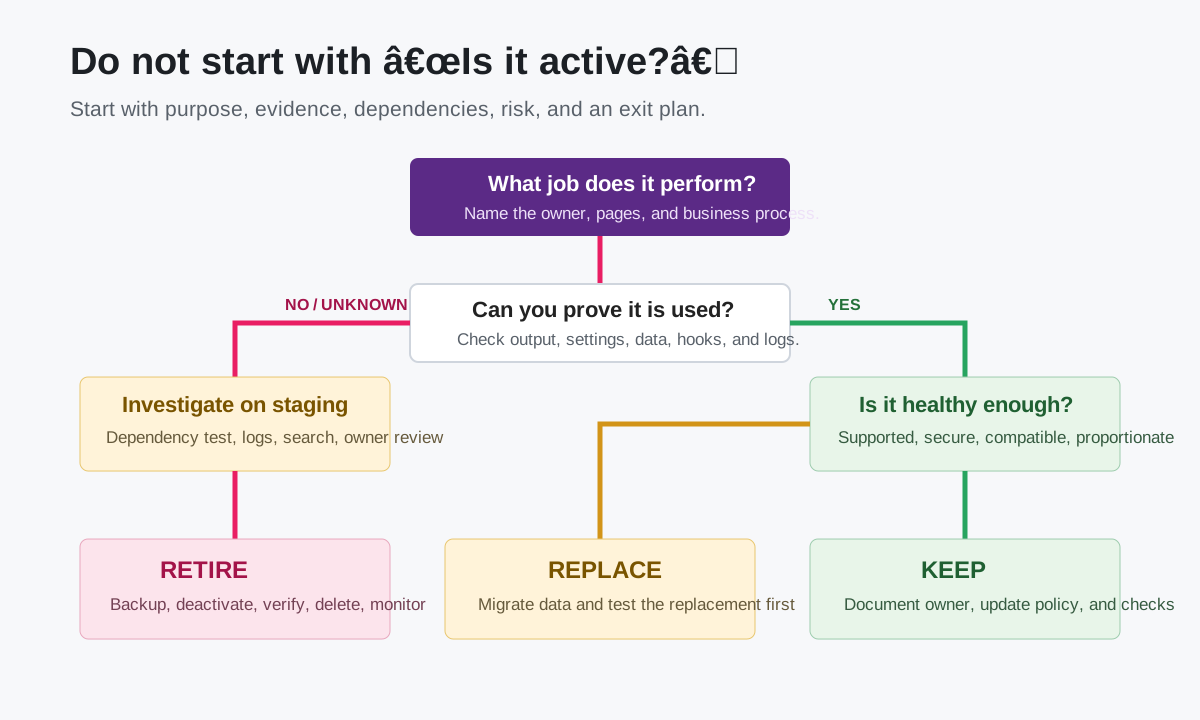
Quick answer: Inventory every normal, network, must-use, and drop-in plugin; document its purpose and owner; verify that its output is still used; review maintenance and security signals; measure its work on representative requests; map data and dependencies; then classify it as keep, replace, retire, or investigate. Make changes on staging with a restorable backup and remove one dependency group at a time.
What a proper WordPress plugin audit covers
The Plugins screen is only the starting point. A plugin can affect frontend assets, admin screens, database queries, autoloaded options, scheduled events, REST endpoints, outgoing HTTP requests, emails, webhooks, user roles, checkout, search, and background queues. An inactive plugin may stop normal hooks from running while its files and stored data remain on the server.
| Audit area | Question to answer | Evidence |
|---|---|---|
| Purpose | What exact business or technical job does it perform? | Feature owner, live output, settings, documentation |
| Use | Is that job still active on the site? | Pages, blocks, shortcodes, orders, logs, cron, API traffic |
| Overlap | Does another plugin, theme, host, or CDN already do it? | Feature matrix and configuration review |
| Maintenance | Can it be updated and supported reliably? | Source, changelog, compatibility, license, update path |
| Security | Is there a known or unresolved reason not to trust it? | Trusted advisories, repository status, vendor response |
| Performance | What work does it add to relevant requests? | Waterfall, queries, PHP time, memory, HTTP calls, cron |
| Exit | What breaks or remains if it is removed? | Dependency map, staging test, database and file inventory |
Before starting: make the audit reversible
- Create a complete backup of the database and files and confirm how it will be restored.
- Clone the site to staging when the production site handles sales, leads, memberships, bookings, or logged-in users.
- Record a baseline for representative frontend pages and important admin workflows.
- List business-critical checks: checkout, payment callbacks, login, forms, email, search, backups, analytics, consent, feeds, imports, exports, and scheduled actions.
- Identify who can approve the removal of marketing, legal, sales, accounting, and operational integrations.
A backup is not proof that every Elementor setting, external service, or recent order can be recovered automatically. Understand the scope of the backup and the restore process; the guide on WordPress backups and Elementor global settings explains one common blind spot.
Warning: Do not deactivate plugins one by one on a busy production site just to see what breaks. Cached pages can hide a failure, while webhooks, scheduled tasks, payment callbacks, and email queues may fail later without an obvious screen error.
Step 1: Inventory every plugin layer
In WordPress admin, open Plugins > Installed Plugins and record the active, inactive, recently active, and update-available views. WordPress documents these filters on the official Plugins screen guide. Do not stop there.
- Normal plugins: Active and inactive entries under Installed Plugins.
- Network-active plugins: Multisite plugins enabled for the network.
- Must-use plugins: Files in
wp-content/mu-pluginsthat load automatically and cannot be disabled like normal plugins. - Drop-ins: Files such as
object-cache.php,advanced-cache.php, ordb.phpthat replace WordPress behavior. - Host-managed code: Caching, security, staging, or management plugins installed by the hosting platform.
- Custom plugins: Site-specific code that may not have a public update source.
WP-CLI can export a clearer inventory when command-line access is available:
wp plugin list \
  --fields=name,status,version,update,auto_update,wporg_status,wporg_last_updated \
  --format=csv

wp plugin list --status=must-use
wp plugin list --status=dropin
The official WP-CLI plugin list command supports activation status, update information, auto-update state, WordPress.org status, and last-updated fields. A manually installed commercial or custom plugin may not expose all of those values, so “no update available†does not automatically mean current.
Step 2: Give every plugin a purpose and owner
Add one plain-English purpose beside every plugin: “sends Elementor form submissions through Brevo,†“adds product subscriptions,†or “generates XML sitemaps.†Descriptions such as “SEO,†“speed,†or “useful†are too vague to reveal overlap.
| Inventory field | Example |
|---|---|
| Plugin | Example SMTP plugin |
| Purpose | Routes transactional WordPress email through provider |
| Owner | Site administrator |
| Critical workflows | Contact forms, password resets, order email |
| Data or settings | API connection, sender identity, email logs |
| Replacement | None approved |
| Decision | Keep; test after every mail/provider change |
If nobody can explain a plugin, label it unknown, not unused. Search the site for its blocks, shortcodes, widgets, CSS classes, custom post types, settings, and database tables. Review analytics and logs where relevant. Ask the person who owns the connected service before making the final decision.
Step 3: Find overlapping and duplicate features
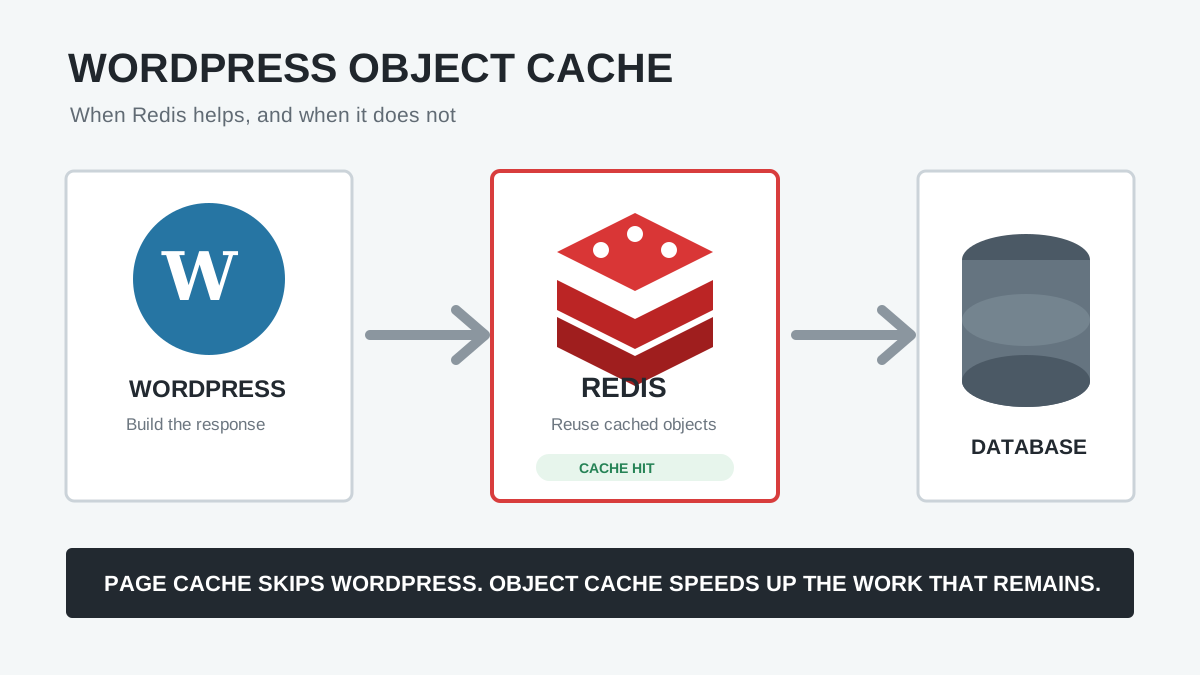
Overlap creates confusing ownership. Two cache plugins may both rewrite HTML; two SEO plugins may output competing canonical tags; a host cache and a plugin cache may purge differently; multiple image optimizers may regenerate the same uploads; and several security plugins can run duplicate scans.
- Page caching, minification, lazy loading, CDN integration, and database cleanup
- SEO titles, schema, XML sitemaps, redirects, and analytics
- Backups supplied by the host, a management service, and a WordPress plugin
- SMTP, form email logging, CRM delivery, and marketing automation
- Security firewall, login protection, malware scanning, and activity logs
- Cookie consent, analytics consent mode, and script blocking
- Elementor add-on packs that provide many of the same widgets
Overlap is not always wrong. A remote backup plus an independent host backup can be intentional resilience. The goal is one documented owner for each function, not automatic consolidation into a larger all-in-one plugin.
Step 4: Review maintenance, source, and security
Evaluate the plugin in context. A stable, small plugin may not need weekly releases, while a payment or authentication plugin requires responsive maintenance. “Last updated†is a signal, not a verdict.
- Was it obtained from WordPress.org, the developer, a trusted marketplace, or an unknown ZIP source?
- Is the installed version current, and is the update license or account still active?
- Does the vendor list compatibility with the site’s WordPress and PHP versions?
- Is the WordPress.org listing active, closed, or missing?
- Are recent support threads and changelogs consistent with maintained software?
- Do reputable vulnerability sources report an issue in the installed version?
- Does the plugin require broad permissions, public file uploads, remote API access, or sensitive customer data?
- Is there a named owner who receives security and renewal notices?
A closed WordPress.org listing deserves investigation, but the directory may close plugins for different reasons. Confirm the reason and affected versions before acting. When a vulnerability is known, follow the vendor or trusted advisory: update, disable, replace, or contain the plugin according to the actual risk.
Tip: Treat premium and custom plugins as a separate update queue. WordPress can only show an update when the plugin includes a working update mechanism, so record the vendor URL, license owner, renewal date, and update procedure.
Step 5: Measure performance without blaming plugin count
Performance cost depends on what a plugin does and where it does it. A tiny utility that runs one hook can be cheaper than a single marketing plugin that adds scripts, remote calls, queries, and background jobs. Measure representative requests rather than deactivating plugins based on reputation.
Frontend checks
- Test the homepage, an article, an Elementor landing page, a product/archive, cart/checkout, and a logged-in page where applicable.
- Compare request count, JavaScript and CSS bytes, third-party domains, long main-thread tasks, LCP, CLS, and INP diagnostics.
- Use the Network initiator and file path to attribute assets instead of assuming a filename belongs to a plugin.
- Test cold and warm cache behavior and repeat the same scenario at least three times.
If a plugin loads styles on pages where its feature is absent, first check for an official conditional-loading option. Asset unloading can help, but it must be tested across templates and dynamic states. The Elementor unused CSS guide explains why removing a file based on one PageSpeed run can break another page.
Server and database checks
Query Monitor can group database queries by component and expose PHP errors, enqueued assets, hooks, and outgoing HTTP API calls. Use it on staging or during controlled diagnostics. Its logged-in diagnostic view changes the request and may bypass full-page cache, so it is evidence for attribution, not a standalone public performance score.
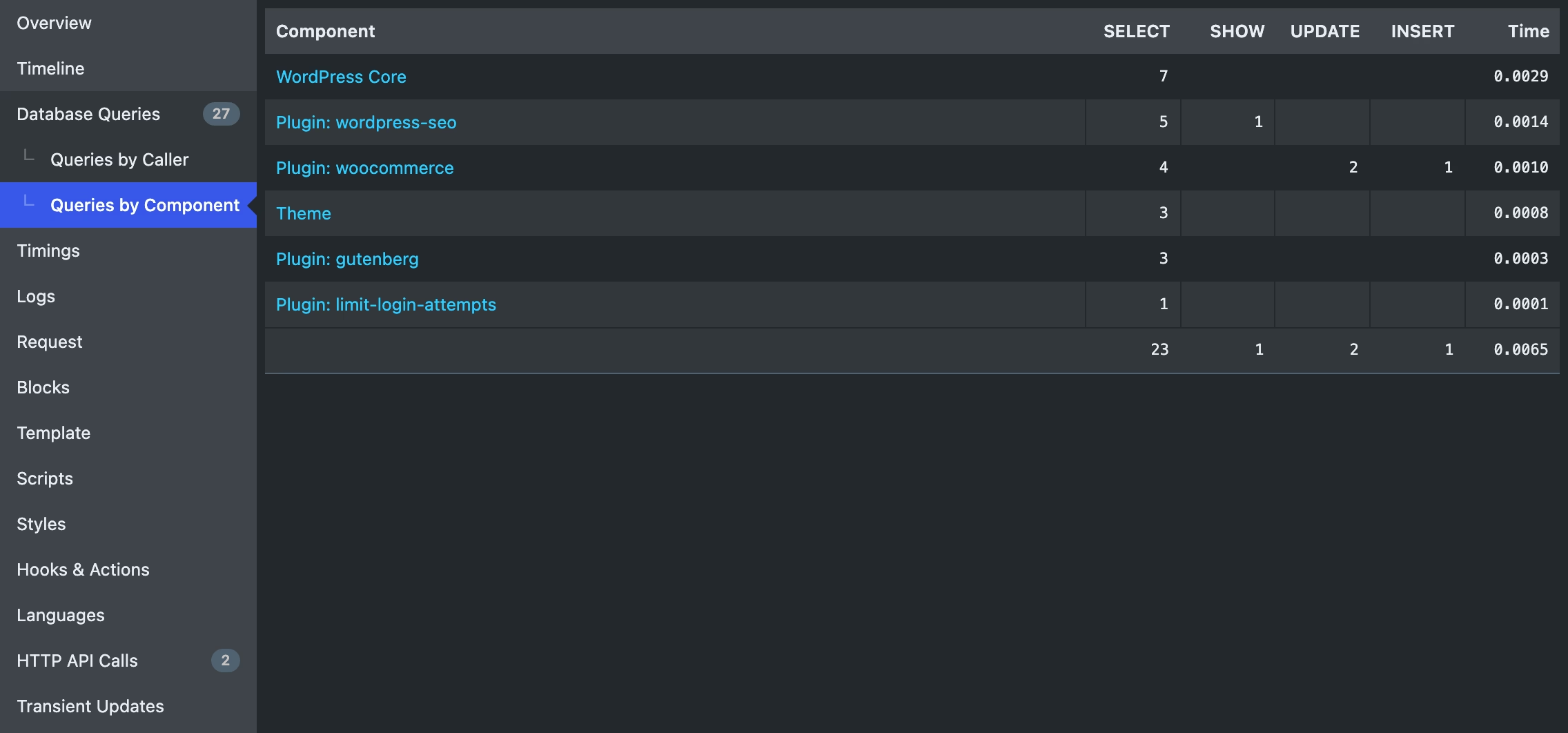
- Look for slow or duplicate queries attributed to a component.
- Review external HTTP calls that delay page or admin requests.
- Inspect autoloaded options that load on every request.
- Check scheduled events and action queues for repeated failures or backlogs.
- Compare PHP time and memory on the same request before and after a staging-only change.
Database size is not the same as query cost, and deleting options is not automatically an optimization. Use the WordPress database bloat guide before cleaning revisions, transients, or autoloaded options. If scheduled actions are backing up, see the WordPress cron backlog troubleshooting guide.
Step 6: Prove whether a plugin is unused
“Inactive†and “unused†are different. An active plugin may no longer serve a purpose, while an inactive migration or maintenance plugin may be retained intentionally for a documented workflow. Use evidence:
- Search posts and post meta for plugin blocks, shortcodes, widgets, and template data.
- Check custom post types, taxonomies, user roles, capabilities, and database tables it registered.
- Inspect forms, email routing, payment gateways, shipping methods, consent categories, and analytics tags.
- Review cron events, Action Scheduler, webhook endpoints, REST routes, API keys, and outgoing HTTP calls.
- Check theme templates and custom code for functions or classes supplied by the plugin.
- Review exports, reports, redirects, logs, and admin-only workflows that may not appear on the frontend.
- Ask the named owner and record the answer.
When evidence remains unclear, deactivate it only on staging. Clear caches and test both expected success and failure states. A contact form displaying correctly is not enough; submit it, verify validation, delivery, CRM/webhook creation, confirmation email, and stored entry behavior.
Step 7: Map dependencies and the exit plan
Before replacing or retiring a plugin, answer four questions:
- What depends on it? Add-ons, theme code, templates, shortcodes, blocks, external services, staff procedures, and customer data.
- What data does it own? Tables, options, uploads, logs, custom post types, orders, subscriptions, or form entries.
- What happens on uninstall? Some plugins preserve data; others offer a cleanup setting; some remove data permanently.
- How will you validate the exit? Define tests, monitoring, rollback trigger, and the person responsible.
Never delete database tables because their prefix resembles a plugin name without verifying ownership and relationships. Serialized options and shared tables make ad hoc cleanup risky. Back up first, use the plugin’s documented uninstall process where trustworthy, and retain exported business data for the required period.
Step 8: Classify each plugin
| Decision | Use when | Required action |
|---|---|---|
| Keep | Necessary, supported, proportionate, and understood | Assign owner, update policy, license, and recurring tests |
| Replace | Necessary but abandoned, risky, excessive, or poor fit | Plan data migration and parallel testing before removal |
| Retire | No verified purpose or feature is intentionally discontinued | Backup, deactivate on staging, test, delete files, monitor |
| Investigate | Purpose, ownership, security, or dependencies are unclear | Do not guess; collect evidence and set a decision deadline |
Step 9: Remove a WordPress plugin safely
- Record the plugin version, settings, license, purpose, and rollback plan.
- Export data or configuration that may be needed later.
- Take a fresh backup or staging snapshot.
- Deactivate the plugin on staging and clear WordPress, server, object, and CDN caches as relevant.
- Run the full workflow checklist, including background jobs and external callbacks.
- Check PHP logs, browser console, 404s, cron/queue failures, and missing shortcodes or widgets.
- Leave the change under observation for an appropriate period.
- Delete the plugin files when the retirement is approved. WordPress only permits deletion after deactivation.
- Clean residual data only when its ownership and retention requirements are understood.
- Document the final result and update monitoring, backup, and recovery notes.
Success: The audit is complete when every plugin has an owner, a specific purpose, a maintenance path, an evidence-based performance/security assessment, and a tested exit plan. A lower plugin count is a possible result, not the goal.
A simple plugin risk score for prioritization
Use a score to choose what to investigate first, not to automate deletion. Give each dimension 0 for healthy/known, 1 for concern, or 2 for serious/unknown:
- Purpose and owner
- Maintenance and update path
- Security exposure and source trust
- Compatibility and support
- Performance evidence
- Feature overlap
- Data sensitivity and privacy
- Removal complexity and business impact
Investigate high totals first, but always consider impact. An unclear payment gateway deserves priority even if it adds few frontend bytes. A heavy admin report used once a month may be acceptable when it does not affect visitors or critical background work.
How often should you audit WordPress plugins?
- Monthly: Updates, security advisories, failed scheduled tasks, licenses, and inactive plugins.
- Quarterly: Purpose/owner review, overlap, performance samples, and vendor health.
- Before major changes: WordPress/PHP upgrades, redesigns, migrations, checkout changes, and hosting moves.
- After incidents: Malware, unexpected admins, failed updates, data loss, email failure, or a significant performance regression.
Auto-updates should be a risk-based policy rather than a universal switch. Low-risk, well-tested plugins may be suitable for automatic updates with backups and monitoring. Revenue-critical integrations may need staging or a maintenance window. Security fixes may require immediate action regardless of the normal schedule.
Sources and audit tools
- WordPress documentation: Manage Plugins
- WordPress developer handbook: Must-use plugins and caveats
- WP-CLI: List plugin status and update information
- Query Monitor on WordPress.org
Frequently asked questions
How many WordPress plugins are too many?
There is no reliable number. The code quality, features, request scope, background work, and hosting resources matter more than the count. Audit what each plugin does and measure its cost.
Do inactive plugins slow down WordPress?
Inactive plugins do not run through the normal active-plugin loading process, but their files occupy storage and can still require updates, review, backup space, and security consideration. Delete plugins that have no documented reason to remain, after confirming they are not needed.
Will deleting a plugin remove its database tables?
It depends on the plugin and its uninstall settings. Some preserve data to support reinstallation; others remove some or all data. Read the plugin documentation and back up before deletion.
What is the best tool for finding a slow plugin?
No single tool proves every type of cost. Use a browser waterfall for frontend assets, Query Monitor or application monitoring for server work, cron/queue inspection for background jobs, and controlled staging comparisons for attribution.
Need a plugin audit without breaking live workflows?
AbdullahWP can inventory the stack, trace plugin ownership, test performance and dependencies, and plan safe replacements or removals. See the WordPress and Elementor services or the focused Speed & PerformanceBoost service.