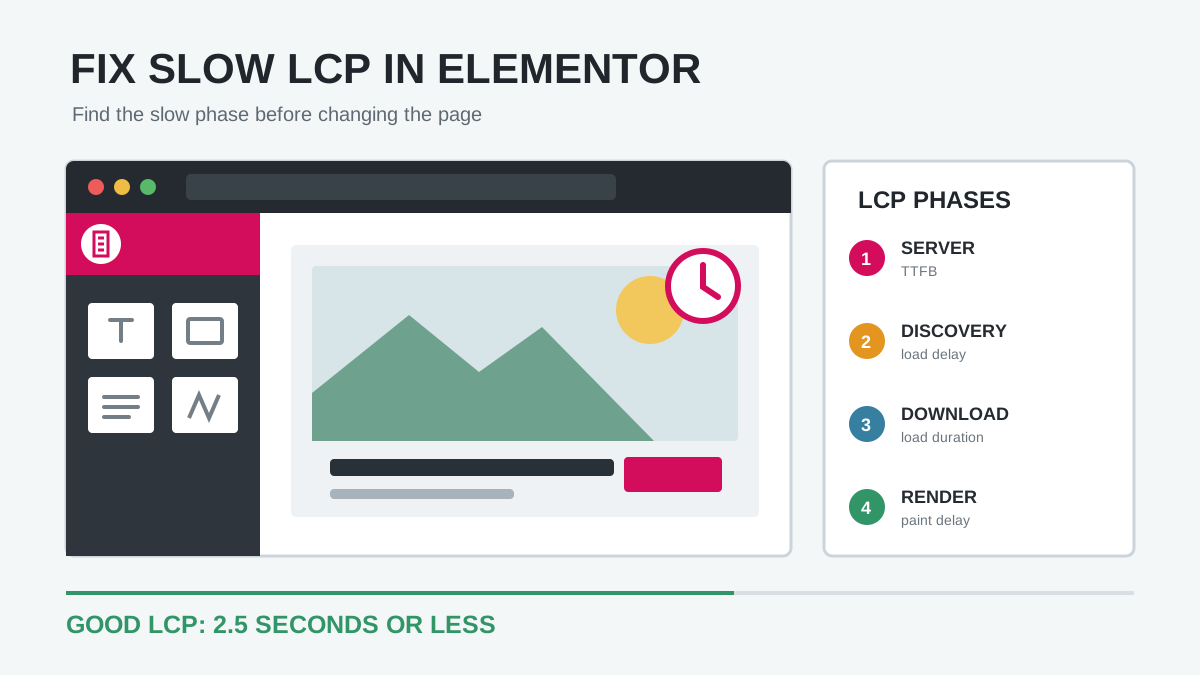
A slow Largest Contentful Paint does not always mean your Elementor hero image is too large. The delay may happen before WordPress sends the page, while the browser waits to discover the hero resource, during the image or font download, or after the resource is ready but CSS and JavaScript still prevent it from appearing.
This guide shows how to fix slow LCP in Elementor by identifying the slow phase first. You will learn how to test hero images, CSS backgrounds, sliders, headline fonts, server response, and render-blocking assets without blindly enabling every optimization option.
Quick answer: Find the mobile and desktop LCP elements in PageSpeed Insights. Then use the LCP phase breakdown: improve caching and backend work for slow TTFB; make the resource discoverable and remove lazy loading for high load delay; resize, compress, and deliver it efficiently for long load duration; reduce blocking CSS, JavaScript, animations, and font waits for high render delay.
What is a good LCP score?
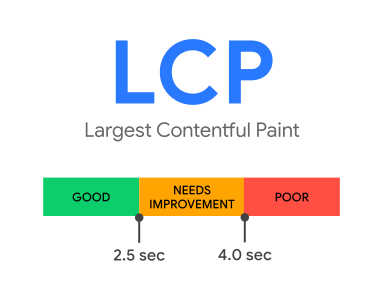
Google defines a good Largest Contentful Paint as 2.5 seconds or less. A value above 2.5 seconds and up to 4 seconds needs improvement; above 4 seconds is poor. The field threshold is evaluated at the 75th percentile of page loads, separately for mobile and desktop.
PageSpeed Insights normally shows two kinds of evidence:
- Field data: Real Chrome user experiences collected over a rolling period. This determines whether the URL or origin passes Core Web Vitals when enough data exists.
- Lab data: A Lighthouse test under simulated conditions. It is useful for debugging but can change between runs.
Do not declare success from one desktop Lighthouse score. Retest mobile, review field data, and measure representative templates such as the homepage, landing page, article, product, and archive.
1. Identify the actual LCP element
Open the URL in PageSpeed Insights and expand the Largest Contentful Paint element or LCP-related diagnostic. Record the element and its HTML. Common Elementor candidates include:
- An Image widget inside the first container.
- A container background image.
- The first visible slide in a carousel or Slides widget.
- A video poster image.
- The main heading or paragraph in a text-only hero.
- A featured image supplied by the theme’s single-post template.
Run both mobile and desktop tests. Responsive visibility, different image sources, breakpoint typography, and viewport clipping can produce different LCP elements. Fixing only the desktop candidate may leave mobile unchanged.
Tip: In Chrome DevTools, record a Performance trace with a clean reload. Select the LCP marker to inspect the candidate element and timing. Use the Network panel to see when its image or font request begins and ends.
2. Match the slow LCP phase to the right fix
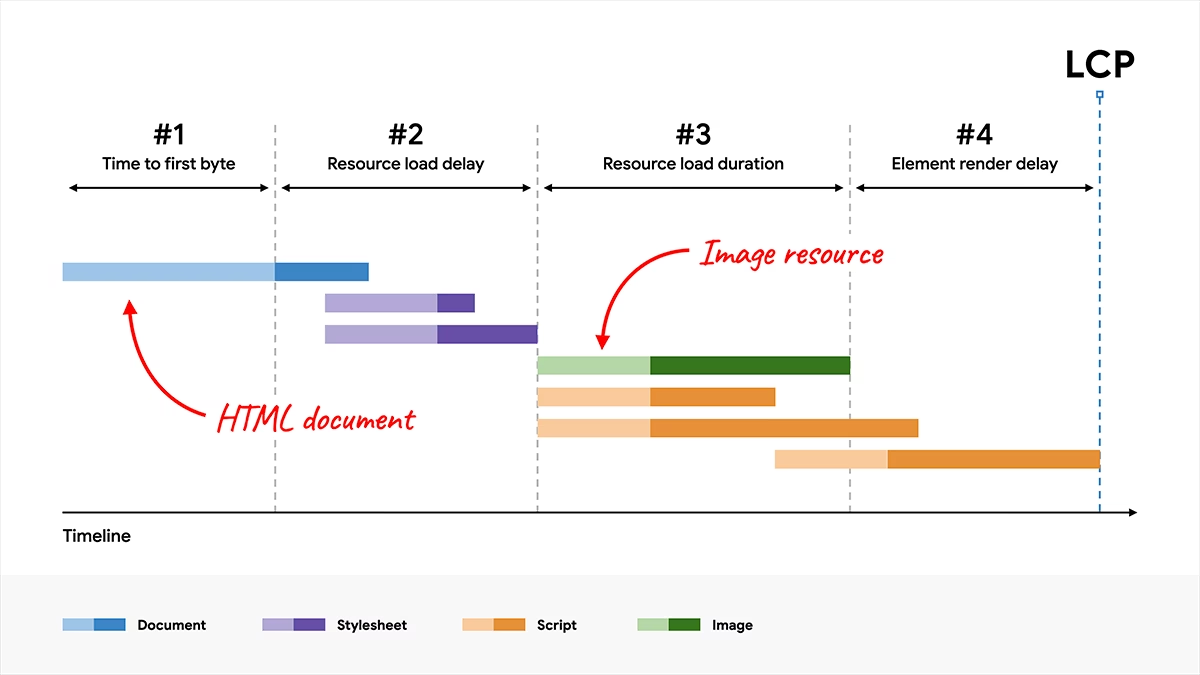
web.dev divides LCP into four parts. This is the most important distinction missing from many Elementor speed guides.
| LCP phase | What it measures | Common Elementor cause | Primary response |
|---|---|---|---|
| TTFB | Navigation until the first HTML byte arrives | Uncached HTML, slow hosting, PHP/plugin/database work | Page caching, backend profiling, server/CDN improvement |
| Resource load delay | First HTML byte until the LCP resource starts | Lazy-loaded image, CSS background, JavaScript slider | Early discovery, eager loading, selective preload |
| Resource load duration | Time spent downloading the image or font | Oversized hero, slow origin, too many competing resources | Resize, compress, modern format, CDN, reduce contention |
| Element render delay | Resource finished until the element paints | Blocking CSS/JS, entrance animation, font block, hidden slider | Remove the render gate and reduce critical-path work |
Optimizing the wrong phase often changes the PageSpeed opportunities without materially changing LCP. For example, compressing a 150 KB hero image cannot solve a three-second delay caused by an uncached server response or an entrance animation that keeps the container hidden.
3. Create a clean baseline
- Back up the site and use staging for structural changes.
- Test the exact canonical URL, not an editor preview.
- Run PageSpeed mobile three times and record the median.
- Repeat on desktop and note whether the LCP element changes.
- Save the LCP value, four phase timings, TTFB, element HTML, image URL, and screenshot.
- Record whether the test is cold-cache or warm-cache.
- Check field data before and after the change when available.
Change one layer at a time. If you simultaneously replace the image, change the hero widget, enable a cache plugin, defer JavaScript, and preload fonts, you will not know which change helped or which one introduced a regression.
4. Optimize an Elementor hero Image widget
An HTML <img> is usually the easiest LCP image to optimize because the browser can discover its src and srcset while scanning the initial HTML.
- Use the Elementor Image widget instead of a CSS background when the visual is meaningful content.
- Upload an image close to the largest rendered dimensions; do not serve a 4000-pixel original into a 700-pixel column.
- Choose an appropriate WordPress image size rather than Full by default.
- Keep responsive
srcsetandsizesintact so mobile can choose a smaller source. - Compress the image and use WebP or AVIF where the site’s browser support and image pipeline allow it.
- Set explicit width and height or a stable aspect ratio to prevent layout movement.
- Verify the LCP image does not have
loading="lazy". - Verify the likely LCP image has
fetchpriority="high", but do not add high priority to many images.
WordPress Core automatically tries to omit lazy loading and add high fetch priority to the likely LCP image. Elementor’s Optimized Image Loading feature also identifies the most important image and prioritizes it. Check the final page source rather than assuming the feature worked through every theme, add-on, optimization plugin, and template.
<img
  src="hero-1280.webp"
  srcset="hero-640.webp 640w, hero-1280.webp 1280w"
  sizes="(max-width: 767px) 100vw, 60vw"
  width="1280"
  height="720"
  loading="eager"
  fetchpriority="high"
  alt="A useful description of the hero image"
>
Warning: Do not force loading="eager" and fetchpriority="high" onto every image above the fold. Competing high-priority downloads can delay the one resource that actually determines LCP.
5. Fix a slow Elementor background image
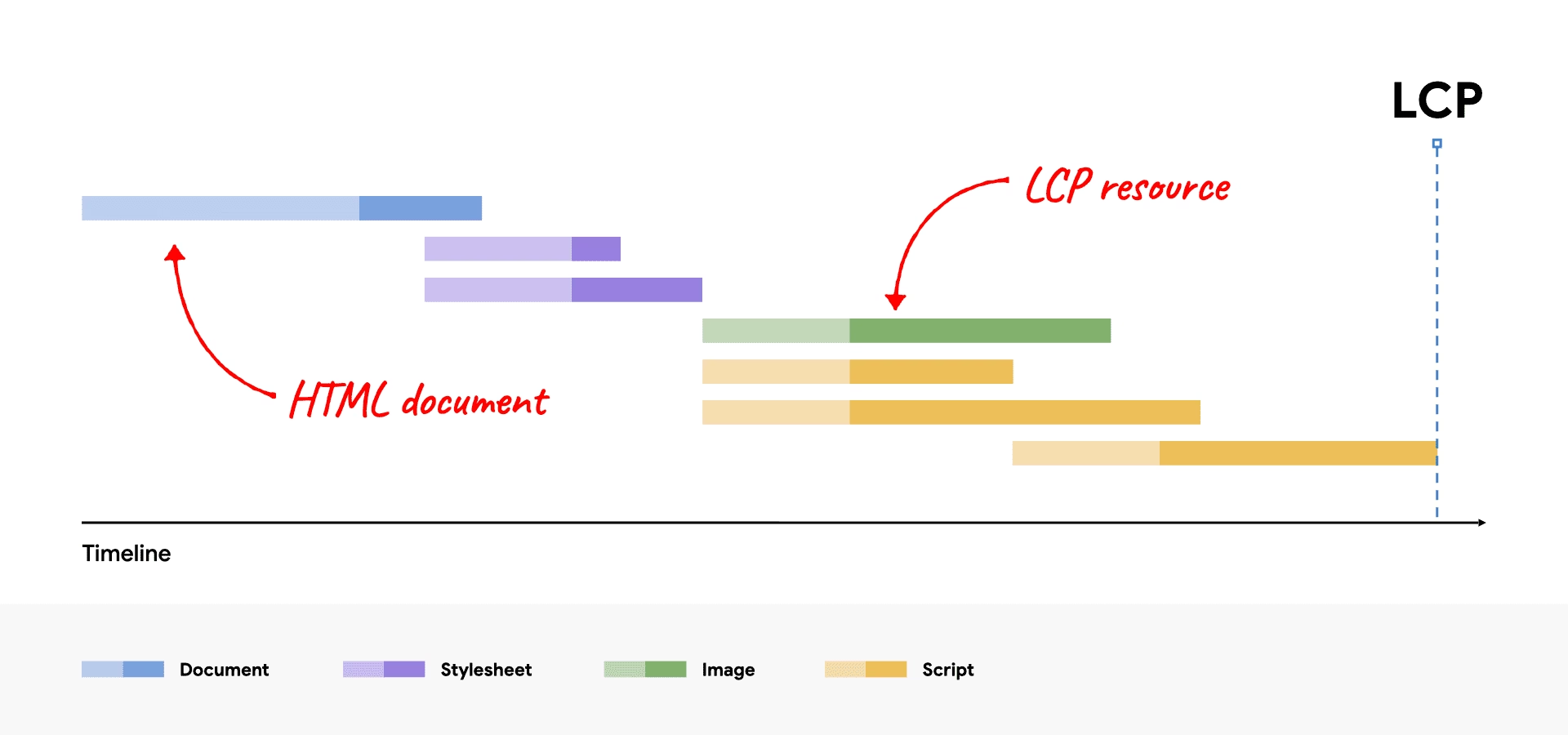
A container background can look identical to an Image widget but behaves differently. Its URL normally lives in generated CSS, so the browser must download and parse CSS before discovering the image. That adds resource load delay.
Use one of these approaches:
- Best for meaningful imagery: Replace the background with an Image widget and position the text in a sibling or overlay container.
- Best for decorative imagery: Keep the CSS background, optimize its dimensions and bytes, and make only the first visible background eager.
- When discovery remains slow: Preload the exact background URL, with responsive media conditions if desktop and mobile use different files.
<link rel="preload"
      as="image"
      href="/wp-content/uploads/hero-mobile.webp"
      media="(max-width: 767px)"
      fetchpriority="high">

<link rel="preload"
      as="image"
      href="/wp-content/uploads/hero-desktop.webp"
      media="(min-width: 768px)"
      fetchpriority="high">
The preload URL must exactly match the resource the browser later requests. A different size, format, query string, or CDN hostname can cause a duplicate download. Inspect the Network panel after implementation. Do not preload backgrounds used below the fold.
6. Simplify sliders and video heroes
Sliders often delay LCP because JavaScript initializes the component, chooses a slide, applies visibility styles, and then reveals the content. They may also download several slide images that compete with the first visible slide.
- Prefer a static first hero over a carousel when the first message is the main conversion content.
- If a slider is necessary, load the first slide in the initial HTML and deprioritize or lazy-load later slides.
- Do not preload every slide.
- Remove entrance and Ken Burns effects from the LCP element while testing.
- Use a small optimized video poster rather than waiting for video playback.
- Delay YouTube, Vimeo, and background-video scripts until they are needed.
If removing the animation dramatically improves render delay, the problem was not the image download. Keep the hero visible by default and animate non-critical decoration instead.
7. Fix a headline or text LCP
PageSpeed may identify the Elementor Heading or Text Editor widget as the LCP element. Compressing images will not fix this path. Text can be delayed by a web font, blocking CSS, JavaScript visibility logic, or slow HTML delivery.
- Use a system font temporarily. If LCP improves, the font path needs work.
- Keep only required font families, styles, scripts, and weights.
- Serve WOFF2 files and subset characters when appropriate.
- Host critical fonts locally when that removes a slow third-party connection.
- Use
font-display: swapor another non-blocking strategy suited to the design. - Preload only the one or two font files required by the initial viewport.
- Add
crossoriginto font preloads so the browser can reuse the request. - Remove entrance animations or opacity rules that hide the heading until JavaScript runs.
<link rel="preload"
      href="/wp-content/uploads/fonts/brand-regular.woff2"
      as="font"
      type="font/woff2"
      crossorigin>
Preloading every weight wastes bandwidth and can delay the hero image. Check which exact font file the LCP text uses at its mobile breakpoint.
8. Reduce TTFB before polishing the hero
Every LCP depends on the HTML response. The browser cannot discover an Image widget, stylesheet, background, or font preload until the document starts arriving.
- Enable reliable full-page caching for public pages.
- Confirm logged-out requests return a cache hit after warm-up.
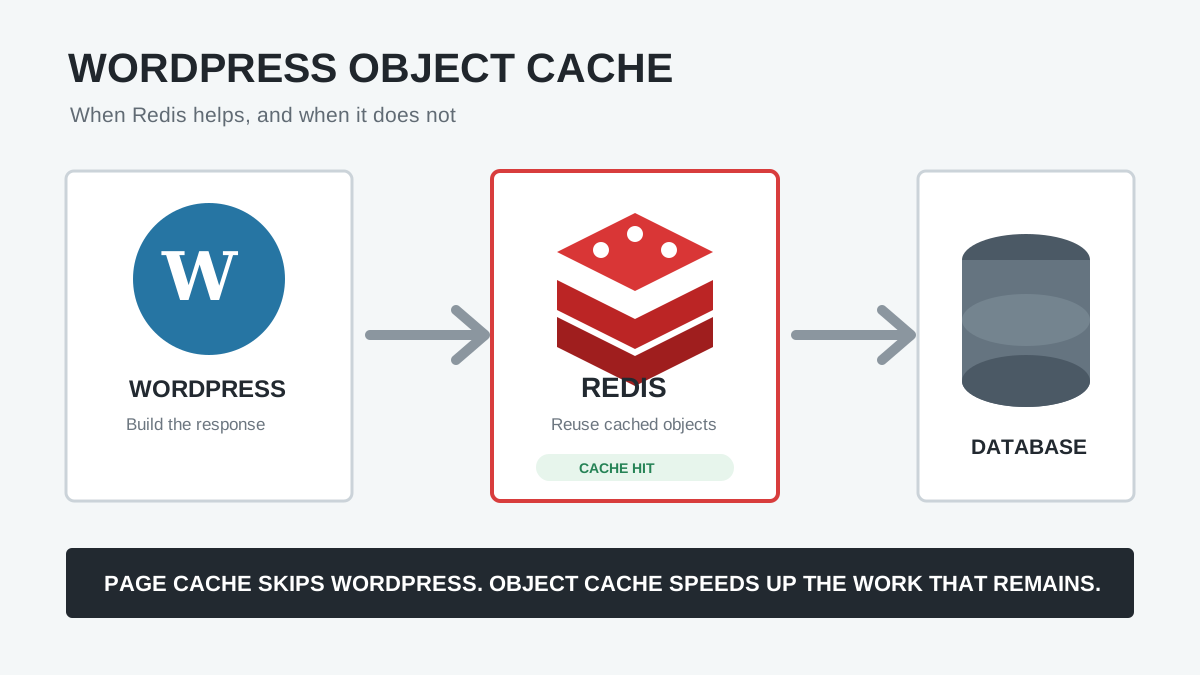
- Use persistent object caching when the site has repeat database work and the host supports it.
- Audit slow plugins, remote API calls, large autoloaded options, and database queries.
- Update supported PHP and database versions after staging tests.
- Remove expired logs, sessions, revisions, and transient buildup only with a backup and ownership check.
- Use an edge cache or CDN when visitors are geographically far from the origin.
- Upgrade hosting when CPU throttling or uncached backend time remains the bottleneck.
Elementor’s Element Caching can reduce server rendering work for eligible static elements, but it should not cache widgets that contain visitor-specific dynamic tags or shortcodes. Database maintenance may also help when the backend is burdened by accumulated data; use the WordPress database bloat guide to separate safe cleanup from risky deletion.
9. Remove Elementor render delay
If the image or font finishes early but the element paints late, find what prevents rendering:
- Large render-blocking stylesheets.
- Synchronous scripts in the document head.
- JavaScript that adds the hero to the DOM.
- Entrance animations that start with opacity zero.
- A preloader covering the page.
- Cookie, personalization, or A/B testing code hiding content.
- A slider waiting for initialization.
- Long main-thread tasks competing with style and layout work.
Keep the core hero HTML visible without JavaScript. Reduce critical CSS rather than stacking several CSS optimizers, and delay non-critical scripts. The guides to reduce unused Elementor CSS safely and improve Elementor INP cover the CSS and main-thread paths in more detail.
10. Review Elementor’s current performance settings
In Elementor > Settings > Performance and the Features area, review the options available on the installed version:
| Feature | Potential LCP benefit | What to verify |
|---|---|---|
| Optimized Image Loading | Prioritizes the likely LCP image and applies smart lazy loading | Correct final loading and fetchpriority attributes |
| Lazy Load Background Images | Defers later backgrounds while keeping the first eager | The first background is truly the LCP candidate |
| Improved Asset Loading | Loads selected Elementor JS only where used | Third-party add-ons may not follow the same system |
| Element Caching | Can reduce TTFB for static Elementor output | Do not cache visitor-specific dynamic content |
| Inline Font Icons | Avoids unnecessary icon-font files | All icons still render across templates |
Enable one feature at a time on staging, clear generated files and caches, then retest the same URL. Labels and stability can change between Elementor releases, so use the current Elementor performance features documentation.
11. Simplify the first viewport
- Use one hero rather than duplicated desktop, tablet, and mobile sections.
- Replace unnecessary nested containers with a flatter structure.
- Remove above-the-fold counters, carousels, maps, forms, and social embeds unless essential.
- Avoid loading popup and animation systems before the main content paints.
- Use stable dimensions so the final LCP candidate does not change after layout.
Converting legacy sections can reduce wrappers, but do it because the structure is inefficient, not as a guaranteed LCP shortcut. Use the guides to fix excessive DOM size and convert Elementor sections to containers without breaking the layout.
Common Elementor LCP mistakes
| Mistake | Why it fails | Better approach |
|---|---|---|
| Lazy-load every image | The LCP request begins late | Keep below-fold lazy loading; make the LCP image eager |
| Preload every hero candidate | Resources compete and unused bytes download | Preload only the confirmed responsive candidate |
| Compress the image repeatedly | The bottleneck may be TTFB or render delay | Use the four-phase breakdown |
| Use a CSS background for important content | The URL is discovered after CSS | Prefer a responsive Image widget where practical |
| Apply entrance animation to the hero | The element stays hidden after resources are ready | Keep the LCP element visible; animate secondary items |
| Chase one Lighthouse score | Lab runs vary and do not replace field data | Use repeated tests plus CrUX field evidence |
| Run multiple optimizers | Duplicate defer, lazy-load, preload, and cache logic conflicts | Assign one owner to each optimization layer |
How to verify the LCP fix
- Purge Elementor files, page cache, server cache, and CDN for the test URL.
- Warm the cache once, then run three mobile tests.
- Confirm the LCP element is still the intended hero or headline.
- Compare the same four phase timings, not only the total score.
- Inspect Network to ensure no duplicate preload and image request.
- Check that only the intended image has high priority.
- Test desktop and key mobile widths for visual regressions.
- Monitor Search Console Core Web Vitals or another field source after enough real visits accumulate.
Success: The correct LCP resource starts early, downloads at an appropriate size, renders immediately when ready, remains visually stable, and improves repeated mobile tests without delaying other critical content.
Frequently asked questions
What is usually the LCP element on an Elementor page?
It is often the hero Image widget, a container background, the first slide, a video poster, or the main heading. Mobile and desktop may select different elements, so inspect both reports.
Should I lazy-load the Elementor hero image?
No, not when it is the LCP image. web.dev explicitly advises against lazy-loading LCP images because it delays the request. Keep lazy loading for off-screen images.
Should I preload an Elementor background image?
Only when it is the confirmed LCP resource and its CSS discovery creates meaningful load delay. Preload the exact requested URL and use media conditions for different mobile and desktop files. Verify that it does not download twice.
Can an H1 heading be the LCP element?
Yes. Block-level text can qualify. Check TTFB, critical CSS, the heading’s font request, font-display, and any animation or script that hides the text.
Does a CDN automatically fix LCP?
A CDN can reduce distance and resource load duration, and edge caching can improve HTML delivery. It will not fix lazy loading, late CSS discovery, excessive render delay, or an oversized responsive source by itself.
Sources and further reading
- web.dev: Largest Contentful Paint
- web.dev: Optimize Largest Contentful Paint
- WordPress Core image performance enhancements
- Elementor Optimized Image Loading
- Elementor performance features
- Elementor Element Caching
Start with the slow phase
The reliable way to improve Elementor LCP is not to install another optimizer and hope. Identify the candidate, read the four phase timings, and shorten the phase that actually dominates the result.
If you need help tracing an Elementor hero through PageSpeed, DevTools, WordPress, and the caching stack, contact AbdullahWP or review the available Elementor performance services.