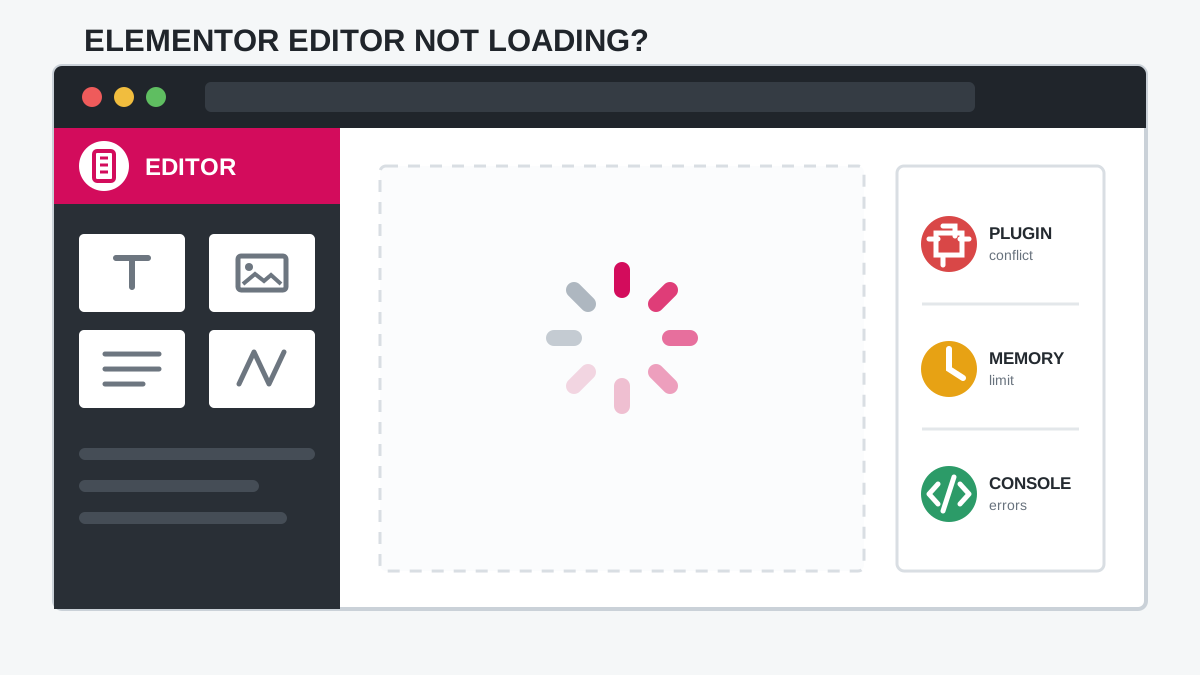
When the Elementor editor is not loading, random fixes can make the problem harder to diagnose. Clearing every cache, disabling every plugin, changing PHP settings, and rolling back Elementor at the same time may get the editor open, but you will not know which change solved it or what might break again.
This guide uses a safer troubleshooting order. You will first identify whether the failure affects your browser, every Elementor document, or only one page. Then you will test Safe Mode, isolate conflicts, verify the effective WordPress memory limit, read browser and server errors, and repair page-specific problems without rebuilding the site.
Quick answer: If Elementor opens in Safe Mode, investigate a plugin, theme, custom script, or experiment conflict. If Safe Mode also fails, check browser requests, PHP memory, Elementor/Pro version compatibility, security rules, and server logs. If every other page opens, treat the affected page or template as a content-specific problem.
Match the symptom before changing anything
| What you see | Most useful first test | Likely area |
|---|---|---|
| Editor works in another browser or private window | Disable browser extensions and clear site data | Browser cache, extension, cookie, or local storage |
| Editor opens in Elementor Safe Mode | Run a controlled plugin/theme conflict test | Plugin, theme, custom code, or experiment conflict |
| All Elementor pages spin or show a grey screen | Check Console, Network, memory, and server logs | Site-wide script, request, memory, or server problem |
| Only one page or template fails | Open a revision or duplicate the document | Corrupted widget, dynamic source, or document data |
| Editor request returns 403 | Check WAF, security plugin, ModSecurity, and Cloudflare | A security rule is blocking a required request |
| Editor request returns 500 | Read the PHP error log and check memory | Fatal PHP error, memory exhaustion, or server failure |
| Preview is refused inside the editor frame | Inspect response headers and Console messages | X-Frame-Options, CSP, mixed domain, or HTTPS issue |
The symptom is evidence. Preserve it until you have recorded the failing URL, error message, time, affected page, and last known change.
Before troubleshooting: protect the site
- Create a database and files backup.
- Use a staging copy for plugin, theme, PHP, or database changes.
- Take a screenshot of the failed editor and browser error.
- Record the Elementor, Elementor Pro, WordPress, theme, and PHP versions.
- Note what changed immediately before the problem: an update, migration, cache setting, custom code, security rule, or imported template.
An Elementor design is not stored only in generated CSS. The document data, global settings, templates, and WordPress options live in the database. If your backup plan is unclear, read what a WordPress backup must include for Elementor before making invasive changes.
Warning: Do not delete Elementor, reset its data, empty database tables, or install a cleanup plugin as an early troubleshooting step. Those actions do not identify the cause and can remove recoverable content.
1. Find the scope of the failure
Run these four checks before changing settings:
- Open the same page in a private browser window.
- Try another current desktop browser with extensions disabled.
- Try editing a simple new draft page with one Heading widget.
- Try a different existing Elementor page or Theme Builder template.
If only your normal browser profile fails, stay on the browser path. If a blank test page opens but one large page does not, skip to the page-specific section. If every document fails for every administrator, the problem is site-wide.
2. Rule out a browser-side problem
- Disable ad blockers, privacy extensions, script blockers, password managers, and developer extensions for the site.
- Clear cookies and site data for the WordPress domain, then sign in again.
- Hard reload the editor.
- Confirm the browser is current and JavaScript is allowed.
- Temporarily disable any VPN or browser proxy and retest.
A private window is a useful test, not a permanent fix. If it works, re-enable extensions one at a time in the normal profile until the editor fails. Elementor’s official loading-screen documentation specifically identifies browser add-ons as a possible source of blocked editor scripts.
3. Use Elementor Safe Mode as a diagnostic
Go to Elementor > Tools, enable Safe Mode, save the setting, and reopen the affected document. Safe Mode loads the editor in an isolated environment without the active theme and most plugin interference for your editor session. It does not switch off the public site for visitors.
| Safe Mode result | What it means | Next step |
|---|---|---|
| Editor loads | The stored Elementor document can load in isolation | Test plugins, theme, custom code, and experiments |
| Editor still fails | A normal theme/plugin conflict is less likely, but not impossible | Check memory, versions, requests, security headers, and logs |
| Canvas loads but widget panel does not | Safe Mode may not isolate every third-party widget-panel script | Inspect Console errors and Elementor add-ons |
| Only the affected page still fails | The problem may be stored in that document | Use revisions, duplication, or widget isolation |
Tip: Safe Mode is a test environment, not the final repair. Once you identify the cause, disable Safe Mode and confirm the editor works in its normal environment.
4. Isolate plugin conflicts without guessing
Do this on staging or during a maintenance window. Keep Elementor and Elementor Pro active. Deactivate other plugins, clear relevant caches, and test the editor.
If the editor opens, use a half-split test instead of activating plugins randomly:
- Reactivate half of the disabled plugins.
- Test the same Elementor page.
- If it fails, the conflict is probably in the half you enabled. If it works, test the other half.
- Repeat until one plugin or combination reproduces the failure.
- Verify the result twice before calling it the cause.
Prioritize Elementor add-on packs, optimization plugins, security plugins, cookie tools, custom-code managers, translation plugins, and anything updated immediately before the failure. Once identified, update or replace the conflicting plugin, disable only the affected feature, or send the reproducible error to its developer.
Do not leave the site with security, backup, or commerce plugins disabled. The purpose of the test is to identify ownership, not to create a fragile workaround.
5. Check the theme, custom code, and optimization layer
If plugins are not responsible, temporarily switch the staging site to Hello Elementor or a current default WordPress theme. If the editor starts working, inspect the original theme’s preloader, custom JavaScript, editor hooks, and template overrides.
- Set recently added Elementor Custom Code entries to Draft.
- Disable JavaScript delay/defer and script-combination features for logged-in administrators.
- Exclude Elementor editor and preview URLs from page caching.
- Purge Cloudflare and temporarily bypass Rocket Loader for editor testing.
- Check whether a cookie or consent tool blocks scripts inside the logged-in editor.
- Remove theme preloaders from the editor/preview path.
When a performance feature is involved, change only that feature and rebuild its cache. Running several CSS or JavaScript optimizers together can produce stale or reordered editor assets. The same one-owner principle is explained in the guide to reduce unused CSS in Elementor safely.
6. Verify the effective WordPress memory limit
Elementor currently lists a WordPress memory limit of 256 MB for Elementor and Elementor Pro alone, recommends 512 MB, and describes 768 MB as best performance. A site with WooCommerce and multiple add-ons may need more than a simple brochure site.
Check Elementor > System Info or Tools > Site Health > Info > Server. The value shown there matters more than a line copied into wp-config.php, because the server can enforce a lower ceiling.
define( 'WP_MEMORY_LIMIT', '512M' );
define( 'WP_MAX_MEMORY_LIMIT', '512M' );
Place these definitions before the line that says WordPress should stop editing. Then recheck System Info. If the displayed limit does not change, update the hosting control panel’s PHP memory setting or ask the host to raise it. Do not assume that a large memory_limit fixes a fatal error caused by incompatible code; the error log must confirm memory exhaustion.
Warning: Unlimited or extremely high PHP memory is not a diagnosis. If usage keeps growing, identify the plugin, widget, query, or loop consuming it.
7. Check Elementor and Elementor Pro version compatibility
Elementor Core and Pro are separate plugins that work together. A partial or interrupted update can leave incompatible versions active.
- Confirm WordPress, Elementor, Elementor Pro, and required add-ons completed their updates.
- Check the Elementor changelog and known issues before changing versions.
- Clear PHP OPcache and site caches after the update.
- Retest with third-party Elementor add-ons disabled.
- If the failure began immediately after an update, restore staging from backup or use Elementor’s rollback tool for a temporary compatibility test.
A rollback is evidence, not a long-term security plan. If the previous version works, capture the exact versions and error, then update again after the responsible plugin releases a fix. Never install a nulled copy of Elementor Pro to solve a version problem.
8. Read the browser Console and Network panels
Open the failed editor, right-click, choose Inspect, and check Console. Then open Network, reload, and filter failed requests. Record the first meaningful error; later errors may only be consequences.
| Error or status | What to inspect | Useful action |
|---|---|---|
403 Forbidden | Security plugin, WAF, ModSecurity, Cloudflare rule, nonce/cookie | Ask the security layer owner to review the blocked request and rule ID |
500 Internal Server Error | PHP/server log at the same timestamp | Fix the named fatal error or memory exhaustion |
429 Too Many Requests | Rate limiting or bot protection | Allow authenticated editor requests or adjust the rule |
ERR_BLOCKED_BY_CLIENT | Browser extension or local security software | Disable the blocker for the site and retest |
Refused to display in a frame | X-Frame-Options or Content Security Policy | Use a same-origin frame policy compatible with the editor |
| CORS or mixed-content error | HTTP/HTTPS mismatch, old domain, CDN, proxy headers | Correct WordPress URLs and replace stale URLs safely |
| JavaScript error naming a plugin path | The plugin or cached/minified copy of its script | Disable that feature, purge caches, and test its current version |
Elementor’s official guidance notes that X-Frame-Options: DENY can block the editor and recommends a same-origin configuration. Do not remove security headers globally without understanding the effect; adjust the policy narrowly with your host or security specialist.
9. If only one Elementor page will not load
A site-wide plugin purge is unnecessary when every other Elementor document opens. Work on a copy of the affected page.
- Open the page’s WordPress revisions and test a revision from before the failure.
- Duplicate the page and test the duplicate. This preserves the original while you investigate.
- Temporarily disable the Elementor feature or add-on that owns the suspected widget.
- Remove or replace the last widget, shortcode, Loop Grid, dynamic tag, or custom code added before the issue.
- Check whether a referenced template, post, product, field, or taxonomy was deleted.
- Save the repaired copy, reopen it normally, and test the frontend before replacing the original.
Current Elementor documentation describes corrupted widget configuration as a possible cause, especially around cached optimization, updates, removed dynamic data, and custom integrations. Re-create the affected widget cleanly instead of copying its broken configuration back into the page.
If the failure followed a migration and global styles or templates are also missing, use the dedicated guide for Elementor global settings missing after migration.
10. Regenerate Elementor files and clear caches in order
- Use Elementor’s Tools area to clear files and data.
- Clear the page/optimization plugin cache.
- Purge host-level page cache and object cache.
- Purge the CDN or Cloudflare cache.
- Clear browser site data or use a private window.
- Reopen one known-good page, then the affected page.
Do not repeatedly regenerate files while a request is still failing with 403 or 500. Fix the blocked or fatal request first. If generated Elementor CSS files return 404, follow the separate Elementor CSS 404 repair guide.
11. Capture a production-safe WordPress debug log
Use this briefly on staging when possible. WordPress recommends logging errors while hiding them from page output:
define( 'WP_DEBUG', true );
define( 'WP_DEBUG_LOG', true );
define( 'WP_DEBUG_DISPLAY', false );
@ini_set( 'display_errors', 0 );- Add the settings before the stop-editing line in
wp-config.php. - Reload the failed Elementor editor once.
- Read
wp-content/debug.logand the host’s PHP error log at that timestamp. - Search for
Fatal error,Allowed memory size exhausted,Uncaught Error, or a plugin/theme path. - Remove or disable debugging after collecting the evidence.
Logs may contain paths, account data, request details, or other sensitive information. Do not publish a full log in a public support forum. Share only the relevant lines after removing secrets and personal data. WordPress also warns that debug tools are intended for development and staging, not permanent use on a live site.
12. Send your host or developer a useful evidence packet
- Affected editor URL and whether all pages fail.
- Exact time and timezone of the latest test.
- Screenshot of the loading screen.
- First Console error and failed Network request.
- HTTP status code and response message.
- Relevant PHP/server log lines.
- Elementor System Info.
- Result of Safe Mode and plugin conflict tests.
- Last change before the issue began.
- Whether staging reproduces the problem.
For a 403, ask for the WAF or ModSecurity rule ID that blocked the request. For a 500, ask for the fatal error at the exact timestamp. For a frame error, ask for the response headers on the editor preview. Specific evidence produces a faster answer than “Elementor is spinning.”
Success: The real fix is repeatable: Elementor loads outside Safe Mode, the public page remains correct, logs no longer show the triggering error, and the repair survives cache clearing and a new login session.
The complete safe fix order
- Back up and record the symptom.
- Test private browsing, another browser, another page, and a blank draft.
- Use Elementor Safe Mode and interpret the result.
- Isolate plugins with a half-split test.
- Test the theme, custom code, cache, and optimization layer.
- Verify the effective WordPress/PHP memory limit.
- Confirm Elementor Core and Pro compatibility.
- Read the first Console error and failed Network request.
- Use revisions or widget isolation if only one page fails.
- Regenerate Elementor files and purge caches in order.
- Capture a short debug log if the cause remains unclear.
- Retest with Safe Mode off and document the repair.
Frequently asked questions
Why is Elementor stuck on the loading screen?
Common causes include a plugin or theme script conflict, blocked browser script, low PHP memory, incompatible Elementor and Pro versions, cache/optimization interference, a security rule, restrictive frame headers, or corrupted content on one document. The first diagnostic clue is whether Safe Mode and other pages load.
Is Elementor Safe Mode visible to visitors?
No. Elementor states that Safe Mode affects the logged-in user’s editor session and does not change the normal site for visitors or other users. Back up first and disable Safe Mode after testing.
How much memory does Elementor need?
Elementor’s current requirements list 256 MB for Elementor and Pro alone, 512 MB recommended, and 768 MB for best performance. Additional plugins can increase demand. Confirm the effective value in Elementor System Info rather than trusting only the configuration file.
Should I switch the Elementor editor loader method?
Older tutorials often recommend a loader-method switch that may not exist in current Elementor versions. Use current System Info, Safe Mode, Console/Network errors, and official troubleshooting guidance instead of relying on a legacy setting.
What if Elementor shows a 500 error?
A 500 response needs a server-side diagnosis. Match the failed request time with the PHP/server log and look for the named fatal error or memory exhaustion. The guide to fix an Elementor 500 error covers saving-related failures in more depth.
Sources and further reading
- Elementor: Stuck on loading screen
- Elementor: Activate Safe Mode
- Elementor system requirements
- WordPress debugging documentation
Fix the cause, not only the spinner
An Elementor loading screen is the visible symptom of a failed editor dependency. The safest repair narrows the scope, uses Safe Mode as evidence, identifies the first failed request or fatal error, and changes one responsible layer.
If the editor still fails after you collect the Safe Mode result, Console error, Network status, and server log, contact AbdullahWP or review the available WordPress and Elementor troubleshooting services. That evidence makes a focused repair possible without turning the live site into a test bench.