Diagnosing Missing Elementor Global Settings After Migration
Encountering missing Elementor global settings after migration is a common and frustrating issue for WordPress developers and designers. After transferring a site, unexpected style regressions — default fonts, colors, and button styles — can disrupt the entire design integrity. This technical guide explains the underlying causes and provides precise steps to diagnose and rectify these problems, ensuring your Elementor designs remain intact post-migration.
Understanding Elementor Global Settings & Their Storage
Elementor Global Settings, officially known as Site Settings since Elementor Pro 3.0, centralize styling for a website. These settings include global colors, global fonts, typography, buttons, image styles, and form field styling. Prior to Elementor 3.0, some of these were managed through Elementor’s legacy scheme settings. As of June 2026, the Kit system is the established method.
Elementor stores these global configurations primarily within the WordPress database. Specifically:
- The Active Kit Post: Elementor creates a custom post type,
elementor_kit, which holds the comprehensive JSON data for all Site Settings. This post typically has an ID (often 1 or another low number) and stores its configuration in the_elementor_page_settingsmeta key within thewp_postmetatable. This is where your global colors, fonts, and other styles are defined. - The
elementor_active_kitOption: In thewp_optionstable, an option namedelementor_active_kitholds the Post ID of the currently active Elementor Kit. This option is critical; if it points to a non-existent or incorrect Kit post, your global settings will not load. For a deeper dive, review the elementor_active_kit option documentation. - Custom Fonts: Custom fonts are also stored within the
wp_poststable as a custom post type (elementor_font) and their actual font files reside in thewp-content/uploads/elementor/custom-fonts/directory.
Common Causes for Missing Elementor Global Settings After Migration
When Elementor global settings vanish post-migration, several technical factors are typically responsible:
- Incorrect URL Replacement: Elementor serializes URLs within its database entries. If a migration tool fails to correctly update all instances of the old domain to the new one (e.g.,
old-domain.comtonew-domain.com), especially within the Kit’s JSON data or custom font paths, styles will break. This is the most frequent culprit. - Corrupted or Missing Elementor Kit Post: The custom post type
elementor_kit(which stores your global settings) might be missing or corrupted in the new database. This often happens if the database transfer was incomplete or if theelementor_active_kitoption points to an invalid ID. - Caching Issues: Server-side caching, CDN caching, or even browser caching on the new environment can serve outdated CSS or data, preventing the updated global styles from rendering.
- Elementor CSS & Data Regeneration Failure: Elementor generates dynamic CSS files based on its settings. If this process fails or the generated files are not accessible, styles will appear missing.
- File System Inconsistencies: Custom font files or Elementor-generated CSS files might not have been transferred correctly or have incorrect file permissions on the new server.
- Database Serialization Problems: Manual database dumps or certain migration methods can sometimes corrupt serialized array data, which Elementor uses extensively for its settings.
- Plugin or Theme Conflicts: Rarely, an active plugin or the newly active theme can interfere with Elementor’s ability to load or apply its global styles.
Preventative Measures Before Migrating Elementor Sites
Proactive steps can significantly reduce the likelihood of missing Elementor global settings after migration:
- Update Elementor & Elementor Pro: Ensure both plugins are updated to their latest stable versions on the source site before migration. This minimizes compatibility issues during the transfer process.
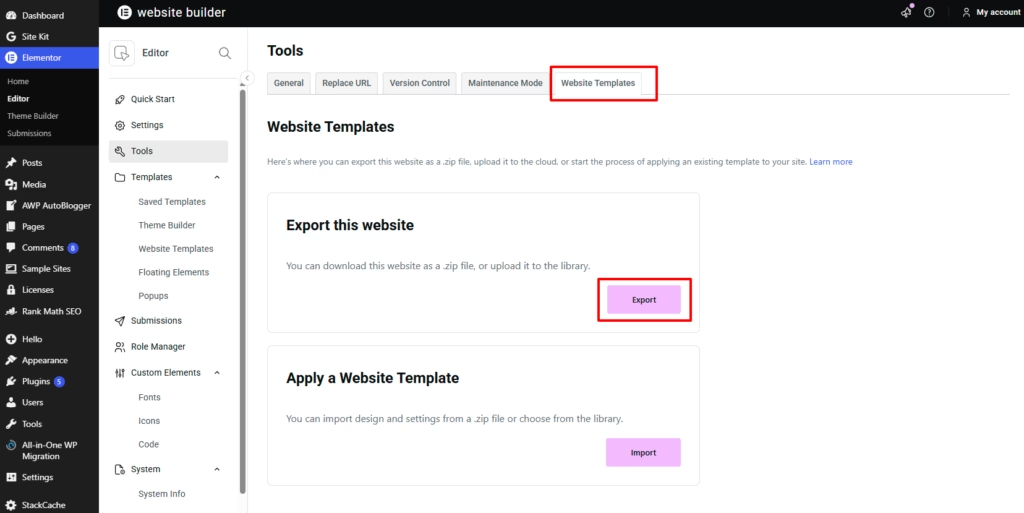
- Export Elementor Kit: Use Elementor’s built-in “Export Kit” feature (Elementor > Tools > Import/Export Kit). This generates a
.zipfile containing all your global settings, Theme Builder templates, and custom fonts. This is the most reliable way to export Elementor global settings. For a detailed guide, refer to AbdullahWP’s Export Global Styles guide. - Manual Custom Font Backup: If you use many custom fonts, manually back up the
wp-content/uploads/elementor/custom-fonts/directory. - Full Database & File System Backup: Perform a complete backup of your WordPress database and all files. Consider a dedicated WordPress backup plugin for Elementor.
- Document Active Kit ID: Note the Post ID of your active Elementor Kit. You can find this in your
wp_optionstable under theelementor_active_kitentry. This helps verify the correct Kit is active post-migration.
Step-by-Step Solutions for Recovering Missing Elementor Global Settings

1. Verify Elementor Site Settings in Editor
After migration, open any page with Elementor and navigate to Site Settings (click the hamburger icon > Site Settings). Check if your global colors, fonts, and typography are present. If they appear correctly here but not on the frontend, it points to a CSS generation or caching issue.
2. Regenerate Elementor CSS & Data
This is a fundamental troubleshooting step:
- Navigate to Elementor > Tools > General.
- Click “Regenerate CSS & Data”.
- Click “Sync Library”.
3. Clear All Caches
Outdated cache layers frequently mask corrected styles:
- WordPress Caching Plugins: Clear cache from plugins like WP Super Cache, WP Rocket, LiteSpeed Cache, etc.
- Server-Side Caching: Clear cache via your hosting provider’s control panel (e.g., cPanel, Plesk, custom dashboard).
- CDN Caching: Purge cache from Cloudflare, Sucuri, or other CDN services.
- Browser Cache: Clear your browser’s cache or use an incognito window to test.
4. Perform a Thorough URL Replacement
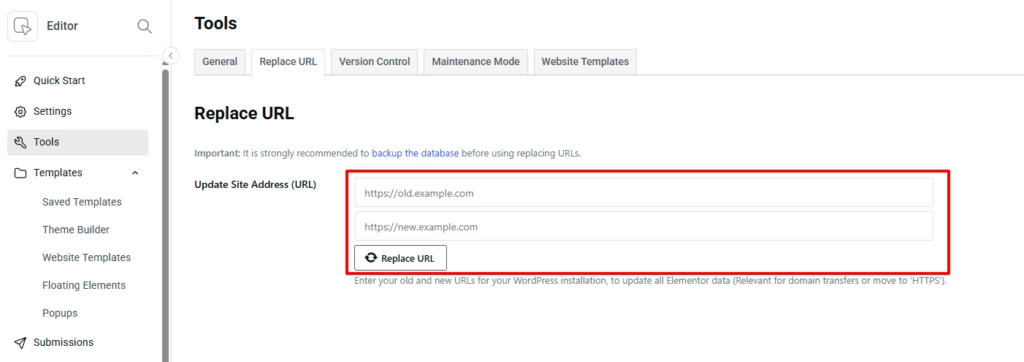
This is often the most critical step for resolving Elementor global settings not applying:
- Elementor’s Replace URL Tool: Go to Elementor > Tools > Replace URL. Enter your old site URL and new site URL, then click “Replace URL”.
- Migration Plugin’s URL Replacement: If you used a plugin like All-in-One WP Migration or Duplicator, ensure its built-in URL replacement feature was executed correctly. Re-run it if necessary.
- WP-CLI Search-Replace: For advanced users, WP-CLI offers a robust
wp search-replace 'old-domain.com' 'new-domain.com' --all-tables --precise --dry-run(remove--dry-runto execute).
5. Import Elementor Kit
If you exported your Kit as a preventative measure:
- On the new site, navigate to Elementor > Tools > Import/Export Kit.
- Click “Import Kit” and upload the
.zipfile you exported from the source site. - Elementor will prompt you to choose what to import (Content, Site Settings, Templates). Select “Site Settings” to restore your global styles. You can also import backup Elementor Theme Builder templates if needed.
6. Verify the elementor_active_kit Option in Database
Access your database via phpMyAdmin or a similar tool:
- Navigate to the
wp_optionstable. - Search for the
option_nameelementor_active_kit. - Check the
option_value. This should be the Post ID of your active Kit. - Then, navigate to the
wp_poststable and verify that a post with that exact ID exists and haspost_type = 'elementor_kit'. - If the
elementor_active_kitvalue is incorrect or points to a non-existent post, you may need to manually update it to the correct Kit ID or create a new Elementor Default Kit and then update the option.
7. Re-upload Custom Fonts
If custom fonts are still missing:
- Ensure the font files are present in
wp-content/uploads/elementor/custom-fonts/on the new server. - Go to Elementor > Custom Fonts and re-upload them if necessary. This will recreate their database entries.
8. Check File Permissions
Incorrect file permissions can prevent Elementor from generating or loading its CSS files:
- Ensure directories (e.g.,
wp-content/uploads,wp-content/uploads/elementor) are set to 755. - Ensure files (e.g., CSS files within Elementor’s upload directories) are set to 644.
9. Deactivate and Reactivate Elementor Plugins
Sometimes, simply deactivating and reactivating both Elementor and Elementor Pro can reinitialize their settings and resolve minor glitches.
10. Temporarily Switch Theme
To rule out theme conflicts, temporarily switch your WordPress theme to a default one (e.g., Twenty Twenty-Four). If global styles reappear, your theme is likely overriding Elementor’s output. Consult your theme developer.
FAQ: Missing Elementor Global Settings After Migration
Why do my Elementor global settings disappear after migration?
Elementor global settings typically disappear due to incorrect URL replacements in the database, a corrupted or missing Elementor Kit post, or caching issues. Elementor stores these settings in a specific custom post type, and if its ID or serialized data is incorrect post-migration, styles will revert to default.
Can standard WordPress migration plugins transfer Elementor global settings reliably?
While plugins like All-in-One WP Migration or Duplicator are effective for full site transfers, they sometimes miss specific serialized data updates for Elementor’s Kit system or custom font paths. Always follow up with Elementor’s “Replace URL” tool and “Regenerate CSS & Data” after using such plugins.
What is the Elementor Kit, and how does it relate to global settings?
The Elementor Kit is a custom post type (elementor_kit) that serves as the central repository for all Elementor Site Settings, including global colors, fonts, and theme styles. An option in the database, elementor_active_kit, points to the ID of the currently active Kit. If this Kit is missing or corrupted, global settings will not load.
My custom fonts are missing after migration. How do I fix this?
Custom fonts can go missing if their database entries are incorrect or if the actual font files were not transferred to the wp-content/uploads/elementor/custom-fonts/ directory. Verify file presence and permissions, then re-upload them via Elementor > Custom Fonts to regenerate their database entries.
How can I prevent Elementor global settings from going missing in future migrations?
To prevent this, always update Elementor before migration, use Elementor’s “Export Kit” feature, perform a full database and file backup, and meticulously follow URL replacement procedures on the new site. Clear all caches post-migration.