Rank Math integrates with Elementor so you can edit SEO fields without leaving the visual editor. That convenience can also create a false sense that a green score means the page is ready to rank. Rank Math can check whether certain words and fields exist; it cannot prove search intent, originality, indexing, link quality, or whether the page deserves to outrank competing results.
This guide explains how to configure Rank Math SEO for Elementor pages, choose the correct schema and robots settings, avoid duplicate metadata, and verify what search engines actually receive.
Quick answer: Set one primary topic, write a useful SEO title and description, keep the canonical self-referencing unless duplication is intentional, choose schema that matches the visible page, confirm index/follow, optimize social sharing, and inspect the rendered source. Treat Rank Math’s score as feedback, not the goal.
Where Rank Math appears in Elementor
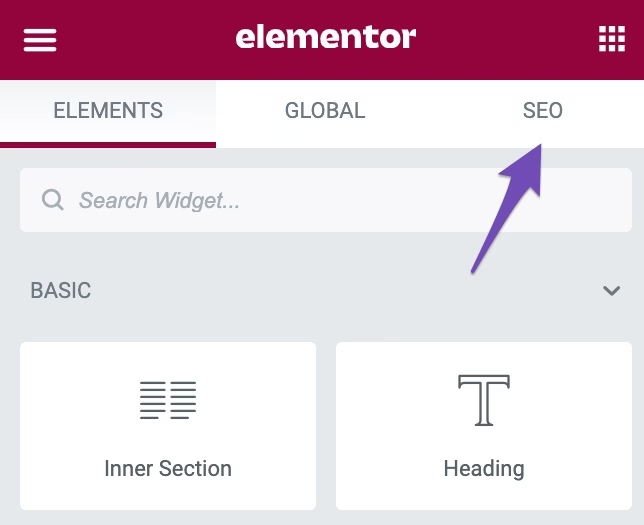
When Rank Math and Elementor are active, open an Elementor page and select the SEO tab. The General area contains the focus keyword and snippet controls; Advanced contains robots, canonical, and related directives; Schema controls structured data; Social controls Facebook and X sharing.
1. Start with intent, not a focus keyword
A focus keyword tells Rank Math what phrase to use for its content analysis. It does not submit that keyword to Google, and adding five variations does not make a page relevant to five unrelated searches. Choose the query whose intent the page fully satisfies, then use close variations naturally where they help readers.
- Informational: the visitor wants an answer or procedure.
- Commercial: the visitor is comparing products or providers.
- Transactional: the visitor is ready to buy, book, download, or contact.
- Navigational: the visitor wants a particular brand or page.
Tip: If the current Google results are tutorials and your Elementor page is a thin service pitch, changing the focus keyword will not fix the intent mismatch. Improve or reposition the page first.
2. Separate the H1, SEO title, and navigation label
These labels can be related without being identical. The Elementor H1 explains the page to visitors. The Rank Math SEO title is a concise search-result title. The WordPress page title may also feed breadcrumbs, menus, templates, or the H1 depending on the theme.
| Field | Purpose | Common mistake |
|---|---|---|
| Page/H1 | Visible topic heading | Hiding it and adding several decorative H1 widgets |
| SEO title | Preferred search-result title | Stuffing variants or repeating the brand twice |
| Slug | Stable readable URL | Changing it after launch without a redirect |
| Menu label | Short navigation text | Forcing it to carry the entire keyword |
Google can rewrite titles when another description better represents the result. Write for accuracy and recognition rather than chasing an exact pixel count.
3. Write a meta description that earns the click
The meta description is not a place to list keywords. Summarize the specific outcome, include a meaningful differentiator, and match what the page delivers. Google may generate a different snippet from page text for a particular query, so the opening copy and section answers still matter.
4. Check canonical and robots before publishing
For a normal unique page, use a self-referencing canonical and index, follow. An accidental noindex can remove the page from search; an incorrect canonical can tell Google that another URL is the preferred version.
- Use a different canonical only when the pages are intentionally duplicate or near-duplicate.
- Do not canonicalize location or service pages to a parent merely because their layouts match; evaluate whether their content and purpose are genuinely distinct.
- Keep thank-you, account, internal search, staging, and utility pages out of search when appropriate.
- Check WordPress Reading settings and any password/private status before blaming Rank Math.
Warning: A canonical is a hint, not a redirect. Visitors and crawlers can still access the duplicate URL. Use redirects when an old URL has permanently moved.
5. Choose schema that matches the visible page
Schema describes the page; it does not turn a service page into a news article or guarantee a rich result. Use Article for genuine articles, Product for an actual product with required visible details, Service where appropriate, and Organization/LocalBusiness at the site or business level without duplicating conflicting entities.
- The structured data must describe content visitors can see.
- Do not add fake ratings, prices, FAQs, or authors.
- Avoid two plugins outputting competing schema for the same entity.
- Validate the live URL with Google’s Rich Results Test and inspect the JSON-LD.
FAQ rich-result visibility is limited and can change; add FAQs because they answer real questions, not because a plugin offers a schema toggle.
6. Optimize social sharing separately
Set a suitable social title, description, and image when the search snippet is not the best share preview. Use a clear landscape image, ensure it is publicly accessible, and test the final URL with the relevant platform debugger. Cached social cards may persist after WordPress is updated.
7. Make the Elementor content understandable
- Use one descriptive H1 and a logical H2/H3 hierarchy.
- Put essential copy in real text widgets, not inside images or CSS-generated content.
- Use descriptive link text and relevant internal links.
- Add useful alt text to informative images and empty alt text to decorative images.
- Keep accordions and tabs accessible; important answers should exist in the rendered HTML.
- Avoid duplicate hero text created separately for desktop and mobile when both versions remain in the DOM.
Good page experience supports the content but does not replace it. Use the guides to improve Elementor LCP, improve INP, and reduce excessive DOM size when the page itself is slow.
8. Verify the live output
- Open the live page while logged out.
- Confirm the status is 200 and the final URL is correct.
- Inspect source for one title, one meta description, one robots directive, and the intended canonical.
- Check that the page is not blocked by robots.txt or WordPress privacy settings.
- Validate schema and social preview data.
- Check the XML sitemap includes the canonical URL when it should be indexed.
- Inspect the URL in Google Search Console after publication.
Success: The page is ready when it satisfies the query better than competing results, its visible and metadata promises match, and the live canonical/indexing/schema output is correct. A score of 100 is optional.
Common Rank Math and Elementor mistakes
- Optimizing every page for the same broad keyword
- Adding words solely to turn a test green
- Using several H1 widgets because they look different
- Leaving imported template metadata and social images unchanged
- Setting Article schema on service, contact, or archive pages
- Running two SEO plugins or duplicate schema systems
- Changing a published slug without redirecting the old URL
- Checking only the Elementor editor instead of the live source
Sources
- Rank Math: SEO title, description, and focus keyword in Elementor
- Rank Math: Article Schema
- Google SEO Starter Guide
Need an Elementor SEO review?
AbdullahWP can review metadata, rendering, schema, internal links, performance, and indexing as one system. See the WordPress and Elementor services.