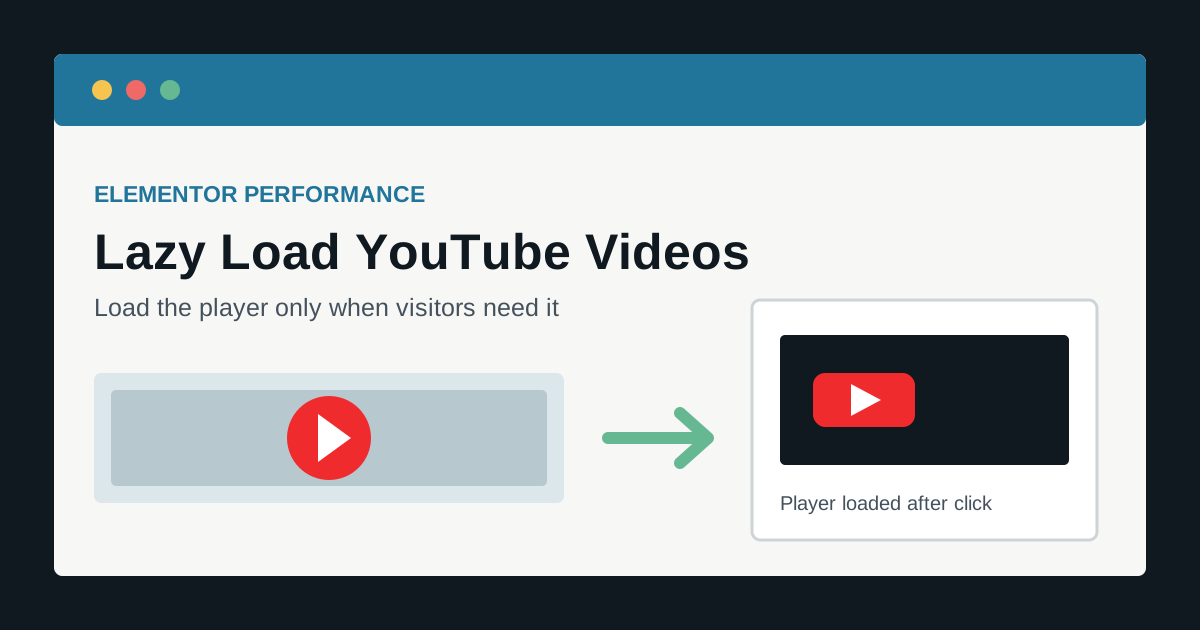
A standard YouTube embed can load an iframe, scripts, styles, fonts, thumbnails, and network connections before a visitor ever presses Play. On an Elementor page with several videos, that third-party work can increase transfer size, main-thread activity, privacy requests, and the time it takes the page to become responsive.
The right fix depends on where the video appears and how it is embedded. This guide explains how to lazy load YouTube videos in Elementor using the native Video widget, browser-level iframe lazy loading, or a true click-to-load facade, then verify that the optimization actually reduced initial YouTube requests.
Quick answer: For a normal Elementor Video widget, enable Image Overlay or the widget’s Lazy Load/preload-on-interaction option when available. Use a custom thumbnail with meaningful alt text and keep autoplay off. For pages with multiple embeds, a click-to-load facade is the strongest approach because it avoids creating the YouTube player until the visitor activates it.
Why YouTube embeds can slow an Elementor page
A YouTube player is a third-party application inside an iframe, not just a video thumbnail. Its exact requests change over time and by region, consent state, browser, and player options, but the underlying performance problem is stable: an eager player can do substantial work during the initial page load even when the visitor never watches it.
- Extra DNS, connection, TLS, and request work to YouTube/Google domains.
- Third-party JavaScript evaluation and main-thread tasks.
- Additional bytes competing with page images, fonts, and scripts.
- Multiple players multiplying requests on grids, tabs, accordions, or long pages.
- Player cookies or consent requirements depending on configuration and jurisdiction.
- Layout movement when the embed has no stable aspect ratio or placeholder height.
web.dev recommends replacing costly third-party embeds with a lightweight facade and loading the real embed after interaction. Its third-party embed guidance also distinguishes browser iframe lazy loading from the stronger click-to-load facade pattern.
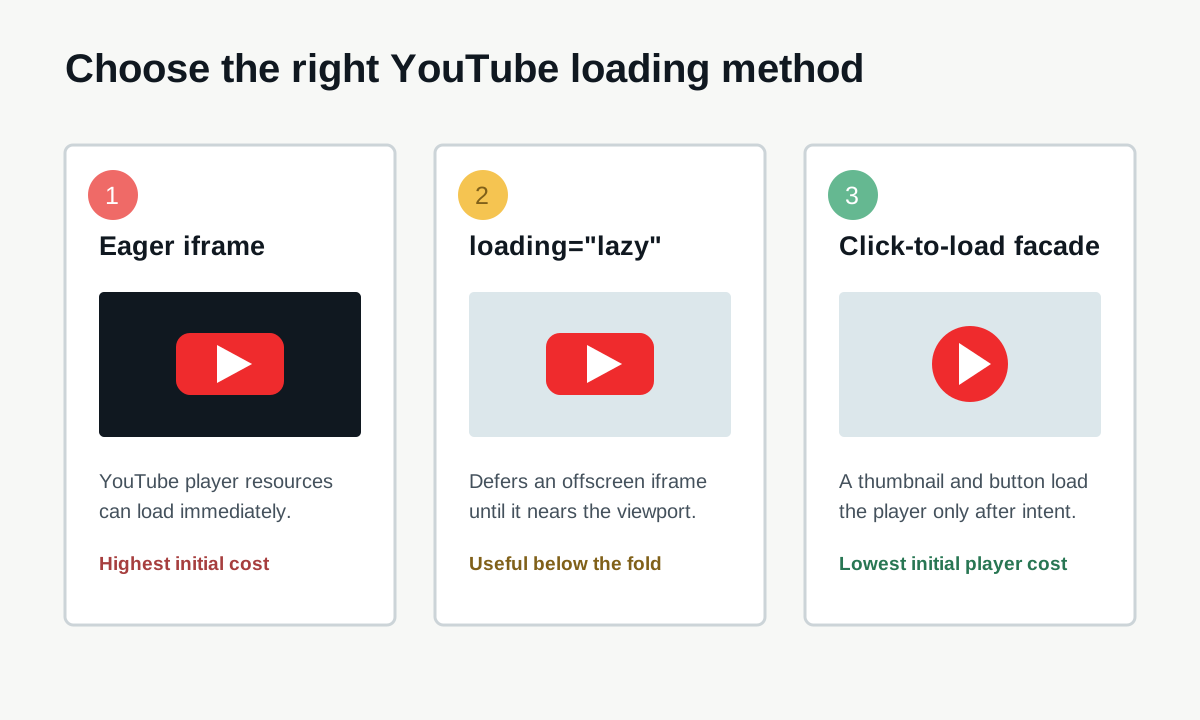
Three loading methods that are often confused
| Method | When the iframe loads | Best use |
|---|---|---|
| Eager embed | During initial page loading | Rarely justified; possibly a critical video already being played by user intent |
loading="lazy" | When an offscreen iframe approaches the viewport | Simple below-the-fold embeds |
| Click-to-load facade | Only after the visitor selects the preview | Multiple videos, performance-sensitive pages, and strong intent-based loading |
An image overlay is a facade only if the iframe is not created or loaded behind it. Some implementations visually cover an already loaded player, which improves appearance but not initial network cost. Verification matters more than the option label.
Method 1: Use Elementor’s Video widget correctly
- Edit the page with Elementor.
- Add or select the Video/YouTube widget.
- Choose YouTube as the source and paste the video URL.
- Enable Image Overlay or choose Lazy Load in the widget’s preload/loading control when your Elementor version provides it.
- Upload an optimized preview image rather than relying on a low-quality automatic thumbnail.
- Set an appropriate image alt description that identifies the video or its topic.
- Keep autoplay off unless the experience has a strong, accessible reason for it.
- Update the page, clear page/CDN caches, and test while logged out.
Elementor’s current Video element documentation describes a Lazy Load preload option that loads the additional video resources after the Play action. Older widget versions may expose Image Overlay and lazy-load controls in different locations, so check the rendered page rather than relying on screenshots from another version. See the official Elementor Video element documentation.
Tip: Use a 16:9 preview with explicit width and height or an aspect-ratio container. A stable placeholder prevents the video area from expanding after interaction and causing Cumulative Layout Shift.
Recommended Elementor settings
| Setting | Recommendation | Reason |
|---|---|---|
| Autoplay | Off | Respects user intent and avoids immediate player work/audio concerns |
| Image Overlay / Lazy Load | On | Defers player loading until interaction when implemented as a facade |
| Privacy mode | On where appropriate | Uses YouTube’s privacy-enhanced embed domain; still coordinate consent requirements |
| Player controls | On | Visitors need pause, volume, captions, timeline, and fullscreen controls |
| Suggested videos | Choose for the content goal | This is a content/player decision, not the main performance fix |
| Start/end time | Optional | Useful for relevance but does not materially remove player code |
Method 2: Add native lazy loading to a custom iframe
If you use an Elementor HTML widget or another embed that outputs a direct iframe, add loading="lazy" and stable dimensions:
<iframe
  width="560"
  height="315"
  src="https://www.youtube-nocookie.com/embed/VIDEO_ID"
  title="Video title"
  loading="lazy"
  allow="accelerometer; autoplay; clipboard-write; encrypted-media; gyroscope; picture-in-picture; web-share"
  referrerpolicy="strict-origin-when-cross-origin"
  allowfullscreen>
</iframe>
Native lazy loading is easy and does not require a library, but the browser may fetch the iframe before it is visible so playback is ready when the user scrolls near it. It is a good baseline for offscreen embeds, not the same as waiting for a click.
Warning: Do not lazy load the page’s Largest Contentful Paint image simply because it is a video poster. If the preview is the main above-the-fold visual, it should be discoverable and prioritized appropriately. The player can remain click-to-load while the poster image loads normally.
Method 3: Build a click-to-load YouTube facade
A facade initially renders only a local preview image and a real button. On activation, JavaScript replaces that preview with the YouTube iframe and requests autoplay. This produces the lowest initial player cost when implemented carefully.
For one site-wide implementation, use a maintained facade component or a performance plugin that explicitly supports YouTube click-to-load. Test that it does not duplicate Elementor’s own lazy-loading feature. For a custom Elementor HTML widget, a minimal pattern looks like this:
<div class="awp-youtube" data-video-id="VIDEO_ID">
  <img src="/wp-content/uploads/video-preview.webp"
       width="1280" height="720"
       alt=""
       loading="lazy">
  <button type="button" aria-label="Play: Descriptive video title">
    Play video
  </button>
</div>
The script should validate the video ID, create one iframe only once, preserve the container’s aspect ratio, set a useful iframe title, support keyboard activation through the native button, and request autoplay only in response to that activation. Do not make a bare div clickable without button semantics.
Avoid copying random snippets that inject unescaped IDs, omit allowfullscreen, use background images with no accessible name, or require two clicks because autoplay is blocked. A maintained implementation is preferable across many client sites.
What if the video is above the fold?
For a hero video, separate the poster decision from the player decision:
- Load the optimized poster normally if it is likely to be the LCP element.
- Reserve the final 16:9 or chosen player space from the start.
- Delay the YouTube iframe until a click.
- Do not autoplay sound.
- Avoid heavy animated background video on mobile; use a representative static image when motion is not essential.
- Measure LCP with the poster in place and INP after the player is activated.
See the Elementor LCP optimization guide for hero image priority, server response, and font issues that can remain after the YouTube player is deferred.
Pages with multiple videos, tabs, or grids
A tutorial library, portfolio, or video grid benefits most from facades because an eager player per item multiplies third-party work. Use one delegated click handler or a lightweight reusable component rather than injecting a separate script for every card.
- Render local thumbnails or well-sized YouTube thumbnails as images.
- Use a stable aspect ratio for every card.
- Load only the selected video’s iframe.
- Do not preload all players when a tab or accordion opens.
- Pause or remove a previous player if opening another should stop playback.
- Paginate very large libraries and lazy load below-the-fold thumbnail images.
If you are building channel-based listings, the Elementor YouTube Grid RSS plugin can display feed items without placing a full YouTube player in every grid card. The YouTube Channel ID guide explains how to find the identifier needed by feed-based tools.
Privacy-enhanced mode and cookie consent
youtube-nocookie.com is YouTube’s privacy-enhanced embed domain. It can reduce storage before interaction, but it is not a universal substitute for a consent assessment. Requirements depend on the site, visitors, embed behavior, and jurisdiction.
- Coordinate the facade with the consent-management plugin so one system owns the placeholder.
- Do not load or preconnect to YouTube before consent if the site’s policy prohibits it.
- Provide a meaningful blocked-player message and a way to change consent.
- Test logged-out visitors in each consent region/configuration.
- Confirm that thumbnail URLs themselves do not create unintended third-party requests; locally hosted posters give the most control.
Accessibility checklist
- Use a native
buttonfor the facade’s Play control. - Give the button an accessible name containing the video title or purpose.
- Use a descriptive iframe
title. - Keep visible keyboard focus.
- Ensure captions are available in the YouTube video and player controls remain usable.
- Do not encode essential instructions only inside the thumbnail image.
- Respect reduced-motion preferences for decorative animation around the player.
How to prove lazy loading is working
- Open a private window and DevTools Network.
- Enable Disable cache in DevTools and reload the page without scrolling.
- Filter for
youtube,googlevideo,ytimg, andiframe. - For a facade, no player iframe or player scripts should load before interaction. A remote thumbnail may still appear unless it is locally hosted.
- Scroll near a native lazy iframe. Its requests may begin before the embed becomes visible.
- Activate the facade with mouse and keyboard and confirm one player loads.
- Run PageSpeed Insights on the same public URL before and after, using comparable cache/consent conditions.
- Check the Performance panel for long tasks and Layout Shift regions.
Do not judge the change only by a Lighthouse score. Compare initial request count, transferred bytes, third-party main-thread work, LCP, CLS, and whether playback remains reliable. For interaction responsiveness, use the Elementor INP guide.
Troubleshooting common problems
| Problem | Check |
|---|---|
| YouTube requests still load immediately | Inspect whether an iframe exists behind the overlay, another widget embeds the video, or optimization output is cached |
| Blank preview | Poster URL, mixed content, hotlink restrictions, CSP image source, and consent placeholder conflicts |
| Click does nothing | Console errors, deferred/delayed script exclusions, duplicate handlers, CSP frame source, and consent state |
| Two clicks required | Autoplay policy, a consent layer intercepting the first click, or a facade that loads without playing |
| Layout jumps | Missing width/height, aspect ratio, responsive CSS, or consent wrapper dimensions |
| Fullscreen fails | allowfullscreen, iframe allow, sandbox restrictions, and nested popup/container behavior |
| Page remains slow | Other third parties, hero image/LCP, fonts, Elementor DOM, unused CSS/JS, server response, and cache |
Mistakes to avoid
- Using a visual overlay while the real iframe loads underneath.
- Installing two plugins that both rewrite YouTube embeds.
- Lazy loading the above-the-fold LCP poster.
- Using a CSS background thumbnail with no accessible Play button.
- Preconnecting to several YouTube domains on every page even when no video is visible or consented.
- Removing player controls to make the design cleaner.
- Testing while logged in with admin cache bypass and assuming visitors receive the same HTML.
- Delaying every script indiscriminately until the facade stops working.
Success: The page initially loads an appropriately sized poster and Play control, reserves stable space, makes no YouTube player request before the chosen trigger, loads one functional player after activation, and remains usable with keyboard controls and the site’s consent policy.
Frequently asked questions
Is loading="lazy" enough for YouTube?
It is a useful baseline for offscreen iframes, but the browser can load the player as the iframe approaches the viewport. A click-to-load facade avoids the player until interaction and usually provides a larger initial saving.
Does Elementor lazy load YouTube videos?
Current Elementor video controls include lazy/preload-on-interaction options, while older versions commonly use Image Overlay. The exact behavior and control name varies, so verify that the iframe is absent before interaction.
Should I host videos in WordPress instead?
Usually not for general marketing/tutorial video. Self-hosting shifts bandwidth, encoding, formats, range requests, streaming, and CDN responsibilities to the site. It can be appropriate when privacy/control requirements justify that infrastructure.
Will lazy loading hurt video SEO?
A useful page should still include a crawlable title, description, surrounding text, stable thumbnail, and appropriate structured data where eligible. Do not hide the only meaningful content inside a player. Test rendered output and indexing rather than assuming either outcome.
Can WP Rocket, LiteSpeed Cache, or another plugin do this?
Several performance plugins offer YouTube iframe replacement or delayed loading. Use one implementation, exclude conflicts, clear caches, and verify requests. Do not enable a plugin rewrite on top of Elementor’s own click-to-load output without testing.
When to get help
If a player works before optimization but fails after enabling script delay, consent blocking, CSP, or a custom facade, isolate those layers on staging and test one at a time. For an Elementor performance review covering videos, LCP, INP, DOM size, and third-party code, see AbdullahWP WordPress services.