If your WordPress search is showing checkout pages, “Thank You” pages, or random admin content, you’re hurting your user experience and potentially leaking private funnel steps.
By default, WordPress search doesn’t filter results intelligently. It simply dumps every published piece of content into the results. This results in cluttered search pages and a frustrating experience for your visitors.
In this guide, you’ll learn exactly how to exclude pages from WordPress search using the fastest plugins, clean code snippets, and advanced filtering methods.
⚡ Quick Answer
How to Hide WordPress Pages from Search
Why You Should Exclude Pages from WordPress Search
If you are wondering why your WordPress search is not showing pages that are relevant, it’s likely because the “noise” of irrelevant pages is burying your best content.
- Prevent Dead-Ends: Users shouldn’t land on a “Success! You’ve Subscribed” page via a search bar.
- Protect Gated Content: Keep landing pages or private resources hidden from casual browsers.
- Improve Search Relevance: A cleaner search filter results in a better UX, which indirectly boosts your SEO.
- Increase Conversions: Guide users to products and posts, not your “Privacy Policy” or “Terms of Service.”
Common Pages You Should Exclude Immediately
To remove pages from search results WordPress, start with these high-offense culprits:
- Checkout and Cart Pages: These are for buyers, not browsers.
- Thank You Pages: These often contain download links or conversion pixels.
- Login/Register Pages: No one needs to “find” these in search results.
- Legal Pages: Privacy Policy, TOS, and Disclaimer pages clutter results.
- Lead Magnets: Don’t let people find your freebies without giving an email.
Method 1: Use a Plugin (Fastest & Safest)
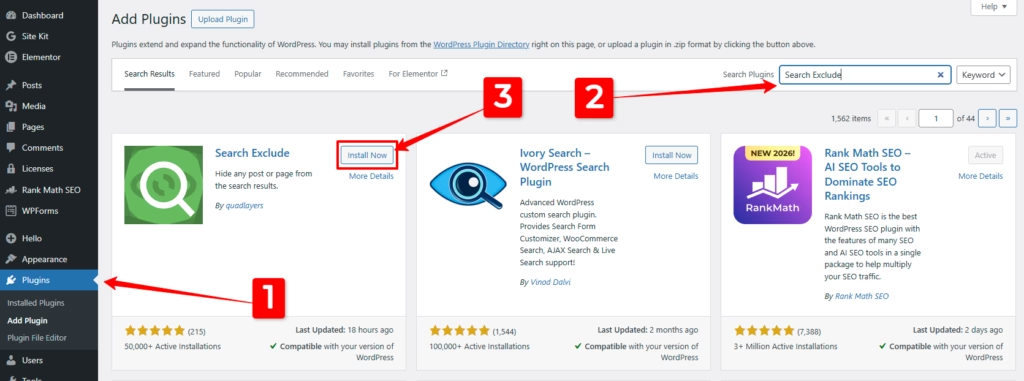
The most popular way to hide pages from WordPress search without touching code is the Search Exclude plugin.
Step 1: Install Search Exclude
Go to Plugins > Add New and search for “Search Exclude.” Install and activate it.
Step 2: Mark Pages for Exclusion
Open any page or post you want to hide. In the right-hand sidebar, you will see a new Search Exclude checkbox. Simply check “Exclude from search results” and hit Update.
Step 3: Bulk Management
If you have a large site, go to Settings > Search Exclude to see a full list of every page currently hidden from your internal search.
Method 2: The Pro Way (No-Plugin Code Snippet)
If you want to keep your site lean and avoid extra plugins, you can WordPress search exclude pages using a simple code snippet.
Option A: Exclude Specific Page IDs
Add this code to your theme’s functions.php file or via the Code Snippets plugin. This is the most efficient way to filter results for specific pages.codePHP
function wpb_exclude_from_search($query) {
    if ($query->is_search && !is_admin()) {
        // Replace 12, 45, 98 with your actual Page IDs
        $query->set('post__not_in', array(12, 45, 98));
    }
    return $query;
}
add_filter('pre_get_posts', 'wpb_exclude_from_search');
Option B: Hide ALL Pages (Show Only Blog Posts)
If you run a heavy content site, you might want to exclude pages from WordPress search entirely and only show blog posts.codePHP
function search_filter($query) {
    if ($query->is_search && !is_admin()) {
        $query->set('post_type', 'post');
    }
    return $query;
}
add_filter('pre_get_posts', 'search_filter');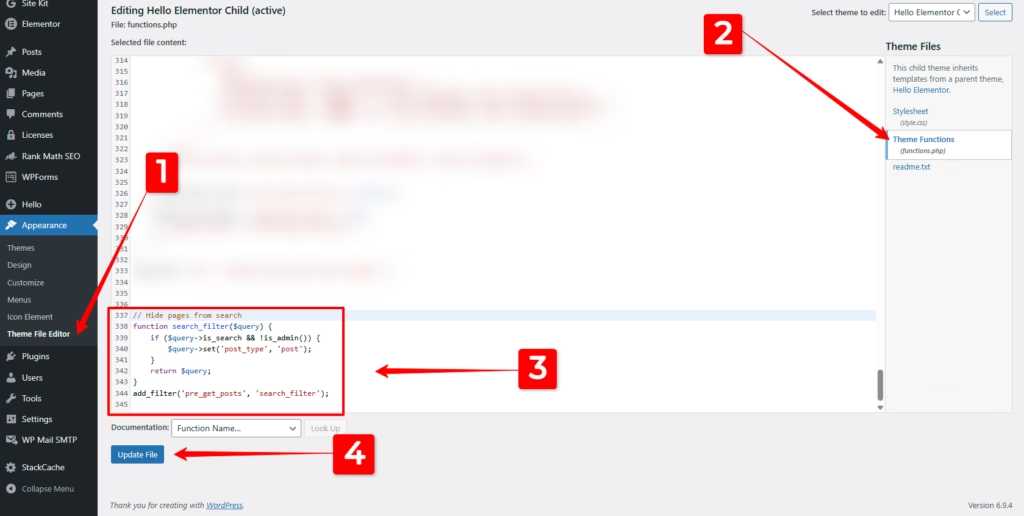
Expert Insight: Plugin vs. Code?
- Use a Plugin if you are a non-technical user or need to frequently change which pages are hidden. It’s safer and provides a visual interface.
- Use Code if you are a developer or performance-conscious. It reduces database bloat and ensures your site stays fast.
Pro Tip: If you are using a page builder like Elementor, check your search result templates. Often, you can set “Query” filters directly within your search results widget to exclude certain categories or tags.
❓ FAQ: Solving WordPress Search Issues
How do I exclude a page from WordPress search without a plugin?
You can use the pre_get_posts filter in your theme’s functions.php file to exclude specific page IDs from the search query manually.
Does excluding pages from internal search affect Google SEO?
No. This only affects your internal site search. To hide a page from Google, you need to set it to noindex using an SEO plugin like Yoast or Rank Math.
Can I exclude entire categories from search?
Yes. Using the code method above, you can use $query->set(‘category__not_in’, array(ID)); to hide entire groups of content.
Why are hidden pages still showing in my search results?
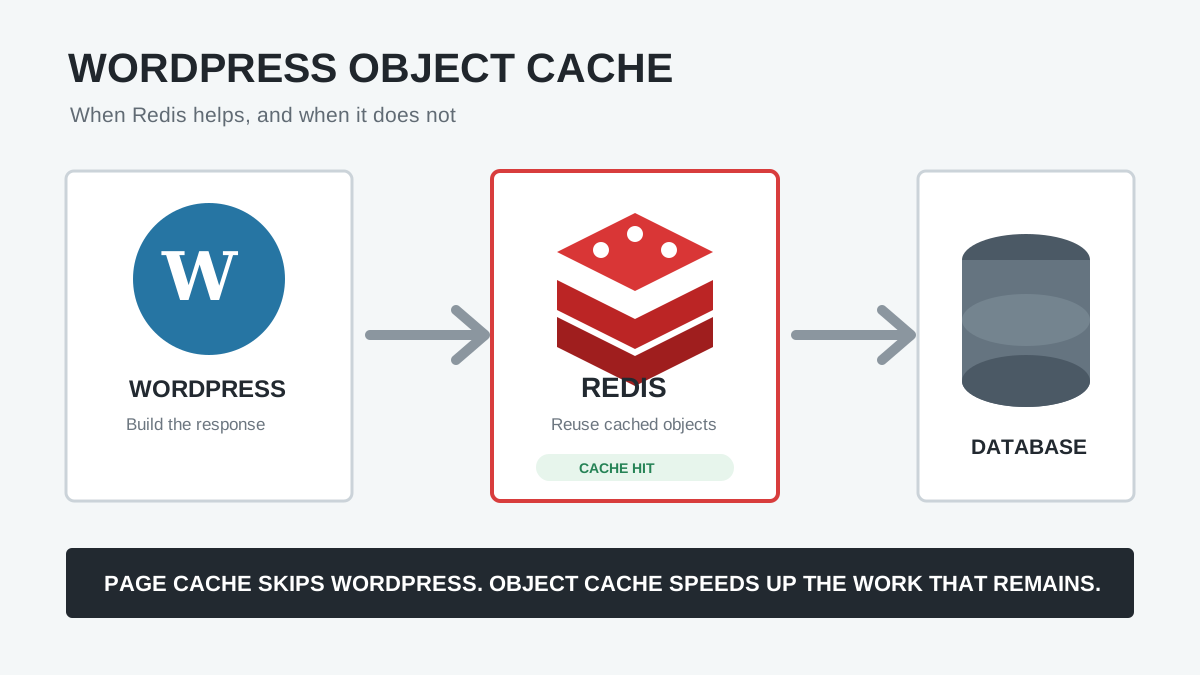
This is usually caused by a caching plugin (like WP Rocket) or a dedicated search plugin (like Relevanssi) that overrides the default WordPress query. Clear your cache after making changes.
Which Method is Right for You?
- Small sites/Beginners : Use the Search Exclude plugin. It’s foolproof.
- Developers/Performance Sites: Use the Code Snippet method. It keeps your site clean.
- Large E-commerce sites: Use Relevanssi. It gives you massive control over how search works, allowing you to exclude out-of-stock products and private pages simultaneously.
By taking five minutes to exclude pages from WordPress search, you instantly make your site more professional, secure, and user-friendly.
Looking to improve your site further? Check out our guide on How to Hide Header in Elementor or learn How to Duplicate a Page in Elementor .