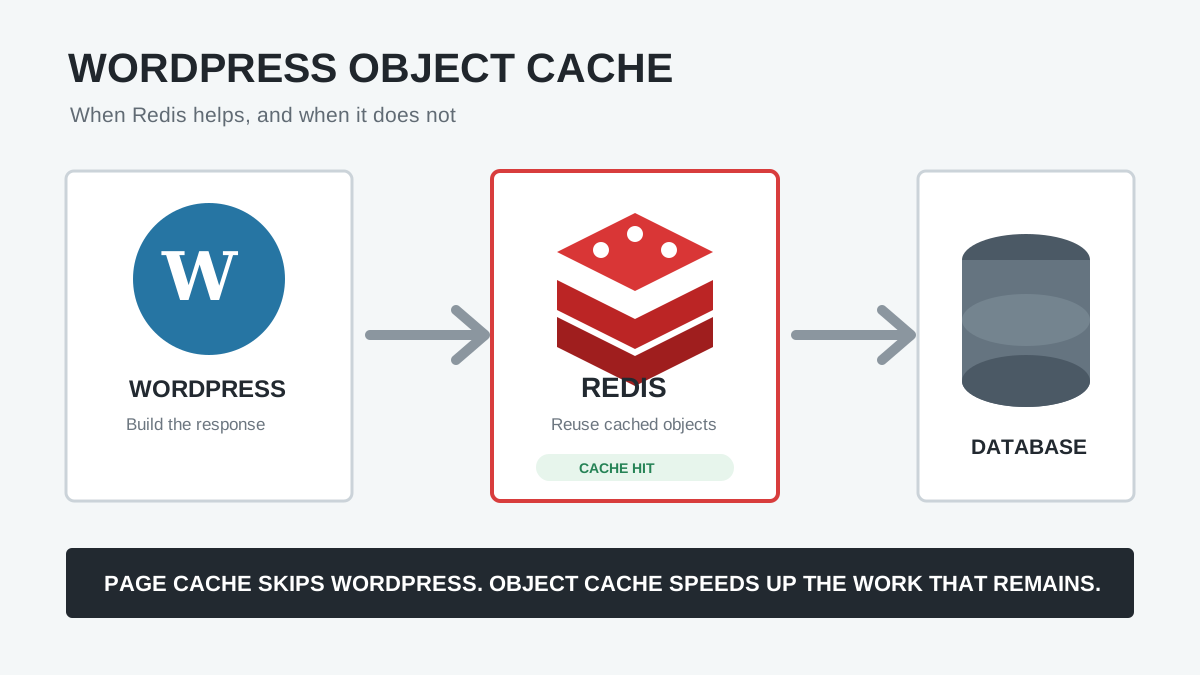
“You should use a persistent object cache” is a WordPress Site Health recommendation, not proof that your website is broken. It means WordPress believes your site would benefit from storing reusable database results between page requests. The correct fix is normally to enable a host-supported Redis or Memcached service and connect WordPress to it with a compatible object-cache drop-in.
Installing a random cache plugin is not enough. A page cache and an object cache solve different problems, and Redis must exist on the server before a WordPress plugin can connect to it. This guide explains how to decide whether you need persistent object caching, enable it safely, verify that it is actually working, and troubleshoot the warning when it refuses to disappear.
What Does “You Should Use a Persistent Object Cache” Mean?
WordPress repeatedly retrieves settings, post data, user data, taxonomy relationships, and query results while generating a page. Its built-in WP_Object_Cache stores reusable values in memory, but the default cache lasts for only one PHP request. When the next request begins, WordPress starts with an empty runtime cache.
A persistent object cache stores eligible objects outside the PHP request—commonly in Redis or Memcached—so later requests can reuse them instead of asking MySQL to reconstruct the same information. WordPress core has included this Site Health recommendation since version 6.1 and only suggests it when the site’s activity and database behavior cross its internal thresholds.
Important: this is normally a recommendation, not a critical error. Do not install Redis solely to turn a Site Health label green. Enable it when your host supports it and your measurements show that reducing repeated database work is useful.
Page Cache vs Persistent Object Cache
| Cache type | What it stores | Best use |
|---|---|---|
| Browser cache | Static files in a visitor’s browser | Repeat visits |
| Page cache | A ready-made HTML response | Public pages that look the same for many visitors |
| Persistent object cache | Reusable WordPress objects and query results | Dynamic, logged-in, admin, membership and WooCommerce workloads |
| OPcache | Compiled PHP bytecode | Reducing PHP compilation work |
A full-page cache may bypass most WordPress processing for anonymous visits, while an object cache helps during requests that still execute PHP and query the database. Many production sites use both. For a deeper explanation, read WordPress Object Cache Explained: When Redis Helps and When It Does Not.
Should You Fix the Persistent Object Cache Warning?
Prioritize it when your website has one or more of these characteristics:
- WooCommerce with a busy catalog, cart, checkout, or account area
- Membership, LMS, forum, multilingual, directory, or logged-in functionality
- A large
wp_optionstable, expensive queries, or a plugin-heavy admin area - High traffic where many requests repeatedly calculate the same data
- A host that provides a managed Redis or Memcached service
It may be low priority for a small brochure site whose public pages are already served quickly from a page cache or CDN. Measure uncached and logged-in performance before and after enabling it. A cache that adds a slow network connection or is starved of memory can make a site slower rather than faster.
Before You Install a Redis Plugin
- Take a tested backup. Object caching should not change permanent content, but configuration mistakes can make the site unavailable.
- Ask the host which service is supported. Confirm Redis or Memcached, hostname or socket, port, authentication, database number, memory limit, and the host’s recommended plugin.
- Check for an existing drop-in. Only one
wp-content/object-cache.phpdrop-in can control the WordPress object cache. LiteSpeed Cache, managed hosts, Redis plugins, and performance suites may compete for it. - Record a baseline. Measure uncached time to first byte, database query time, slow admin screens, and checkout/account behavior.
Method 1: Enable Your Host’s Managed Object Cache
This is the safest option. Many managed WordPress hosts expose Redis or object caching in the hosting dashboard. Enable the service there first, then follow the host’s plugin or integration instructions. Some hosts activate the drop-in automatically; others provide connection constants or a dedicated plugin.
Do not guess connection credentials and do not expose a Redis port publicly. Redis should normally be reachable only from the application environment through a private network or Unix socket, with authentication where the platform requires it.
Method 2: Connect WordPress to Redis
Use this method only after Redis is running and your hosting provider has supplied the correct connection details.
- In WordPress, go to Plugins → Add New.
- Install a maintained Redis object-cache plugin that is compatible with your host. The widely used Redis Object Cache plugin is available in the official WordPress.org directory.
- Add only the connection settings required by your host. Depending on the environment, these may include a host, port, Unix socket, username, password, database number, or unique key salt.
- Open the plugin’s settings page and confirm it can reach Redis before enabling the drop-in.
- Click Enable Object Cache. The plugin should install or replace
wp-content/object-cache.php. - Purge the page cache and CDN cache, then test the frontend, WordPress admin, login, forms, search, and any purchasing workflow.
If the plugin reports Connection refused, Connection timed out, or Redis server went away, stop troubleshooting inside WordPress. Those errors usually mean the Redis service, network path, socket, credentials, or server limits need attention.
How to Verify Persistent Object Cache Is Working
- Go to Tools → Site Health and allow the tests to rerun. The recommendation should disappear after WordPress detects an external object-cache drop-in.
- Check the plugin or host dashboard for a connected status, cache operations, memory use, and a cache-hit ratio.
- Reload several uncached or logged-in pages. A working cache should begin recording hits after the first request warms commonly used objects.
- Compare the same performance measurements you recorded before activation. A green Site Health result is not a substitute for a real improvement.
A low hit ratio immediately after activation is normal. If it remains low, the site’s workload may not reuse many cacheable objects, the cache may be flushing frequently, or important groups may be excluded.
Why the Site Health Warning Remains
| Symptom | Likely cause | What to check |
|---|---|---|
| Plugin active, warning remains | The persistent drop-in was not enabled | Confirm wp-content/object-cache.php exists and belongs to the intended plugin |
| “Not connected” | Redis service or credentials unavailable | Ask the host to confirm the endpoint, port/socket and authentication |
| Foreign drop-in detected | Another plugin owns object caching | Choose one provider and remove the conflict using its documented process |
| Works, then disconnects | Memory eviction, restart, timeout or network issue | Inspect Redis memory, eviction policy, logs and timeouts |
| Frontend is fast but admin is slow | Page cache helps visitors but object reuse is weak | Profile database queries and plugin work; Redis is not a cure for inefficient code |
| Site breaks after enabling | Connection failure or incompatible drop-in | Disable object caching from the plugin/host; if locked out, remove only the relevant drop-in with host support |
Persistent Object Cache and WooCommerce
WooCommerce can benefit because cart, checkout, account, inventory, and admin requests are dynamic and often bypass full-page caching. However, object caching does not make it safe to page-cache personalized HTML. Keep cart, checkout, My Account, and other user-specific routes excluded according to your page-cache or host documentation.
After enabling Redis, test product updates, stock changes, coupons, login/logout, cart persistence, checkout, order creation, webhooks, scheduled actions, and refunds. Flush the object cache after major migrations or database replacements, but avoid treating frequent full-cache flushing as routine maintenance—it destroys the benefit until the cache warms again.
When You Should Not Force Redis
- Your hosting provider does not offer or support Redis/Memcached.
- You would need to expose Redis directly to the public internet.
- The site is small, already fast, and almost all traffic is served by a full-page cache.
- The Redis server is remote enough that network latency exceeds the saved database work.
- You have not tested backups, rollback, and critical dynamic workflows.
Site Health recommendations are diagnostic signals. The goal is faster, more stable real-world behavior—not a perfect dashboard score.
Frequently Asked Questions
Is a persistent object cache the same as a WordPress cache plugin?
No. “Cache plugin” is a broad label. Some plugins create page caches, some optimize assets, and some install a persistent object-cache drop-in. Check the plugin’s documentation rather than assuming any cache plugin satisfies the Site Health recommendation.
Will installing a Redis plugin automatically fix the warning?
Only if a reachable Redis service already exists, the connection is configured correctly, and the plugin successfully enables its object-cache drop-in.
Does every WordPress website need Redis?
No. Dynamic and database-heavy websites usually benefit more than small sites whose pages are already served from a page cache. Test the result on your own workload.
Can persistent object cache slow WordPress down?
Yes. A remote or overloaded cache, frequent connection failures, inadequate memory, poor eviction settings, or a workload with little object reuse can erase the expected benefit.
Official References
- WordPress Site Health persistent object-cache test
- WordPress WP_Object_Cache reference
- WordPress object-cache and WP-CLI overview
- Redis Object Cache in the WordPress.org plugin directory
Final Recommendation
If your host provides managed Redis, enable it using the host’s documented integration, confirm that WordPress has one active object-cache drop-in, and measure the site before and after. If your host does not support a persistent cache and the site is already fast, leave the recommendation alone rather than forcing an unreliable setup.