Need to improve INP in WordPress Elementor? If your mobile PageSpeed report shows slow interactions, long main-thread work, or poor Core Web Vitals, the problem is usually not one single setting. It is often a mix of heavy Elementor widgets, too many add-ons, render-blocking scripts, third-party tools, large images, fonts, embeds, and weak caching.
This guide explains how to fix slow Elementor mobile speed with a practical INP checklist. It is written for WordPress site owners, Elementor freelancers, and small business websites that want better user experience and stronger search performance without rebuilding the entire site.
Last updated: July 9, 2026.
Quick Answer: How Do You Improve INP in Elementor?
To improve INP in WordPress Elementor, reduce JavaScript work on mobile, remove unused Elementor add-ons, optimize heavy widgets, delay non-critical third-party scripts, compress images, reduce font files, use proper caching, clean database bloat, and test important pages in Google PageSpeed Insights.
Google explains that Core Web Vitals are used by its ranking systems as part of page experience, although they are not a magic guarantee for ranking first. The goal is simple: make the page helpful, fast, stable, secure, and comfortable to use. You can read Google’s official page experience guidance here: Understanding page experience in Google Search results.
What Is INP?
INP stands for Interaction to Next Paint. It measures how quickly a page responds after a user clicks, taps, or types. On Elementor websites, INP can become poor when the browser is busy handling too much JavaScript before it can update the screen.
According to web.dev’s INP guide, an INP score of 200 milliseconds or less is considered good. From 200ms to 500ms needs improvement, and above 500ms is poor.
Why Elementor Sites Often Have Poor INP
Elementor is powerful, but power can become weight if a site is built without performance discipline. Common causes include:
- Too many Elementor add-on plugins loading scripts globally.
- Large hero sliders, animations, popups, carousels, and sticky effects.
- Multiple font families, font weights, and icon libraries.
- Third-party scripts for chat, tracking, ads, maps, forms, and social embeds.
- Unoptimized images above the fold.
- Heavy YouTube embeds or iframe content loading before user interaction.
- Database bloat from revisions, transients, orphaned metadata, and unused plugin data.
- No strong page cache, browser cache, CDN, or server-level optimization.
If you want a hands-on performance service instead of doing this yourself, see AbdullahWP’s Speed & PerformanceBoost page.
Step 1: Test the Right Pages First
Do not optimize blindly. Start with the pages that matter most: homepage, service pages, product pages, landing pages, blog posts bringing traffic, and pages used in ads or email campaigns.
- Run the page in PageSpeed Insights.
- Check mobile first, because mobile usually exposes the real bottlenecks.
- Look for INP, Total Blocking Time, JavaScript execution time, main-thread work, LCP, CLS, and image warnings.
- Retest after each major change, not after every tiny click.
One important note: PageSpeed lab data is a controlled test. Field data, when available, reflects real users over time. Use both, but do not chase a perfect score at the cost of usability or conversion.
Step 2: Remove Elementor Add-ons You Do Not Need
Many slow Elementor sites are not slow because of Elementor alone. They are slow because several add-on plugins load their own scripts, styles, icons, widgets, animations, and libraries on every page.
- Audit every Elementor add-on plugin.
- Disable widgets you never use, if the plugin allows modular loading.
- Replace heavy widgets with native Elementor widgets where possible.
- Avoid using three different add-on plugins for one or two design effects.
- Remove inactive plugins instead of only deactivating features.
If you are already debugging Elementor issues, this related guide may help too: Elementor 500 Error When Saving: Fix The Server Error.
Step 3: Reduce JavaScript Work on Mobile
Poor INP usually means the browser is busy when the visitor tries to interact. Elementor designs often become slow on mobile because animations, sticky headers, sliders, forms, popups, and tracking scripts all compete for the main thread.
- Delay analytics, chat widgets, social pixels, and marketing scripts where possible.
- Remove animation effects that do not improve the page.
- Use simple menus on mobile instead of complex mega menus.
- Limit sliders and carousels, especially above the fold.
- Avoid loading popups immediately on page load.
- Replace heavy JavaScript effects with CSS where practical.
The best Elementor performance improvement is often subtraction. If a feature is not helping the visitor understand, trust, or take action, remove it.
Step 4: Optimize Images Before They Hit the Page
Images affect more than LCP. Large image files can delay loading, push layout around, and keep the browser busy while the user is trying to interact.
- Use correctly sized images, not 3000px images shown at 500px.
- Use WebP or AVIF where supported.
- Set width and height attributes to avoid layout shifts.
- Lazy-load images below the fold.
- Do not lazy-load the main hero image if it is the LCP image.
- Compress screenshots and UI images before uploading.
For WordPress users, the official Performance Lab plugin is worth watching because it contains performance modules from the WordPress Performance Team. Use it carefully and test your site after enabling modules.
Step 5: Fix Fonts and Icons
Fonts can quietly slow down Elementor pages. A design may look simple, but it can load multiple font families, weights, icon sets, and external font requests.
- Use one or two font families maximum.
- Keep only the font weights you actually use.
- Host fonts locally when it improves loading and privacy.
- Preload the main above-the-fold font only when needed.
- Disable unused icon libraries if your setup allows it.
- Use SVG icons carefully instead of loading full icon packs for a few icons.
Small design choices add up. A lighter typography system often gives a noticeable improvement on mobile devices.
Step 6: Handle YouTube, Maps, and Embeds Carefully
YouTube videos, Google Maps, calendars, social embeds, and external iframes can be heavy. Load them only when needed.
- Use a video thumbnail and load the iframe after click.
- Lazy-load embedded content below the fold.
- Avoid multiple autoplay videos.
- Use lightweight feeds instead of heavy API-driven grids where possible.
For example, AbdullahWP’s Elementor YouTube Grid (RSS) is built around a lighter RSS approach instead of depending on the heavier YouTube Data API for every display need.
Step 7: Use Caching, CDN, and Server Optimization
Elementor pages still need a strong delivery setup. Caching will not fix every INP issue, but it reduces server wait time and makes the page easier for visitors to load.
- Use full-page caching for public pages.
- Enable browser caching for static assets.
- Use a CDN such as Cloudflare if your audience is spread across regions.
- Minify CSS and JavaScript carefully, then test the design.
- Defer non-critical scripts.
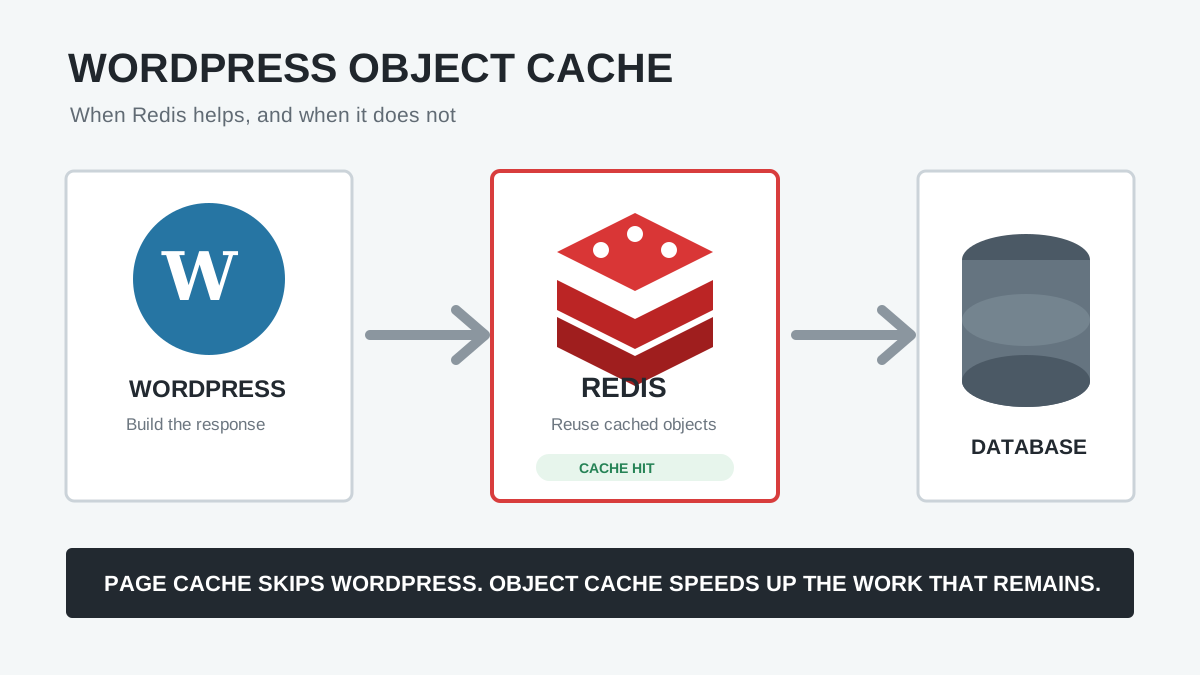
- Use object cache where supported by hosting.
- Keep PHP, WordPress, themes, and plugins updated after testing.
If you sell services, run ads, or depend on leads, professional optimization can pay for itself quickly. AbdullahWP offers broader WordPress services including performance, plugin fixes, maintenance, and Elementor support.
Step 8: Clean Database Bloat
Database cleanup will not magically fix every front-end JavaScript issue, but it helps WordPress admin speed, backup size, cron health, and query efficiency. For old Elementor websites, this can matter because page builders and plugins often leave revisions, metadata, transients, and unused options behind.
- Delete old post revisions after taking a backup.
- Remove expired transients.
- Clean trashed posts and spam comments.
- Review autoloaded options carefully.
- Remove orphaned metadata left by deleted plugins.
- Always back up the database before cleanup.
For this job, AbdullahWP also has DejunkDB, a WordPress database cleanup tool designed to remove common database clutter safely.
Step 9: Optimize Elementor Layouts
Elementor design choices can make or break mobile performance. Keep layouts clean and avoid nesting sections too deeply.
- Use containers/flexbox layouts instead of deeply nested old sections where practical.
- Reduce DOM size by removing unnecessary wrappers and duplicate widgets.
- Avoid complex motion effects on mobile.
- Use fewer global widgets if they load extra dependencies.
- Build mobile layouts intentionally instead of only stacking desktop content.
- Use responsive controls to hide heavy decorative sections on mobile when they do not help.
If Elementor styles are not loading correctly, you may also want this troubleshooting post: How to Fix Elementor CSS Files Giving 404 on Your WordPress Site.
Step 10: Retest and Monitor Real Results
After changes, test again. Compare before and after results for INP, mobile performance, LCP, CLS, and JavaScript warnings. Then watch Search Console over time for Core Web Vitals changes.
- Keep a record of before and after PageSpeed URLs or screenshots.
- Test on mobile and desktop separately.
- Check important templates, not only the homepage.
- Ask real users to test menus, forms, filters, buttons, and checkout flows.
- Do not ship optimizations that break conversions.
Elementor INP Optimization Checklist
- Test key pages in PageSpeed Insights.
- Remove unused Elementor add-ons.
- Reduce JavaScript and third-party scripts.
- Disable unnecessary animations on mobile.
- Compress and resize images.
- Use lazy loading carefully.
- Optimize fonts and icons.
- Delay YouTube, map, chat, and marketing embeds.
- Use page cache, browser cache, and CDN.
- Clean database bloat after taking a backup.
- Retest after every major performance change.
FAQ
What is a good INP score?
A good INP score is 200 milliseconds or less. Between 200ms and 500ms needs improvement, and above 500ms is poor according to web.dev.
Does Elementor cause poor INP?
Elementor itself is not always the only problem. Poor INP usually comes from heavy page design, too many add-ons, JavaScript-heavy widgets, third-party scripts, unoptimized fonts, large images, and weak caching.
Can a caching plugin fix INP?
Caching helps page delivery, but it does not automatically fix all INP problems. INP often requires reducing JavaScript work, simplifying widgets, delaying third-party scripts, and improving mobile layout behavior.
Should I remove Elementor animations?
You do not need to remove every animation, but you should remove unnecessary motion effects, especially on mobile. Keep animations that support the user experience and remove decorative effects that slow interaction.
Final Thoughts
Improving INP in WordPress Elementor is mostly about reducing unnecessary work. A fast Elementor website is possible when the design is clean, scripts are controlled, images are optimized, fonts are simple, embeds are delayed, and the server setup is solid.
If your Elementor site is slow on mobile and you want a careful performance audit, you can contact AbdullahWP for help with WordPress speed optimization, Core Web Vitals, plugin cleanup, and Elementor performance fixes.