Quick Answer
To duplicate a page in Elementor:
- Go to Pages > All Pages in WordPress
- Click Duplicate or Clone (using a plugin)
OR
- Open the page in Elementor
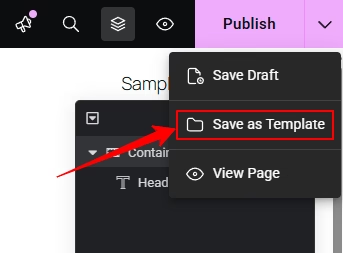
- Click the arrow next to Update → Save as Template
Use plugin duplication if you want a full copy (including SEO settings). Use templates if you’re moving layouts between sites.
Method 0: Custom Code Snippet (No Plugin Required)
This is the best method if you want to keep your website lightweight and avoid installing unnecessary plugins. By adding a simple code snippet, you can add a “Duplicate” button directly to your WordPress dashboard.
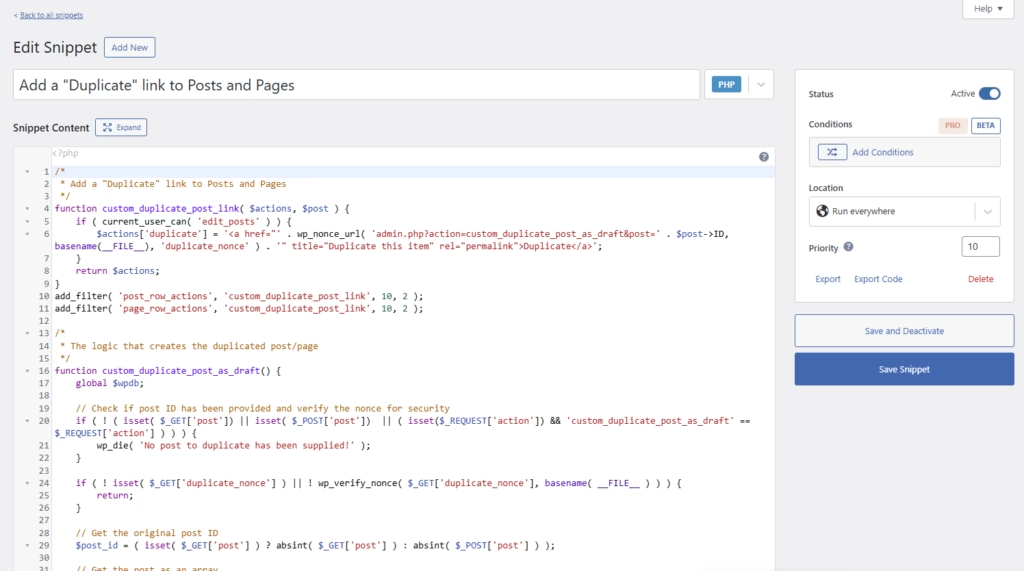
- Copy the code snippet provided below.
- Paste it into your child theme’s functions.php file, or use a code snippet plugin like WPCode.
- Go to Posts > All Posts or Pages > All Pages.
- Hover over the item you want to copy and click Duplicate.
- A drafted copy will instantly open, ready for you to update the title, slug, and content.
Best for: Users who want to minimize their plugin count and prefer a clean, lightweight, developer-friendly solution.
The Copy-Paste Code Snippet
You can copy and paste this PHP code directly into your functions.php file or your code snippets plugin.
/*
 * Add a "Duplicate" link to Posts and Pages
 */
function custom_duplicate_post_link( $actions, $post ) {
    if ( current_user_can( 'edit_posts' ) ) {
        $actions['duplicate'] = '<a href="' . wp_nonce_url( 'admin.php?action=custom_duplicate_post_as_draft&post=' . $post->ID, basename(__FILE__), 'duplicate_nonce' ) . '" title="Duplicate this item" rel="permalink">Duplicate</a>';
    }
    return $actions;
}
add_filter( 'post_row_actions', 'custom_duplicate_post_link', 10, 2 );
add_filter( 'page_row_actions', 'custom_duplicate_post_link', 10, 2 );

/*
 * The logic that creates the duplicated post/page
 */
function custom_duplicate_post_as_draft() {
    global $wpdb;

    // Check if post ID has been provided and verify the nonce for security
    if ( ! ( isset( $_GET['post']) || isset( $_POST['post'])  || ( isset($_REQUEST['action']) && 'custom_duplicate_post_as_draft' == $_REQUEST['action'] ) ) ) {
        wp_die( 'No post to duplicate has been supplied!' );
    }

    if ( ! isset( $_GET['duplicate_nonce'] ) || ! wp_verify_nonce( $_GET['duplicate_nonce'], basename( __FILE__ ) ) ) {
        return;
    }

    // Get the original post ID
    $post_id = ( isset( $_GET['post'] ) ? absint( $_GET['post'] ) : absint( $_POST['post'] ) );

    // Get the post as an array
    $post = get_post( $post_id );

    // If post exists, create the duplicate
    if ( isset( $post ) && $post != null ) {
        $args = array(
            'post_author'    => current_user_can( 'edit_others_posts' ) ? $post->post_author : get_current_user_id(),
            'post_content'   => $post->post_content,
            'post_title'     => $post->post_title . ' (Copy)',
            'post_status'    => 'draft',
            'post_type'      => $post->post_type,
            'post_parent'    => $post->post_parent,
            'post_password'  => $post->post_password,
            'post_excerpt'   => $post->post_excerpt,
        );

        // Insert the new post
        $new_post_id = wp_insert_post( $args );

        // Copy over all custom taxonomies (Categories, Tags, etc.)
        $taxonomies = get_object_taxonomies( $post->post_type );
        foreach ( $taxonomies as $taxonomy ) {
            $post_terms = wp_get_object_terms( $post_id, $taxonomy, array( 'fields' => 'slugs' ) );
            wp_set_object_terms( $new_post_id, $post_terms, $taxonomy, false );
        }

        // Copy over all post meta (Custom Fields)
        $post_meta = get_post_custom( $post_id );
        foreach ( $post_meta as $key => $values ) {
            foreach ( $values as $value ) {
                add_post_meta( $new_post_id, $key, $value );
            }
        }

        // Redirect to the edit screen of the newly created drafted post
        wp_redirect( admin_url( 'post.php?action=edit&post=' . $new_post_id ) );
        exit;
    } else {
        wp_die( 'Post creation failed, could not find original post: ' . $post_id );
    }
}
add_action( 'admin_action_custom_duplicate_post_as_draft', 'custom_duplicate_post_as_draft' );
Method 1: Duplicate Page Using Plugin (Full Clone with SEO Data)
This method clones everything including SEO settings, featured image, and metadata.
- Install the Yoast Duplicate Post plugin
- Go to Pages > All Pages
- Hover over your page and click Clone
- Edit the new draft
- Important: Change the URL slug to avoid duplicate permalink issues

Best for: Landing pages, SEO pages, and client work.
Method 2: Save Elementor Page as Template (Best for Migration)
Use this when moving pages between staging and live sites.
- Open the page in Elementor
- Click the arrow next to Update → Save as Template
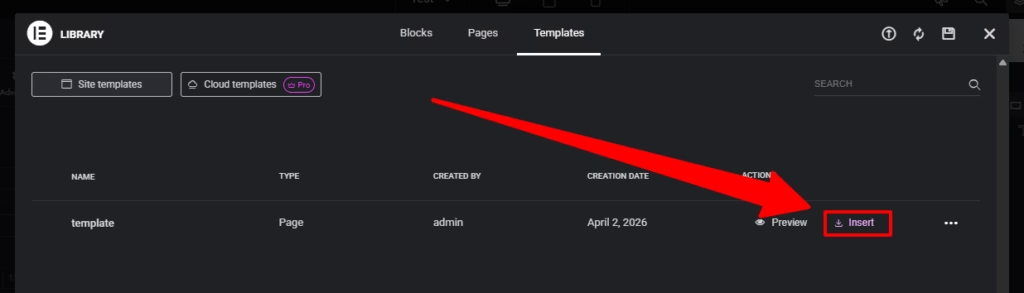
- Go to Elementor > Templates
- Export the template as a JSON file
- Import it on another site
Best for: Cross-site transfers and reusable layouts.
Method 3: Copy and Paste Between Elementor Sites (Fastest for Sections)
This method uses Elementor’s clipboard system.
- Open both sites in Elementor (same browser)
- Right-click a section/container → Copy
- Go to the new site → Right-click → Paste
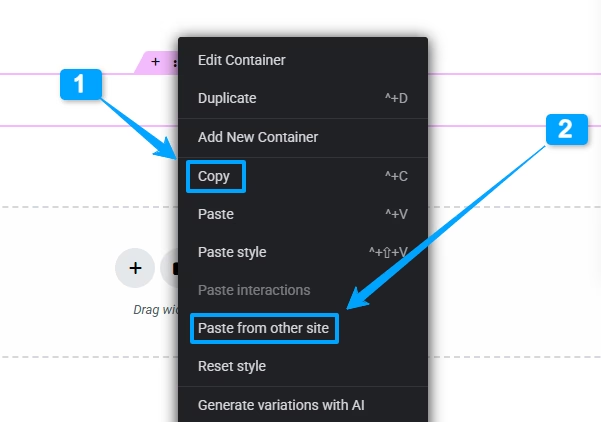
Note: Images may still link to the original site unless re-uploaded.
Best for: Quickly moving sections or blocks.
Method 5: Copy an Elementor Page to Another Website
For a one-off transfer, current Elementor versions can copy editor elements directly between websites. This is faster than exporting a template when you only need one page or container, but both sites should run compatible Elementor versions and have the same relevant features enabled.
- Open the source page in Elementor.
- Right-click an empty area of the page and choose Copy All Content. For one container or widget, right-click that element and choose Copy.
- Open the destination page on the other website.
- Right-click the destination canvas or container and choose Paste from other site.
- Confirm the paste with Ctrl+V on Windows or Cmd+V on macOS.
- Check images, fonts, global colors, dynamic tags, forms, links, popups and responsive settings. Third-party addon widgets may not transfer correctly.
Elementor states that cross-site copy and paste works only for Elementor Editor elements, not third-party add-ons. Both sites must use Elementor 3.11 or newer and compatible features—for example, a container cannot be pasted into a destination that still uses only legacy sections.
When to Use a Template Instead
Use Save as Template when you want a reusable page in the local Site Templates library, a Cloud Template available across connected websites, or an exportable file for a controlled handoff. Elementor’s current template workflow lets you save pages and containers to Site Templates or, subject to the subscription’s storage limits, Cloud Templates.
Elementor Host customers may also see a direct Duplicate Page option in the WordPress Pages screen. Elementor’s official documentation says that dashboard shortcut is specific to Elementor Host; third-party hosting users should use templates, copy/paste, or a suitable cloning plugin.
These methods were checked against Elementor’s official guides for copying between sites, saving page and container templates, and Elementor Host page duplication.
Which Method Should You Use?
- Use Plugin Duplication: If you want a full copy with SEO settings and metadata
- Use Templates: If you’re moving pages between different websites
- Use Copy/Paste: If you only need specific sections quickly
When This Doesn’t Work (Common Issues & Fixes)
1. Invalid JSON Error When Saving Templates
Cause: Low PHP max_input_vars limit
Fix: Increase it to 3000+ via hosting or .htaccess
2. Duplicate Page Layout Looks Broken
Cause: Missing global styles, fonts, or theme settings
Fix: Export and import Site Settings or use Elementor Kit export
3. Mixed Content (HTTP/HTTPS Issues)
Cause: Old URLs embedded in CSS
Fix: Use Elementor > Tools > Replace URL
4. Widgets Stuck on Loading
Cause: Missing or outdated addon plugins
Fix: Install required plugins and regenerate CSS
5. Duplicate Page Not Opening in Elementor
Cause: Page template conflict
Fix: Switch to Elementor Canvas or Default Template
6. Copy/Paste Not Working
Cause: Browser local storage blocked (Incognito mode)
Fix: Use normal browser mode
7. Anchor Links Still Point to Old Page
Cause: Cloned CSS IDs and links
Fix: Update anchor links and IDs manually
Pro Tips (From Real Client Work)
- Global Widgets Warning: Changes affect all pages. Unlink if needed.
- Avoid Direct SQL Edits: Elementor uses serialized data. Use tools like Better Search Replace.
- Check Plugin Compatibility: Especially after migration or duplication.
- Regenerate CSS: Elementor > Tools → Regenerate Files if layout breaks.
FAQs
How do I duplicate a page in Elementor?
For most sites, save the page as an Elementor template and insert it into a new page, use Copy All Content and paste it into a new canvas, or use a reputable WordPress cloning plugin. Elementor Host also offers a dashboard Duplicate Page shortcut.
Can I duplicate an Elementor page without a plugin?
Yes. Save the source page as a Site Template, create a new page, open the Template Library and insert it. You can also use Elementor’s Copy All Content and Paste commands.
Does duplicating an Elementor page hurt SEO?
A private draft does not create a search-result problem. Risk begins when substantially identical pages are published and indexable. Give the new page a unique purpose, title, slug, metadata and useful content, or keep it noindex until it is ready.
Why is my duplicated Elementor page broken?
Check missing global fonts and colors, addon widgets, dynamic tags, theme/template differences and cached generated files. For cross-site transfers, confirm both sites use compatible Elementor features and versions.
Can I duplicate a page to another Elementor website?
Yes. Use Copy All Content and Paste from other site for compatible Elementor elements, or save/export a template and import it on the destination. Third-party addon widgets may require the same plugin and settings on both sites.
Does cross-site copy move images and links?
Elementor can transfer supported content, but you should still verify media URLs, internal links, forms, dynamic tags, popups, global styles and fonts on the destination before publishing.
Related Fixes
- Elementor 500 Error When Saving
- What Is the elementor_active_kit Option?
- Elementor Default Kit Issue
Need Help Fixing Broken Elementor Pages?
If your duplicated pages keep breaking, loading incorrectly, or failing after migration, you’re likely dealing with deeper server or database issues. I fix Elementor setups where standard fixes fail, especially on client sites with complex plugins, migrations, or hosting limitations.