If you are wondering what the elementor_active_kit option is in WordPress, you are in the right place. In short, it is a crucial database setting stored in your wp_options table that controls your active Elementor Kit.
This option dictates your website’s global styles, fonts, colors, and theme settings. If this database entry breaks, gets lost during migration, or is corrupted, your entire website design can reset to basic defaults.
In this ultimate guide, we will explore exactly how the elementor_active_kit option works, where to find it, and how to fix common errors.
What Is an Elementor Kit?
Before digging into the database, it helps to understand what an elementor default kit actually does.
An Elementor Kit is a centralized control hub for your website’s design system. Instead of styling every single button or heading manually, Elementor saves these global rules in a “Kit.”
Your active kit controls:
- Global Colors: Primary, secondary, text, and accent colors.
- Global Fonts: Typography settings for H1-H6, body text, and links.
- Theme Styles: Global settings for buttons, form fields, and images.
- Layout Settings: Site widths, widget spacing, and breakpoints.
Types of Kits:
- Default Kit: The base kit automatically generated when you install Elementor.
- Custom Kit: A kit you manually create and customize from scratch.
- Imported Template Kit: A full website design pack imported via a zip file.
Where Is the elementor_active_kit Option Stored?
If you are a developer or advanced user, you might be asking: where is elementor_active_kit stored?
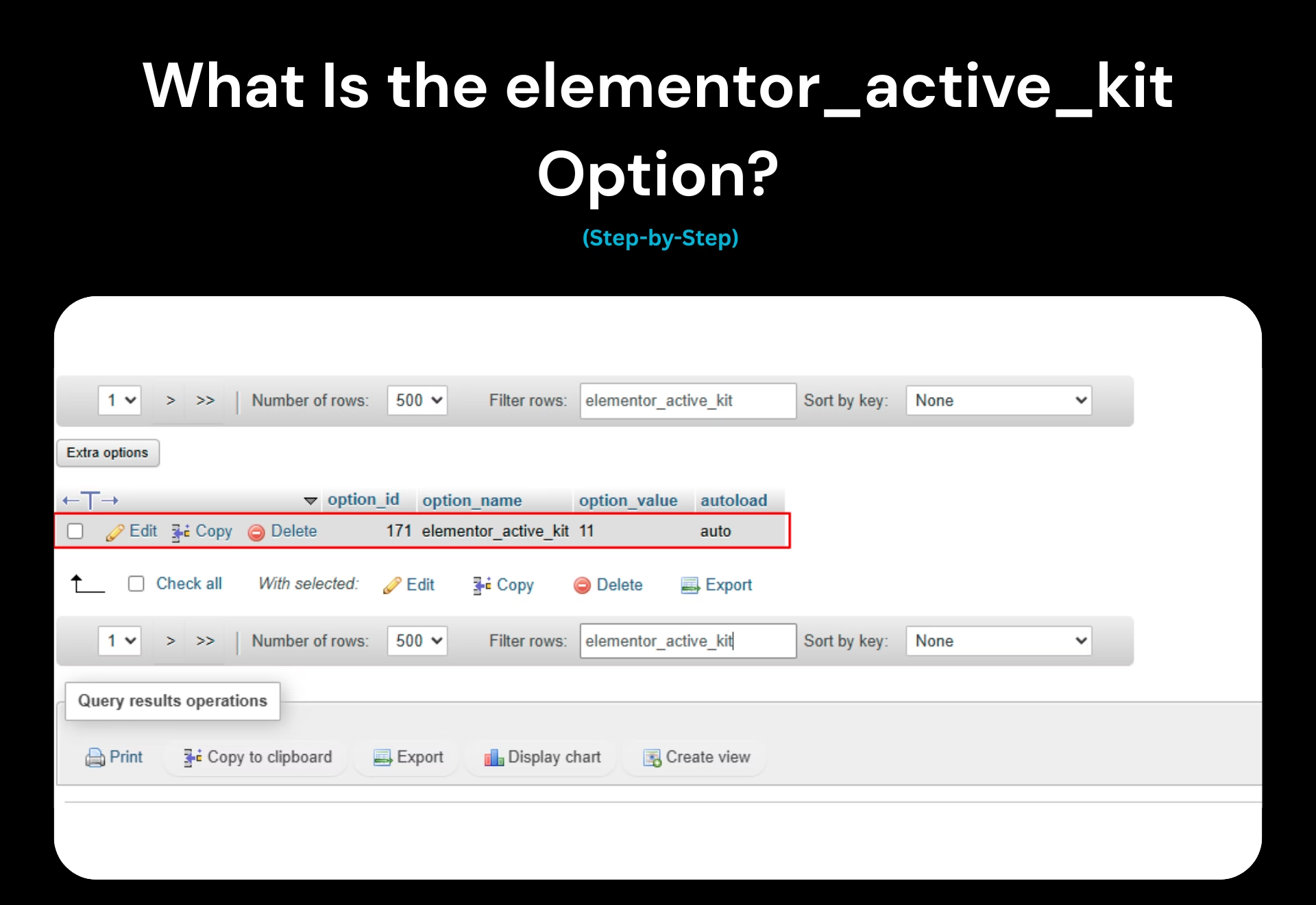
The elementor_active_kit option is saved directly inside your WordPress database. Specifically, you will find it in the wp_options table.
Here is how the data is structured:
- Table: wp_options
- option_name: elementor_active_kit
- option_value: The Post ID of your active kit.
How it works: Elementor saves your global styles as a hidden custom post type called elementor_library. The option_value simply points WordPress to the specific Post ID of that hidden kit.

What Happens If You Delete or Modify It?
It is highly recommended that you do not manually alter the elementor kit wp_options entry unless you know exactly what you are doing.
If you accidentally delete or change the value of the elementor_active_kit option, the following will happen:
- Site Loses Global Styles: Your fonts and colors will instantly revert to the standard browser or theme defaults.
- Layout Resets: Spacing, container widths, and padding will break.
- Auto-Generation: Elementor may try to auto-generate a brand-new, empty default kit to compensate.
⚠️ Warning: Always back up your WordPress database before editing the wp_options table. Modifying database values directly can break your site.
If you are already experiencing issues where your default kit has broken, check out our guide on how to fix the Elementor Default Kit issue.
How to Change Active Kit Elementor Safely
If you need to switch or reset your site’s styles, there are two ways to change active kit elementor settings.
Method 1: From the Elementor Dashboard (Recommended)
The safest way to update your kit is through the WordPress dashboard.
- Navigate to Elementor → Tools.
- Click on the General tab.
- Scroll down to Recreate Kit and click Recreate.
- Alternatively, use the Import/Export Kit tool to load a new design. (Learn more about how to Export Elementor Global Styles here).
Method 2: Via Database (Advanced)
If you are locked out of your dashboard, you can update it manually.
- Log into your hosting control panel and open phpMyAdmin. (For safe database handling, refer to the official WordPress database documentation).
- Open your wp_options table.
- Search for elementor_active_kit under the option_name column.
- Update the option_value to match the exact Post ID of your desired elementor_library kit.
Common Errors Related to the elementor_active_kit Option
Website owners often run into issues regarding their active kits, especially during site migrations. Here are the most common scenarios:
- Global Styles Not Applying: You edit the global settings, but the live site doesn’t reflect the changes.
- Colors Missing After Migration: Moving from a staging site to a live site often breaks the serialized data inside the database.
- Kit Lost After Backup Restore: If you restore your files but not your database, the kit disconnects.
- Staging Site & AJAX Issues: Sometimes, modifying the database causes dynamic loops to fail. (If you face this, see our guide on How to Make Elementor AJAX Loop Update).
Why does this happen?
Most often, this is caused by partial backups, missing database tables, or search-and-replace tools corrupting serialized options.
Does a WordPress Backup Save the Active Kit?
Yes, but only if you perform a full database backup.
Because the elementor_active_kit option lives in the wp_options table, merely backing up your wp-content folder (files, themes, plugins) is not enough.
If you migrate a site by only moving files, your active kit will break because the new database won’t have the correct Post ID mapped to your Elementor global styles. Always ensure your migration plugin safely transfers the entire database.
5 Steps to Fix a Missing or Broken elementor_active_kit Option
If your global styles have vanished, follow these steps to restore the elementor_active_kit option:
- Check if the option exists: Open phpMyAdmin, browse wp_options, and search for elementor_active_kit.
- Find the correct ID: Go to your wp_posts table, filter by post_type = elementor_library, and locate the post titled “Default Kit”. Note its ID.
- Reassign the ID: Go back to wp_options and paste that Post ID into the option_value for elementor_active_kit.
- Regenerate CSS: Go to Elementor → Tools → General inside WordPress and click “Regenerate Files & Data”.
- Clear Caches: Purge your site cache, server cache, and browser cache.
Frequently Asked Questions (FAQ)
Can I delete the elementor_active_kit option?
No, you should not delete it. Deleting this option will strip your website of its global colors, fonts, and layout settings. If it is deleted accidentally, Elementor will eventually generate a new, blank default kit.
Why does my site reset after migration?
Site styles reset after migration because the Post ID of the Elementor kit often changes when moving databases. You must update the elementor kit wp_options value to match the new Post ID on your live server.
Is the elementor_active_kit required?
Yes. Elementor relies heavily on this specific database option to load your site’s unified design system. Without it, you would have to style every single widget individually.
How do I find my active kit ID?
In your WordPress dashboard, go to Templates → Saved Templates. Look for a template named “Default Kit” (you may need to check the “All” tab). Hover over the “Edit” link, and look at the URL preview in your browser’s bottom-left corner—the number after post= is your active kit ID.





