When an ACF field is missing from Elementor Dynamic Tags, the field is usually being filtered out by context or compatibility rather than deleted. Elementor shows only dynamic tags that fit the selected control, and the ACF key list depends on the active field group, field type, current document, preview object, registration timing, and installed Elementor Pro integration.
This guide fixes ACF fields that do not appear in Elementor’s Dynamic Tags or ACF Key list. It separates a missing Dynamic Tags feature from a missing ACF tag, a missing key, and a key that exists but returns no value. That distinction prevents unrelated cache purges, database edits, and shortcode workarounds.
Quick answer: Confirm Elementor Pro and ACF are active and compatible. Select a widget control that accepts the field’s data type, choose the matching tag such as ACF Field, ACF URL Field, ACF Image Field, or ACF Gallery Field, and set the template’s Preview Dynamic Content to a real object that matches the ACF field group’s location rules. Make sure the group is active, the field type is supported, a test value is saved, and PHP-registered fields load on acf/init in both editor and frontend requests. Re-select a renamed key, then verify the template on two real objects.
Identify exactly what is missing
| What you see | Likely boundary | First check |
|---|---|---|
| No Dynamic Tags icon on the control | The control is static or the feature is unavailable | Try a documented compatible widget field and confirm Elementor Pro |
| Dynamic Tags opens, but no ACF tags appear | ACF integration, version, or Pro loading issue | Confirm ACF and Elementor Pro are active without a version mismatch |
| ACF tag appears, but the Key list omits one field | Preview context, location rule, field type, or registration timing | Select a matching preview object with a saved value |
| Key appears, but editor preview is blank | Wrong object, empty value, or return-format mismatch | Open the exact preview object and inspect the stored value |
| Editor works, frontend is blank | Template condition, query context, registration scope, cache, or code error | Test the applied template on the real frontend object while logged out |
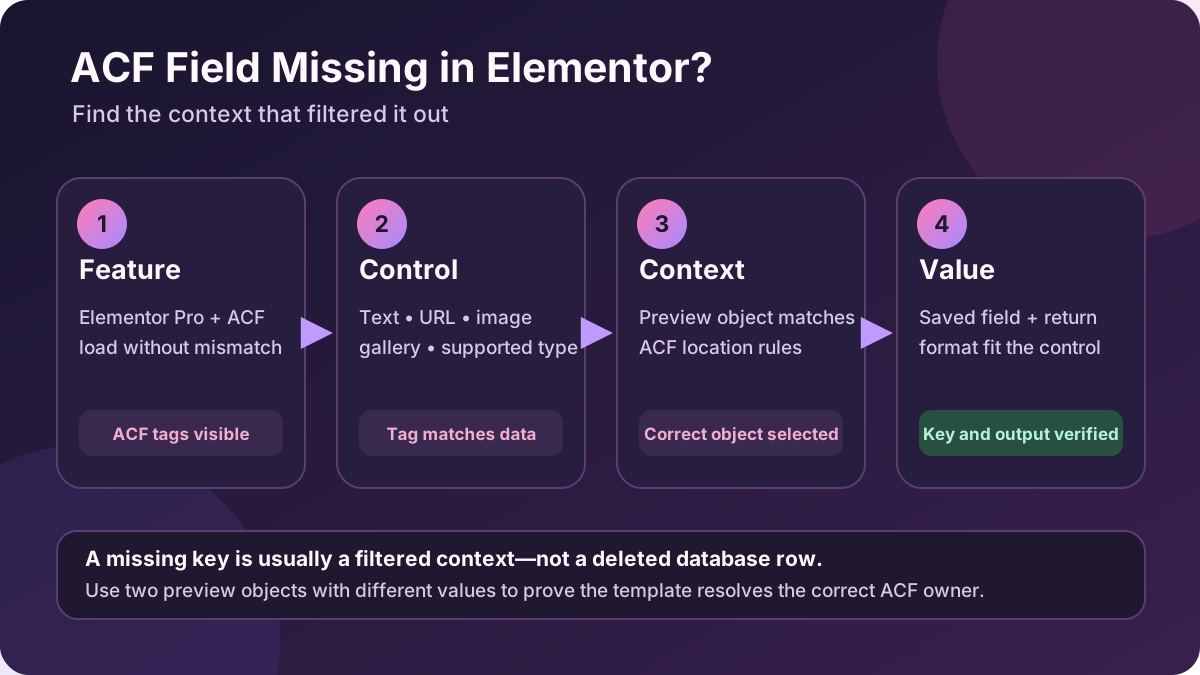
Before changing fields: back up the database and export the ACF field group. Do not rename field names, delete underscore-prefixed reference meta, copy random rows between posts, or enable the ACF shortcode as a universal workaround. Those actions can break existing templates or expose field data without fixing the missing context.
1. Confirm the Dynamic Tags and ACF integration are loaded
Elementor’s dynamic content integration is an Elementor Pro workflow. Confirm Elementor Core, Elementor Pro, and ACF are active, then record their exact versions. Resolve any Core/Pro dependency warning before testing ACF. A loaded Elementor editor is not proof that every Pro module initialized correctly.
- Open the WordPress Plugins screen and record Elementor, Elementor Pro, and ACF versions.
- Confirm Elementor Pro is active for this site and no license or connection notice is hiding a product-access problem.
- Open a Heading widget’s Title control and check for the Dynamic Tags icon.
- Open the tag list and look for the ACF group of tags.
- If all ACF tags are absent, check the PHP and browser console logs at a fresh editor load before changing field definitions.
If Elementor Core and Pro are mismatched, follow the specific Core/Pro recovery guide. If the entire editor fails rather than only ACF choices, use the narrower Elementor editor loading diagnosis.
2. Match the widget control to the ACF field type
Elementor documents that only applicable dynamic tags appear for a control. A Heading Title expects text-like data; an Image control expects an image; a Button Link expects a URL. Therefore, a field can be healthy and still be absent from the wrong dropdown.
| Elementor destination | Use the matching tag | Common mistake |
|---|---|---|
| Heading, text, number, rating, or label | ACF Field | Expecting an image, gallery, repeater, or object field in a text-only key list |
| Button, icon, heading, or box link | ACF URL Field | Using a text field whose stored value is not a usable URL |
| Image widget or image control | ACF Image Field | Searching for the image key under the general text tag |
| Gallery or carousel source | ACF Gallery Field where the widget supports it | Looking for a gallery in a single-image control |
| Video URL or oEmbed-capable control | Documented compatible ACF URL, Field, or oEmbed tag | Assuming every widget accepts every dynamic tag |
Elementor’s current ACF integration documentation lists supported text-like field types and warns that fields not on its supported list, including repeater fields, are not supported by the general ACF Field tag. Elementor also documents dedicated image, URL, and gallery mappings for compatible widget controls. Use the integration path designed for the returned data instead of forcing a complex array into text.
3. Set a preview object that matches the ACF location rules
A Theme Builder template is not the same object as the post, product, user, or term it will display. Elementor needs a representative preview object to discover and render contextual values.
- Open the ACF field group and note every Location rule.
- Confirm the field group is Active.
- Create or open a real object that satisfies those rules and save a distinctive test value.
- In the Elementor template, open Page Settings > Preview Settings.
- Choose the correct post type and the specific object with the saved value.
- Apply the preview, reopen the widget control, and select the appropriate ACF tag and Key.
For example, a field group located on Post Type equals Product may not be discoverable while the Single template previews a normal Post. A group restricted to a page template, taxonomy, user, options page, or custom location also needs the matching object context. ACF’s own documentation explains that location rules determine where a group is attached and displayed.
Use a diagnostic value: save something unmistakable such as ACF-PREVIEW-742 on one private test object. If Elementor shows a different value or none, you have proved an object-context problem before touching caches or SQL.
4. Verify the field name, key, value, and return format
ACF gives each field a human label, a field name used to store/retrieve data, and an internal field key. Confirm you are editing the intended field group and object. If the Field Name changed after the Elementor tag was configured, reselect the field in Elementor; Elementor’s own ACF tutorial warns that renamed fields need to be linked again.
- Save a value on the exact object selected for preview.
- Check that conditional logic did not leave the field empty or save it on a different object.
- For Group fields, remember that ACF stores child values with the parent and child names combined.
- For image, file, relationship, and other structured fields, verify the return format expected by the Elementor destination.
- Do not confuse the ACF field key such as
field_abc123with the field name such ashero_title.
A field that returns an array, object, or list cannot automatically populate every string control. When Elementor offers a dedicated ACF Image, URL, or Gallery tag, use it. When the field type is unsupported, redesign the content model, use a documented compatible field, or build a small escaped custom integration rather than converting unknown data through a shortcode.
5. Make PHP-registered ACF fields load in every relevant request
Fields registered in PHP can disappear when registration runs only on one admin screen, only for logged-in requests, after a value lookup, or behind a conditional that is false during Elementor AJAX or frontend rendering. ACF documents registering local field groups on the acf/init action and notes that the fields must be registered before ACF values are requested.
add_action( 'acf/init', 'awp_register_project_fields' );

function awp_register_project_fields() {
    if ( ! function_exists( 'acf_add_local_field_group' ) ) {
        return;
    }

    acf_add_local_field_group( array(
        // Version-controlled field group definition.
    ) );
}
Keep registration in a version-controlled plugin or another deliberate code owner, not an editor-only request check. On multisite, ACF fields are available only on the subsite that registered them unless your code intentionally loads them network-wide. Confirm local JSON synchronization and PHP exports are not defining two stale versions of the same field group.
6. Check the final template and Loop context
A Single template, Loop Item, archive template, popup, and ordinary page can resolve the “current object” differently. In a Loop, test the field inside the actual repeated item and verify the query returns the post type that owns the field. In a Single template, confirm its Display Conditions apply to that post type and no more specific template overrides it.
- Preview at least two objects with different saved values.
- Confirm the Loop query returns those objects rather than terms, users, or another post type.
- Check whether a nested template or popup inherits a different document context.
- Use fallback text temporarily to distinguish an empty value from an element that did not render.
- Remove the diagnostic fallback after the real value is verified.
Do not add the same ACF key manually to every post just to make the dropdown appear. Fix the location, preview, or query context that decides which object Elementor is resolving.
7. Isolate version and plugin conflicts only after context checks
If a supported field remains absent with a valid preview object, test on staging with current compatible Elementor Core, Elementor Pro, and ACF releases. Reopen the editor after each controlled change. Inspect the browser console, failed requests, and PHP log for the first error; another add-on can interrupt dynamic-tag registration before the list is complete.
- Record the current versions and reproduce on a staging copy.
- Update one compatible dependency group and repeat the exact key-list check.
- If needed, use a conflict test for the administrator session, keeping Elementor, Elementor Pro, ACF, and the active theme path required for the template.
- Include must-use plugins, snippets, and host integrations in the inventory; normal plugin deactivation may not stop them.
- Restore each tested component when it is disproved.
The plugin audit checklist helps map those ownership layers. If Atomic class edits themselves vanish after refresh, that is a separate save-path problem covered by the Atomic classes persistence guide.
Avoid the ACF shortcode as a default workaround
ACF disables its shortcode by default on new installs from ACF 6.3 and documents security implications: a user who can publish content could request known field names. It also supports only simple text-based values. Do not enable it merely because a field is missing from Elementor.
Prefer the native compatible Dynamic Tag. For an unsupported structured field, use a purpose-built widget or custom dynamic tag that validates the object, checks permissions where needed, handles the documented return type, and escapes output for its HTML, URL, or attribute context.
Verify the repair in editor and frontend contexts
- Open the template in a fresh editor session and confirm the expected ACF tag and key appear.
- Select test object A and confirm its distinctive value in the preview.
- Select test object B and confirm the value changes rather than remaining cached.
- Save, reload the editor, and confirm the tag remains linked.
- Open both real frontend objects while logged out on desktop and mobile.
- Test the link, image, gallery, or structured behavior—not just visible text.
- Check PHP and browser logs for a repeated registration or rendering error.
- Remove temporary fallback text and test once more.
Success: the correct ACF tag and key appear in a compatible Elementor control, two matching preview objects show their own saved values, the selection survives save and reload, the applied frontend template works logged out, and no temporary shortcode or database edit is required.
Prevent ACF and Elementor context drift
- Version-control PHP or local JSON field definitions and review synchronization conflicts.
- Treat field-name changes as a template migration with a usage inventory.
- Keep one private fixture object per important post type with representative values.
- Test Single templates, Loops, links, images, galleries, and fallback behavior after updates.
- Document field type, return format, location rules, template, and owning plugin.
- Use staging and a rollback plan for Elementor, Pro, ACF, and add-on updates.
Official sources
- Elementor integration with ACF
- Elementor Dynamic Tags
- Elementor widget and ACF field compatibility
- Elementor ACF field-name and template example
- ACF field groups and location rules
- ACF Group field storage
- Registering ACF fields via PHP
- ACF field registration and retrieval changes
- ACF shortcode security and limitations
Frequently asked questions
Do I need Elementor Pro to use ACF Dynamic Tags?
Elementor’s dynamic content and Theme Builder integration with ACF is an Elementor Pro workflow. ACF itself can be free or Pro depending on the field type, but Elementor Pro must load correctly for the native Dynamic Tags integration.
Why is my ACF Repeater missing?
Elementor’s current ACF integration page explicitly lists repeater fields as unsupported by the general ACF Field tag. Model the output with supported fields, use a purpose-built compatible widget, or develop a safe custom renderer for the repeater structure.
Why does the ACF key appear but show no value?
The preview may point to the wrong object, the field may be empty there, its return format may not fit the control, or the frontend template may resolve a different context. Save a distinctive value on the selected preview object and test two objects with different values.
Will clearing Elementor files or cache restore the key?
Only if stale editor data remains after the field, context, and versions are correct. Cache clearing cannot make an unsupported field type compatible or make a Product field appear while a Post is being previewed. Fix the proven boundary first, then clear only the relevant cache.
Can I rename an ACF field after building the template?
You can, but changing the Field Name affects stored meta lookup and existing integrations. Inventory every use, back up the database, migrate values deliberately when required, and reselect the field in Elementor. Changing only the human Field Label is usually less disruptive.
Need help tracing the missing field?
For Elementor and ACF context mapping, safe field-model corrections, template and Loop testing, and a maintainable custom dynamic tag when the native integration is not suitable, see AbdullahWP WordPress services.





