The WordPress error “Updating failed. The response is not a valid JSON response.” means the editor expected a JSON reply from the WordPress REST API but received something it could not use. That reply might be a 404 page, a security challenge, a login redirect, a PHP warning, an upstream error, or valid JSON returned with the wrong request status. The message describes the broken conversation; it does not identify the cause.
This guide shows how to fix the invalid JSON response in WordPress by reading the failed request first. You will capture its URL, HTTP status, content type, and response body, then apply the smallest matching repair. Success means the same post saves or publishes in a fresh session, the REST response is JSON, and the repair still works while logged out pages and critical site workflows remain healthy.
Quick answer: Back up the site, open your browser’s Network panel, reproduce the failed save, and inspect the red fetch or XHR request to /wp-json/. A 404 points toward rewrite or route problems; 401/403 toward login, nonce, security plugin, or WAF rules; 413 toward request-size limits; 500-series statuses toward PHP or the server; and a 200 response containing HTML toward warnings, a cached page, a redirect landing page, or unwanted output. Fix that layer, then repeat the exact save.
Use the response as a diagnostic map
| What the failed request shows | Most likely layer | First useful check |
|---|---|---|
200, but the body starts with <!doctype html>, a warning, or a banner | PHP output, cache, proxy, or redirected HTML | Read the first response lines and compare the final URL |
301 or 302 | HTTP/HTTPS, host-name, login, or canonical redirect | Inspect the Location header and redirect chain |
401 or 403 | Expired session/nonce, permissions, security plugin, CDN, or WAF | Re-authenticate, then read the response and security event |
404 | Permalink rewrite, server route, wrong subdirectory, or disabled endpoint | Open /wp-json/ and inspect rewrite configuration |
413 | Web server, PHP, proxy, or WAF request-body limit | Compare a tiny update with the failing content size |
429 | Rate limiting or bot protection | Find the matching rule/event instead of repeated retries |
500, 502, 503, or 504 | PHP fatal, resource limit, upstream, maintenance, or timeout | Match server/PHP logs to one recorded test time |
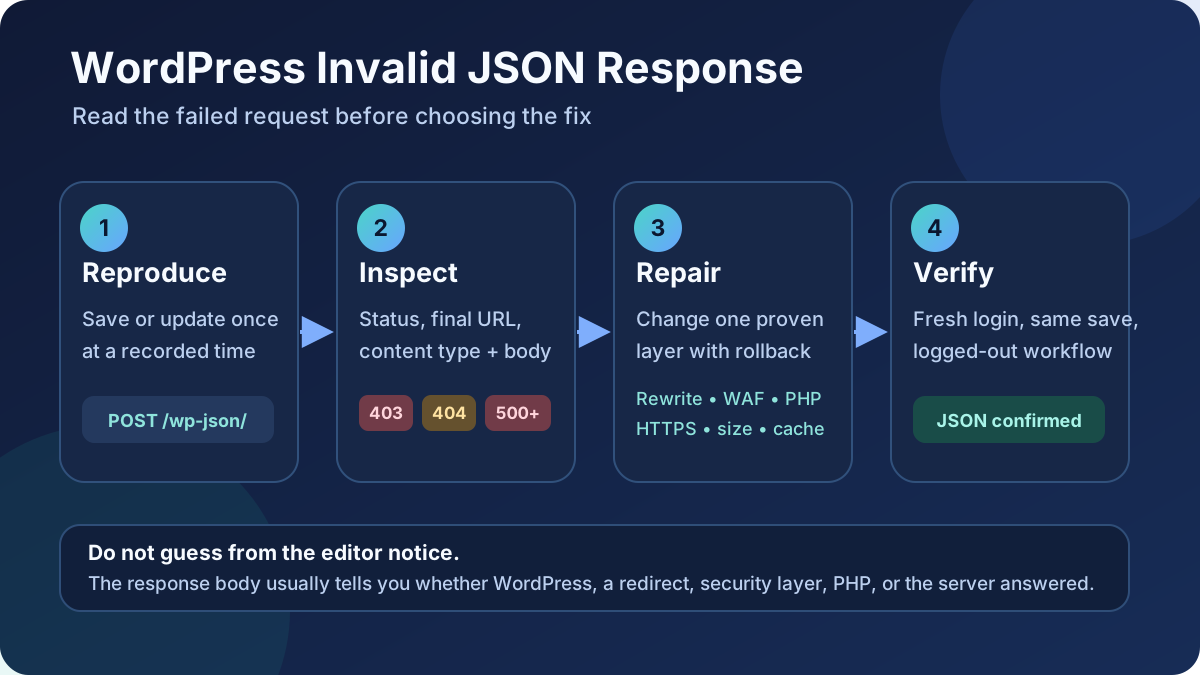
Before changing configuration: make a restorable database-and-files backup and, when practical, clone the failure to staging. Copy unsaved editor text to a local document before refreshing. Do not disable the REST API, turn off every security control, or replace .htaccess with a random snippet before you know what the request returned.
1. Capture the request that actually failed
The block editor uses the WordPress REST API to read and update content. A successful visit to the homepage does not prove that an authenticated REST POST request works. Diagnose the failing save itself.
- Copy any unsaved text, then keep the editor tab open.
- Open the browser’s developer tools and select Network.
- Enable request preservation if your browser offers it, then filter for
fetch,XHR,wp-json, orposts. - Click Save draft, Update, or Publish once.
- Open the failed request and record its method, request URL, HTTP status, response
Content-Type, final URL, and the first useful lines of the response body. - Record the exact test time and timezone so the host, PHP, WAF, and CDN logs can be matched to it.
Do not publish screenshots or HAR files without redacting cookies, nonces, authorization headers, post content, personal data, and private URLs. A WordPress REST nonce helps protect the logged-in cookie-authenticated request; exposing it can turn a diagnostic file into a security problem.
Also check Tools > Site Health > Status. A REST API or loopback warning is supporting evidence, not a replacement for the failed request. Site Health can also reveal public error display, an active PHP session, blocked HTTP requests, or missing server capabilities that deserve separate attention.
2. Rule out an expired login without hiding the evidence
If the response is 401, 403, a login form, or a message mentioning a REST cookie or nonce, preserve the failed response and then start a clean authenticated session. Open a private window, sign in normally, open the same post, make a harmless change, and save once. This obtains fresh cookies and a fresh editor nonce without relying on the stale tab.
If the clean session works, close old editor tabs and investigate why the session expired unusually early. If it still fails, do not keep clearing cookies. Check whether the response names a capability error, application firewall, bot challenge, or security rule. WordPress’s cookie authentication requires a valid logged-in cookie and REST nonce; a missing nonce makes the API treat the request as unauthenticated.
Useful distinction: a public GET https://example.com/wp-json/ can confirm that the API root is reachable, but it cannot prove that your authenticated post-update request is authorized. Always retest the original editor action.
3. Repair a 404 or wrong REST route
Open the site’s REST root at https://example.com/wp-json/. It should return JSON describing the site and its routes. If it returns the theme’s 404 page, a host 404, or a different domain, the request is not reaching the expected WordPress REST route.
- In Settings > Permalinks, note the current structure and click Save Changes without inventing a new structure.
- If WordPress reports that
.htaccessis not writable, use the exact rules WordPress displays or ask the host to repair rewrite access. - On Nginx, ask the host to verify the site’s WordPress
try_filesrouting and that query arguments are preserved. - For a subdirectory installation, compare the REST request with the configured WordPress Address and Site Address.
- Search custom code, must-use plugins, and security settings for filters or rules that disable or require authentication for every REST route.
Saving permalinks flushes WordPress rewrite rules; it does not fix a WAF block, PHP warning, bad HTTPS redirect, or server error. If ordinary post permalinks also return 404, use the broader WordPress 404 repair guide. Avoid changing the public permalink structure during this incident because that can create a site-wide URL migration.
4. Fix redirects, HTTPS, and host-name mismatches
A REST request that starts on https://www.example.com but lands on http://example.com, another host name, a maintenance page, or wp-login.php may lose the method, body, cookies, or nonce context the editor needs. Inspect every redirect and its Location header.
- Confirm Settings > General uses the intended HTTPS URL for both WordPress Address and Site Address unless the installation deliberately separates them.
- Make the host, CDN, load balancer, and WordPress agree about the canonical scheme and host.
- On a reverse proxy, ask the provider to verify that HTTPS is reported correctly to WordPress and that cookies and authorization headers reach the origin.
- Remove redirect loops and duplicate HTTP-to-HTTPS rules; keep one understood canonical path.
- Do not solve a single REST redirect with a blind database-wide search and replace. Back up first and use a serialization-aware method if stored URLs truly need migration.
After correcting the URL layer, sign in again so cookies are issued for the correct scheme and host. Then repeat the post update. Clearing a page cache alone cannot repair a redirect that still sends the REST request to the wrong place.
5. Diagnose a 401, 403, challenge, or rate limit
A 403 response body often identifies its owner. WordPress may return a JSON error code; a security plugin may return branded HTML; a CDN may add a challenge page or request ID; the host may return a plain forbidden page. Preserve that identifier and check the matching event log.
- Verify the logged-in user can edit that post and that the failure is not limited to one post type or status.
- Check the WordPress security plugin’s firewall, REST, brute-force, and rate-limit logs at the test time.
- Check the host or CDN WAF event for the request path, rule ID, action, and matched field.
- Test a narrowly scoped temporary exception on staging, or for your administrator IP and the specific REST path.
- If that proves the cause, tune the exact false-positive rule. Restore normal protection and retest.
Do not allow all traffic to /wp-json/ through the firewall and do not disable the REST API. WordPress documents that disabling it breaks admin functionality that depends on it. A WAF response may use HTML even when the blocked application expected JSON, which is why the editor shows the generic message.
6. Remove PHP warnings, stray output, and plugin conflicts
If the HTTP status is 200 but the response begins with a PHP warning, HTML notice, whitespace, a plugin banner, or other text before the JSON object, identify the file named in that output. REST callbacks should return data to WordPress; code that prints into the response can corrupt the JSON envelope.
On staging, or for a short controlled production window, log errors without displaying them:
define( 'WP_DEBUG', true );
define( 'WP_DEBUG_LOG', true );
define( 'WP_DEBUG_DISPLAY', false );
@ini_set( 'display_errors', 0 );
Edit existing definitions rather than adding duplicates, and place them before the stop-editing line in wp-config.php. Reproduce the failure once, download the log, and match the timestamp. Then restore the original debug setting and remove any publicly reachable log after preserving the evidence.
If the response or log points to a plugin, test that component first. If it does not, use the WordPress community’s Troubleshooting Mode on staging or during an approved window to test plugins and a default theme for your administrator session. Must-use plugins, drop-ins, host integrations, and custom REST filters can remain active when normal plugins are paused, so include them in the inventory. The WordPress plugin audit checklist helps map those owners and dependencies.
Do not “fix” a warning by hiding all PHP reporting while leaving broken code in place. Keeping display off protects the response and visitors, but the plugin, theme, or custom function that generated the warning still needs an update or code correction. If a fatal makes the dashboard unavailable, follow the targeted critical-error recovery path.
7. Fix a 413 or content-size-specific failure
If a small text change saves but one long post, large reusable block, data URL, embedded script, or metadata-heavy update returns 413 Request Entity Too Large, compare the request payload sizes. The limiting layer can be the CDN, WAF, web server, PHP configuration, or application rule.
- Remove accidental base64 images, oversized inline data, duplicate block markup, or pasted diagnostic dumps from the post.
- Check the proxy and WAF request-body limits and whether body inspection has a smaller cap.
- Ask the host to compare Nginx
client_max_body_size, Apache request limits, and PHPpost_max_sizewith the measured request. - Raise only the proven bottleneck to a justified value, then repeat both the large update and a normal upload or form workflow.
A 413 is not repaired by increasing PHP memory. Likewise, a 429 rate-limit response needs a rule or request-frequency correction, not a larger upload limit. Repeatedly clicking Update can make a rate limit harder to diagnose, so test once per recorded change.
8. Trace 500-series responses to the origin
For 500, 502, 503, or 504, compare the response timestamp with PHP, web-server, application, container, and host logs. A 500 may contain a PHP fatal. A 502 or 504 often means the proxy could not obtain a timely valid response from PHP or another upstream. A 503 may be maintenance, capacity protection, or an unavailable service.
- Find the first matching fatal or upstream event, not the oldest warning in the log.
- Check whether the failure started after a plugin, theme, PHP, server, or deployment change.
- Isolate only the component named by evidence, keeping a rollback copy.
- Measure effective memory and execution limits instead of pasting arbitrary constants.
- Ask the host for the request ID and upstream reason when the origin log is empty.
When only Elementor saves return a 500 while the block editor works, use the more specific Elementor 500 error guide. Keeping that intent separate avoids treating every WordPress REST failure as an Elementor problem.
9. Stop caches and proxies from serving HTML to REST requests
Authenticated admin and REST write requests should reach WordPress with their method, body, cookies, headers, and query string intact. If the response has an Age header, a cache hit marker, or the body of a public page, inspect page-cache, CDN, host-cache, and reverse-proxy rules.
- Bypass full-page caching for
/wp-admin/,/wp-login.php, authenticated cookies, and REST write requests. - Preserve query strings and the original HTTP method.
- Do not convert a rejected
POSTinto a cachedGETpage. - Purge only after correcting the rule so a stale bad response cannot mask the result.
- Keep object-cache diagnosis separate; Redis does not normally transform JSON into an HTML challenge page.
If a cache change created the issue, document the corrected exclusions alongside the site’s object-cache and page-cache boundaries. That makes the next performance change less likely to reintroduce it.
Verify the fix, not just the disappearance of the notice
- Open a fresh browser session and sign in normally.
- Update the same post with the same type of content that failed.
- Confirm the REST request returns an expected success status and a JSON
Content-Type. - Refresh the editor and confirm the saved change persisted.
- Open the public URL logged out on desktop and mobile.
- Check the matching PHP, WAF, CDN, and server logs for a repeated error.
- Test one important adjacent workflow: media upload, form, checkout, membership action, webhook, or scheduled task.
- Remove temporary firewall exceptions and debug settings, then run the save once more.
Success: the original post update completes in a fresh authenticated session, its response is parseable JSON rather than HTML or stray output, the saved revision persists after reload, logged-out pages still work, no matching error returns in the logs, and temporary diagnostic bypasses are gone.
Prevent the invalid JSON response from returning
- Keep database-and-files backups outside the affected server and test restores.
- Test plugin, theme, PHP, WAF, CDN, and cache changes on production-like staging.
- Keep PHP errors logged and hidden from public output.
- Record firewall rule changes and retain request IDs for false-positive reviews.
- Monitor authenticated REST write endpoints as well as public page uptime.
- Keep WordPress Address, Site Address, proxy HTTPS handling, and the canonical host aligned.
- Audit custom code that echoes output, alters REST authentication, or disables routes.
Official sources
- WordPress REST API Handbook
- WordPress REST API endpoint reference
- WordPress REST API authentication
- WordPress REST API frequently asked questions
- WordPress Site Health screen
- WordPress Permalinks settings
- Debugging in WordPress
- Managing and troubleshooting WordPress plugins
- Cloudflare WAF rate-limiting response parameters
Frequently asked questions
Will saving permalinks fix every invalid JSON error?
No. It can rebuild WordPress rewrite rules and help when the REST route returns a rewrite-related 404. It cannot correct a 403 firewall block, a 413 size limit, a PHP fatal, a login redirect, or HTML printed into a successful response. Read the failed response before using it.
Should I disable the WordPress REST API for security?
No. WordPress explicitly warns that disabling the REST API breaks admin features that rely on it, including the block editor. Secure sensitive endpoints with normal permissions, authentication, updates, monitoring, and well-scoped firewall rules instead of removing required platform behavior.
Does installing the Classic Editor solve the problem?
It may avoid the failing block-editor request in some workflows, but it does not repair the broken REST, routing, security, or server layer. Use it only as an approved temporary continuity measure while the underlying response is diagnosed.
Why does the error happen on only one post?
That post may have a larger request, unusual block markup, restricted terms, embedded code that triggers a WAF rule, or plugin metadata that fails during saving. Compare its response and payload with a tiny test post; do not delete the original until revisions and a backup are secure.
If /wp-json/ works in my browser, is the REST API healthy?
It proves only that one public GET request reached the API root. The editor uses authenticated requests with a method, body, cookies, nonce, route, and permissions. Inspect and repeat the exact update request before declaring the issue fixed.
Need help tracing the failed response?
If the response crosses WordPress, a security plugin, CDN, host firewall, and PHP logs, the ownership can be hard to isolate. For evidence-led WordPress troubleshooting, narrow configuration changes, and post-repair acceptance testing, see AbdullahWP WordPress services.





