Fonts can make an Elementor website feel slow even when the font files look small. The browser may have to discover a remote stylesheet, open another connection, download several weights, hide text briefly, and then repaint it with different character dimensions. A 30 KB font can therefore affect the page more than its file size suggests.
The fix is not automatically “host every font locally and preload everything.” A fast setup usually comes from loading fewer font files, serving the necessary ones efficiently, and prioritizing only the font used in important above-the-fold text. This guide shows how to audit Elementor local fonts for speed, choose the right method, and prove that the change helped.
Quick answer: Use one or two font families, keep only the weights and styles the design actually uses, prefer WOFF2, set an appropriate font-display behavior, and preload at most the critical above-the-fold font file or two. Test the Network panel before and after. Local hosting helps only when the files, cache headers, URLs, and server delivery are correct.
Why fonts slow down an Elementor website
Elementor is not downloading its entire font list on every page. Fonts are requested when CSS used on the page references them. Problems appear when typography is inconsistent across Global Fonts, individual widgets, the theme, popups, templates, and third-party add-ons.
- Too many variants: Regular, medium, semibold, bold, italic, and icon files can each become a separate request.
- Late discovery: A font declared inside a stylesheet cannot be requested until the browser downloads and parses that stylesheet.
- Remote connection cost: Google-hosted fonts may require DNS, TCP, and TLS work for additional origins.
- Invisible or changing text: The browser may wait for the web font or display a fallback that later swaps, creating a visible flash or layout movement.
- Duplicate ownership: Elementor, the theme, and an optimization plugin may each try to load or localize the same family.
- Broken local delivery: Old staging URLs, mixed HTTP/HTTPS paths, missing files, weak cache headers, or CDN CORS rules can delay or block a font.
Fonts can contribute to a slow Largest Contentful Paint when the LCP element is a heading or text block. They can also contribute to Cumulative Layout Shift when the fallback and final font occupy different space. They are less likely to be the main cause of poor Interaction to Next Paint, although extra styles and icon libraries can add work. Start with the metric and waterfall evidence rather than assuming every red PageSpeed item has equal impact. See the related guides to fix slow LCP in Elementor and improve INP in WordPress Elementor.
Audit the fonts before changing settings
Open the page in a private window while logged out, then open browser developer tools. In Chrome or Edge, select Network, enable Disable cache while DevTools is open, reload the page, and filter by font. Test the real page that matters, not only the homepage.
| Record | What it tells you |
|---|---|
| Request URL and domain | Whether the file is local, on a CDN, Google-hosted, or left over from staging |
| Filename and format | The likely family, weight, style, and whether WOFF2 is available |
| Initiator | Which stylesheet, theme, widget, or plugin requested it |
| Transferred size | The actual network cost after compression and cache behavior |
| Start time and duration | Whether the font is discovered late or held behind other critical requests |
| Status and response headers | Whether it returned 200/304/404 and has useful caching and CORS headers |
Next, inspect the rendered text. In the Elements panel, select a heading or paragraph and check the computed font-family, font-weight, and rendered font. Repeat for the header, body copy, buttons, menu, footer, popup, and any icon that looks like text. This maps each downloaded file to a visible use.
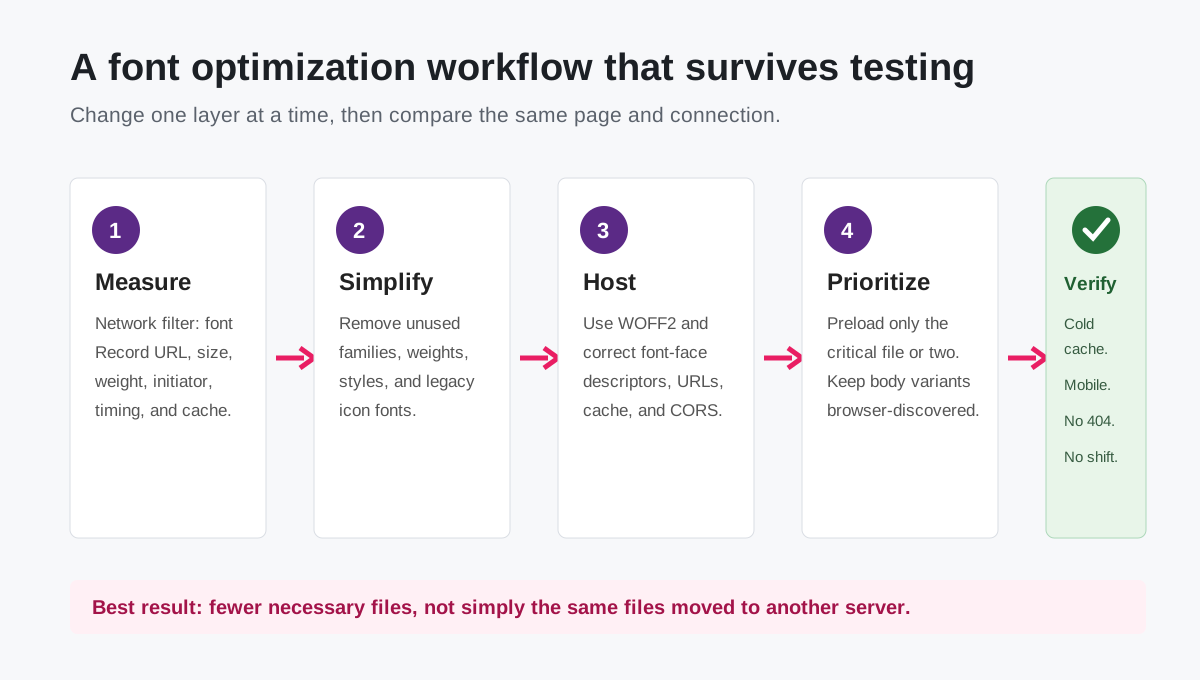
Tip: Make a simple font inventory with one row per request. Mark each file as critical, used below the fold, unused, duplicate, or unknown. An unknown file should be traced to its initiator before it is removed.
Reduce families and weights first
This is usually the highest-confidence font optimization. A design may look nearly identical with a body weight of 400 and headings at 700 instead of loading 300, 400, 500, 600, 700, every italic, and a second decorative family.
- Open Elementor Site Settings > Global Fonts and define the families and weights deliberately.
- Check widgets that use a custom typography value instead of a Global Font.
- Inspect Theme Customizer typography, the header/footer builder, WooCommerce templates, forms, popups, and add-on widgets.
- Replace near-duplicate weights. Browsers can synthesize a missing bold or italic, but use a real file when that style is visually important.
- Remove font files only after no active CSS references them.
Also review icon fonts. A full Font Awesome font file is unnecessary when only a few icons are used and Elementor can render them as inline SVG. If your project genuinely needs the Pro icon set, follow the Font Awesome Pro Elementor setup guide, but do not load legacy Font Awesome 4 compatibility without a real dependency.
Should you host Elementor fonts locally?
Often yes, but not as a universal speed rule. Local hosting removes the external Google Fonts stylesheet and third-party connection, gives you control over caching, and can simplify privacy compliance. It is especially useful when your HTML, CSS, fonts, and CDN use the same fast delivery path.
Remote Google Fonts can still be fast, particularly when the site origin is slow, geographically distant, or configured with poor static-file caching. Modern browsers also partition caches, so the old claim that most visitors already have every Google font cached from another website should not be the basis of the decision. Compare your own cold-load waterfall.
| Method | Best fit | Main trade-off |
|---|---|---|
| System font stack | Maximum speed and no strict brand typeface requirement | Appearance varies by operating system |
| Elementor Load Google Fonts Locally | Existing Elementor Google Fonts with minimal manual work | Elementor manages downloaded files and regenerated CSS |
| Elementor Pro Custom Fonts | Licensed brand fonts or precise control over files and variants | You must upload and map every weight/style correctly |
| Google-hosted fonts | Simple setup with a fast external path and no local/privacy requirement | Extra origins and less delivery control |
Option 1: Use Elementor’s local Google Fonts feature
Current Elementor versions provide a Load Google Fonts Locally control under Elementor > Editor > Settings > Performance. When enabled, Elementor detects Google Fonts in use, downloads them to /wp-content/uploads/elementor/fonts/, and rewrites its CSS to use those files. Elementor notes that this feature became optional and defaulted to disabled starting with version 3.32.1, so check the setting instead of assuming an older choice remained active.
- Take a backup or use staging for a production site.
- Record the existing font requests and a mobile performance test.
- Enable Load Google Fonts Locally in Elementor’s Performance settings.
- Clear Elementor files/data, the page cache, server cache, and CDN cache if stale URLs remain.
- Reload while logged out with the browser cache disabled.
- Confirm requests to
fonts.googleapis.comandfonts.gstatic.comare gone and local WOFF2 files return successfully.
If another optimization plugin also removes, combines, or localizes Google Fonts, choose one owner for the job. Two systems can produce duplicate CSS, mismatched paths, or a setup that breaks after cache regeneration.
Option 2: Upload custom fonts in Elementor Pro
For a licensed brand font or a manually downloaded open-source font, Elementor Pro’s Custom Fonts interface gives more control. Use webfont files that your license permits you to host. WOFF2 should be the first choice because it provides better compression than older webfont formats.
- Prepare only the required WOFF2 files.
- Go to Elementor > Editor > Custom Elements or the current Custom Fonts screen.
- Create a font family and add each static or variable font file.
- Map normal/italic style and the correct weight. Do not label a 700 file as 400.
- Publish the font family and apply it through Global Fonts.
- Disable Google Fonts only after confirming no active widget, theme setting, template, or plugin still depends on them.
Warning: Do not convert a desktop font file or download a commercial font from an unofficial source just because it is technically possible. Webfont licensing is separate for many typefaces. Use files and licenses supplied by the font owner.
Static or variable font?
A variable font can contain a range of weights in one file. It can be more efficient than several static files when the design genuinely uses many weights. If the site needs only 400 and 700, two subsetted static WOFF2 files may be smaller. Test transferred bytes and browser support for the exact font instead of assuming one format always wins.
Choose font-display without trading one problem for another
font-display tells the browser what to show while a web font is unavailable. The two symptoms users notice are FOIT, a flash of invisible text, and FOUT, a flash of unstyled or fallback text.
| Value | Behavior | Practical use |
|---|---|---|
swap | Shows fallback text quickly, then swaps when the webfont arrives | Good general choice when content visibility matters |
optional | Allows the browser to keep the fallback on slow loads | Strong performance choice when the exact font is not essential |
fallback | Short block and limited swap period | Middle ground for brand and stability |
block | Can hide text during a longer block period | Rarely suitable for body text; can hurt perceived loading |
swap prevents extended invisible text, but it can expose layout movement when the fallback is much wider or taller than the final font. Choose a fallback with similar metrics and set sensible line height. Advanced custom CSS can use metric overrides such as size-adjust, ascent-override, descent-override, and line-gap-override, but these require measurements for the exact font pair.
Preload only fonts that are truly critical
A preload tells the browser to fetch a resource early, before it discovers the request through CSS. That can help an above-the-fold heading font, but every preload competes with the stylesheet, LCP image, and other critical resources. Preloading every family and weight often makes the mobile waterfall worse.
<link rel="preload"
      href="https://example.com/wp-content/uploads/elementor/fonts/brand-regular.woff2"
      as="font"
      type="font/woff2"
      crossorigin>
The href must match the final font request exactly, including the scheme, hostname, path, filename, and relevant query string. Fonts use CORS fetching, so include crossorigin even for a same-origin preload. If the browser reports that a preloaded resource was not used shortly after load, the URL, credentials mode, type, media context, or actual above-the-fold usage may not match.
- Preload the regular body font only if meaningful above-the-fold text needs it immediately.
- Preload a heading weight when the LCP element is text using that exact file.
- Do not preload italic, footer, popup, hover-state, or below-the-fold variants.
- Do not preload both WOFF and WOFF2 when modern browsers receive WOFF2.
- Recheck after changing the CDN domain or Elementor’s generated font URL.
Check cache headers, CDN delivery, and CORS
Fonts are versioned static assets and should normally receive a long browser cache lifetime. Inspect the font response for a useful Cache-Control header and confirm repeat visits use memory/disk cache or an efficient revalidation. A CDN can help global visitors, but only when the CDN actually caches WOFF2 files and returns the correct content type.
If fonts work in the Elementor editor but not on the live page, check the Console and Network panels for CORS, mixed-content, and 404 errors. Migrations commonly leave an old domain or HTTP URL inside generated CSS. Verify WordPress Address and Site Address use HTTPS, run Elementor’s URL replacement where appropriate, regenerate files/data, and clear every cache layer. Elementor’s troubleshooting documentation specifically calls out CORS and mixed content as common causes.
Verify the improvement properly
- Test the same URL, device profile, location, and connection before and after.
- Use a cold cache first, then test a repeat view.
- Count font requests and total transferred font bytes.
- Confirm no request is duplicated, blocked, redirected, or returning 404.
- Watch a throttled reload for invisible text, late swaps, and heading movement.
- Check LCP and CLS in Lighthouse or PageSpeed Insights, then use Search Console field data after enough real-user data accumulates.
- Test menus, icons, forms, popups, WooCommerce screens, and responsive breakpoints.
Success: A good result is not a perfect score produced by hiding the font audit. It is a smaller, understandable request list; immediate readable text; no missing icons; stable layout; and equal or better field performance for real visitors.
Common Elementor font optimization mistakes
- Localizing without reducing: The same unnecessary files still consume bandwidth.
- Preloading all weights: Low-priority variants compete with more important assets.
- Using TTF when WOFF2 exists: The browser downloads a larger webfont resource.
- Disabling Google Fonts too early: A theme or widget falls back unexpectedly because its font was never uploaded.
- Letting two plugins optimize fonts: Duplicate or conflicting CSS becomes difficult to debug.
- Ignoring mobile: A fast desktop connection hides late discovery and bandwidth competition.
- Changing several systems at once: You cannot identify which change helped or broke the page.
- Removing icon fonts blindly: Menus, social icons, controls, or pseudo-elements display empty squares.
Font CSS can also show up in a broader stylesheet audit. If PageSpeed highlights styles that are not used on the current page, follow the safer process in How to Reduce Unused CSS in Elementor rather than deleting generated Elementor CSS files.
A sensible default setup for most Elementor sites
- One body family and, only if branding requires it, one display family.
- Regular 400 and bold 700, adding other variants only where the design visibly uses them.
- WOFF2 files served locally through Elementor or a single optimization system.
font-display: swaporoptionalchosen according to brand and layout behavior.- Zero to two exact font preloads based on above-the-fold evidence.
- Long-lived caching, valid HTTPS URLs, and working CORS across the CDN.
- Global typography applied consistently instead of per-widget overrides.
- Inline SVG icons where practical instead of a legacy icon-font library.
Sources and further reading
- Elementor: Load Google Fonts locally
- Elementor: Add custom static fonts
- Elementor: Troubleshoot fonts not appearing on the frontend
- web.dev: Optimize web fonts
- web.dev: Font best practices for Core Web Vitals
Frequently asked questions
Do local fonts always make Elementor faster?
No. Local fonts remove third-party connection work and give you more control, but a slow origin, weak caching, too many files, or late CSS discovery can erase the benefit. Measure the actual waterfall.
How many font weights should an Elementor site use?
There is no fixed limit, but many sites can cover body and headings with 400 and 700. Add a weight or italic only when it has a clear design role and appears on enough pages to justify another file.
Should I preload every local font?
No. Preload only exact files required for important initial text, commonly zero, one, or two. Every preload claims early bandwidth and can delay other resources.
Why does my Elementor font work in the editor but not live?
Common causes are stale generated CSS, old migration URLs, HTTP/HTTPS mixed content, CDN CORS rules, missing files, and optimization-plugin conflicts. Inspect the failed request, repair its source, regenerate Elementor files/data, and clear caches.
Need help finding the real bottleneck?
If the waterfall still contains duplicate fonts, late LCP text, stale Elementor paths, or conflicting optimization rules, AbdullahWP can audit the page and fix the cause without applying a generic stack of speed options. See the WordPress and Elementor services.





