The Elementor 500 error when saving is one of the most frustrating problems a WordPress user can face.
You spend hours designing the perfect page. You tweak every margin, select the perfect typography, and finally get the layout looking exactly how you imagined.
You move your mouse to the bottom panel and click the publish update button.
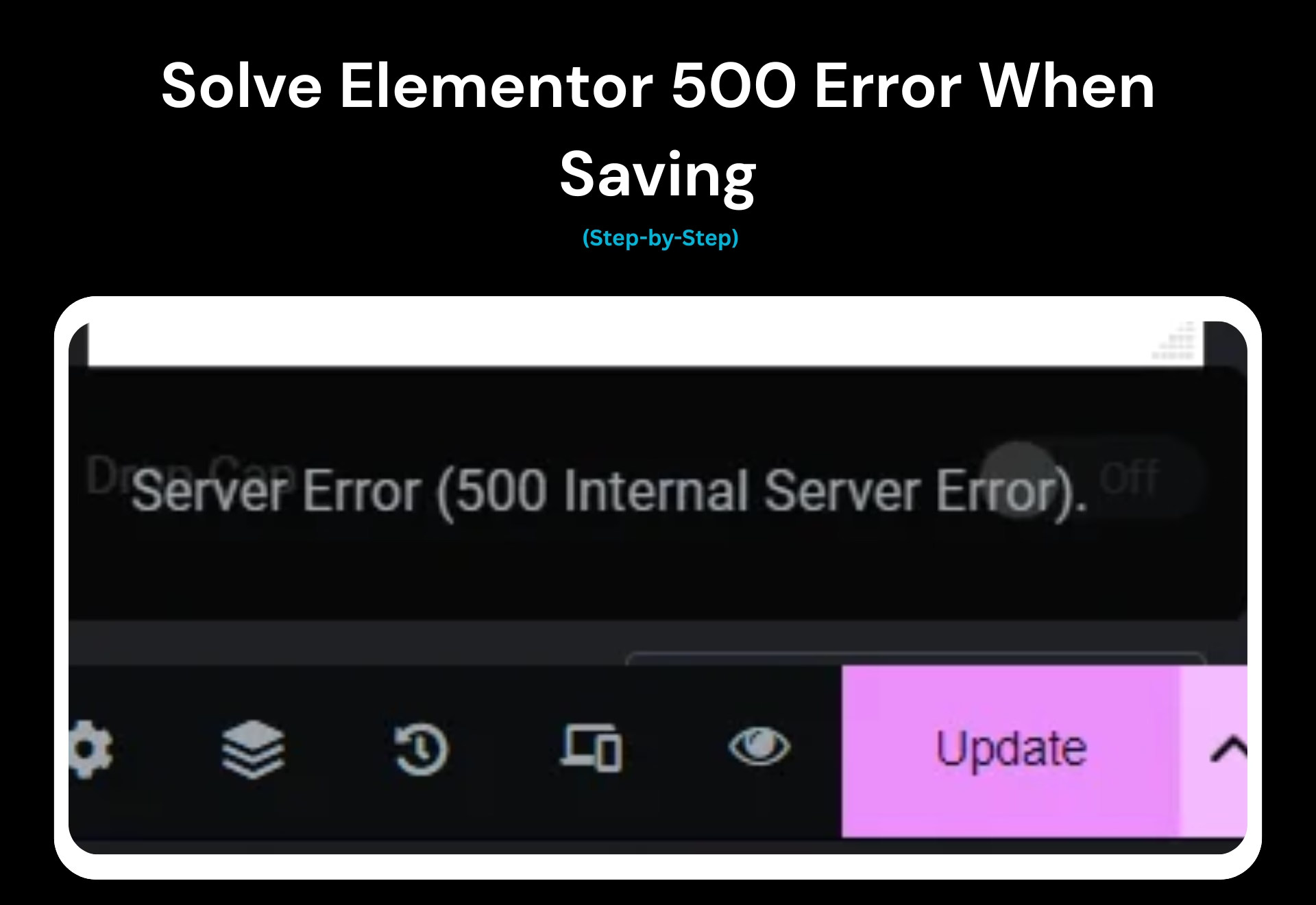
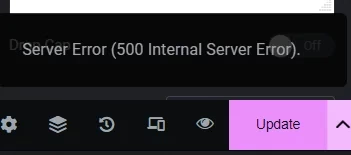
And suddenly — a red Server Error (500) appears on your screen.
Panic.
Confusion.
Fear that your hard work is entirely gone.
If this sounds familiar, take a deep breath. You are not alone, and more importantly, your design is likely not lost. A generic 500 error simply means your web server choked while trying to process the save request.
In this comprehensive guide, we will cover the immediate workaround to save your current design, the standard troubleshooting steps (like checking error logs), and the ultimate 99% effective solution to permanently fix the Elementor 500 error when saving.
Why the Elementor 500 Error When Saving Happens
Before jumping into the fixes, it helps to understand exactly what is happening behind the scenes. A 500 Internal Server Error is a generic HTTP status code. It means something has gone wrong on the website’s server, but the server cannot be more specific about the exact problem on the front end.
When you experience the Elementor 500 error when saving, it is usually caused by one of these major issues:
- Memory Exhaustion: Elementor officially requires a minimum of 256MB of PHP memory, but for heavier sites running Elementor Pro alongside WooCommerce or WPML, 512MB is highly recommended. If memory runs out, the server crashes.
- Heavy Post Meta & Revisions: Your database has become too bloated with old revisions and orphaned data. When you click update, the database SQL query is too massive, causing the server to time out.
- Plugin Conflicts: Conflicts between your active plugins can trigger fatal PHP errors in the background.
- Server Timeout & REST API Failures: Security plugins or server firewalls might block the background WordPress REST API request (often appearing as an admin-ajax.php failure).
Understanding these root causes makes troubleshooting much easier. Let’s secure your hard work first.
Immediate Fix: Secure Your Work Before Refreshing
Important: Do not refresh the page! If you refresh your browser right now, you will lose all the unsaved changes you just made.
Before we implement any permanent server fixes, we need to safely extract the design you are currently working on. You can bypass the Elementor 500 error when saving immediately using Elementor’s built-in template system:
- Navigate to the bottom of the Elementor left-hand panel.
- Click the Up Arrow located right next to the green “Update” button.
- Select “Save as Template” from the pop-up menu.
- Give your template a recognizable name (e.g., “Emergency Save Homepage”) and click Save.
- Open a new browser tab and navigate to your WordPress dashboard.
- Create a brand-new page and click Edit with Elementor.
- Click the gray folder icon on the canvas, navigate to My Templates, and insert the template you just saved.
- Click Publish.
This simple workaround almost always bypasses the error because you are saving the design as a fresh template entity, rather than forcing the server to overwrite a bloated, existing page.

Now that your design is safe, let’s permanently resolve these server errors.
Fix #1: Increase PHP Memory Limit
Elementor is incredibly powerful, but that power requires significant server resources. By default, many WordPress hosting providers restrict your PHP memory limit to 128MB or even less.
When Elementor hits this invisible ceiling while compiling a layout, the server panics and throws a 500 error. To prevent this, you should increase this limit to at least 512MB.
- Log into your hosting control panel (cPanel) or connect to your site via FTP. (Providers like Cloudpap or standard cPanel hosts make this easy via File Manager).
- Locate your website’s root folder (usually public_html).
- Find the wp-config.php file and click “Edit”.
- Scroll down to the line that says /* That’s all, stop editing! Happy publishing. */.
- Paste the following code just above that line:
define('WP_MEMORY_LIMIT', '512M');
Save the file. This is standard practice, and you can read more about it in the official WordPress documentation.
Fix #2: Check Error Logs & Active Plugins
If you have increased your memory limit but are still facing the Elementor 500 error when saving, a plugin conflict or outdated code is highly likely. Heavy translation plugins (like WPML) or complex add-on packs can conflict with Elementor’s core architecture.
To identify the exact cause, you need to check your PHP error logs. These logs record the precise “Fatal Error” that occurred behind the scenes. If you don’t know how to access your error logs, your hosting support team can provide them for you.
How to test for conflicts:
- Temporarily deactivate all active plugins except Elementor and Elementor Pro.
- Switch to a lightweight, well-coded theme (like Hello Elementor, or premium options from developers at 8theme).
- Open your page and try to save it.
- If the save is successful, reactivate your plugins one by one, testing the save function after each.
If a specific plugin is causing the crash, you might need to roll it back to an older version or reach out to the developer’s support desk (often hosted on platforms like Ticksy). You can also utilize Elementor’s “Safe Mode” to quickly diagnose if a theme or third-party add-on is the culprit.
Fix #3: Limit Post Revisions in wp-config.php
WordPress automatically saves a revision of your post or page every time you update it. Over months or years, these build up. When you click the publish update button, the server has to process an enormous database query, which often triggers the 500 error.
You can prevent this by capping the number of revisions WordPress is allowed to store. Open your wp-config.php file again and add this line:
define('WP_POST_REVISIONS', 5);
This tells WordPress to only keep the 5 most recent revisions, drastically reducing the database load moving forward.
The Real Cause of Elementor 500 Error When Saving: Database Bloat
Have you ever noticed that the Elementor 500 error when saving rarely happens on a brand-new page? It almost always occurs on older pages that you have edited dozens of times.
Elementor saves complex design settings as “Post Meta”. Over time, your wp_posts and wp_postmeta database tables become massively bloated with thousands of auto-drafts, orphaned meta strings, and redundant revisions from deleted plugins.
If the database is disorganized, the server query takes too long, and the server times out.
(Note: Database bloat also affects other Elementor backend features. For example, understanding what the elementor_active_kit option is can help you keep your global settings organized.)
The 99% Permanent Fix: Clean Your Database
Increasing memory limits and checking error logs are essential steps, but if database bloat is the root cause, you must perform a deep cleanup.
We recommend using a dedicated database cleanup tool like Dejunk DB or WP-Optimize. Unlike general performance plugins, Dejunk DB specifically targets the junk data (revisions, auto-drafts, and orphaned meta) that causes Elementor to crash.
Step 1: Backup Your Database First
Never touch your database without a backup! Any changes made to your database are irreversible.
- Install and activate the Dejunk DB plugin.
- Go to Tools > Dejunk DB.
- In the top panel under “Database Backups,” click Create Backup.
Step 2: Clean Revisions & Orphaned Post Meta
Scroll down to the Post Data card. Here, you will see exactly how many useless items are cluttering your server.
- Look at the Revisions row and click Clean.
- Look at the Auto Drafts row and click Clean.
- Look at the Orphaned Post Meta row and click Clean.
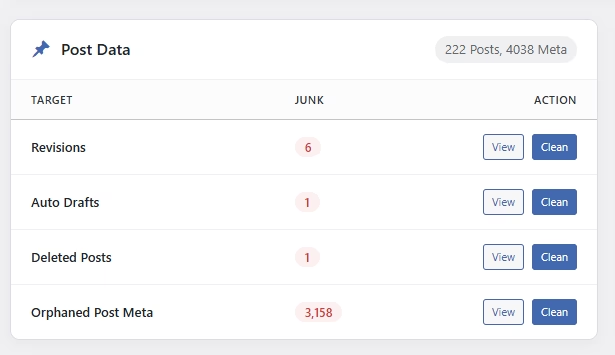
Orphaned post meta consists of design settings left behind by pages or plugins that no longer exist. Wiping them out instantly reduces the workload on your server.
Step 3: Optimize Tables
Once you delete thousands of revisions, your database will have empty “holes” in it. Scroll down to the Database Tables card and click Optimize Now. This defragments your database, forcing Elementor to run smoother. The Elementor 500 error when saving should be gone.
Frequently Asked Questions (FAQs)
Will I lose my page design if I get the Elementor 500 error when saving?
Not necessarily! As long as you do not refresh or close your browser tab, your current design is still loaded on your screen. Use the “Save as Template” workaround mentioned earlier to safely export your layout before you start tweaking server settings.
Why does the Elementor 500 error when saving only happen on specific pages?
If you can save a brand-new page just fine, but an older homepage keeps throwing a 500 error, it is a classic sign of database bloat. Older pages accumulate hundreds of hidden revisions. When you click the publish update button, the database query is too heavy.
Can my web hosting provider fix the 500 internal server error for me?
Yes and no. Your hosting support team can easily increase your PHP memory limit or check the error logs to see if a firewall is blocking Elementor. However, if the error is caused by a bloated database, you will need to optimize it yourself.
Will deactivating my plugins to test for conflicts delete my Elementor designs?
No. Disabling your active plugins (even Elementor Pro) does not delete your designs from your database. It simply pauses the functionality. Once you find the conflicting plugin and reactivate everything, your page will look exactly as it did before.
Are there simpler alternatives to WordPress if I keep getting server errors?
If managing databases and PHP memory feels too complex, some users prototype simple concepts on hosted website builders (like JimdoFree). However, WordPress and Elementor provide unmatched flexibility as long as you maintain basic site hygiene.
Final Thoughts
Encountering the Elementor 500 error when saving can feel like hitting a brick wall. But by following the steps above, you can take back control of your website.
Always remember:
- Use the Save as Template workaround to rescue your immediate work.
- Ensure your server has a minimum of 512MB of PHP memory.
- Keep an eye on your active plugins and check your error logs for conflicts.
Most importantly, keep your database lean. By making it a habit to clean your revisions and orphaned data using a tool like Dejunk DB, you can ensure that every time you click that green “Update” button, your page saves smoothly, instantly, and without server errors.