Creating a cohesive design system takes time. You spend hours selecting the perfect typography, defining your color palette, and tweaking layout settings. But what happens when you want to use that same foundation on a new project?
If you are manually recreating your design settings for every new website, you are wasting valuable time.
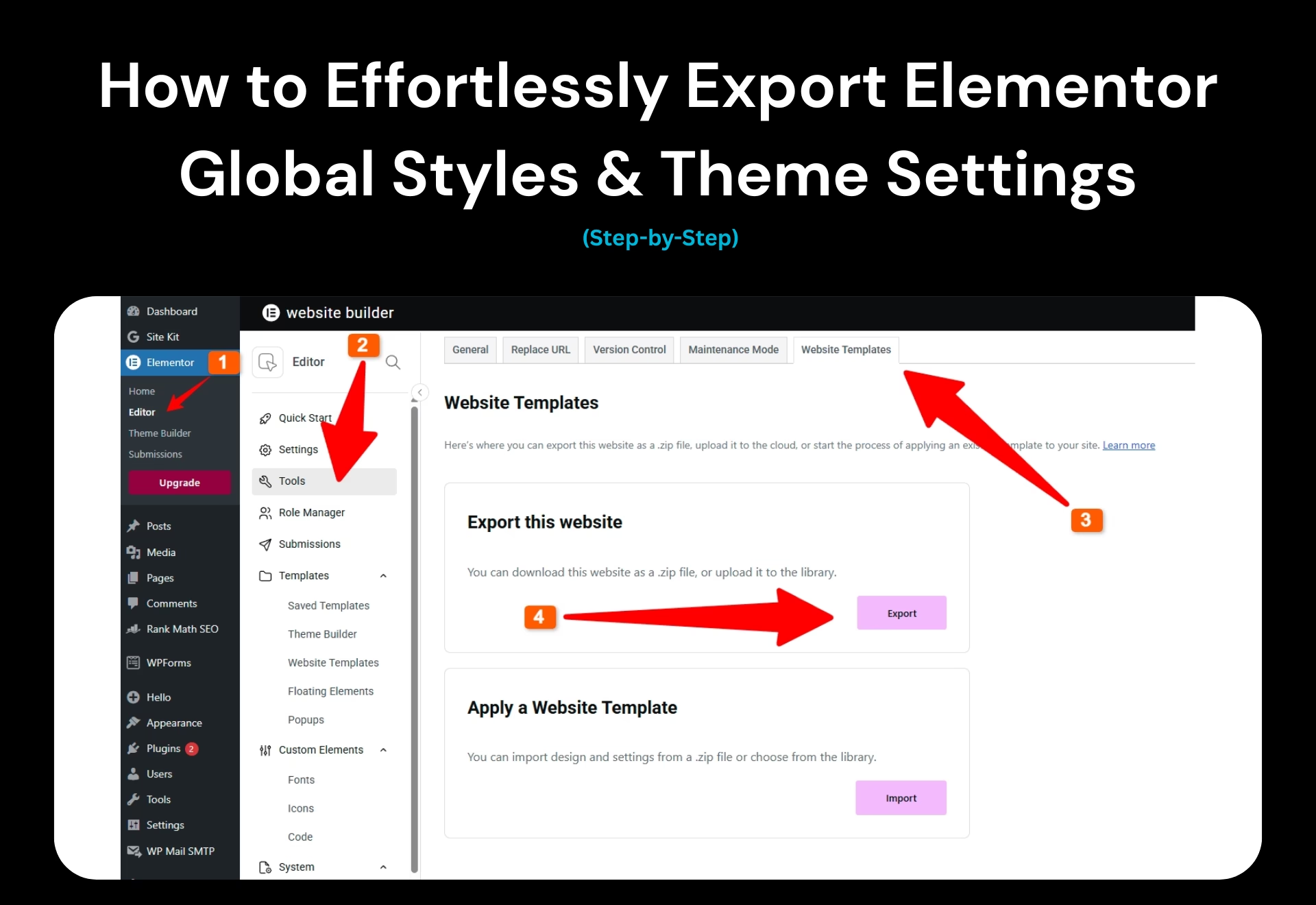
In this guide, you will learn exactly how to export Elementor global styles effectively. Whether you want to migrate a full Elementor website kit or simply transfer your fonts and colors to a fresh installation, this process will save you hours of work.
We will cover everything from accessing the Import/Export tools to the specific settings you need to check to ensure a smooth transfer.
What Are Elementor Global Styles?
Before we dive into the “how-to,” let’s clarify what we are actually moving. When we talk about Elementor global styles export import, we are referring to the “Site Settings” configurations within the Elementor editor.
These include:
- Global Colors: Your primary, secondary, text, and accent colors.
- Global Fonts: Your typography system (headings, body text, etc.).
- Theme Style: Settings for buttons, form fields, images, and background styles.
- Layout Settings: Breakpoints, page width, and spacing.
By learning to export Elementor global styles, you are essentially packaging the DNA of your website’s design to replicate it elsewhere.
Why Export Elementor Global Styles?
There are three main reasons why developers and designers use this feature:
- Workflow Efficiency: Agencies can create a “Master Starter Site” with pre-configured fonts and colors. By exporting this kit, they can start every new client project with a solid foundation.
- Backups: While standard backups save your database, exporting your Elementor site settings provides a specific design safety net.
- Migration: Moving from a staging site to a live site? Migrate Elementor design system files to ensure the live site looks identical to your staging environment.
Step-by-Step Guide: How to Export Elementor Global Styles
Elementor introduced a native feature called Import / Export Template Kit that makes this process incredibly simple. You no longer need third-party plugins to move your design system.
Follow these steps to export Elementor theme styles and settings.
Step 1: Access Elementor Tools
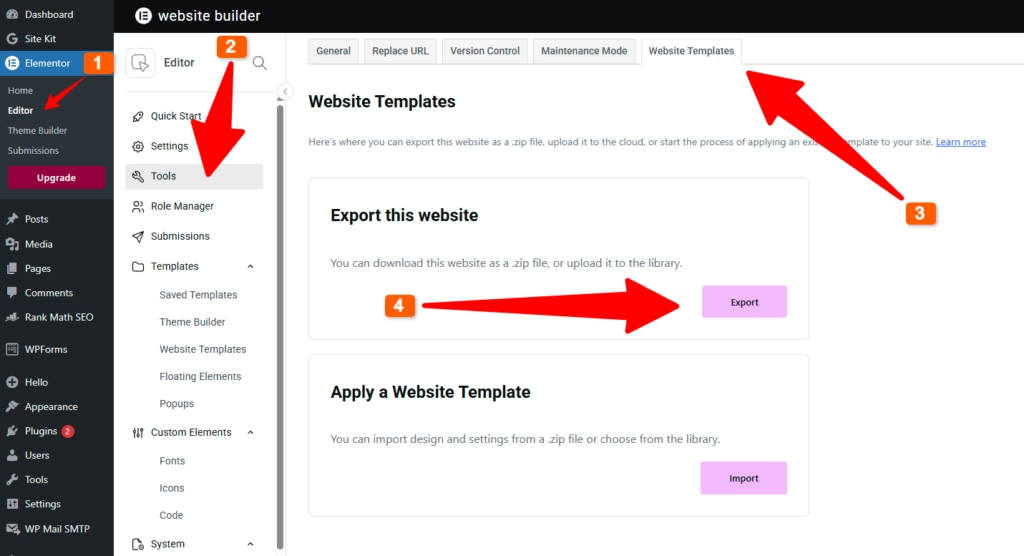
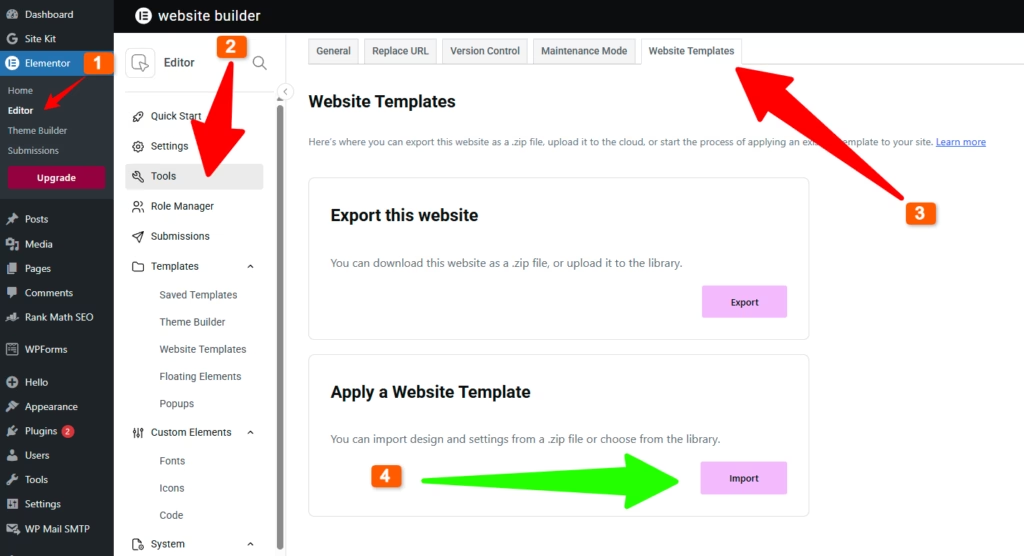
Log in to your WordPress Dashboard. Navigate to Elementor > Tools in the left-hand sidebar.
Step 2: Open the Import / Export Kit Tab
Once inside the Tools menu, click on the Import / Export Kit tab (labeled “Website Templates” or similar depending on your version).
Here, you will see two distinct options:
- Export this website: To download your current setup.
- Apply a Website Template: To upload a kit to a new site.
Click the Start Export button under the “Export this website” section.
Step 3: Configure Your Export Settings
This is the most critical step. Elementor allows you to choose exactly what you want to include in the file.
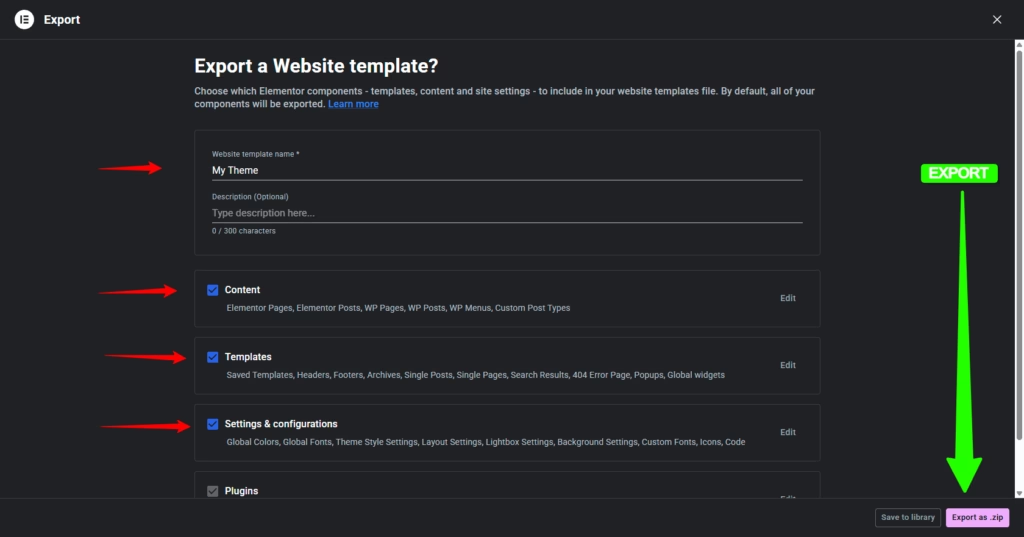
You will be presented with a screen asking “Export a Website template?”. Here you can name your kit (e.g., “My Agency Starter Theme”).
You will see checkboxes for:
- Content: Pages, posts, and menus.
- Templates: Saved headers, footers, and popups.
- Site Settings: Global colors, fonts, and layout settings.
Step 4: Finalize the Export
To export Elementor global styles, ensure the Site Settings box is checked. Once you have made your selection, click the green Export button in the bottom corner.
Elementor will process the file and automatically download a .zip file to your computer.
Pro Tip: Do not unzip this file. You will upload the ZIP file exactly as it is to the destination website.
Can You Export Only Elementor Global Styles (Without Content)?
This is a common question: “I don’t want the pages or blog posts; I just want the colors and fonts. Is that possible?”
Yes, absolutely.
When performing the export process described above, simply uncheck the “Content” and “Templates” boxes.
Make sure ONLY “Site Settings” is checked.
By doing this, you create a lightweight JSON-based kit that contains only your Elementor global colors and fonts export data. When you import this into a new site, it will overwrite the default blue/green Elementor colors with your custom branding, but it will not create any new pages or clutter your media library.
This is the cleanest way to migrate Elementor design system data between projects.
How to Import Your Global Styles to a New Site
Now that you have your ZIP file, here is how to apply it to a different WordPress installation.
- Prepare the Destination Site: Ensure Elementor is installed and activated.
- Go to Tools: Navigate to Elementor > Tools > Import / Export Kit.
- Start Import: Click “Start Import” in the Import a Website Kit section.
- Upload File: Drag and drop the ZIP file you downloaded earlier.
- Select Plugins (Optional): Elementor may ask if you want to install plugins used in the kit. If you only exported styles, this step is usually skipped.
- Review Import: You will be asked which elements to import. Ensure Site Settings is checked.
- Run the Import: Click the Import button.
Warning: Importing Site Settings will overwrite the existing global styles on the destination site. If you have already started designing the new site, make sure you back it up first.
Troubleshooting Common Issues
While the process is usually smooth, you might encounter hiccups when trying to export Elementor website kit files.
1. “Invalid File” Error
If you try to upload the ZIP file via the standard WordPress Theme uploader or Plugin uploader, it will fail. You must use the Elementor Import/Export tool located in Elementor > Tools.
2. Upload Stuck or Times Out
If the import process hangs, your server PHP limits might be too low. To fix this, increase your PHP memory limit and execution time.
- Recommended Memory Limit: 256M or higher.
- Upload Max Filesize: 64M or higher.
3. Styles Not Showing After Import
After importing, if you don’t see your Elementor global styles, try regenerating your CSS files.
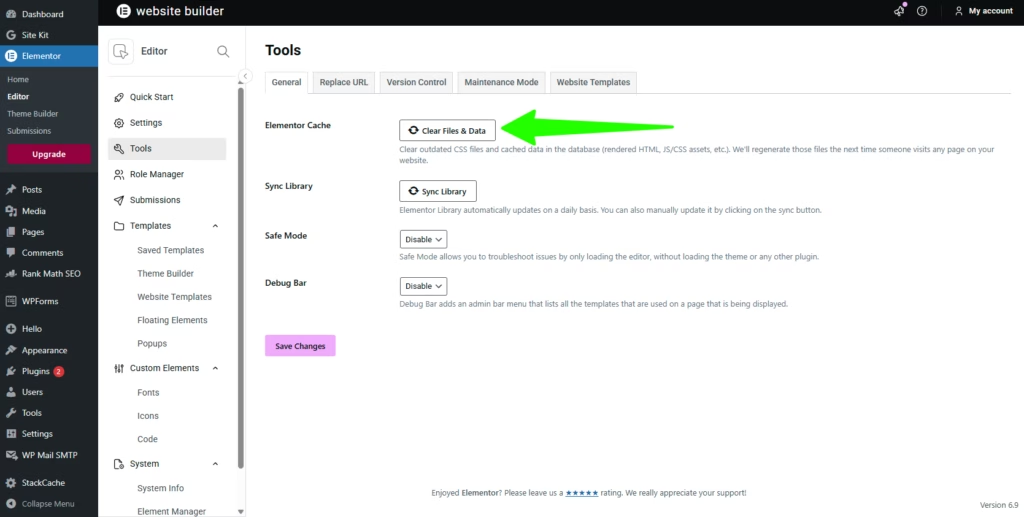
- Go to Elementor > Tools > General.
- Click Regenerate Files & Data.
- Clear your browser cache.
Best Practices for Managing Elementor Kits
To master the Elementor template kit export workflow, consider these best practices:
- Use Hello Elementor: For the most consistent results, use the “Hello Elementor” theme on both the source and destination sites. It acts as a blank canvas, ensuring your Global Styles render exactly as intended.
- Audit Before Exporting: Check your “Unused CSS” or unused fonts. Exporting a bloated site will result in a bloated destination site.
- Naming Conventions: When saving your ZIP files, use clear naming conventions like ClientName_GlobalStyles_Only_v1.zip so you know exactly what is inside the file without opening it.
- Global Styles not Applying?: Check out our guide on Elementor Default Kit Issue: 3 Easy Ways to Restore Global Styles Fast to ensure your imported styles don’t fail.
Conclusion
Learning to export Elementor global styles is a game-changer for web designers and developers. It transforms Elementor from a simple page builder into a powerful design system management tool.
By utilizing the “Site Settings” export feature, you can ensure brand consistency across multiple websites, reduce setup time for new projects, and create reliable backups of your visual identity.
Stop manually copying hex codes and font weights. Start exporting your kits today and streamline your web design workflow.
Ready to take your Elementor skills further? Read the official Elementor documentation on Import & Export for more technical details.
Frequently Asked Questions (FAQ)
Can I export Elementor global styles to a different domain?
Yes. The file you download is a standard ZIP file that can be uploaded to any WordPress website where Elementor is installed, regardless of the domain.
Will exporting global styles export my Header and Footer?
Only if you check the “Templates” box during the export process. If you only check “Site Settings,” your headers and footers will not be included.
Does this work with Elementor Free?
Yes, the Import/Export feature is available in the free version of Elementor. However, if your styles rely on Pro widgets (like Custom CSS or Motion Effects), you will need Elementor Pro on the destination site.
How do I backup Elementor global styles?
Follow the export steps in this guide and save the ZIP file to a cloud storage service like Google Drive or Dropbox. This serves as a perfect design backup.