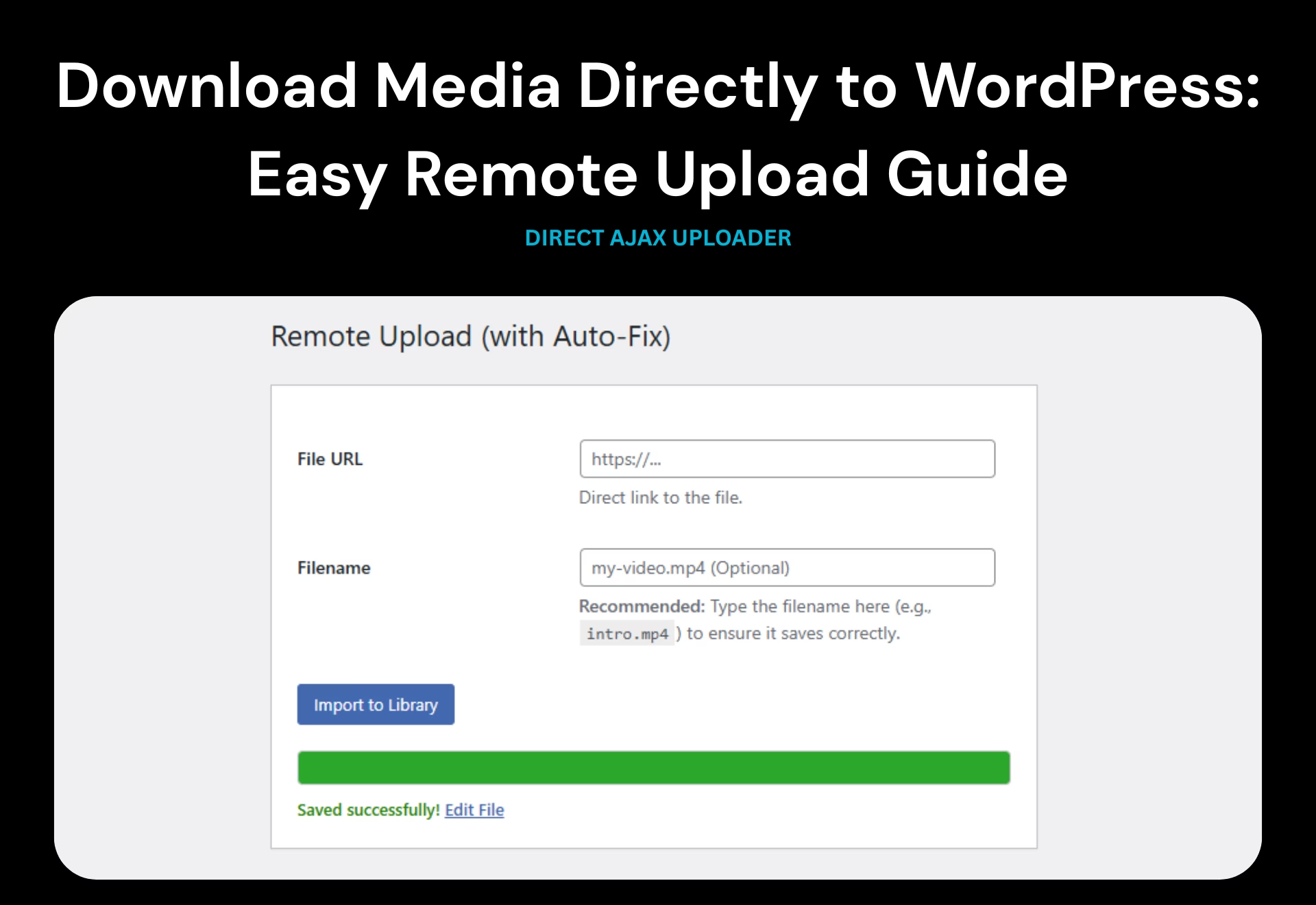
How to Download Media Directly to WordPress Media (No Computer Needed)
If you manage a WordPress site, you know the struggle of the “double-handling” dance. You find a perfect stock image, a video on a cloud drive, or a PDF on a client’s old server. To get it onto your site, you usually have to download it to your local computer first, wait for it to finish, and then re-upload it to your WordPress Media Library.
This process is slow, wastes your local bandwidth, and can be a nightmare if you are working on a slow internet connection.
Wouldn’t it be better if you could tell your server to grab that file for you?
In this guide, I will show you exactly how to download media directly to WordPress using a simple, custom plugin. We will also cover how to handle tricky file URLs (like those that don’t end in .mp4 or .jpg) and how to add a progress bar to the experience.
Why You Need Remote Upload Capability
Before we dive into the code, let’s look at why standard uploading is often inefficient and why “sideloading” (transferring directly from Server A to Server B) is the superior method.
1. Save Bandwidth and Data
If you are transferring a 500MB video file, the traditional method uses 1GB of your data (500MB down + 500MB up). By using a remote uploader, you use almost zero local data. The transfer happens entirely between the external server and your hosting provider.
2. Faster Speeds
Your home internet connection might be 50Mbps, but your hosting server likely has a 1Gbps connection. When you download media directly to WordPress via the server, large files that take 20 minutes to upload from home might take only 10 seconds for your server to fetch.
3. Fixing Broken File Extensions
A common issue web developers face is URLs that don’t look like files. For example, you might have a link like:
https://example.com/video-file-123-sameformat/
If you try to paste this into standard importers, they fail because they don’t see a .mp4 at the end. The solution we are building today includes a “filename fixer” that detects the real file type (MIME type) and assigns the correct extension automatically.
How It Works: The Logic Behind the Plugin
We are going to create a lightweight plugin that download media directly to WordPress and utilizes the native WordPress HTTP API. You don’t need to install heavy third-party plugins with ads; a simple script is safer and faster.
Here is the technical workflow of how the plugin functions:
- Input: You paste the URL into the dashboard and (optionally) provide a desired filename.
- AJAX Request: When you click “Import,” the browser sends a signal to your server. This ensures your dashboard doesn’t freeze while the file is downloading.
- download_url(): This WordPress function temporarily downloads the file from the external URL to your server’s temp folder.
- MIME Detection: The script checks the “MIME type” (the actual identity of the file) to see if it is a video, image, or PDF. If the URL didn’t have an extension, the script adds it.
- media_handle_sideload(): This is the magic function that moves the file from the temp folder into your official /wp-content/uploads/ directory and creates the attachment ID in the database.
The Code: Simple Remote Uploader (Version 2.0)
Below is the complete code for the plugin to download media directly to WordPress. It includes a progress bar UI and the logic to fix missing file extensions.

Instructions:
- Create a folder named simple-remote-upload on your computer.
- Inside it, create a file named simple-remote-upload.php.
- Paste the code below into that file.
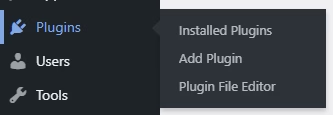
- Compress the folder into a ZIP file and upload it via Plugins > Add New.
<?php
/*
Plugin Name: Simple Remote Uploader (AJAX)
Plugin URI:  https://AbdullahWp.com/download-media-directly-to-wordpress
Description: Download files from URLs to Media Library with progress UI and filename fixing.
Version: 2.0
Author:      AbdullahWp
Author URI:  https://AbdullahWp.com/
License:     GPL2
License URI: https://www.gnu.org/licenses/gpl-2.0.html
*/

// 1. Add Menu
add_action('admin_menu', function() {
    add_submenu_page(
        'upload.php',
        'Remote Upload',
        'Remote Upload',
        'upload_files',
        'simple-remote-upload',
        'sru_render_page'
    );
});

// 2. Add AJAX Handler
add_action('wp_ajax_sru_process_upload', 'sru_process_upload');

// 3. The Backend Logic
function sru_process_upload() {
    check_ajax_referer('sru_upload_nonce', 'nonce');

    if (!current_user_can('upload_files')) {
        wp_send_json_error('Permission denied.');
    }

    $url = esc_url_raw($_POST['url']);
    $custom_name = sanitize_file_name($_POST['custom_name']);

    if (empty($url)) {
        wp_send_json_error('Please provide a URL.');
    }

    // Load WP Media Helpers
    require_once(ABSPATH . 'wp-admin/includes/media.php');
    require_once(ABSPATH . 'wp-admin/includes/file.php');
    require_once(ABSPATH . 'wp-admin/includes/image.php');

    // Step A: Download to temp folder
    $tmp = download_url($url);

    if (is_wp_error($tmp)) {
        wp_send_json_error('Download failed: ' . $tmp->get_error_message());
    }

    // Step B: Determine Filename & Extension
    $file_array = [];

    // Get MIME type of the downloaded temp file
    $mime_data = wp_check_filetype($tmp, null); // Check extension based on name (useless here usually)
    $real_mime = mime_content_type($tmp); // PHP native check of actual file content

    // Logic to fix the filename
    if (!empty($custom_name)) {
        // User provided a name (e.g., "video.mp4")
        $file_array['name'] = $custom_name;
    } else {
        // Auto-detect from URL
        $path_parts = pathinfo(parse_url($url, PHP_URL_PATH));
        $filename = $path_parts['filename'];
        $extension = isset($path_parts['extension']) ? $path_parts['extension'] : '';

        // If URL has no extension (like your example), try to map MIME type to extension
        if (empty($extension) && $real_mime) {
            $mime_to_ext = [
                'video/mp4' => 'mp4',
                'image/jpeg' => 'jpg',
                'image/png'  => 'png',
                'application/pdf' => 'pdf',
                'audio/mpeg' => 'mp3',
                'video/quicktime' => 'mov',
                'video/x-msvideo' => 'avi'
            ];

            if (isset($mime_to_ext[$real_mime])) {
                $extension = $mime_to_ext[$real_mime];
            } else {
                // Fallback: try to guess based on WP mime list
                $ext = array_search($real_mime, get_allowed_mime_types());
                if ($ext) $extension = $ext;
            }
        }

        // Finalize name
        $file_array['name'] = $filename . ($extension ? '.' . $extension : '');
    }

    $file_array['tmp_name'] = $tmp;

    // Step C: Sideload to Media Library
    $id = media_handle_sideload($file_array, 0);

    // Step D: Cleanup and Response
    if (is_wp_error($id)) {
        @unlink($file_array['tmp_name']);
        wp_send_json_error('Save failed: ' . $id->get_error_message() . ' (Mime: ' . $real_mime . ')');
    } else {
        $img_url = wp_get_attachment_url($id);
        wp_send_json_success([
            'message' => 'Saved successfully!',
            'link' => admin_url('post.php?post='.$id.'&action=edit'),
            'url'  => $img_url
        ]);
    }
}

// 4. Render the Page (HTML + CSS + JS)
function sru_render_page() {
    ?>
    <div class="wrap">
        <h1>Remote Upload (with Auto-Fix)</h1>

        <div class="card" style="max-width: 600px; padding: 20px; margin-top: 20px;">
            <form id="sru-form">
                <table class="form-table">
                    <tr>
                        <th style="width: 100px;"><label>File URL</label></th>
                        <td>
                            <input type="url" id="sru_url" class="large-text" placeholder="https://..." required>
                            <p class="description">Direct link to the file.</p>
                        </td>
                    </tr>
                    <tr>
                        <th><label>Filename</label></th>
                        <td>
                            <input type="text" id="sru_name" class="large-text" placeholder="my-video.mp4 (Optional)">
                            <p class="description"><b>Recommended:</b> Type the filename here (e.g., <code>intro.mp4</code>) to ensure it saves correctly.</p>
                        </td>
                    </tr>
                </table>

                <div style="margin-top: 15px;">
                    <button type="submit" class="button button-primary button-large" id="sru_btn">Import to Library</button>
                </div>
            </form>

            <!-- Progress UI -->
            <div id="sru-progress-wrap" style="display:none; margin-top: 20px; background: #f0f0f1; border-radius: 4px; overflow: hidden; border: 1px solid #c3c4c7;">
                <div id="sru-bar" style="width: 0%; height: 25px; background: #2271b1; transition: width 0.3s;"></div>
            </div>
            <div id="sru-status" style="margin-top: 10px; font-weight: 600;"></div>
        </div>
    </div>

    <script type="text/javascript">
    jQuery(document).ready(function($) {
        $('#sru-form').on('submit', function(e) {
            e.preventDefault();

            var url = $('#sru_url').val();
            var name = $('#sru_name').val();
            var $btn = $('#sru_btn');
            var $wrap = $('#sru-progress-wrap');
            var $bar = $('#sru-bar');
            var $status = $('#sru-status');

            // Reset UI
            $btn.prop('disabled', true);
            $wrap.show();
            $status.html('Downloading from remote server... (Please wait)');
            $bar.css('width', '50%'); // Indeterminate state (since PHP blocks)

            // Send AJAX
            $.post(ajaxurl, {
                action: 'sru_process_upload',
                url: url,
                custom_name: name,
                nonce: '<?php echo wp_create_nonce("sru_upload_nonce"); ?>'
            }, function(response) {

                $btn.prop('disabled', false);

                if (response.success) {
                    $bar.css('width', '100%').css('background', '#00a32a'); // Green
                    $status.html('<span style="color:green">' + response.data.message + ' <a href="' + response.data.link + '" target="_blank">Edit File</a></span>');
                    // Optional: Clear form
                    $('#sru_url').val('');
                    $('#sru_name').val('');
                } else {
                    $bar.css('width', '100%').css('background', '#d63638'); // Red
                    $status.html('<span style="color:red">Error: ' + response.data + '</span>');
                }
            }).fail(function() {
                $btn.prop('disabled', false);
                $bar.css('width', '100%').css('background', '#d63638');
                $status.html('<span style="color:red">Server Error or Timeout.</span>');
            });
        });
    });
    </script>
    <?php
}
How to Use the Plugin
Once you have installed the code above, follow these steps to download media directly to WordPress:
- Navigate to your WordPress Dashboard.
- Hover over Media and click on the new Remote Upload submenu.
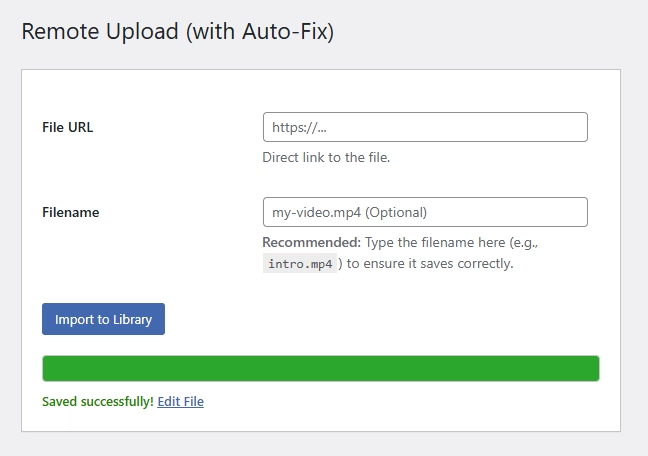
- The URL: Paste your direct file link.
- Example: https://xyz.com/xyz-sameformat/
- The Filename (Crucial Step): If your URL looks weird (like the example above with no .mp4), type the desired name in the “Rename File” box, such as intro-video.mp4.
- Click Import.
- Wait for the success message, then click the link to view your new media attachment.
Download the Ready-Made Plugin
Don’t want to mess with PHP files and code? We have packaged this script into a ready-to-install ZIP file for you.
Download Simple Remote Uploader (.zip)
(Note: Since this is a tutorial, you can simply copy the code above, save it as a .php file, and zip it yourself!)
Frequently Asked Questions (FAQs)
Does this work with large files?
Yes, but it depends on your server’s PHP Time Limit and Memory Limit. If you are trying to download a 2GB file on cheap shared hosting, the process might time out. It works best for files under 200MB on standard hosting.
Can I download videos from YouTube with this?
No. This plugin requires a direct file link (usually ending in .jpg, .zip, .mp4, etc.). YouTube URLs are web pages, not direct video files.
Is it safe to use?
Yes. The code uses WordPress nonces for security and checks that the user has administrator/upload permissions before running. It also uses WordPress’s native functions to handle the file safely.
Why do I need to rename the file?
WordPress relies heavily on file extensions to know how to treat a file. If you import a URL that ends in .sameformat or has no extension, WordPress might not treat it as a video. Renaming it ensures it gets registered correctly in the library.
Conclusion
Learning how to download media directly to WordPress is a game-changer for content heavy sites. By bypassing your local computer, you speed up your workflow and organize your files more efficiently.
Copy the code above, install the plugin, and start saving bandwidth today!
If you are interested in more plugins like this then check out how to update any elementor template with ajax.






2 Responses
I truly love your website.. Pleasant colors & theme.
Did you build this site yourself? Please reply back as I’m planning to create my own website and want to know where you got this from or exactly what the theme is called.
Appreciate it!
Hi there,
Thank you so much for your kind words, I really appreciate it.
Yes, I built the website myself using Elementor Pro along with the Hello Elementor theme. It’s a very flexible setup, which is why I was able to customize the design the way you see it.
If you’re planning to create your own site, I’d be happy to help. I can provide you with a ready-to-use template to get you started quickly.