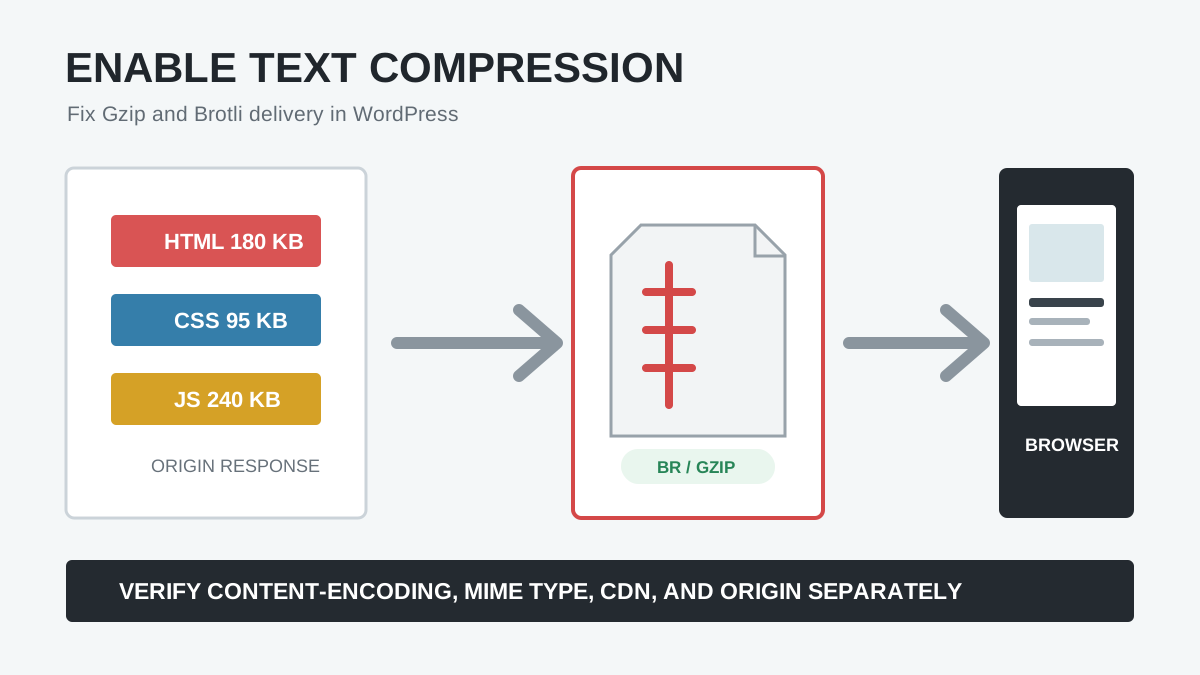
PageSpeed Insights may report that a WordPress response is not compressed, but the correct fix depends on where that response was served. HTML may come from PHP or a page cache, CSS and JavaScript may come from Apache, Nginx, or LiteSpeed, and a CDN such as Cloudflare may decompress and recompress content at the edge.
This guide explains how to enable Gzip or Brotli compression in WordPress, verify the actual response headers, and fix the responsible server layer without adding duplicate plugins or compressing file types that are already compressed.
Quick answer: Test the exact PageSpeed resource with an Accept-Encoding request header. If the response has Content-Encoding: br, gzip, or another supported encoding, it is compressed. If the header is absent on a large text response, enable compression at the layer that serves it: CDN, reverse proxy, web server, hosting panel, or page-cache system.
What Gzip and Brotli compression do
HTTP content compression reduces the bytes transferred for text-based responses while preserving their content. The browser advertises supported methods in Accept-Encoding; the server chooses one and reports it in Content-Encoding.

| Format | Use | Practical role |
|---|---|---|
| Gzip | Widely supported text compression | Reliable fallback across browsers and intermediaries |
Brotli (br) | Newer text compression with strong compression ratios | Often preferred over HTTPS when supported |
Zstandard (zstd) | Newer encoding supported by some CDN/browser paths | May be selected by Cloudflare depending on plan and rules |
A test that looks only for Gzip can report a false failure when Brotli or Zstandard is active. Read the actual header.
Compress text, not everything
- Compress HTML, CSS, JavaScript, JSON, XML, SVG, and plain text.
- Usually do not recompress JPEG, PNG, WebP, AVIF, MP4, ZIP, PDF, WOFF, or WOFF2; these formats already use compression or gain little.
- Skip very small responses when compression overhead exceeds the savings.
- Make sure the response has the correct MIME type, because servers commonly decide eligibility by
Content-Type.
Warning: Minification and compression are different. Minification removes unnecessary source characters; Gzip or Brotli encodes the transferred response. One does not prove the other is active.
1. Verify the exact response
Test the URL PageSpeed listed, not only the homepage. In Chrome DevTools, open Network, reload, select the resource, and inspect Response Headers. Look for:
content-encoding: br
vary: Accept-Encoding
content-type: text/css
You can also test from a terminal:
curl -I --compressed https://example.com/
curl -I -H "Accept-Encoding: gzip" https://example.com/style.css
curl -I -H "Accept-Encoding: br" https://example.com/app.js- No
Accept-Encodingrequest may correctly receive an uncompressed response. - A
304 Not Modified, redirect, range response, or error may behave differently from a normal200. - Very small files may be below a server or CDN minimum.
- A cached response may preserve old headers until purged.
2. Find which layer serves the file

| Resource | Likely serving layer | Where to fix |
|---|---|---|
| HTML document | PHP, page cache, reverse proxy, CDN | Host/cache/CDN compression |
| Theme or plugin CSS/JS | Apache, Nginx, LiteSpeed, CDN | Web server or CDN |
| Generated Elementor CSS | Uploads directory through web server/CDN | Static-file server rules and correct MIME type |
| External Google/analytics file | Third-party origin | The third party controls it |
| REST/JSON response | PHP/reverse proxy/CDN | Dynamic compression and proxy rules |
WordPress cannot reliably change headers for a static file that Nginx, LiteSpeed, or a CDN serves before PHP runs. Fix compression at the earliest layer that owns the response.
3. Enable compression in Cloudflare
Cloudflare can compress between the origin and its edge, and separately between the edge and visitor. Current Cloudflare documentation supports Gzip, Brotli, and Zstandard depending on browser support, plan, and Compression Rules.
- Open the domain in Cloudflare.
- Review Speed and Compression Rules.
- Ensure no rule disables compression for the affected path.
- Use the default Brotli/Gzip behavior or a deliberate custom order.
- Purge the affected cached URLs.
- Retest through the proxied hostname and directly against the origin when possible.
Cloudflare may decompress and recompress responses when transformations such as Rocket Loader, Polish, or other features modify content. The visitor-facing Content-Encoding is the important result for PageSpeed.
4. Enable Gzip on Apache
Apache commonly uses mod_deflate. Add rules only if the host allows .htaccess overrides and does not already manage compression:
<IfModule mod_deflate.c>
  AddOutputFilterByType DEFLATE text/html text/plain text/css
  AddOutputFilterByType DEFLATE application/javascript application/json
  AddOutputFilterByType DEFLATE application/xml image/svg+xml
</IfModule>

<IfModule mod_headers.c>
  Header append Vary Accept-Encoding
</IfModule>
Back up .htaccess first. A 500 error usually means a module or directive is unavailable. Restore the file and ask the host to enable compression. Apache Brotli requires server support such as mod_brotli; a WordPress plugin cannot install that module.
5. Enable Gzip or Brotli on Nginx
Nginx settings live in server configuration, not .htaccess. A typical Gzip configuration looks like:
gzip on;
gzip_vary on;
gzip_min_length 1024;
gzip_comp_level 5;
gzip_types text/plain text/css application/javascript application/json application/xml image/svg+xml;
Brotli requires the appropriate Nginx module or hosting implementation. Ask the host to configure and test it. Use conservative dynamic compression levels; extremely high levels can consume CPU and delay on-the-fly responses.
6. Check LiteSpeed and OpenLiteSpeed
LiteSpeed normally handles compression at the server or virtual-host level. Current OpenLiteSpeed documentation says the default Gzip and Brotli settings suit most installations.
- Confirm the server-level compression master switch is enabled.
- Confirm dynamic Gzip is enabled for generated HTML and JSON.
- Confirm Brotli is enabled for supported static resources.
- Review compressible MIME types and minimum file size.
- Check that a virtual-host setting does not override the server configuration.
- Purge LiteSpeed caches and retest the exact resource.
The LiteSpeed Cache WordPress plugin can expose relevant options, but the web server still needs the underlying capability. Avoid adding another Gzip plugin on top of server-managed compression.
7. Use cPanel or your hosting dashboard
Many shared hosts provide Optimize Website, Compression, or a similar control. Enable compression for text MIME types, then clear caches and verify headers. If the panel option is missing or ineffective, send the host the exact URL, request header, response headers, content type, and test time.
Tip: Ask the host which layer serves static files. On hybrid stacks, Nginx may serve CSS and JavaScript while Apache handles PHP, so an Apache rule can compress HTML but leave static assets untouched.
Should you use a WordPress Gzip plugin?
Prefer server, host, or CDN compression. A plugin may write supported Apache rules or toggle a host integration, but PHP-level output buffering is a weak fallback and cannot control static files served before WordPress.
- Do not install several cache plugins to enable the same feature.
- Do not assume an “enable Gzip†checkbox proves delivery.
- Verify HTML and at least one CSS, JavaScript, JSON, and SVG response.
- Keep one owner for page caching, minification, compression, and CDN rules.
Why compression still appears disabled
| Cause | Diagnosis | Fix |
|---|---|---|
| Wrong MIME type | CSS/JS served as generic binary | Correct server content-type mapping |
| CDN cached old response | Origin compressed, edge not compressed | Purge and inspect compression rules |
| File below minimum size | Small response lacks encoding | No fix needed if savings are negligible |
| Error or redirect response | Status is not normal 200 content | Test final successful URL |
| Already-compressed file | Image/font/video remains unencoded | Expected behavior |
Cache-Control: no-transform | Proxy/CDN avoids recompression | Review origin policy deliberately |
| Double compression | Corrupt response or decoding error | Let one layer encode the final body |
| Checker expects only Gzip | Response uses br or zstd | Read Content-Encoding directly |
Compression verification checklist
- Test with
Accept-Encoding: br, gzip. - Confirm
Content-Encodingon the final 200 response. - Confirm
Vary: Accept-Encodingwhere responses can differ. - Compare transferred size with resource size in DevTools.
- Test HTML, CSS, JavaScript, JSON, XML/SVG, and a non-compressible image.
- Test through the CDN and directly at the origin when possible.
- Purge page, server, and CDN caches after changes.
- Retest PageSpeed and confirm the exact warning resource is gone.
- Monitor CPU and response time after changing compression level.
Compression reduces text transfer size but does not remove unused code. For large Elementor stylesheets, also follow the guide to reduce unused CSS safely. If slow server response dominates LCP, use the Elementor LCP phase guide.
Success: Large text responses negotiate a supported encoding, show the correct content type and Vary behavior, transfer fewer bytes, remain error-free, and do not add meaningful server delay.
How to Fix “Enable Text Compression” in PageSpeed Insights
PageSpeed Insights reports this issue when a text resource—normally HTML, CSS, JavaScript, JSON, XML, or an SVG—arrives without a supported Content-Encoding response header. In current Lighthouse versions, this check may appear under the broader document request latency insight rather than as a standalone audit.
- Open the affected URL in Chrome DevTools. Select Network, reload the page, open the resource named by PageSpeed, and inspect Response Headers.
- Look for
content-encoding: br,gzip, orzstd. If one is present, that response is compressed. Do not add another compression layer. - Identify who served the uncompressed resource. A file from your own domain is controlled by your host, web server, cache, or CDN. A third-party script must be fixed by its provider or removed/replaced; a WordPress plugin cannot compress a file served from someone else’s domain.
- Enable compression at the correct layer. Use the Apache, Nginx, LiteSpeed, cPanel, or Cloudflare instructions in this guide. Prefer one authoritative layer rather than stacking several plugins and server rules.
- Purge every cache and retest. Clear the WordPress page cache, host cache, CDN cache, and browser cache. Then test the specific resource again before rerunning PageSpeed Insights.
Why the Warning Can Remain After You Enable GZIP
- The HTML is compressed, but a CSS, JavaScript, JSON, XML, or SVG MIME type is missing from the server rule.
- A CDN cache still contains the older uncompressed response.
- The reported file belongs to Google Fonts, analytics, advertising, chat, or another third party.
- A security rule, transformation, or proxy changes the response after the origin compresses it.
- The origin and CDN negotiate compression differently. Test both a normal browser request and, where possible, the origin directly.
Google recommends Brotli when the browser supports it and GZIP as a fallback. The reliable test is the response header, not a plugin’s “enabled” label. See the official Chrome text-compression audit documentation, Apache mod_deflate documentation, Nginx gzip module documentation, and Cloudflare compression documentation.
Frequently asked questions
Is Brotli better than Gzip for WordPress?
Brotli often compresses text more efficiently, while Gzip remains an important fallback. Use the method negotiated by the browser and supported efficiently by the server or CDN.
Does Cloudflare automatically compress WordPress?
Cloudflare compresses eligible responses according to browser support, plan, and Compression Rules. A rule, MIME type, status code, response size, or no-transform policy can change the result, so verify headers.
Should images be Gzip compressed?
Normally no. JPEG, PNG, WebP, AVIF, and video formats are already compressed. Optimize their dimensions, quality, and format instead.
Why does an online checker say Gzip is off when DevTools shows Brotli?
The checker may request or recognize only Gzip. Content-Encoding: br confirms Brotli compression; zstd confirms Zstandard.
Sources and further reading
- web.dev: HTML performance and compression
- Cloudflare content compression documentation
- Cloudflare Compression Rules settings
- OpenLiteSpeed compression documentation
- LiteSpeed Web Server compression documentation
Fix the layer that owns the response
The PageSpeed warning is solved when the visitor receives compressed text, not when a WordPress checkbox is enabled. Verify the exact response, identify its serving layer, configure compression once, purge caches, and test again.
For help tracing WordPress responses through hosting, LiteSpeed, Nginx, Apache, and Cloudflare, contact AbdullahWP or review the available WordPress performance services.





