A YouTube Channel ID is a unique identifier assigned to every YouTube channel. Unlike a channel name, handle, or custom URL, the Channel ID never changes and is often required by analytics tools, SEO platforms, marketing software, and channel management applications.
If you have a channel URL such as:
https://www.youtube.com/@PewDiePie
You may need to convert that handle URL into its underlying YouTube Channel ID. In this comprehensive guide, we will walk through every method available to find a Channel ID, whether you are looking up your own channel or someone else’s.
@pewdiepie) or custom URLs:
- Go to the channel page.
- Right-click and select View Page Source.
- Copy everything (
Ctrl+AthenCtrl+C). - Paste the source code below:
What Is a YouTube Channel ID?
A YouTube Channel ID is YouTube’s permanent identifier for a channel. It consists of a 24-character string of letters and numbers, almost always beginning with the letters UC.
Example:
UC_x5XG1OV2P6uZZ5FSs9Ttw
Every channel has exactly one unique ID. Even if a creator changes their:
- Channel name
- Handle
- Custom URL
- Branding or niche
The Channel ID remains exactly the same. It serves as the primary key in YouTube’s database, linking all videos, playlists, comments, and settings back to the creator account.
Why Do People Need a YouTube Channel ID?
Users commonly search for a YouTube Channel ID when they need to perform tasks that require precise integration with the YouTube ecosystem. Common scenarios include:
- Connecting channels to SEO tools: Platforms like Ahrefs, Semrush, or TubeBuddy use the Channel ID to retrieve accurate search engine visibility and performance metrics.
- Tracking channel analytics: Third-party reporting and visualization tools require the unique ID to query database metrics without risking confusion over changed handles.
- Verifying channel ownership: Content networks (MCNs) and sponsorship platforms use the ID to securely link accounts.
- Monitoring competitors: Tracking changes in competitor video counts, subscriber gains, or upload schedules.
- Importing YouTube data: Database administrators use it to fetch comments, live stream logs, or playlists via the YouTube Data API.
- Configuring automation software: Platforms like Zapier, Make (formerly Integromat), or custom scripts use Channel IDs as triggers for automated tasks (e.g., tweeting whenever a new video is published).
How to Find Your Own YouTube Channel ID
If you need to retrieve the unique identifier for the account you manage, YouTube provides two direct methods within your account settings.
Method A: Via YouTube Account Settings
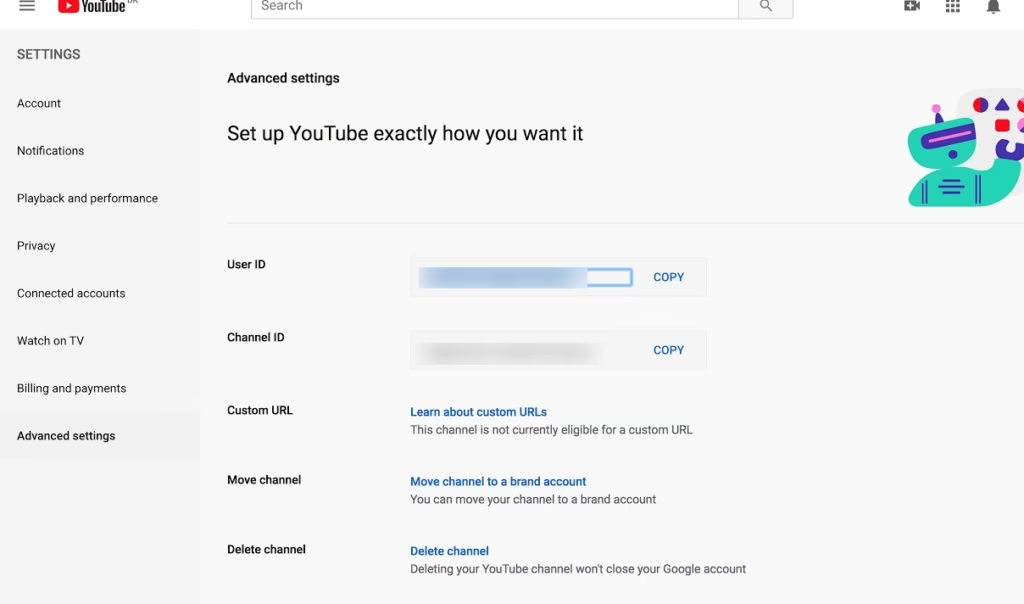
This is the most direct way to find your own Channel ID and User ID simultaneously. Follow these steps:
- Sign in to your account on the YouTube desktop site.
- Click on your profile picture in the top-right corner of the screen.
- Select Settings from the dropdown menu.
- On the left-side navigation menu, click on Advanced settings.
- Here you will see your User ID and your Channel ID.
- Click the Copy button next to the Channel ID to save it to your clipboard.
Method B: Via YouTube Studio
If you are already managing your content, you can access your ID through your creator dashboard:
- Go to YouTube Studio and sign in.
- On the left-side navigation panel, scroll down and click on Customization.
- Select the Basic info tab at the top of the page.
- Scroll down to the Channel URL section.
- You will see your standard channel URL containing your Channel ID (e.g.,
youtube.com/channel/UCxxxxxxxxxxxxxxxxxxxx). - Copy the ID sequence starting with UC.
How to Find Someone Else’s YouTube Channel ID
Because you cannot log into another creator’s account or view their YouTube Studio dashboard, you must rely on public-facing data to locate their Channel ID. This is useful for competitive research, influencer outreach, or API development. You can use several manual lookup methods or a dedicated extraction tool to find this information safely and legally.
Using the Page Source Method (Chrome, Firefox, Safari)
Every public YouTube page contains metadata within its raw HTML source code. You can locate another channel’s ID by inspecting this source data:
- Visit the target channel’s home page in your web browser.
- Right-click on any empty area of the page (do not click on a video or link) and select View Page Source. Alternatively, use the keyboard shortcut
Ctrl + U(Windows) orCmd + Option + U(Mac). - Once the page source opens in a new tab, open the search bar by pressing
Ctrl + F(Windows) orCmd + F(Mac). - Type
channelIdorexternalIdinto the search box. - Locate the matching line, which will typically look like this:
"channelId":"UCxxxxxxxxxxxxxxxxxxxx"or"externalId":"UCxxxxxxxxxxxxxxxxxxxx". - Copy the 24-character string starting with UC.
Find YouTube Channel ID Without YouTube Studio
You do not need access to YouTube Studio to find a Channel ID. If you are browsing on a mobile device, a work computer where you aren’t signed in, or if you simply prefer a quicker workflow, you can bypass Studio entirely using browser developer tools.
The “Inspect Element” Method
Inspect Element allows you to search live page elements on the page without loading the entire raw source document.
- Open the YouTube channel page in your browser.
- Right-click anywhere on the page and select Inspect or Inspect Element.
- Press
Ctrl + F(Windows) orCmd + F(Mac) inside the Developer Tools console that appears. - Search for
channelId. - The console will highlight the meta tags containing the ID. Look for a line resembling:
<meta itemprop="channelId" content="UCxxxxxxxxxxxxxxxxxxxx">
- Double-click the value to copy the Channel ID directly.
Find YouTube Channel ID from Handle
In late 2022, YouTube introduced handles (e.g., @username) to make it easier for creators and viewers to find and connect with each other. While handles are great for branding, they can complicate API queries and third-party software setups that require the database ID.
To convert a handle to a Channel ID, you can use the canonical URL trick inside the page source:
- Navigate to the handle URL, such as
https://www.youtube.com/@pewdiepie. - Right-click and choose View Page Source.
- Search for the term
canonical. - You will locate a link element that looks like this:
<link rel="canonical" href="https://www.youtube.com/channel/UC_x5XG1OV2P6uZZ5FSM9Ttw">
- The URL inside the canonical link contains the permanent Channel ID after the
/channel/path.
Find YouTube Channel ID from URL
YouTube has used several different URL formats over the years. Depending on when a channel was created and how its settings were configured, the format of the URL will vary. Here is how to find the Channel ID from each URL variant.
1. Standard Channel URL
The standard URL contains the Channel ID directly. If you have this format, no lookup is necessary.
Example: https://www.youtube.com/channel/UC_x5XG1OV2P6uZZ5FSM9Ttw
The Channel ID is the string UC_x5XG1OV2P6uZZ5FSM9Ttw directly following the /channel/ directory.
2. Handle URL
A handle URL uses an “@” symbol followed by a unique identifier chosen by the creator.
Example: https://www.youtube.com/@pewdiepie
Because this URL contains the handle rather than the ID, you must use one of the lookup methods outlined in this guide (such as the Page Source search or an extraction tool) to find the ID.
3. Legacy Custom URL
Older channels may have a custom URL utilizing the /c/ directory or a direct path.
Example: https://www.youtube.com/c/creatorname
Like handles, these custom paths do not display the ID. To resolve this URL, view the page source of the link and search for channelId.
4. Legacy Username URL
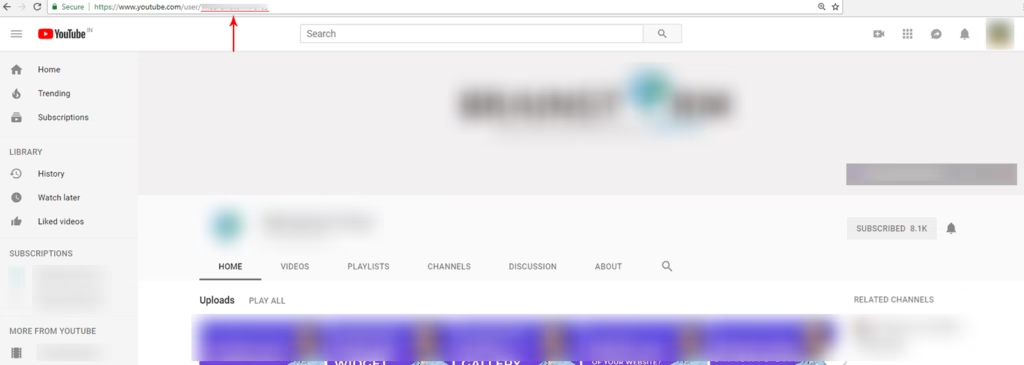
Very old channels (created before 2013) may still have URLs that reference their original account username using the /user/ directory.
Example: https://www.youtube.com/user/username
You can find the underlying ID for these legacy accounts by visiting the page source or passing the URL through a lookup tool.
Method 1: Use a YouTube Channel ID Finder Tool
The easiest and most common method is using a YouTube Channel ID Finder tool. These web-based applications query public YouTube data to instantly return the unique ID without manual searching.
- Copy the channel URL or handle from your browser’s address bar.
- Paste the URL into the search box of a reliable Channel ID Finder tool.
- Click the Extract or Find button.
- Copy the resulting Channel ID.
This automated approach works with almost all URL variants, including:
youtube.com/@handleyoutube.com/c/customnameyoutube.com/user/legacynameyoutube.com/channel/UCxxxxxxxxxxxxxxxxxxxx
Advanced Method: Resolving Channel IDs via the YouTube API (for Developers)
If you are building an application, software script, or automation workflow, resolving Channel IDs manually is impractical. Instead, you can use the YouTube Data API v3 to convert handles or usernames into Channel IDs programmatically.
Using the channels.list Endpoint
You can retrieve channel details by sending an HTTP GET request to the YouTube API. You will need an API key from the Google Cloud Console.
To resolve a handle:
Send a request to the channels endpoint using the forHandle parameter:
GET https://www.googleapis.com/youtube/v3/channels?part=id&forHandle=@piwdiepie&key=YOUR_API_KEY
To resolve a legacy username:
Use the forUsername parameter instead:
GET https://www.googleapis.com/youtube/v3/channels?part=id&forUsername=legacyusername&key=YOUR_API_KEY
The API response will return a JSON object containing the ID in the following structure:
{
  "kind": "youtube#channelListResponse",
  "etag": "...",
  "pageInfo": {
    "totalResults": 1,
    "resultsPerPage": 1
  },
  "items": [
    {
      "kind": "youtube#channel",
      "etag": "...",
      "id": "UC_x5XG1OV2P6uZZ5FSM9Ttw"
    }
  ]
}
Understanding the Differences: Handle vs. Username vs. Custom URL vs. Channel ID
The table below summarizes the differences between the various identifiers used on the YouTube platform.
| Identifier Type | Example Format | Can Be Changed? | Uniqueness | Primary Purpose |
|---|---|---|---|---|
| Channel ID | UC_x5XG1OV2P6uZZ5FSM9Ttw | No | 100% Unique | Database operations, API calls, tool integrations. |
| Handle | @pewdiepie | Yes | 100% Unique | Modern user-friendly navigation, tagging, and social sharing. |
| Channel Name | My Awesome Channel | Yes | Not Unique | Public display name visible on videos and search. |
| Custom URL (Legacy) | youtube.com/c/creatorname | Yes | 100% Unique | Older branded short link format (phased out for handles). |
| Username (Legacy) | youtube.com/user/username | No | 100% Unique | Early accounts identifier (no longer assigned to new channels). |
Troubleshooting Common Issues
1. “I searched for ‘channelId’ in the page source but found multiple different values.”
This is common because YouTube pages load recommendations and links to other channels (like featured channels or recommended videos). To find the correct ID for the main channel you are viewing, ensure you are looking at the value linked to the canonical tag, or look for the first instance of externalId or itemprop="channelId" in the metadata header block near the top of the file.
2. “I am trying to find the ID of a Brand Account. Is it different?”
A Brand Account functions exactly like a personal channel from a data perspective. It will have its own unique Channel ID starting with UC. You can find it using any of the methods described above.
3. “Can I find a Channel ID on the YouTube mobile app?”
The mobile app does not show the Channel ID in settings or on a channel’s profile directly. To get the ID on a mobile device, tap the three dots in the top-right corner of the channel page, select Share, choose Copy Link, and paste that link into a mobile web browser or a lookup tool.
Frequently Asked Questions
Can I find a Channel ID from a handle URL?
Yes. Every handle maps to exactly one permanent YouTube Channel ID. You can extract it using page source inspection or lookup tools.
Can a YouTube Channel ID change?
No. Once created, a YouTube Channel ID is permanent. Even if you change your channel name, transfer ownership, or switch to a Brand Account, the ID remains the same.
Can I find someone else’s Channel ID?
Yes. Because Channel IDs are public metadata, anyone can view another creator’s ID using browser tools or online lookup engines.
Is the Channel ID the same as a User ID?
No. A User ID is linked to your Google Account profile, whereas a Channel ID is linked specifically to your YouTube channel. A single Google User ID can technically manage multiple Channel IDs.
How long is a YouTube Channel ID?
A standard YouTube Channel ID is 24 characters long and typically starts with the letters “UC”.
Conclusion
Whether you’re working with analytics software, SEO tools, marketing platforms, or channel management systems, knowing how to locate a YouTube Channel ID can save time and prevent setup errors. While manual methods such as Inspect Element and View Page Source are reliable, a dedicated extraction tool or the YouTube API is typically the most efficient option for active creators and developers.





